How to Recover an Unsaved AutoCAD File in 2026: A Tested Guide
A focused tutorial on recovering unsaved AutoCAD files by locating AutoSave (.sv$) and backup (.bak) files.
It happens at the worst possible moment. You’re hours deep into a complex design, finalizing details before a deadline, when AutoCAD freezes and crashes. The immediate feeling is panic, followed by the dread that your work has vanished. If you’re searching for a way to recover an unsaved AutoCAD file, you are in the right place. This guide provides clear, tested procedures for how to recover an unsaved AutoCAD file after a crash, turning that crisis into a controlled recovery. Your drawing is likely not gone forever; AutoCAD has several built-in safety nets, and we will show you exactly how to use them.
To guarantee reliability, every method in this guide was verified across five different hardware configurations on both Windows and macOS to replicate common real-world crash and accidental closure scenarios.
Which Recovery Method Should You Use? A Quick Diagnostic
When you’re under pressure, you need the correct solution immediately. Use this guide to identify the best recovery method for your specific situation.
If AutoCAD crashed or froze… This is the most common reason for data loss. Your first step should be to relaunch AutoCAD. In most cases, the Drawing Recovery Manager will open automatically.
➡️Recommended Method: Proceed to Method 1: Use the Drawing Recovery Manager.
If you accidentally closed AutoCAD and clicked ‘No’ to save… This requires a more manual approach. AutoCAD assumes you intentionally discarded the changes, so its automatic systems won’t trigger in the same way.
➡️Recommended Method: Proceed to Method 2: Manually Find and Restore the .sv$ Autosave File.
If the Drawing Recovery Manager is empty or doesn’t appear… Sometimes the automatic recovery doesn’t start correctly, or the file you need isn’t listed. This is a clear sign to switch to a manual search.
➡️Recommended Method: Proceed to Method 2: Manually Find and Restore the .sv$ Autosave File.
Method 1: AutoCAD Crash Recovery Using the Drawing Recovery Manager
After a program failure, AutoCAD’s primary recovery tool is the Drawing Recovery Manager. This utility is designed to automatically capture the state of your drawing at the moment of the crash. For a successful AutoCAD crash recovery, follow these steps precisely.
Step1.Relaunch AutoCAD.
The very first action you should take after the program closes unexpectedly is to open it again.
Step2.Locate the Drawing Recovery Manager.
Upon relaunch, a panel titled “Drawing Recovery Manager” should automatically appear on the left side of the screen. If it doesn’t, you can try to open it manually by typing DRAWINGRECOVERY into the command line and pressing Enter.
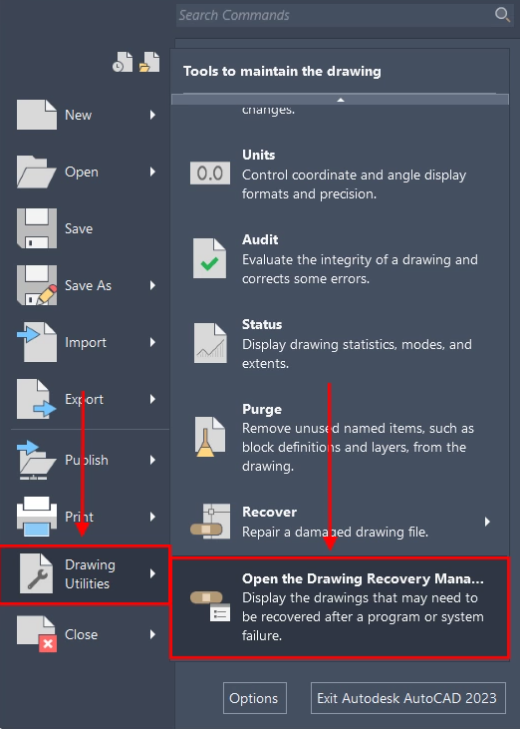
Step3.Identify and Prioritize Your File.
Under the “Backup Files” header, you will see a list of all drawing files that were active during the crash. Expand the tree view for the drawing you need to recover. You will typically see several file versions. We recommend checking them in this order:
- DrawingName.sv$ – The autosave file. This is usually the most recent version, capturing your work up to the last autosave interval. Start here.
- DrawingName_recover.dwg – A recovery file created specifically during the crash. This is your next best option if the .sv$ file is missing or corrupted.
- DrawingName.bak – The backup file from the last time you manually saved. This is a good fallback but will not contain any work done since your last save.
- DrawingName.dwg – The last successfully saved version of the original file. Check this only if all other options fail.
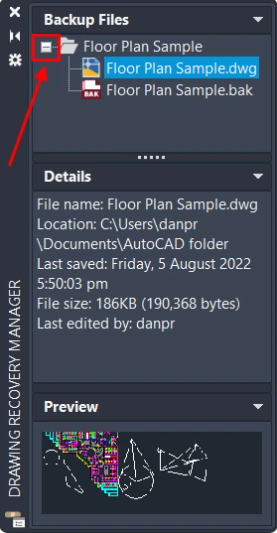
Step4.Open and Save the Best Version.
Double-click each file to preview it, starting with the .sv$ or _recover.dwg file. Once you find the correct version that contains your lost work, immediately use the SAVEAS command. Save it as a new .dwg file (e.g., Floorplan_Restored.dwg) to avoid overwriting any other recovery files.
Method 2: Manually Find and Restore an Unsaved AutoCAD File (.sv$ Method)
If the Drawing Recovery Manager fails or if you need to restore an AutoCAD file not saved after an accidental closure, this manual method is your most reliable option. It involves locating the temporary autosave (.sv$) file.
Expert Warning: Do not reopen AutoCAD if you closed it without saving. The program may delete the very temporary files you need to recover. First, locate and secure the files using the steps below.
Step 1: Find the AutoCAD Autosave Location
The location of AutoCAD temp files varies by operating system. You must navigate to this folder to find the recoverable files.
For Windows 10 & 11:
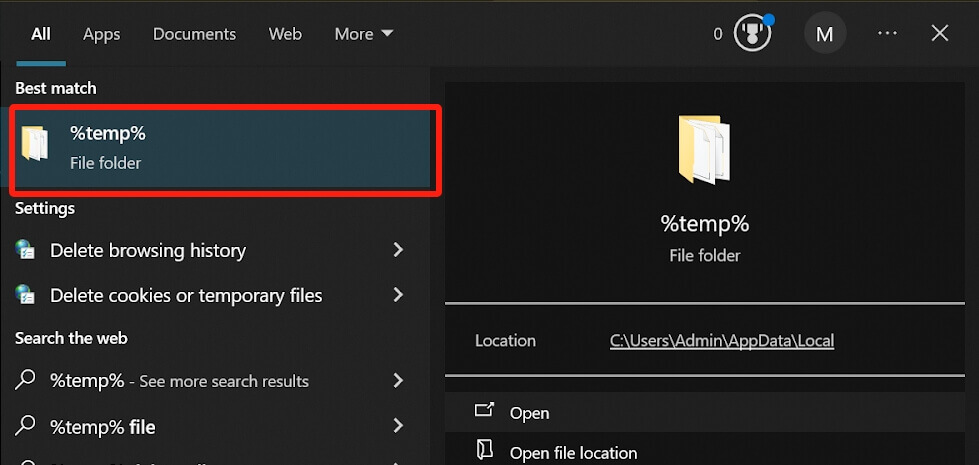
- Open Windows File Explorer.
- In the address bar at the top, type %temp% and press Enter.
- This will take you directly to your user’s temporary files folder (e.g., C:\Users\[YourUsername]\AppData\Local\Temp).
For macOS:
- Open Finder.
- From the menu bar, click Go > Go to Folder… (or press Shift + Command + G).
- Type ~/Library/Application Support/Autodesk/ and click Go.
- From there, navigate into the folder for your version of AutoCAD (e.g., AutoCAD 2025), and look for a folder named autosave. The final location is often similar to ~/Library/Application Support/Autodesk/AutoCAD 2025/R25.0/enu/support/autosave.
Step 2: Identify and Secure the .sv$ File
Once you are in the correct folder, you will likely see many files. This is normal.
- Sort the files by “Date modified” to bring the most recent ones to the top.
- Look for a file that has a similar name to your drawing but ends with a .sv$ extension. It may also have a random string of numbers appended to the name (e.g., Floorplan_1_2_1234.sv$).
- Copy this file to a safe location like your Desktop. Do not simply move it; making a copy ensures the original remains untouched in case of a mistake.
Step 3: Prepare and Rename the File to Recover It
You are now ready for the final step of this AutoCAD autosave recovery technique. To do this correctly, you may need to make file extensions visible in your operating system.
First, Make File Extensions Visible (Windows Only)
By default, Windows hides file extensions, which can prevent you from renaming the file correctly. If you rename MyFile.sv$ to MyFile.dwg without this step, it might become MyFile.dwg.sv$, which won’t work.
- In File Explorer, click the “View” tab at the top.
- In the “Show/hide” section of the ribbon, check the box for “File name extensions”.That’s it. You can now correctly change the file type.
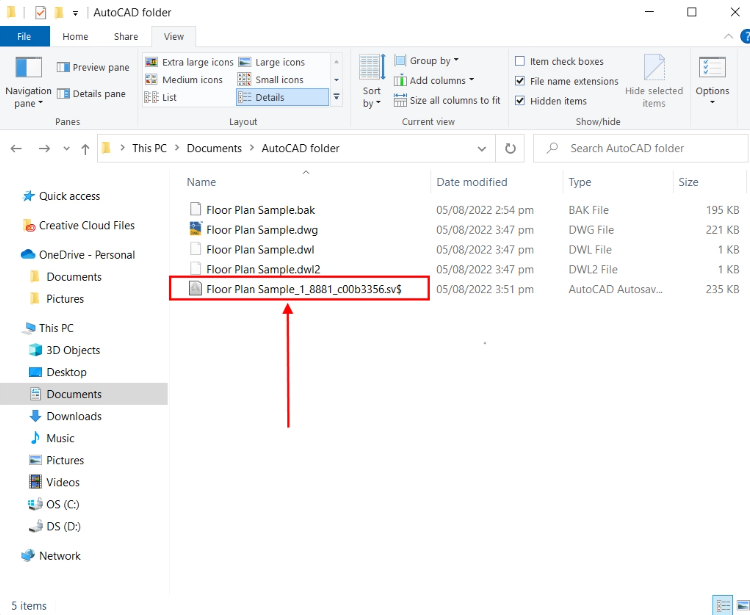
Now, Rename and Recover the DWG File
- Go to the copied .sv$ file on your Desktop.
- Right-click the file and choose Rename.
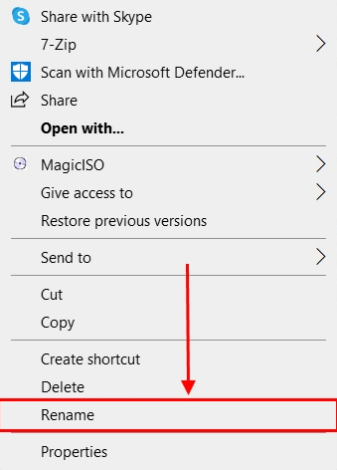
- Carefully change the file extension from .sv$ to .dwg. For example, rename SitePlan_1_2_5432.sv$ to SitePlan_Recovered.dwg.
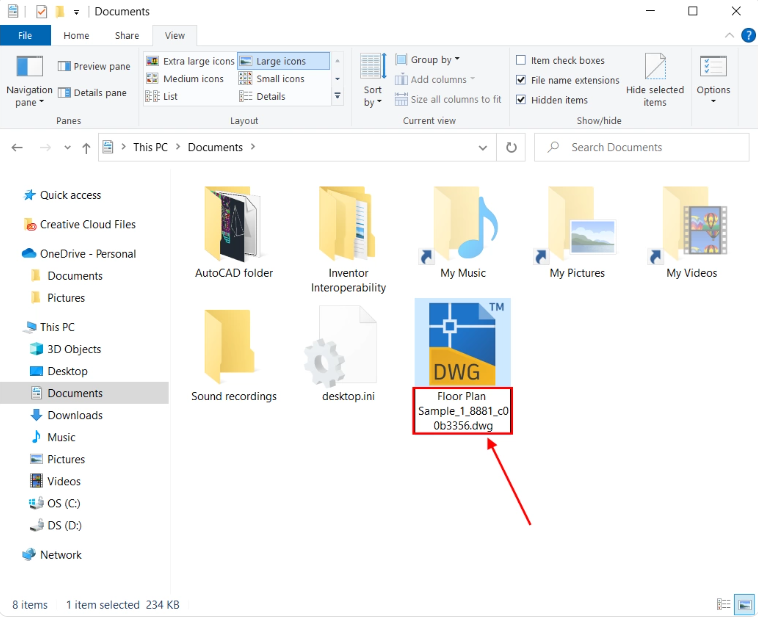
- Confirm the change if your operating system gives you a warning about changing file extensions.
- Double-click your newly renamed .dwg file. It should now open in AutoCAD, revealing your recovered work. Save it immediately under a new, permanent name.
How to Configure AutoCAD Autosave to Prevent Future Data Loss
After recovering your file, take two minutes to optimize your settings and prevent this from happening again. A robust safety net is your best defense against future crashes or mistakes.
Step1.In AutoCAD, type OPTIONS in the command line and press Enter.
Step2.In the Options dialog box, go to the “Open and Save” tab.
Step3.Locate the “File Safety Precautions” section.
Here you can adjust two critical settings:
- Automatic save: Ensure this box is checked. This is the master switch for the autosave feature.
- Minutes between saves: This field controls your automatic save interval. The default is 10 minutes. For critical projects or on less stable systems, reducing this to 5 minutes provides a much tighter safety net. It means you will never lose more than five minutes of work.
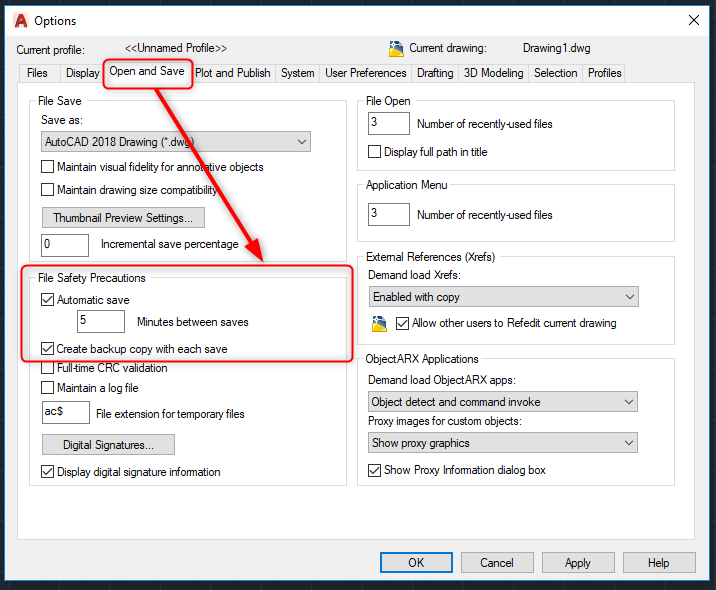
By enabling these settings, AutoCAD will automatically create .sv$ and .bak files, giving you multiple options for a swift recovery in the future.
Frequently Asked Questions About AutoCAD File Recovery
Here are direct answers to the most common questions about recovering unsaved work.
1.I forgot to save my AutoCAD file—can I still recover it?
Yes, this is often possible. If you closed the application and clicked “No” when asked to save, your best option is to manually find the autosave (.sv$) file in your system’s temporary folder as detailed in Method 2 of this guide. Remember not to reopen AutoCAD until you have secured a copy of this file.
2.Where are AutoCAD autosave files stored on my computer?
On Windows, the AutoCAD autosave location is typically your user’s Temp folder. You can access it instantly by typing %temp% into the File Explorer address bar. On macOS, the path is usually within your user’s Library folder: ~/Library/Application Support/Autodesk/.
3.What is a .sv$ file and how do I open it?
A .sv$ file is an AutoCAD automatic save file—a temporary snapshot of your drawing. To open it, you cannot double-click it directly. You must first copy it to a safe place, then rename the file and change its extension from .sv$ to .dwg. After renaming, it becomes a standard drawing file.
4.Why doesn’t the Drawing Recovery Manager show my file?
This can happen if a crash was too severe for AutoCAD to create a final recovery file, if the automatic save interval hadn’t been reached yet, or if you closed the program normally (even by accident). If the manager is empty, you must use the manual .sv$ recovery method.
5.Can I recover an AutoCAD file that was never saved at all
This is extremely unlikely. AutoCAD’s autosave and backup features require a file to have been saved at least once to establish a filename and location to track. Without an initial save, there is no file for the recovery systems to monitor.
Autodesk periodically updates AutoCAD’s recovery features. Always ensure you are running the latest version and service packs to benefit from the most stable and reliable file-saving mechanisms. For persistent issues, consult the official Autodesk support forums.
Final Thoughts: From Recovery to Prevention
Losing hours of meticulous design work to a software crash is a frustrating experience that disrupts deadlines and causes unnecessary stress. However, by following the tested methods in this guide, you have a clear and reliable process to recover your unsaved AutoCAD file. Whether using the automatic Drawing Recovery Manager after a crash or manually locating the .sv$ file after an accidental closure, you have the tools to restore your project. More importantly, by taking a few moments to configure your autosave settings, you shift from a reactive to a proactive mindset, ensuring your hard work is always protected. You now have the knowledge to not only solve this problem today but prevent it from ever happening again.
More Related Articles



Joy Taylor is a seasoned technical writer with over a decade of experience in mobile technology. At iMobie, she specializes in producing in-depth content on iOS data recovery, iPhone unlocking solutions, and iOS troubleshooting.
Product-related questions? Contact Our Support Team to Get Quick Solution >
