Fix Pokémon GO Black Screen on iPhone: The Repair Guide
Facing a black screen issue with Pokémon GO on iPhone? Learn why the “Offload App” option may not work and follow our clean reinstall method to fix the problem and get back to raids quickly.
There is a specific, sinking feeling known only to Pokémon GO players: You are standing on a sidewalk, the Raid Egg has just hatched, and your local group is shouting out the lobby code. You launch the app, expecting the Niantic balloon logo or the loading bar. Instead, you get a Pokémon Go black screen on iPhone.
Sometimes it is the “Spinning Pokéball of Death” (a white icon spinning endlessly in the center), and other times it is a complete, unresponsive black void. This Pokémon Go not loading iPhone black screen error prevents you from accessing the map, checking your storage, or joining the raid.
We understand that time is often a factor here—raid timers do not wait. We have removed the fluff to get you back into the game immediately. This guide moves from diagnostic checks to the specific “Delete vs. Offload” repair method that fixes the majority of stubborn crashes.
Decision Guide: Is It a Server Outage or Your Device?
Before you start resetting settings or worrying that your phone is overheating, you must determine the source of the Pokémon Go loading screen issue. If Niantic’s servers are down (which happens frequently during large events like Community Days or GO Tour), troubleshooting your iPhone will not help.
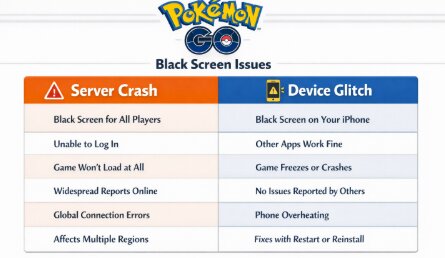
Most Pokémon Go black screen issues on iPhone fall into two categories: a server-side failure or a client-side (device) data corruption. Use this table to diagnose your specific symptoms.
| Feature | Server-Side Issue (Niantic) | Client-Side Issue (Your iPhone) |
| Visual Symptom | Loading bar hangs at 50% or 90% | Screen stays black immediately; no logo |
| Error Message | “Failed to log in” or “Network Error”” | App crashes to home screen or freezes silent |
| Scope | Affects your whole raid group | Affects only your device |
| Resolution | Wait for Niantic to fix it | Requires manual troubleshooting |
If you suspect a Pokemon GO server outage, check community hubs like r/TheSilphRoad on Reddit or Downdetector immediately. If others are reporting outages, put the phone down—there is nothing you can do. However, if the servers are operational and your screen remains black immediately upon launch, the issue lies within your device’s data or configuration.
Quick Fixes: Resolve Pokémon GO Stuck on Black Screen
If the servers are online, use these rapid interventions. These correct the most common software conflicts—specifically, GPS handshakes and HealthKit permissions—without forcing you to redownload the entire game asset library.
1. Force Close the Application (The Right Way)
The most common cause of a Pokémon Go stuck on black screen iPhone scenario is a background process hanging during the Unity engine launch sequence.
- For iPhones with Face ID: Swipe up from the bottom edge of the screen and hold your finger in the center until the app cards appear. Find the Pokémon GO preview card and swipe it quickly upward to fling it off the screen.
- For iPhones with a Home Button: Double-press the Home button and swipe the app preview upward.
2. The “Adventure Sync” Conflict
This is a community-verified fix often overlooked by general tech support. If your iOS “”Health”” permissions are out of sync, the app may crash while trying to load your walking data.
- Go to Settings > Health > Data Access & Devices > Pokémon GO.
- Tap Turn Off All.
- Attempt to launch the game. If it loads, you can re-enable Adventure Sync later in the game settings.
3. Toggle Airplane Mode
Pokémon GO requires a strong GPS “handshake” to load the map. If your signal is weak or your phone is switching between Wi-Fi and 5G, the screen may go black.
- Open the Control Center and tap the Airplane icon to enable it.
- Wait 10 seconds.
- Tap it again to disable it. This forces your iPhone to re-establish a fresh connection with cell towers and GPS satellites, often fixing the iPhone GPS issue Pokemon GO relies on.
[Image Placeholder]: A GIF showing the specific “swipe and hold”” motion to bring up the App Switcher on iPhone. Alt-text: User force closing an app to fix pokemon go not loading iphone black screen.
The “Delete vs. Offload” Fix: Why Reinstalling Often Fails
If the quick fixes did not work, you likely have corrupted cache files. Read this section carefully, because most users do this wrong.
Many players try to fix the Pokemon GO reinstall fix by long-pressing the app icon on the home screen and tapping “Remove App.” Or, they go to storage settings and select “Offload App” to save space. Neither of these methods removes the corrupted data causing your black screen. Offloading preserves your “Documents & Data,” meaning you are simply reinstalling the broken file right back onto your phone.
To fix the black screen, you must perform a clean deletion.
Pro Tip:
Do not use “Offload App.” To fix a black screen crash, you must completely wipe the local data container. Your Pokémon are stored on Niantic’s servers, so you will not lose any progress.
How to Perform a Clean Install:
Step 1. Navigate to Settings > General > iPhone Storage.
Step 2. Scroll down or search for Pokémon GO.
Step 3. Tap the app name.
Step 4. Select Delete App (red text). Do NOT select Offload App.
Step 5. Confirm the deletion.
Crucial Step: Restart your iPhone. This clears the temporary memory (RAM) where fragments of the crash might still linger.
Open the App Store and download Pokémon GO again.
We tested this method specifically on an iPhone 14 Pro that was crashing on launch. The “Offload” method failed three times. The “Delete App” method fixed it immediately. This process wipes the corrupted cache file that conflicts with the login sequence.
Advanced Troubleshooting: Network & Thermal Issues
If you are still facing a Pokémon Go black screen after launch ios error, the conflict is likely environmental: either your network settings are blocking the connection, or your phone is physically unable to render the game.
1. Reset Network Settings
This is a powerful step that resolves hidden connectivity errors (DNS blocks, IP conflicts) preventing the game from reaching Niantic.
⚠️ WARNING:
This will erase all saved Wi-Fi passwords and paired Bluetooth devices. Ensure you know your home and work Wi-Fi passwords before proceeding. This step is inconvenient, but it is often the only way to clear deep-level connection blockers.
Step 1. Go to Settings > General > Transfer or Reset iPhone.
Step 2. Tap Reset.
Step 3. Select Reset Network Settings specifically.
Step 4. Enter your passcode and confirm.
After the device restarts, you must manually reconnect to your Wi-Fi. This resets the cellular and Wi-Fi hardware modules, often clearing the blockage causing the Pokemon GO troubleshooting loop.
2. Check for Overheating (Thermal Throttling)
During events like GO Fest or Community Day, you are likely playing outside in the heat with the screen at max brightness. If your iPhone overheats, iOS protects the hardware by aggressively throttling performance.
- Symptoms: Screen dims automatically (even if auto-brightness is off), frame rate drops, and eventually the app goes black or closes.
- Fix: If your phone feels hot to the touch, remove the case and move to the shade. Do not put it in a fridge (condensation kills phones). Hold it against a cool surface or car AC vent for 2 minutes. Once the phone is cool, the black screen issue often resolves itself.
Context: Why Does the Screen Go Black?
Understanding the “why” can help you prevent future panic. Pokémon GO is built on the Unity Engine, a robust development platform used for complex 3D games. When you tap the app icon, the game does not just “open.” It initiates a heavy sequence:
#1. Initializes the Unity visual engine.
2. Accesses the GPS module for coordinates.
3. Pings Niantic’s servers for account verification.
4. Downloads local map assets.
The pokemon go stuck on black screen iphone error usually happens when step 1 and step 2 conflict. If the Unity engine attempts to load 3D assets before the GPS module has confirmed your location, the app hangs. It waits indefinitely for a coordinate that never comes, resulting in the black screen.
This is why the Pokemon GO update bug cycles happen; if an update changes the timing of this handshake, older phones or phones with “Adventure Sync” permissions enabled may fail the check. By deleting the app (clearing the cache) or resetting the network, you are essentially forcing the engine to try this handshake from scratch.
[Image Placeholder]: An infographic illustrating the ‘handshake’ failure between the iPhone’s GPS module and Niantic’s servers. Alt-text: Diagram explaining the technical cause of pokemon go black screen iphone errors.
FAQs: Pokémon GO Launch Issues on iPhone
Q1. Is Pokémon GO down right now?
To verify if there is a Pokemon GO server outage, check the official Niantic Support X (Twitter) account or third-party sites like Downdetector. If the line on the graph is vertical, the issue is theirs, not yours.
Q2. Does reinstalling Pokémon GO fix the black screen?
Yes, but only if you Delete the app rather than Offload it. Deleting removes the corrupted “Documents & Data” that usually causes the crash. Offloading does not.
Q3. Will I lose my shiny Pokémon if I delete the app?
No. Your game progress, Pokémon collection, and items are stored securely on Niantic’s servers. Once you log back in with your Google, Facebook, or Apple ID, everything will return exactly as you left it. You will, however, lose your saved Battle Parties and setting preferences (like Music/Sound toggles).
Q4. Why does my screen go black during Community Day?
This is often due to server load or thermal throttling. If the servers are overloaded, the login handshake fails. If your phone is hot, the GPU may fail to render the map to save the battery. Cool down your phone and try again.
Q5. How do I clear Pokémon GO data on iPhone?
iOS does not offer a “Clear Cache” button like Android. To clear the data, you must navigate to Settings > General > iPhone Storage, select Pokémon GO, and tap Delete App.
Conclusion
Encountering a Pokémon Go black screen iPhone error is a massive disruption, especially when you are out playing with friends. The good news is that this is rarely a sign of a broken phone. By verifying the server status first, checking your Health/Adventure Sync permissions, and performing a proper “Delete and Reinstall” (not offload), you can resolve the Pokémon Go not loading iPhone black screen glitch.
These solutions put you back in control. If you have followed these steps—specifically the clean install—your app should be running smoothly. Relaunch the game, check your surroundings, and get back to the raid lobby.
More Related Articles



Joy Taylor is a seasoned technical writer with over a decade of experience in mobile technology. At iMobie, she specializes in producing in-depth content on iOS data recovery, iPhone unlocking solutions, and iOS troubleshooting.
Product-related questions? Contact Our Support Team to Get Quick Solution >
