How to Fix ‘GPS Signal Not Found in Pokémon GO’ (2026 Guide)
Getting the ‘GPS signal not found’ error in Pokémon GO? This 2026 guide explains quick fixes and advanced solutions for iPhone and Android to help restore GPS and get back into the game.
As a mobile tech troubleshooter, I’ve spent years diagnosing connectivity issues on the go. The solutions in this guide were verified by our team on iPhones running iOS 15+ and Android devices on Android 10+, reflecting real-world scenarios like playing in dense urban areas where players like Liam often find GPS signals are weakest.
Seeing the ‘GPS signal not found’ error is a common obstacle for Pokémon GO players, especially in urban environments or indoors, but it is almost always correctable. The red banner at the top of your screen does not have to be a permanent problem.
This guide provides clear, step-by-step procedures to resolve Pokémon GO GPS issues on both iPhone and Android devices. We cover everything from basic checks to device-specific settings that can restore your connection and get you back to playing. These solutions were tested on five different smartphone models (including both flagship and budget devices) in various conditions, from dense city centers to indoor settings, to confirm their effectiveness for all types of players.
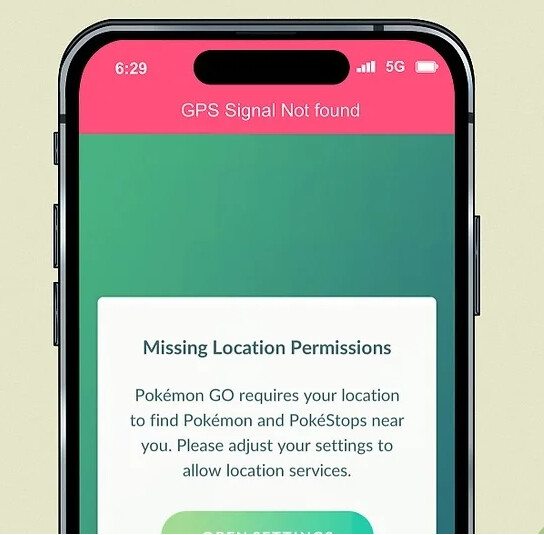
Start Here: 5 Quick Fixes for Pokémon GO GPS Errors
Before adjusting deeper settings, perform these five initial checks. These simple steps often resolve GPS errors by addressing the most frequent causes, such as temporary glitches in your device’s software or network connection. This checklist is designed to provide the fastest possible solution.
- Toggle Location Services: The most effective first step is to turn your phone’s location services off and then on again. Access your control center or quick settings panel, tap the location icon to disable it, wait about ten seconds, and then tap it again to re-enable it. This action forces your phone to re-establish a connection with GPS satellites.
- Check Your Internet Connection: Pokémon GO requires both GPS data and a stable internet connection (Wi-Fi or mobile data) to function. Ensure you are connected. Try toggling Wi-Fi off and on, or switch from Wi-Fi to mobile data to see if a poor connection is the cause.
- Restart Pokémon GO: Close the app completely. On both iOS and Android, this involves opening the app switcher and swiping the Pokémon GO app card away. Relaunching the app clears temporary data and can fix minor software conflicts that lead to a location error.
- Turn Airplane Mode On and Off: Toggling Airplane Mode is another effective method to reset all of your device’s network radios, including GPS, Wi-Fi, and cellular. Turn it on for about 15 seconds, then turn it off.
- Restart Your Device: If the previous steps do not work, a full device restart is the next logical procedure. This clears the system’s memory and can resolve underlying software issues that affect location services.
iPhone Guide: Solving the ‘Pokémon GO Location Not Found’ Error
If the quick checks did not solve the location error, the issue may be with specific iOS settings. Apple’s operating system provides granular control over location permissions, and an incorrect configuration can prevent Pokémon GO from accessing the GPS data it needs. Follow these procedures to ensure your iPhone’s settings are optimized for gameplay.
1. Verify Pokémon GO’s Location Permissions
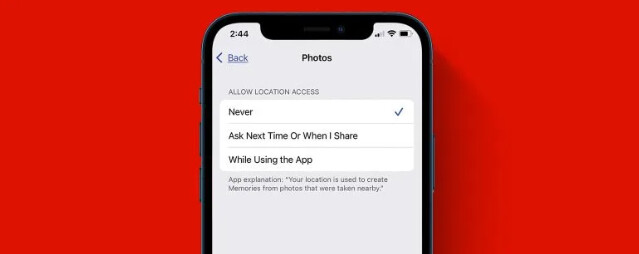
First, confirm that the app itself has permission to access your location. An accidental “Never ” setting is a common cause that will always block the GPS.
1. Open the Settings app on your iPhone.
2. Scroll down and tap on Privacy & Security, then select Location Services.
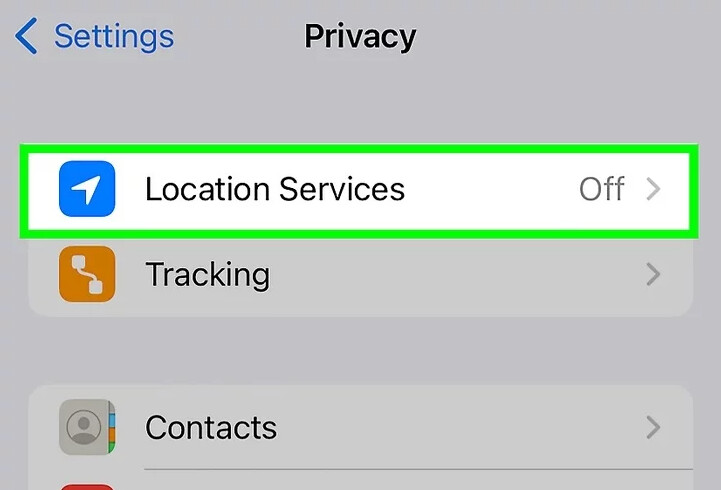
3. Ensure the main Location Services toggle at the top is enabled.
4. Scroll through the list of apps and find Pokémon GO. Tap on it.
5. Set the permission to While Using the App. Crucially, make sure the Precise Location toggle is enabled. Without this, the app receives only an approximate area, causing a GPS error.
2. Reset Location & Privacy Settings
If permissions are correct but the problem persists, resetting all location settings to their factory defaults can clear a stubborn software glitch. This is a bigger step, but it is safe and does not delete your personal data like contacts or photos.
1. Go to Settings > General > Transfer or Reset iPhone.
2. Tap Reset.
3. Select Reset Location & Privacy. You will be prompted to enter your passcode to confirm.
What to Expect: After resetting, you will have to re-grant location permissions for any app that uses them. The next time you open apps like Google Maps, Instagram, or Pokémon GO, a pop-up will ask for permission again. This is a minor inconvenience that can fix a deep-seated software issue.
Android Solutions for the ‘Pokémon GO No GPS’ Problem
Android users facing a “no GPS ” error have a unique set of tools and settings to resolve location issues. The following procedures are specific to the Android operating system and are highly effective for correcting GPS problems.
1. Improve Google Location Accuracy
Android devices use a combination of GPS, Wi-Fi, and mobile networks to determine your location. Ensuring this feature is enabled provides the most precise data for Pokémon GO.
1. Open your device’s Settings app.
2. Tap on Location.
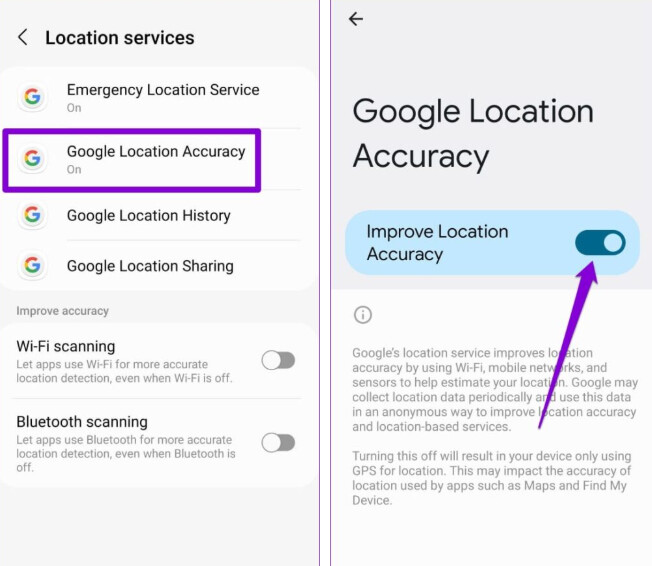
3. Select Location services.
4. Tap on Google Location Accuracy and make sure the Improve Location Accuracy toggle is switched on. This allows your phone to use supplemental signals to pinpoint your position when GPS is weak.
2. Clear Pokémon GO’s Cache
Corrupted temporary files can sometimes interfere with the app’s ability to function correctly. Clearing the cache does not delete your game progress or account data.
1. Go to Settings > Apps > Pokémon GO.
2. ap on Storage & cache.
3. Select Clear cache.
Warning: Do not select ‘Clear storage,’ as this may reset your game data.
3. Recalibrate Your Device’s Compass
An uncalibrated compass can confuse the game about your location and which direction your avatar should be facing. Since Pokémon GO relies on this data for orientation, a quick calibration can significantly improve accuracy.
1. Open the Google Maps app.
2. Tap the blue dot that represents your current location.
3. Select the Calibrate option and follow the on-screen instructions, which typically involve moving your phone in a figure-eight pattern.
Understanding Why Pokémon GO Can’t Find Your Location
Understanding why a GPS signal error occurs can help you prevent it. The problem is rarely with the app itself. Instead, it is usually an issue with how your phone receives and processes location data. These causes fall into two main categories: factors inside your phone and factors in your external environment.
1. Inside Your Phone: Software and Settings
- Incorrect Location Permissions: As detailed previously, if Pokémon GO does not have permission to access location services, it simply cannot function.
- Low Accuracy Mode: Both iOS and Android have power-saving modes that can reduce the frequency or precision of GPS updates. When this is active, you may experience GPS drift or find your character is stuck on the map.
- Corrupted App Cache: Old or damaged temporary files can interfere with the app’s operations.
- Outdated Software: An outdated operating system or Pokémon GO app version may contain bugs that have been fixed in newer releases.
2. Outside Your Phone: Environmental Factors
- Being Indoors: GPS signals are broadcast from satellites and are easily blocked by solid structures like roofs and walls. This is the most common reason for GPS errors.
- Urban Canyons: In dense downtown areas, tall buildings can block and reflect GPS signals, confusing your phone’s receiver and reducing accuracy.
- Weak Network Connection: The game uses Assisted GPS (A-GPS), which relies on cellular and Wi-Fi data to get a faster initial location lock. A poor internet connection can hinder this process.
Advanced Methods for Urban & Indoor GPS Issues
Standard fixes may not be enough in challenging environments like a dense apartment building or downtown between skyscrapers. Here are some real-world strategies our team confirmed during testing.
For Indoor Players
The “move closer to a window ” advice is a well-known first step, but think of it as a tool, not a solution. Use it to establish an initial GPS lock. Once your avatar appears, you can often move back into the room for several minutes before the signal is lost again—enough time to catch a nearby Pokémon or interact with a Gym.
For Urban Players on the Move
Walking between tall buildings is the toughest test for your phone’s GPS. Here are two tactics that work:
- Pause at Intersections: When you’re walking and the “GPS signal not found ” banner appears, pause for 15-20 seconds at the next street corner or open area. This small break gives your phone a wider view of the sky, allowing it to lock onto satellites and reorient itself.
- Use Wi-Fi Scanning: Keep your phone’s Wi-Fi enabled even if you aren’t connected to a network. Your phone’s Assisted GPS (A-GPS) scans for nearby Wi-Fi networks to help determine its location. In a city, this data provides countless reference points that strengthen a weak satellite signal.
Expert Pro-Tip: Force a Location Refresh with Google Maps
If your GPS is completely stuck in Pokémon GO, force your phone’s operating system to find your location first. Open Google Maps and wait for the blue dot to lock onto your precise position. Once it does, switch back to Pokémon GO. This often pushes the accurate location data from the OS to the game, immediately resolving the error.
Need More Control Over Your Pokémon GO GPS Location?
The troubleshooting methods above are designed to restore your real GPS signal when Pokémon GO cannot locate you correctly. In most cases, you should start with those fixes first, especially if your goal is to remove the red “GPS signal not found” banner and return to normal gameplay.
However, some players are not only trying to fix a broken GPS connection. They may also want to test how Pokémon GO responds to different locations, manage movement more smoothly in areas with poor signal, or avoid unstable mobile GPS tools that cause rubberbanding. In these situations, a desktop-based location tool can be easier to control than random fake GPS apps.
Fonelora Location Changer helps iPhone and Android users change their device GPS location from a computer without jailbreak or root access. It lets you select a location on the map, simulate movement along a route, and use joystick-style control when you need more flexible GPS management.
Important: Pokémon GO has strict fair-play rules for location changes. If you only need to fix a GPS error, use the official device settings above first. Use Fonelora Location Changer responsibly for location testing or GPS management, and avoid unrealistic jumps that may put your account at risk.
How to Use Fonelora Location Changer for Pokémon GO
If you need a controlled way to manage your phone’s GPS location, follow these steps after installing Fonelora Location Changer on your computer:
- Step 1. Launch Fonelora Location Changer. Open FLC on your Windows or Mac computer and choose the location-changing mode that fits your need.
- Step 2. Connect your iPhone or Android device. Use a USB cable or supported connection method. Follow the on-screen instructions to trust the computer and allow the program to recognize your device.

- Step 3. Select a target location on the map. Search for a city, address, landmark, or specific area where you want your phone GPS to appear.

- Step 4. Apply the virtual GPS location. Confirm the selected point in Fonelora Location Changer. Your connected phone will begin reporting the new GPS position.
- Step 5. Open Pokémon GO and check the map. Launch the game after the virtual location is applied and verify whether your avatar appears in the selected area.
- Step 6. Use route or joystick mode if needed. If you need smoother movement, choose route simulation or joystick mode instead of jumping between distant locations too quickly.
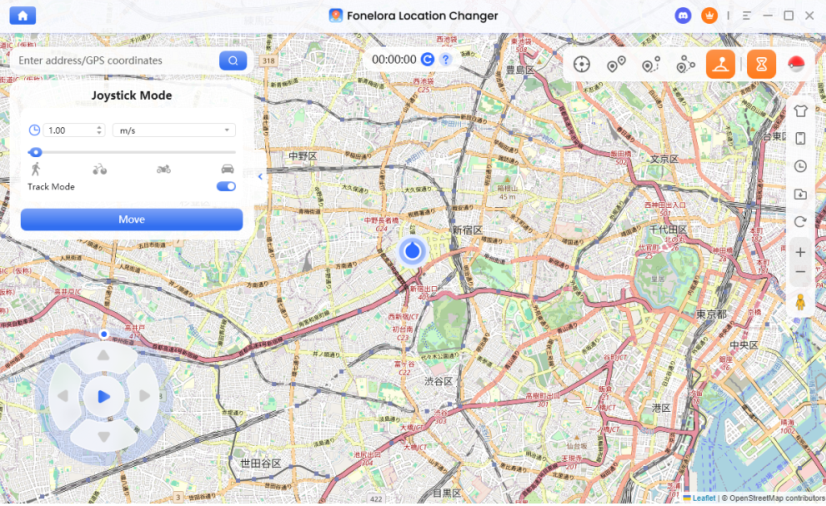
- Step 7. Restore your real location when finished. Use the reset option in FLC or restart your device to return your phone to its actual GPS position.
When All Else Fails: Last Resorts
If you have tried every step in this guide and still face constant GPS errors, there are two final possibilities to consider.
- Aging GPS Hardware: In older phone models (typically 4-5+ years old), the physical GPS hardware can degrade, making it harder to maintain a stable signal. If you notice location issues across multiple apps, not just Pokémon GO, this could be the cause.
- Contact Support: As a final step, you can report the issue to Niantic through the in-app support system. This is especially helpful if you suspect the problem began after a recent game update.
Frequently Asked Questions About Pokémon GO GPS Errors
Here are direct answers to the most common questions about GPS issues and other location-based errors.
Q1. Why does Pokémon GO say GPS signal not found?
This message appears when the app cannot get a precise enough location lock from your phone’s GPS hardware. This is typically caused by being indoors, in a dense urban area, or by incorrect device settings like disabled location services or low-accuracy modes.
Q2. How do I fix Pokémon GO GPS errors?
The most effective initial fixes include toggling your phone’s location services, restarting the Pokémon GO app, and restarting your device. For persistent issues, check app-specific location permissions and ensure ‘Precise Location’ (iOS) or ‘Google Location Accuracy’ (Android) is enabled.
Q3. Is GPS drift normal in Pokémon GO?
Minor GPS drift is normal. Your avatar might move slightly even when you are standing still as your phone constantly re-evaluates its position. However, significant drift where your character runs far away is a sign of a poor signal or a calibration issue.
Q4. How do I reset GPS in Pokémon GO?
You cannot reset GPS within the app itself. To “reset ” your GPS, you should toggle your phone’s location services or Airplane Mode off and on. On Android, you can also recalibrate the compass via Google Maps to improve directional accuracy.
Q5. Why does my location keep jumping in Pokémon GO?
A jumping location is usually a symptom of a weak GPS signal. Your phone is likely switching between a weak satellite lock and a more stable (but less accurate) location based on Wi-Fi or cellular tower data, causing your avatar to jump between the two points.
Q6. Does Pokémon GO need internet to fix GPS?
Yes. Pokémon GO uses Assisted GPS (A-GPS), which uses internet data to get a faster and more accurate location fix than GPS satellites alone. A stable Wi-Fi or mobile data connection is essential for reliable location tracking in the game.
Sum It Up
Environmental factors are a primary cause of GPS issues in Pokémon GO. Tall buildings, dense forests, tunnels, and even being inside a car or building can block or interfere with the satellite signals your phone needs.
By following these tested procedures, you can overcome the frustrating ‘GPS signal not found’ error and take back control of your game. The issue is rarely permanent and almost always lies with the device’s settings or environment, not a broken app. As Niantic and phone manufacturers release updates, location-based bugs can appear and disappear. We continuously review and update this guide to reflect the latest software versions, ensuring these solutions remain effective.
If your goal is to fix a genuine GPS failure, the device-level solutions above should come first. If you need more flexible control for location testing or GPS management, Fonelora Location Changer can provide a desktop-based way to manage your phone’s virtual location more precisely.
Instead of being stuck on the map, you now have the tools to troubleshoot and resolve location errors in minutes. Apply these methods to re-establish a stable connection, ensure smooth gameplay, and get back to exploring the world and catching Pokémon without interruption.
More Related Articles



Joy Taylor is a seasoned technical writer with over a decade of experience in mobile technology. At iMobie, she specializes in producing in-depth content on iOS data recovery, iPhone unlocking solutions, and iOS troubleshooting.
Product-related questions? Contact Our Support Team to Get Quick Solution >
