Quick Answer: What is the Max Walking Speed in Pokémon GO?
If you want to hatch eggs and earn buddy candy in Pokémon GO, the absolute maximum walking speed is 10.5 km/h (about 6.5 mph). If you exceed this limit, the game will quietly stop tracking your distance.
However, the strict “speed lock”—the point where Pokémon instantly flee and PokéStops stop spinning—does not trigger until you hit approximately 30 to 35 km/h (18.6 to 21.7 mph).
For players configuring a GPS joystick or auto-walk tool, it is highly recommended to set your speed slightly below the maximum threshold—around 9 to 10 km/h. This gives you a safe buffer against accidental speed spikes and natural GPS drift.
The Two Speed Limits Explained: Egg Hatching vs. Speed Lock
One of the most common points of confusion in many Pokémon GO guides is the difference between the distance-tracking limit and the general gameplay limit. Many ranking pages blur these mechanics, but understanding the distinction is crucial for optimizing your time and effort.
Here is a direct comparison of the two distinct speed limits in the game:
| Gameplay Mechanic | Speed Limit | What Happens if Exceeded? |
|---|---|---|
| Egg Hatching & Buddy Candy | 10.5 km/h (6.5 mph) | The game quietly stops tracking your distance. No warning is given, but eggs will not progress. |
| General Gameplay (Spawns & Stops) | ~30-35 km/h (18.6-21.7 mph) | You receive the “You’re moving too fast!” warning. Catch flee rates jump to 100%, and PokéStops will spin without giving items (Speed Lock). |
This distinction explains why you can often catch Pokémon while riding a bike or sitting on a slow-moving bus, but your eggs won’t hatch. To hatch eggs reliably, you must respect the strict 10.5 km/h cap.
Optimal Speed Settings for GPS Joysticks (Walking, Biking, Driving)
If you are using a location simulator to automate movement, inputting the right speed is essential. Setting the speed too high wastes your simulated walking time, while setting it too low makes the process unnecessarily slow.
Use this decision table to choose the best exact speed for your GPS joystick based on your current in-game goal:
| Simulated Activity | Recommended Speed | Best Used For (Gameplay Result) |
|---|---|---|
| Safe Walking | 9.0 km/h | The safest setting. Optimal for reliably hatching eggs and earning buddy candy while avoiding limit breaks. |
| Brisk Jogging | 10.4 km/h | Pushing the exact maximum limit for distance efficiency. Requires a highly stable tool and connection. |
| Biking | 15.0 – 20.0 km/h | Good for quickly moving between PokéStops and shiny checking. Eggs will not hatch. |
| Driving | 40.0+ km/h | Not recommended. Triggers speed lock immediately. Cannot spin stops or catch Pokémon. |
Always aim slightly under the 10.5 km/h limit (such as 9 km/h). This accounts for minor GPS drift and ensures that temporary speed miscalculations don’t wipe out your distance progress.
The Mechanical Speed Trap: Why Perfect Walking Speeds Trigger Detection
A common mistake players make is setting their auto-walk tool to exactly 10.4 km/h and leaving it on for hours. What most generic guides fail to mention is that moving at a perfectly constant speed in a perfectly straight line is mechanically impossible for humans.
Niantic’s anti-cheat systems do not just look at how fast you are going; they look at how you are moving. Natural walking involves slight pauses, speed changes, and minor directional drifts. A perfectly static speed over a long distance is a major red flag that indicates a bot or a location simulator is being used.
Furthermore, using modified third-party apps (like cracked game clients) significantly increases your risk of detection, as developers actively scan for these unauthorized modifications. Because of these risks, many users are shifting toward desktop-tethered location tools that offer variable-speed features, helping reduce mechanical suspicion by mimicking real-world behavior.
How to Auto-Walk Safely with Realistic Movement
To avoid the mechanical speed trap, you need a way to simulate natural movement. This is where a desktop-tethered tool becomes a practical option. Rather than modifying the game app itself, using a dedicated tool to change location in Pokémon GO at the system level is a safer approach for supported devices.
Fonelora Location Changer connects to your iOS or Android device and manages your GPS data directly. More importantly, its Realistic Mode automatically fluctuates your walking speed within a safe range (for example, varying naturally around 9 km/h) so your movement doesn’t look like a machine.
Fonelora Location Changer
Realistic GPS movement simulation, flexible route control, easy no-modification setup, and support for gaming, social, privacy, and location-based testing in one platform.
Here is how to set up a variable-speed auto-walk safely:
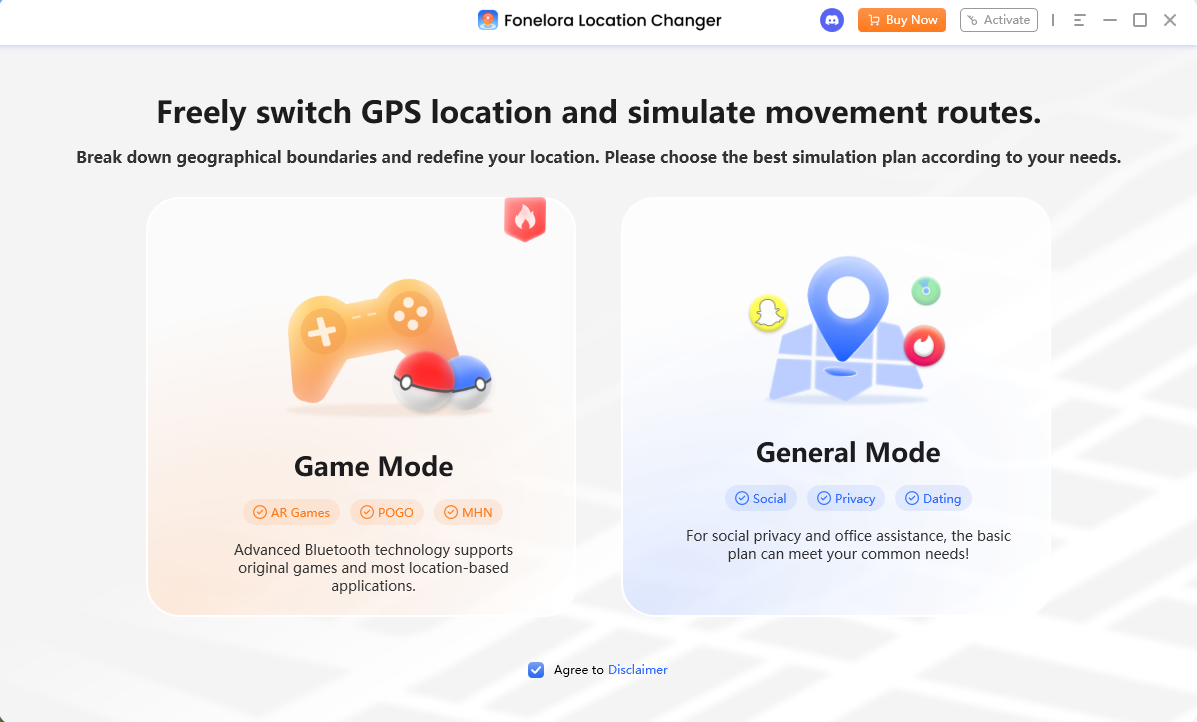
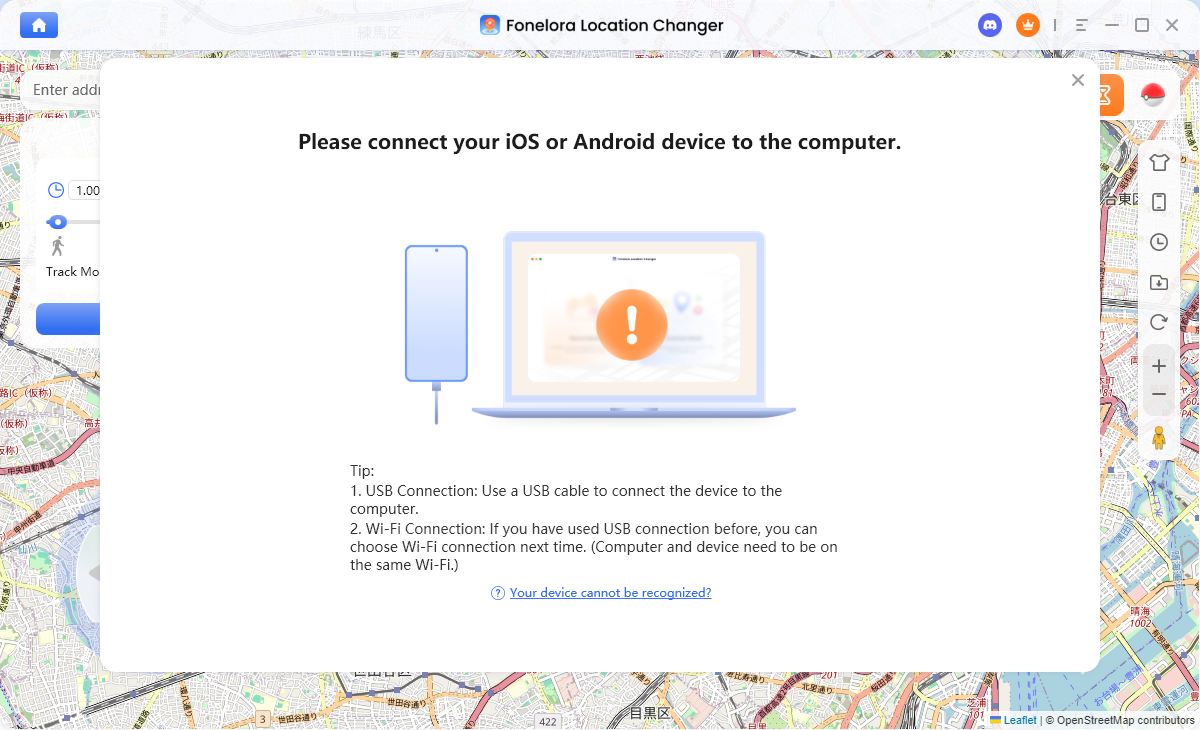
1. Connect your device: Open Fonelora Location Changer on your PC or Mac and connect your supported iPhone or Android device via USB or Wi-Fi.
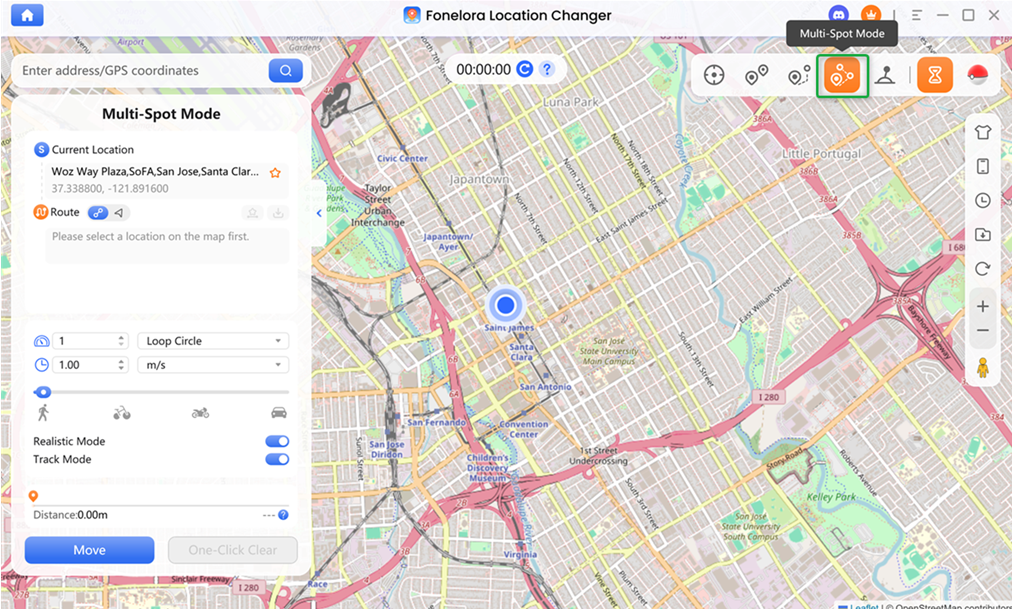
2. Select a route mode: Choose Single-Spot Mode (for a route from point A to point B) or Multi-Spot Mode (for complex routes) from the top-right menu.
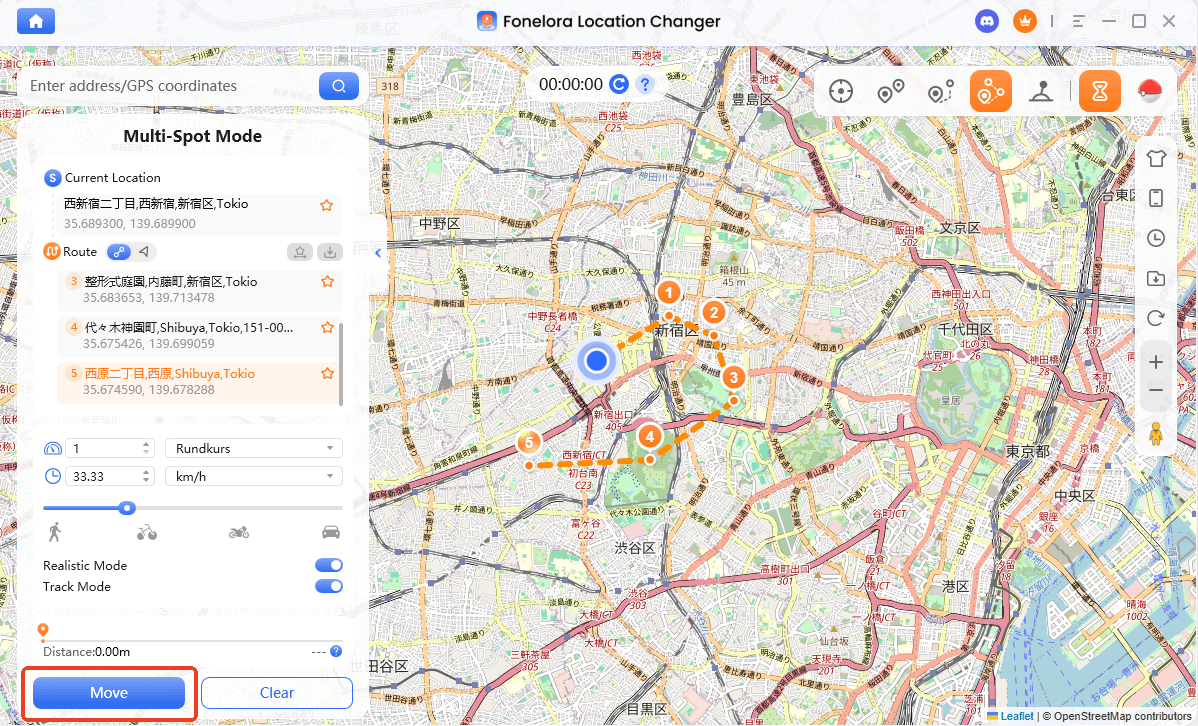
3. Set the base speed: Adjust the speed slider to a safe baseline, such as 9.0 km/h.
4. Enable Realistic Mode: Check the Realistic Mode option. The software will now automatically vary your speed (e.g., dropping to 8 km/h and rising to 10 km/h) to simulate natural human pacing.
5. Start moving: Click “Move” to begin your simulated route.
While Realistic Mode helps reduce suspicion by avoiding mechanical patterns, it does not guarantee a 0% ban rate. Always manage your gameplay responsibly and respect Pokémon GO cooldown rules when moving long distances before starting a walk.
Ready to automate your walking routes safely? Download Fonelora Location Changer today to check your device compatibility and try Realistic Mode to hatch eggs without triggering the mechanical speed trap.
Open-App Limits vs. Adventure Sync: What’s the Difference?
A major source of frustration for players is misunderstanding how distance is tracked when the app is open versus when it is closed.
When Pokémon GO is open on your screen, the game relies purely on GPS displacement over time to calculate your speed. If your GPS coordinates move faster than 10.5 km/h, the game stops crediting that distance to your eggs.
However, when the app is closed completely, the game switches to Adventure Sync. Adventure Sync does not track GPS speed. Instead, it reads pedometer data (step counts) directly from Apple Health or Google Fit.
This is why walking on a treadmill or shaking your phone counts toward egg hatching via Adventure Sync—it registers physical steps. Conversely, if you are using a virtual GPS simulator like Fonelora Location Changer, you must keep the game app open so the system can track your changing GPS coordinates along your simulated route.
Frequently Asked Questions
Q1: Why is my walking distance not updating in Pokémon GO?
Your distance usually stops updating for three reasons: you are moving faster than the 10.5 km/h limit, you have a weak GPS signal causing the game to pause tracking, or you are using an auto-walk tool with a perfectly mechanical speed that the game’s anti-cheat is currently ignoring.
Q2: How fast can I bike and still hatch eggs?
You cannot bike effectively for eggs unless you stay under 10.5 km/h, which is an extremely slow pace for a bicycle (slower than a casual jog). Biking is better suited for spinning PokéStops and checking spawns while staying under the 30 km/h speed lock.
Q3: How do I avoid the “moving too fast” warning in Pokémon GO?
To avoid the pop-up warning and the subsequent soft-ban (where Pokémon flee and stops break), you must keep your real or simulated speed strictly under 30 km/h.
Q4: What is the best speed setting for a GPS joystick in Pokémon GO?
The safest setting is around 9 km/h. To further protect your account, it is recommended to use a tool that supports Realistic Mode, ensuring your joystick speed naturally fluctuates rather than remaining suspiciously constant.
Final Thoughts: Staying Under the Radar
Managing your movement in Pokémon GO comes down to one golden rule: keep your speed under 10.5 km/h if you want your eggs to hatch and your buddy to find candy. While you can travel faster to spin stops, anything over 30 km/h will lock you out of standard gameplay.
If you use location simulators to walk virtual routes, remember that Niantic actively looks for mechanically perfect movement. Setting a joystick to exactly 10.4 km/h for hours is a fast way to get flagged.
For players who want to simulate natural walking on supported iOS and Android devices, Fonelora Location Changer offers a practical and much safer approach. By keeping the game running on your untampered phone and using the desktop software’s Realistic Mode to fluctuate your speed around 9 km/h, you can hatch eggs efficiently while minimizing account suspicion.
Always verify compatibility and review third-party app terms before using virtual location tools to ensure you manage your account responsibly.
Fonelora Location Changer
- Bluetooth Hardware Simulation for Safer GPS Spoofing
- Realistic Movement & Route Simulation
- No Root or Jailbreak Required
- All-in-One Solution for Games, Social Apps & Privacy
More Related Articles