If you are looking to play “pc sharp”—widely known in the community as PGSharp—on your Windows computer, you will need to use an Android emulator. Because Pokémon GO is a mobile game, PGSharp provides a modified Android application (APK) that you must run in a virtual environment to play from your desktop.
While many emulators exist, the most commonly recommended option for a PGSharp emulator PC setup is MuMu Player (specifically version 6), as it tends to handle the game’s architecture slightly better than others.
Here is how to set it up:
- Download MuMu Player: Visit the official MuMu website and download MuMu Player 6 (the 64-bit version is usually required for newer APKs).
- Download the PGSharp APK: Go to the official PGSharp website and download the ARM64 APK file to your PC.
- Install the APK: Open MuMu Player. Drag and drop the downloaded PGSharp APK file directly into the emulator window, or use the “Install APK” button on the sidebar.
- Launch and Play: Once the installation finishes, click the Pokémon GO icon inside MuMu Player. Log in to your account and use the built-in virtual joystick to start playing.
While this method is popular and free, getting it to run smoothly can be notoriously difficult due to compatibility issues between the emulator and the game’s servers.
Troubleshooting PGSharp on PC: Error 12 and Infinite Loading Screens
Even if you follow the installation steps perfectly, playing PGSharp on an emulator is often an unstable experience. Niantic continually updates its detection systems, which actively block unauthorized emulator environments. For users looking for a comprehensive PGSharp Pokémon GO guide, understanding these errors is critical.
Here are the most common issues you will face and what they mean:
Symptom: Stuck on the Infinite Loading Screen or “Failed to Authenticate”
- Likely Cause: The emulator’s network environment is failing Niantic’s server checks, or your virtualization settings (VT) are in your PC’s BIOS.
- Next Step: Ensure Virtualization Technology (VT) is enabled on your Windows PC. If the issue persists, try switching from MuMu Player 12 down to MuMu Player 6, or clear the emulator’s cache and reinstall the PGSharp ARM64 APK. Keep in mind that server-side blocks often cause this, meaning no amount of tweaking will permanently fix it.
Symptom: Error 12 (Failed to detect location)
- Likely Cause: This is an environment block. The official Pokémon GO framework detects that you are not on a physical mobile device, rejecting the fake GPS coordinates provided by the emulator.
- Next Step: You can try restarting the emulator, toggling your mock location settings, or waiting for a PGSharp patch. However, because Error 12 is a direct result of emulator detection, it is a constant, ongoing battle for PC players.
Ultimately, emulator instability is hard to avoid. Fixing these errors often requires constant re-installations and troubleshooting, which can quickly take the fun out of the game.
The Hidden Danger: Ban Risks with Modified Pokémon GO Clients
Beyond the technical headaches of emulators, the most critical issue with using “PC Sharp” is the risk to your account. It is vital to understand that PGSharp is a third-party modified game client.
When you play using PGSharp, you are not using the official Pokémon GO app downloaded from the Google Play Store. Instead, you are logging your account into altered code. Niantic’s anti-cheat systems are specifically designed to detect these modified apps.
When a ban wave occurs, players using modified clients are usually the first to be flagged. This detection can result in:
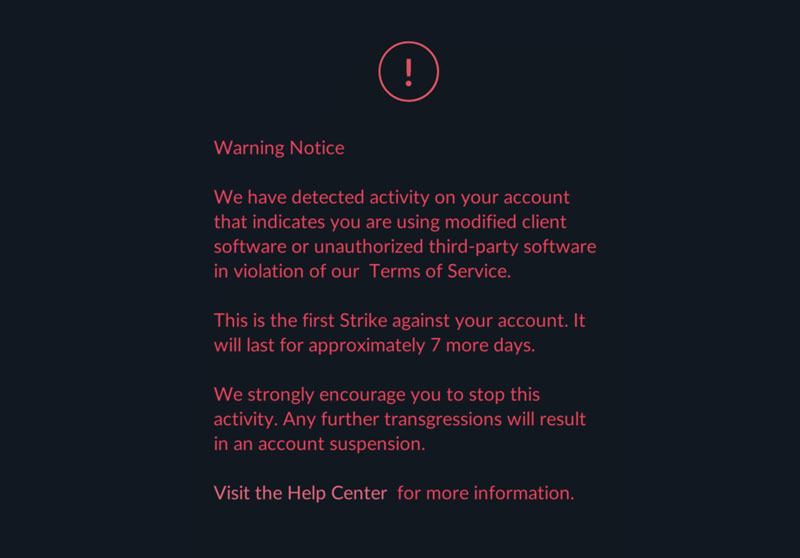
- First Strike: A 7-day shadow ban where rare spawns are hidden.
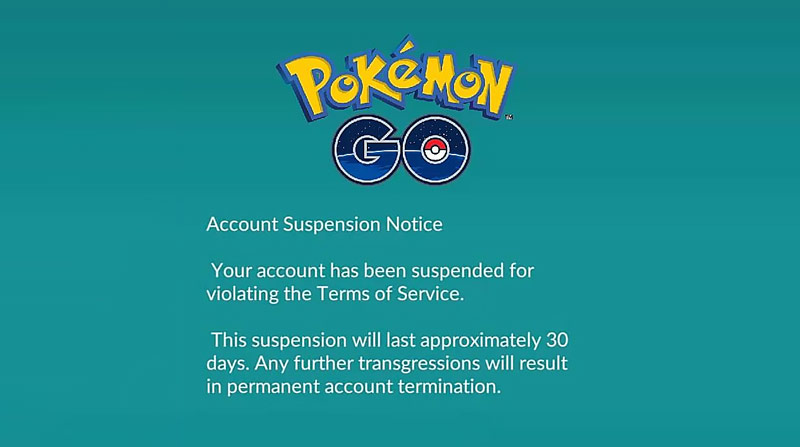
- Second Strike: A 30-day temporary suspension from the game.
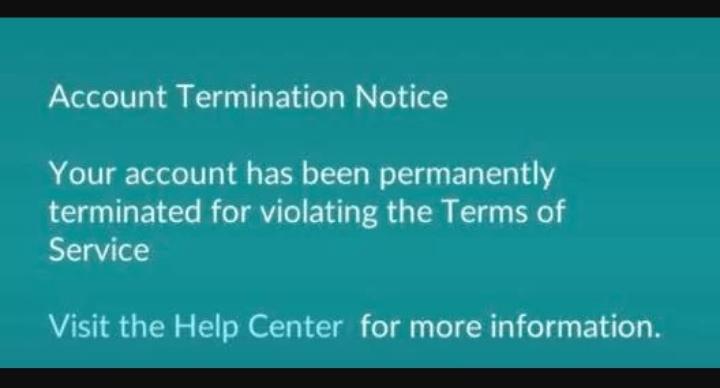
- Third Strike: A permanent account ban.
Because logging into a modified client inside a detected emulator environment leaves a very obvious footprint, it carries an incredibly high risk of account suspension. This reality leaves many players wondering if there is a way to play on a PC screen without risking their years of progress on a modified app.
A Safer Alternative: Desktop GPS Spoofing with the Official App
If you are frustrated by infinite loading screens, the dreaded Error 12, or the high ban risks associated with modified apps, shifting away from emulators is the most logical next step. This is where a tethered desktop solution like Fonelora Location Changer becomes a much safer alternative to change location in Pokémon GO.
Instead of modifying the game client inside a crash-prone virtual machine on your PC, Fonelora takes a structurally different approach. It acts as a desktop controller that changes the GPS signal of your physical iPhone or Android device via a USB or Wi-Fi connection.
Because you are playing on your actual physical phone using the official, unmodified Pokémon GO app downloaded from the App Store or Google Play, you avoid emulator-based detection (fixing Error 12) and significantly reduce the severe ban risks associated with modified third-party clients.
Fonelora Location Changer gives you the best of both worlds: you still get to control your virtual movement using your PC screen (like a desktop joystick), but your game runs more securely and smoothly on real mobile hardware.
How to Use Fonelora Location Changer for Pokémon GO
Setting up a tethered GPS spoofing workflow with Fonelora Location Changer is straightforward and eliminates the need for complex virtualization settings.
Here is how to control your game from your PC safely:
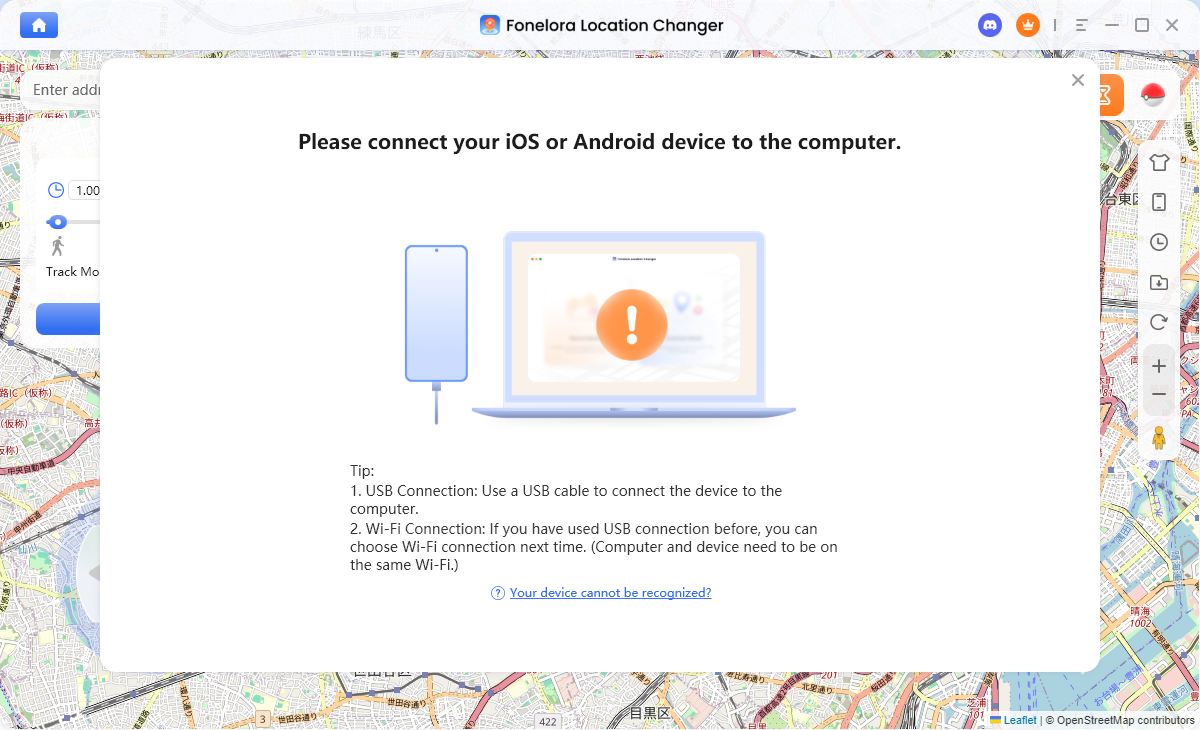
- Connect Your Device: Open Fonelora Location Changer on your Windows or Mac computer. Connect your physical iPhone or Android device to your computer using a USB cable (or via Wi-Fi for supported connections).
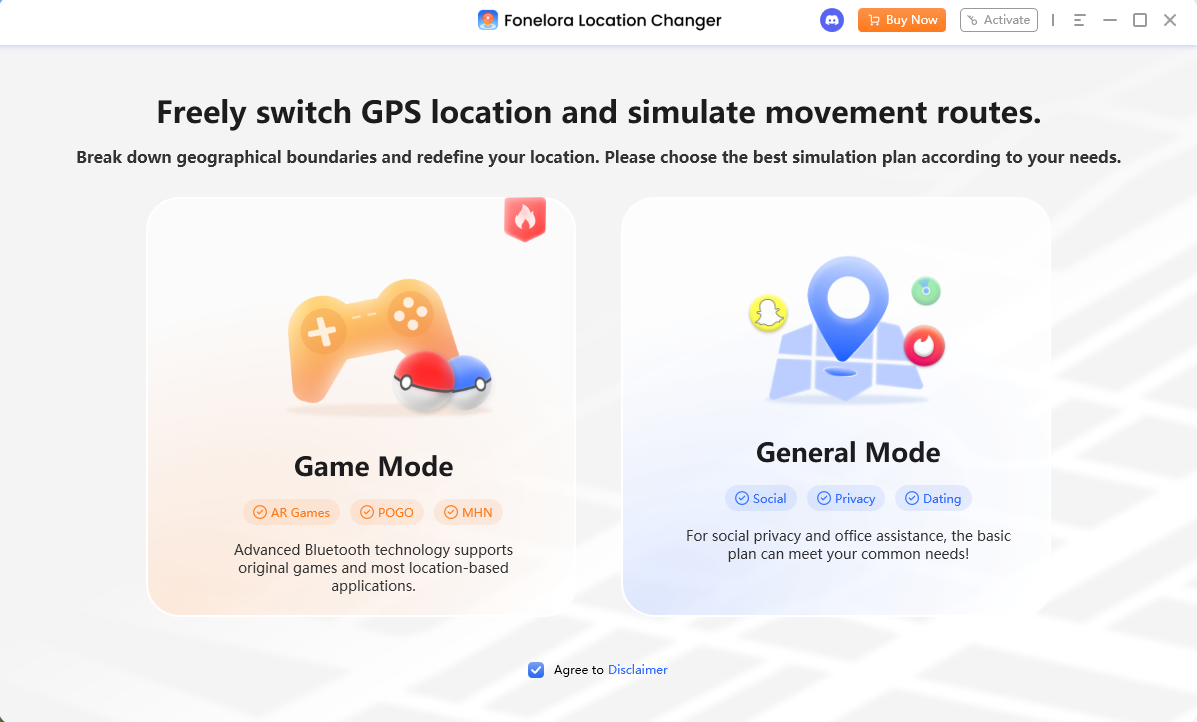
- Select Game Mode: Once your device is recognized, follow the on-screen prompts to select Game Mode. (Android users may need to enable USB Debugging, while iOS users may need to enable Developer Mode).
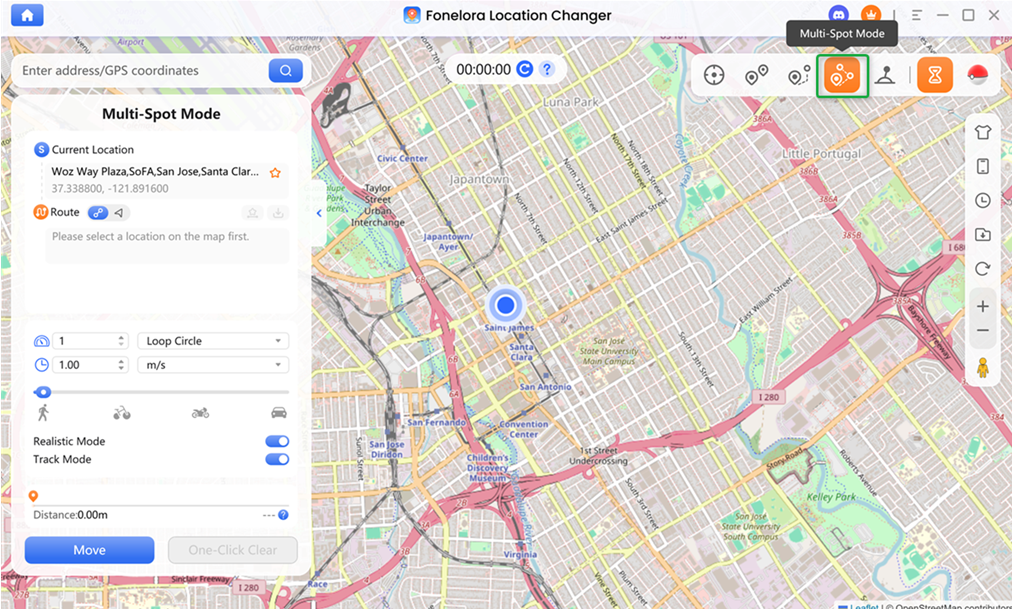
- Choose Your Movement Mode: On the map interface on your computer screen, select how you want to move. You can use Teleport Mode to instantly change locations, or select Joystick Mode for real-time directional control. When using Joystick Mode, make sure to adjust your virtual walking or cycling speed to simulate realistic movement. Avoiding mechanical, overly fast movement patterns helps prevent soft bans.
- Play on the Official App: Open the official Pokémon GO app on your connected phone. As you navigate using the Fonelora software on your PC, your in-game avatar will move accordingly on your phone.
Unlike emulators, Fonelora requires one physical device per account. It does not run multiple game instances on a single PC screen.
PGSharp + Emulator vs. Fonelora Location Changer
To help you decide which PC setup fits your needs and risk tolerance, here is a breakdown of how the traditional “PC Sharp” emulator path compares to using a tethered GPS changer.
| Feature / Criteria | PGSharp + MuMu Player | Fonelora Location Changer |
|---|---|---|
| Game Client Used | Modified Third-Party App (PGSharp) | Official App (App Store / Google Play) |
| Ban Risk Level | Very High (Due to modified app detection) | Lower (Uses official, unmodified game client) |
| Emulator Stability | Poor (High chance of Error 12 & crashes) | High (No emulator used; runs on physical phone) |
| Hardware Requirements | Requires strong PC CPU/RAM and BIOS tweaks | Low PC requirements; relies on your physical phone |
| Installation Ease | Complex (Specific APKs, ARM64 versions, VT settings) | Guided Desktop Setup (USB/Wi-Fi connection) |
| Multiple Accounts | Yes (Can run multiple instances if PC allows) | No (Requires one physical phone per connected account) |
If you want a free method and do not care if your alternative accounts get banned, the PGSharp emulator route is popular. However, if you want to protect your main account and avoid constant technical troubleshooting, the Fonelora tethered path is the structural upgrade you need.
Essential Safe Spoofing Best Practices: Respect the Cooldown
Regardless of whether you use an emulator or a safer tethered setup like Fonelora Location Changer, no tool is 100% ban-proof if you break the game’s in-game telemetry rules. Avoiding soft bans comes down to one critical rule: respecting Pokémon GO cooldown rules.
Before you start jumping around the map, keep these best practices in mind:
- Understand Cooldown Times: If you catch a Pokémon, spin a PokéStop, or battle in a gym, your location is logged. If you instantly teleport to a new city, you must wait up to 2 hours before interacting with the game again.
- Never Break the 2-Hour Rule: Breaking this rule will result in a soft ban (Pokémon will constantly flee, and PokéStops won’t give items). Repeated soft bans can trigger permanent account strikes.
- Use Built-in Timers: Fonelora Location Changer includes a built-in Cooldown Timer feature to help you manage your virtual movement responsibly and remind you when it is safe to interact with the map again.
- Avoid Eratic Behavior: Use route simulation or Joystick mode with a realistic walking or cycling speed, rather than teleporting wildly across continents in a single session.
Frequently Asked Questions
- Which emulator version is best for Pokémon GO spoofing?
- In the PC spoofing community, MuMu Player 6 (64-bit) is currently the most recommended version for running PGSharp. However, because Niantic actively targets emulators, results vary wildly, and what works today might stop working tomorrow.
- Is it safer to spoof on PC or mobile?
- Tethered mobile spoofing (controlling your physical phone via a PC program) is significantly safer than running an emulator directly on your PC. Emulators require modified APKs that are easily detected, whereas tethered solutions let you use the official game client.
- How do I fix Error 12 on PGSharp emulator?
- Error 12 (“Failed to detect location”) happens because the game recognizes you are using an unauthorized virtual environment. While clearing your cache, toggling mock locations, or reinstalling the APK might offer a temporary fix, the ultimate permanent fix is switching away from emulators to a tethered desktop GPS solution.
Final Verdict: Which PC Spoofing Setup is Right for You?
Setting up “PC Sharp” through MuMu Player is undeniably a popular and free way to experience Pokémon GO on a desktop. However, it comes with heavy compromises: you will frequently battle Error 12, suffer through infinite loading screens, and run a very high risk of account suspension due to Niantic’s crackdown on modified apps.
If you want a smoother, more reliable experience without the fear of losing your account to a modified-client ban wave, transitioning to a tethered setup is the smart move.
Fonelora Location Changer provides that safer path. By allowing you to control your movement via your computer screen while the actual game runs on the official app on your physical phone, it avoids emulator headaches entirely. If you are ready to play safely and comfortably from your desk, check your device compatibility and explore Pokémon GO spoofing resources to plan your next session.
Fonelora Location Changer
- Bluetooth Hardware Simulation for Safer GPS Spoofing
- Realistic Movement & Route Simulation
- No Root or Jailbreak Required
- All-in-One Solution for Games, Social Apps & Privacy