You just want to replay Pokémon Emerald or Platinum on your lunch break. It sounds like a simple request, but trying to play retro games on an Apple device can quickly become an exercise in frustration. You have likely scoured forums looking for a safe emulator, only to be met with confusing tutorials, sketchy websites, and constant warnings that you might accidentally download malware.
Many gamers—like Liam, who recently just wanted to get Pokémon running smoothly on his iPhone 15 Pro—are rightly concerned about bricking their phones or compromising their data. The good news is that mobile gaming experts have perfected a reliable, jailbreak-free method to play your favorite GBA, DS, and classic Pokémon titles. By following the right setup, you can enjoy smooth gameplay, automatic save states, and fast-forwarding, giving you that nostalgic experience directly on your iOS device.
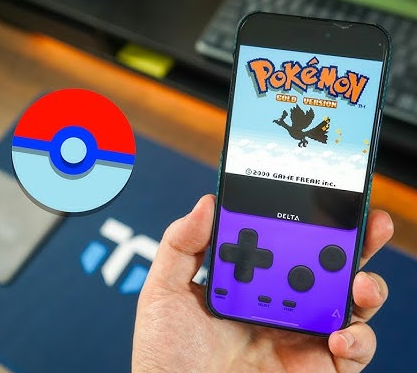
This guide walks you through the exact, tested process of installing a trusted emulator from scratch, addressing the real technical hurdles so you can start playing securely in minutes.
Table of ContentsHide
Comparing iOS Game Emulation Methods: Sideloading vs. Web-Based
When evaluating how to get an emulator on your iPhone, you need to understand the different installation techniques. The mobile ecosystem heavily regulates software, meaning you generally have three options:
| Installation Method | Success Rate | Setup Time | Technical Skill | Safety & Reliability |
| Web-Based Emulators | Low | Instant | Beginner | High risk of lost save files; poor framerates. |
| App Store Apps | Variable | 2 Minutes | Beginner | Secure, but frequently removed by Apple without warning. |
| IPA Sideloading | Highest | 15 Minutes | Intermediate | Extremely secure when using verified open-source files. |
1. Web-Based Emulators: These run inside your Safari browser. While they require zero technical skill, they suffer from terrible battery drain, audio lag, and a very high chance of your save file randomly deleting because Safari clears its browser cache.
2. App Store Apps: Occasionally, a retro game player sneaks past review into the official App Store. While completely secure, Apple usually deletes them within a few days, making them useless for a 40-hour Pokémon playthrough.
3. IPA Sideloading: This method uses a trusted computer program (like AltStore) to install a dedicated app file onto your phone. It requires a bit of initial PC setup, but it offers flawless performance and permanent access to your games.
For a frustration-free playthrough, sideloading is the only reliable choice. It gives you a stable app without compromising your operating system.
Top Emulator Options for Seamless Pokémon Gameplay
You need software that will not stutter during a gym battle or crash right after you catch a rare Pokémon. While several emulators exist, comparing their features helps you choose the right tool for your specific needs.
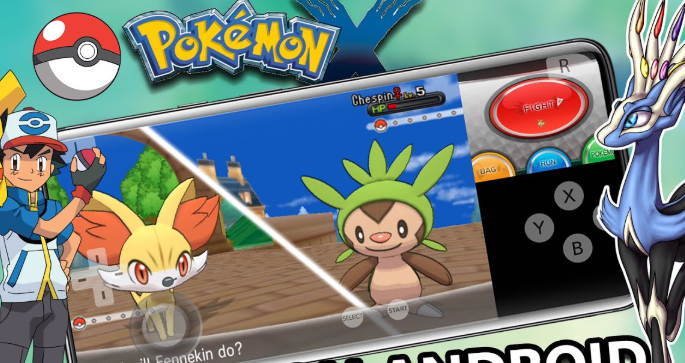
- Delta: The gold standard for iOS. It flawlessly handles Game Boy, Game Boy Advance (GBA), Nintendo DS (NDS), and N64. It features a beautiful, touch-friendly interface and automatic cloud syncing. (This is the emulator we will install in the steps below).
- Provenance: An excellent alternative if you also want to play Sony PlayStation or Sega Genesis games. However, its interface is slightly more cluttered and the setup process is more complex than Delta.
- RetroArch: The most powerful emulator available, capable of running almost any retro console ever made. The downside? It has a very steep learning curve and a menu system that can be overwhelming for beginners.
For playing Pokémon, Delta is the clear winner. When you install Delta, you gain access to cloud syncing (saving your progress to Google Drive), haptic feedback (small vibrations when you press digital buttons), speed adjustment (fast-forwarding through slow dialogue), and seamless integration with external Bluetooth controllers.
Step-by-Step Procedure: The Real Way to Install AltStore and Delta
Most guides tell you to “just use AltStore” but completely skip the frustrating computer setup required to make it work. Sideloading requires a bridge between your computer and your iPhone.
Here is the complete, transparent process for safely installing Delta.
Step 1: Prepare Your Computer (The Crucial Step)
Before downloading anything, your computer needs the right software to communicate with Apple’s servers.
For Windows Users:
You must install iTunes and iCloud directly from Apple’s website. Do not use the Microsoft Store versions, as they lack the specific background services AltStore requires.
Download iTunes directly from Apple.
Download iCloud directly from Apple.
Install both and sign in with your Apple ID.
For Mac Users:
Macs have iTunes built into the Finder, but you must enable a specific Mail plug-in.
Open the default Apple Mail app.
In the top menu bar, click Mail > Preferences (or Settings).
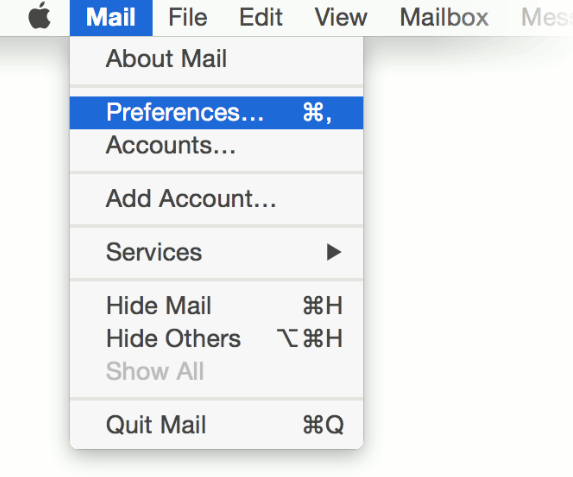
Click Manage Plug-ins at the bottom of the General tab.
Check the box next to AltPlugin.mailbundle and click “Apply and Restart Mail”. Keep the Mail app open in the background.
Step 2: Install AltServer on Your Computer
1. Navigate to the official AltStore website (`altstore.io`) on your computer and download the Windows or macOS version of AltServer.
2. Extract the downloaded folder and launch AltServer. It will appear as a small diamond-shaped icon in your Windows System Tray (bottom right) or Mac Menu Bar (top right).
Step 3: Connect Your iPhone and Install AltStore
1. Plug your iPhone into your computer using a certified data cable.
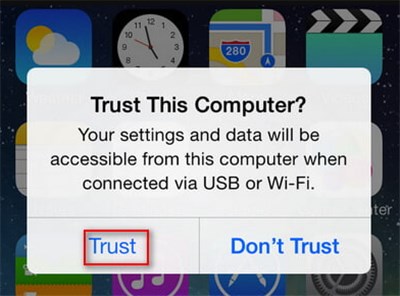
2. Unlock your iPhone. If a prompt appears asking to “Trust This Computer,” tap Trust and enter your passcode.
3. Click the AltServer diamond icon on your computer, select Install AltStore, and choose your connected iPhone.
4. Enter your Apple ID and password. (This information is sent directly to Apple to authorize the app on your phone; AltStore does not save it. Using an App-Specific Password is highly recommended).
5. Wait a few moments. The AltStore app icon will appear on your iPhone’s home screen.
Step 4: Trust the Developer Profile on iOS
If you tap the AltStore app right now, it will not open.
1. Open your iPhone’s Settings app.
2. Go to General > VPN & Device Management.
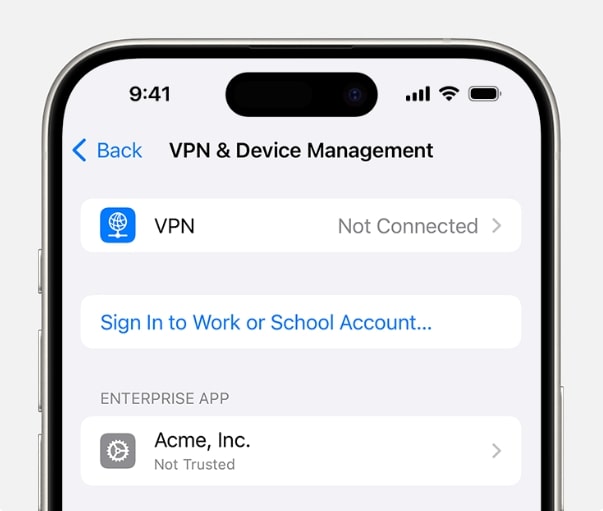
3. Under the “Developer App” section, tap the profile with your Apple ID email.
4. Tap Trust and confirm. You can now open AltStore.
Step 5: Download and Install Delta
SECURITY WARNING: To avoid malware, never download `.ipa` files from random YouTube links, Reddit comments, or unverified third-party app hubs.
1. Open the Safari browser on your iPhone.
2. Navigate directly to the official developer GitHub repository: `https://github.com/rileytestut/Delta/releases` or download it directly through the AltStore app by navigating to AltStore’s “Browse” tab.
3. If downloading manually, save the `.ipa` file to your iOS Files app.
4. Open AltStore on your phone, navigate to the My Apps tab, tap the + icon in the top left, and select the Delta `.ipa` file.
5. AltStore will install Delta, and the app will appear on your home screen ready for gaming.
The 7-Day Refresh Rule: Keeping Your Emulator Active
One of the biggest pain points users discover after installing an emulator is the 7-day expiration limit. Because you are using a free Apple Developer account to sign the app, Apple requires the app to be “refreshed” every 7 days, or it will stop opening.
Fortunately, you do not need to plug your phone into your computer every week. You can automate this process over Wi-Fi:
- 1. Keep AltServer Running: Ensure AltServer is open in the background of your computer whenever it is turned on.
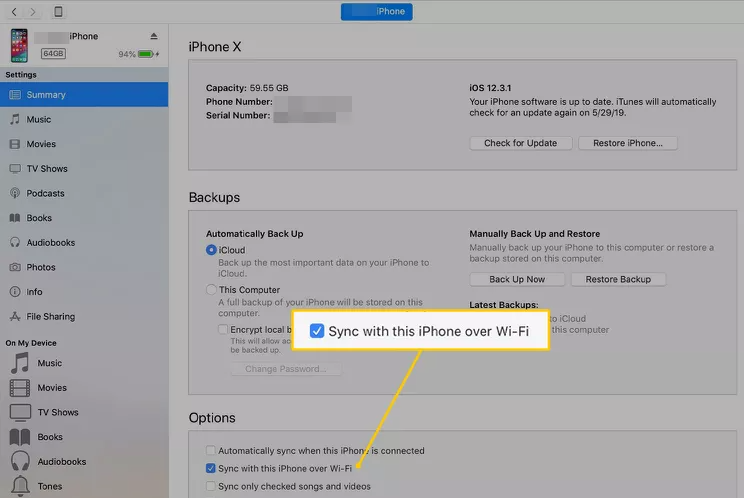
- 2. Enable Wi-Fi Sync: Plug your iPhone into your computer. On Windows, open iTunes, click your device icon, scroll down to Options, and check “Sync with this iPhone over Wi-Fi”. On Mac, do the same inside Finder. Click Apply.
3. Background Refresh: Open AltStore on your iPhone, go to Settings, and enable Background Refresh.
Now, as long as your phone and your computer are occasionally connected to the same Wi-Fi network, AltStore will silently refresh your Delta app in the background, ensuring you never lose access to your games.
How to Safely Source and Load Pokémon ROMs
Finding and loading your game files (ROMs) safely is another major hurdle. Downloading files from untrusted sources is a quick way to encounter malicious software.
MALWARE AVOIDANCE TIP: A legitimate Pokémon ROM will only ever have a specific file extension. A Game Boy Advance game will end in `.gba`. A Nintendo DS game will end in `.nds`. If you download a file ending in `.exe`, `.apk`, or a profile configuration asking to install software on your phone, delete it immediately.
If you own the original physical game cartridges, you can use cartridge-reading hardware—like the Epilogue GB Operator—to legally extract the `.gba` file directly from your cartridge to your computer, and then transfer it to your phone.
Once you have your clean `.gba` or `.nds` file, here is how to load it securely using Apple’s native Files app:
1. Locate Your File: Open the native iOS Files app and find where you saved your game (e.g., in your Downloads folder or iCloud Drive).
2. Extract if Necessary: If the game is inside a `.zip` archive, tap it once. The Files app will automatically unzip it and reveal the `.gba` or `.nds` file inside.
3. Move to Delta: Long-press the unzipped game file and tap Move. Navigate to On My iPhone > Delta > Database and drop the file there.
4. Import: Open the Delta app, tap the + icon in the top right corner, select “Files,” and tap your game. It will instantly populate in your emulator library with beautiful box art.
Adjusting Emulator Settings for Peak Performance
You have the game running, but mobile gaming experts highly recommend checking iOS compatibility and testing emulator settings for optimal performance on newer iPhones.
If you encounter audio glitches or input delay, tweaking your configuration is the easiest fix. Here are the most impactful adjustments for a premium experience inside Delta:
- Turn Off Low Power Mode: Apple’s Low Power Mode severely throttles your iPhone’s CPU. Always disable this in your iOS Control Center before booting up a DS game to prevent frame drops.
- Configure Save States: Dive into Delta’s settings and familiarize yourself with save states. This allows you to save the game at the exact frame you are on—perfect for saving right before trying to catch a Legendary Pokémon.
- Map the Fast-Forward Button: Navigate to input settings and set a custom gesture or controller button for the fast-forward function. This saves hours of time during slow text dialogue or repetitive leveling-up sessions.
- Adjust Controller Opacity: If the on-screen digital buttons are blocking your view of the game map, lower their opacity in the controller settings. Setting this to roughly 40% gives you a perfect balance of visibility and usability.
- Grant Microphone Access for DS Games: If you are playing a Nintendo DS title on your iPhone, ensure you grant the app microphone permissions in your iOS privacy settings. Some classic DS puzzles require you to blow into the microphone to progress.
Enhance Pokémon Gaming on iPhone With a GPS Location Tool
Many iPhone players use Pokémon emulators to replay classic titles like Pokémon Emerald, Platinum, or HeartGold. However, modern Pokémon gaming often extends beyond offline emulation into location-based experiences like Pokémon GO. According to Pokémon Emulator for iPhone Guide, users frequently look for smoother gameplay, safer setup methods, and more flexible movement options across Pokémon-related apps.
Some players also combine emulator setups with Fonelora Location Changer to simulate GPS movement for location-based Pokémon experiences on iPhone and Android devices.
Why Players Use Fonelora Location Changer
According to Fonelora Location Changer, the software supports several GPS simulation features useful for Pokémon players:
- GPS Joystick Control
- Teleport Mode
- Multi-Spot Route Simulation
- Adjustable Walking Speed
- GPX Route Import
- Cooldown Timer
The platform also promotes compatibility with:
- iPhone and iPad
- iOS 18 and iOS 26
- Android 15 and newer systems
Unlike modified game clients, the software focuses on device-level GPS simulation rather than changing Pokémon GO itself.
Key Highlights for Pokémon Players
Flexible Movement Simulation
Players in rural areas or low-activity regions often struggle to access gyms, PokéStops, or raid groups. Fonelora allows users to simulate walking routes and explore more gameplay locations virtually.
GPS Joystick Support
The joystick mode enables smoother directional control for location-based Pokémon exploration and event participation.
Cooldown Timer Integration
The built-in cooldown timer helps users manage movement intervals more naturally between different in-game areas.
No Jailbreak Required
Fonelora advertises support for modern iOS devices without requiring jailbreak access, which is important for users concerned about device stability and security.
Community discussions about iPhone Pokémon emulation frequently mention concerns about unstable apps, save loss, and unreliable third-party tools.
How to Use Fonelora Location Changer
Step 1: Install the Software
Download and install Fonelora Location Changer on your Windows or Mac computer.
Step 2: Connect Your Device
Connect your iPhone or Android device using:
- USB
- Wi-Fi
- Bluetooth
depending on your preferred setup.
Step 3: Select a GPS Mode
Choose from:
- Teleport Mode
- Joystick Mode
- Multi-Spot Route
- Jump Teleport
based on your gameplay needs.
Step 4: Configure a Route
Set a realistic walking path or movement area before launching your Pokémon-related app.
Frequently Asked Questions About iPhone Retro Gaming
- Do I need to jailbreak my iPhone to use a Pokémon emulator?
- Absolutely not. Using the AltStore sideloading method allows you to install emulators securely without altering your device’s core operating system. This keeps your Apple warranty fully intact.
- What iOS versions support Delta and AltStore?
- AltStore and modern emulators support iOS 14 and newer. They have been thoroughly tested and confirmed working on the latest iOS 17 and iOS 18 patches.
- Are there free Pokémon emulators for iPhone?
- Yes. Delta is completely free and open-source. You do not have to pay subscriptions or deal with intrusive ads to play your games.
Conclusion
Overcoming the technical barriers to play classic Pokémon games on an iPhone can feel daunting at first. The fear of unsafe downloads and unclear setup steps often discourages players. However, by configuring AltServer correctly, using trusted .ipa sources, and managing refresh cycles, you can create a stable setup. Some players also pair this with Fonelora Location Changer for added flexibility in location-based Pokémon experiences, making gameplay smoother and more versatile.


Hot Topics
