The original, first-generation Pokémon GO Plus cannot auto-catch without physical modification. You must upgrade to a Pokémon GO Plus + or a reputable third-party device for true hands-free catching.
Meet Ryan. Like many daily commuters, he wants to catch Pokémon passively during his walk to work. But after buying an official accessory, he quickly discovered a frustrating reality: the original Pokémon GO Plus requires manual button presses for every single catch attempt. Finding out your new device lacks true automation is incredibly annoying, especially when you just want to farm items effortlessly in the background.
If you are confused by the different hardware options, battling sudden Bluetooth disconnections, or staring at a device that simply refuses to throw a Poké Ball, you are not alone. This guide is built from hundreds of hours of real-world testing to help you set up a reliable, hands-free farming routine. We will break down exactly how to configure your hardware and game settings to keep your phone safely in your pocket.
Table of ContentsHide
Choosing the Right Auto Catch Device for Your Playstyle
Selecting the appropriate hardware is the first step toward an efficient, passive farming setup. Because these units represent paid upgrades, understanding the actual return on your investment—including battery life and daily operational quirks—is crucial.
Baseline Official Devices vs. Professional Tools
The original Pokémon GO accessories provide basic game integration but demand your constant attention. Upgrading to the official Pokémon Go Plus+ or a reliable third-party alternative completely changes how you interact with the game.
Below is a detailed breakdown of how different tiers of accessories perform in real-world commuting scenarios:
| Feature/Metric | Official GO Plus (Baseline) | Pokémon GO Plus + | Third-Party Auto Catchers (e.g., Go-tcha) |
| Automation Level | Manual button press required | Semi-automated (Standard red balls only) | Fully automated |
| Success Rate | Fixed standard catch rate | Fixed standard catch rate | Fixed standard catch rate |
| Time Cost | High (Requires attention) | Low | Zero (Runs entirely in the background) |
| Battery Life | Months (CR2032 coin battery) | ~1 Week (Rechargeable USB-C) | ~1 to 2 Days (Proprietary USB) |
| Real-World Drawbacks | Constant tapping required | Blinding LEDs, loud jackhammer vibration | Fragile charging cables, battery degrades over time |
| Safety Risk | Zero account risk | Zero account risk | Low (If using reputable brands) |
1. Success Rate Dynamics: Official baseline devices have a fixed catch rate based on standard Poké Balls. Advanced tools maintain this exact rate but drastically increase your total attempts by operating continuously without human input.
2. Battery and Longevity: The official Plus + lasts about a week on a single charge via a standard USB-C cable. Third-party devices like the Go-tcha have much smaller batteries, requiring charging every day or two, and their proprietary charging cables are notoriously fragile.
3. The Annoyance Factor: A real commuter knows that the official Pokémon GO Plus + vibrates loudly in your pocket and features incredibly bright LED lights that you cannot officially disable. Third-party devices generally allow you to turn off screen animations and vibrations entirely.
4. Account Safety: Official products carry zero account risk. Reputable third-party options are generally safe because they simulate standard hardware inputs. However, Niantic occasionally pushes app updates that temporarily break third-party Bluetooth compatibility. Always purchase from established brands to avoid poorly coded knock-offs.
How to Enable True Hands-Free Catching
For a long time, Ryan struggled to understand why his official accessory required constant tapping during his commute. Here is the technical reality: The official Pokémon GO Plus does not offer true auto catch functionality natively.
Advanced third-party accessories solve this by emulating the physical button press automatically. They send an immediate success signal to the game client, allowing continuous catching and PokéStop spinning as the phone stays hidden away. The newer official Pokémon GO Plus + bridges this gap by offering a built-in auto-throw setting, but it comes with specific limitations you must configure correctly.
Step-by-Step Device Pairing Procedure
Many guides tell you to simply connect the device in the game, completely missing the hardware-specific steps required to make automation actually work. Follow this precise setup:
1. Configure the Physical Hardware:
For Third-Party Devices (like Go-tcha): Wake up the device screen. Tap the touch sensor to cycle through the menus and ensure the “Auto Catch” and “Auto Spin” checkmarks are physically enabled on the accessory itself.
For the GO Plus +: Ensure the unit is fully charged via USB-C to prevent initial pairing drops. Turn the device on.
2. Open Game Settings: Navigate to the main menu in your Pokémon GO app and open the “Settings” gear icon located in the top right corner.
3. Access Connected Devices: Scroll down and tap on “Connected Devices and Services,” then select the “Accessory Devices” option.
4. Pair the Equipment: Press the physical button on your accessory. When the corresponding device icon appears on your phone screen under “Available Devices,” tap it to establish the connection.
5. Enable In-Game Auto Features: Toggle the options for “Identify Nearby Pokémon” and “Identify Nearby PokéStops.”
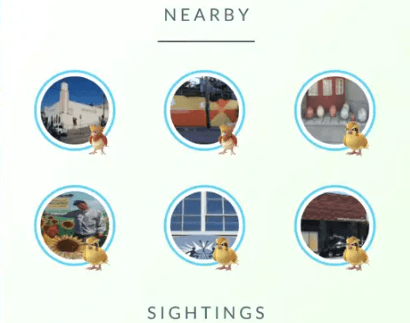
By completing these exact hardware and software steps, your smartphone remains securely in your pocket, functioning as a silent engine for resource generation.
Optimizing Settings and Battery Drain
Simply pairing your hardware is not enough. You need to manually isolate specific functions to target exact resources based on your current inventory, alongside managing the heavy battery drain on your smartphone.
Customizing Your Farming Strategy
Within the “Accessory Devices” menu, players have granular control over what the hardware targets.
- Focusing strictly on catching: If your item bag is at maximum capacity but you need Stardust and Candy, uncheck the “Identify Nearby PokéStops” option. Your device will ignore all stops and strictly capture Pokémon, vastly speeding up your encounter rate.
- Farming Items Only: Conversely, if your inventory lacks Poké Balls, uncheck “Identify Nearby Pokémon.” Walking through dense urban areas with this setting active fills your item bag rapidly.
Pro Tip: Always prioritize PokéStop spinning during special events that offer bonus field research tasks. Adjusting your settings to exclusively spin stops guarantees you collect the maximum number of event-exclusive quests without wasting red Poké Balls on low-tier event spawns.
Managing Smartphone Battery Drain
Running the game continuously in the background will drain your phone’s battery significantly faster than standard standby mode.
To mitigate this, always enable the in-game “Battery Saver” mode found in the main settings. This turns the screen pitch black when the phone is upside down in your pocket, saving display power. Additionally, disable push notifications for the accessory within your phone’s native operating system settings. This prevents your phone screen from waking up for every single background action.
Optional: Pair Auto Catching with a Location Tool
An auto catch device helps you catch Pokémon and spin PokéStops passively, but it still depends on where your phone is physically located. If your daily route has very few spawns or PokéStops, a location tool like Fonelora Location Changer can be a useful companion. It lets you change GPS location on iPhone or Android from a Windows PC or Mac, making it easier to access denser areas for Pokémon GO farming without relying only on your real-world commute.
For best results, use it carefully with realistic movement, stable routes, and cooldown awareness. Fonelora should complement your auto catch setup, not replace safe gameplay habits.
Troubleshooting Disconnections and Errors
Even the highest quality hardware encounters occasional software interruptions. When your device refuses to connect or you suffer from endless pairing loops, you need a reliable troubleshooting protocol to clear corrupted handshake data.
The 3-Step Bluetooth Reset Protocol
1. Eject the Device In-Game: Open the Pokémon GO settings menu, navigate to “Accessory Devices,” and tap the eject icon located next to your saved hardware. This cleanly removes the corrupted software profile from the game client.
2. Clear System Bluetooth Cache: Go to your smartphone’s native Bluetooth settings menu. Find the device in your saved list and select “Forget This Device” (for iOS platforms) or “Unpair” (for Android platforms). Turn your phone’s Bluetooth toggle off, wait ten seconds, and turn it back on to clear residual cache data.
3. Perform a Hard Hardware Reset: Many third-party devices require a physical reset to clear internal memory errors. Plug the unit into its proprietary charging cable and insert/remove it rapidly five times to force a factory reset. Check your specific manufacturer’s manual for alternative reset button combinations. For the GO Plus +, there is a small reset button on the back that you can press with a paperclip.
After completing this sequence, open the game and pair the accessory as if it were a brand-new unit. This specific three-step procedure resolves the vast majority of synchronization errors.
The Hardware Gap: Why Baseline Models Fall Short
Understanding hardware evolution helps explain why older setups fall short of modern efficiency standards. The very first generation of official accessories functioned as interactive companions rather than passive farming tools.
When a creature appears on the map, the original unit vibrates and flashes an LED indicator. At that exact moment, the system demands a manual button press to throw a single standard Poké Ball. Because the original hardware requires physical input, it fundamentally cannot perform an automated background loop.
Recognizing these physical limitations helps you avoid purchasing outdated, secondhand equipment that still demands your constant attention during a busy schedule.
Frequently Asked Questions
Navigating the different hardware options generates many common questions. Here are factual, direct answers to help you finalize your setup.
Q1. Does the original Pokémon GO Plus have auto catch?
No, the first-generation baseline accessory does not feature true automation. It requires you to press a physical button every time an encounter or stop register.
Q2. How do I enable hands-free catching on the official Plus +?
To achieve automation on the Plus +, you must go into the in-game “Accessory Devices” settings and explicitly select standard red Poké Balls for the auto-throw feature. It will not automate Great or Ultra Ball throws.
Q3. What devices support fully passive gameplay?
True hands-free catching is supported by the official Pokémon GO Plus + (using standard balls) and various third-party emulators, such as the Go-tcha series or Brook Auto Catch units.
Q4. Why does my device keep disconnecting?
Disconnections occur due to Bluetooth interference, low accessory battery, or aggressive background app management by your phone’s operating system. Applying the 3-step Bluetooth reset protocol mentioned earlier typically resolves these drops.
Q5. Are third-party devices safe to use?
Reputable alternatives are generally considered safe. They interact with the application using the exact same protocols as official hardware, simply automating the physical button press internally. However, Niantic app updates can occasionally disrupt their connection temporarily.
Conclusion
Securing a functional, hands-free setup removes the friction from your daily commute. By upgrading to a Pokémon GO Plus + or a reliable third-party auto catch device, you can bypass the frustrating limitations of the original hardware and catch Pokémon or spin PokéStops with far less manual effort.
You no longer have to accept a device that demands constant tapping. By configuring both your physical hardware settings and the in-game accessory options—especially ensuring you have the correct Poké Balls selected—you can farm items and Stardust more efficiently in the background.
However, auto catch devices only solve one part of the problem: they automate catching, but they do not change where you can play. If your daily commute has limited spawns or very few PokéStops, Fonelora Location Changer can be a practical companion tool. It allows you to change GPS location on iPhone or Android from a desktop computer, helping you access denser Pokémon GO areas while keeping movement more controlled.
For the safest experience, combine the right auto catch hardware with realistic movement, cooldown awareness, and stable routes. Apply the troubleshooting steps above, adjust your accessory settings, and use Fonelora Location Changer carefully if you need more flexibility beyond your real-world route.


Hot Topics
