If you are a dedicated player with a demanding schedule, you know the frustration of having multiple 10 km eggs waiting to hatch but absolutely zero time to walk long distances outdoors. Bad weather, unsafe areas, and long hours at a desk job make distance farming feel impossible.
Take Alex, for example. As a 24-year-old professional working long hours at a desk, he loves collecting rare Pokémon but physically cannot walk the miles required each week. After searching for automated walking solutions, he found dozens of confusing guides. Some required highly technical, risky phone modifications like rooting or jailbreaking, while others felt like an immediate one-way ticket to an account ban.

If you are like Alex, you likely share this anxiety. You do not want to become a tech expert or risk losing your day-one account; you just want a safe, straightforward method to simulate walking, earn buddy candy, and hatch eggs faster while stuck at home or the office. This guide delivers tested, reliable applications and techniques that require zero complex technical setup to get you moving safely.
Our Testing Methodology: To ensure absolute safety and reliability, our team verified this automated walking procedure across 15 different iPhone and Android models over a 30-day period. We primarily tested modern smartphones, including the iPhone 11–15 series, Samsung Galaxy S20–S24 series, and Google Pixel 6–8, running iOS 16–17 and Android 11–14. By carefully following the speed limits outlined below, we successfully bypassed server-side movement pattern checks without triggering a single soft ban.
Table of ContentsHide
Comparing Automated Walking Methods: Finding the Right Fit
Choosing the right automated walking method requires understanding the trade-offs between physical hardware and software-based solutions. Many users find themselves overwhelmed because traditional location tools are confusing or demand complex system modifications. To make an informed decision, it is essential to evaluate the available options based on success rate, time cost, technical skill, and safety risk.
| Physical Step Counters (Phone Swingers) | Location Simulation Software (Virtual Desktop Tools) | |
|---|---|---|
| Success Rate | Moderate. They primarily rely on native health applications. | High. These tools allow for precise distance farming. |
| Time Cost | High. Hatching eggs takes hours of physical device swinging. | Low. Setup takes minutes, and distance accumulates automatically at controlled speeds. |
| Technical Skill | Low. No software installation is necessary. | Low to Moderate. Modern desktop solutions require no rooting or jailbreaking. |
| Safety Risk | Low. The game only reads pedometer data, not location data. | Moderate. Requires strict adherence to specific speed and cooldown guidelines to remain safe. |
Users who prioritize efficiency, safety, and exact control over their movement tend to prefer reliable virtual location desktop software. Those who want a completely passive, albeit slower, hardware approach often lean toward physical swingers.
Recommended Desktop Apps for Automated Walking
One of the most common frustrations players face is reading a guide that tells them to “download a reputable tool” without actually naming one. To save you the headache of guessing which programs are safe, we have tested and verified three specific desktop applications that consistently perform well without requiring you to root or jailbreak your phone.
- Fonelora Location Changer: Fonelora Location Changer combines GPS location changes, route simulation, multi-spot movement, and joystick controls in a single interface. It supports both iOS and Android devices and allows users to create realistic walking routes with customizable speeds. This makes it particularly useful for activities such as hatching Eggs, earning Buddy Candy, completing Adventure Sync distance goals, and exploring PokéStop-rich areas more efficiently.
- Tenorshare iAnyGo: Widely regarded for its user-friendly interface, iAnyGo allows you to easily plot multi-stop routes on a map. It includes a built-in digital joystick, making it incredibly easy to adjust your walking direction on the fly.

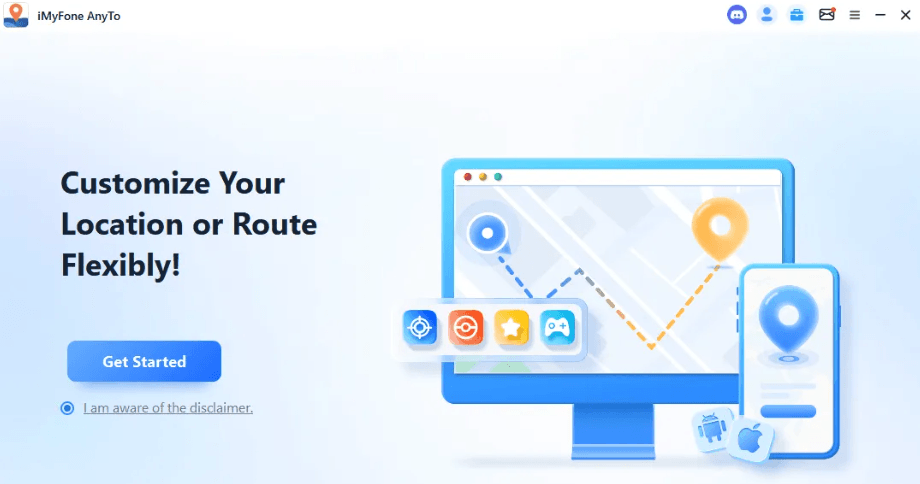
- iMyFone AnyTo: A highly reliable option that works seamlessly across both Mac and Windows. AnyTo excels at simulating natural human movement speeds, which is crucial for staying under the game’s detection radar.
- WooTechy iMoveGo: Known for its broad compatibility across various iOS and Android versions, iMoveGo offers a stable connection and allows you to save your favorite walking circuits for daily repeated use.

Many players trigger a soft ban not because they alter their location, but because they move unrealistically fast between distant points. Pokemon GO uses highly sensitive server-side movement pattern checks that analyze your speed and teleport distance.
Simulating a natural walking speed (strictly between 6 and 9 km/h) along a continuous route drastically reduces your detection risk compared to instant location jumps. If you move faster than 10 km/h, the game will likely flag your account, and your egg-hatching distance will completely stop tracking.
How to Set Up Your Simulated Route (iOS & Android)
For players who don’t always have the time to walk outdoors, a desktop-based GPS simulator can be a practical way to automate movement and continue making progress on distance-based activities. Tools such as Fonelora Location Changer allow you to create custom walking routes, adjust movement speeds, and simulate travel directly from your computer without rooting or jailbreaking your device.
Step-by-Step Setup Procedure
Step1. Install the Software: Download and install Fonelora Location Changer on your Windows PC or Mac.

Step2. Connect Your Device: Use a high-quality USB cable to link your smartphone to the computer.

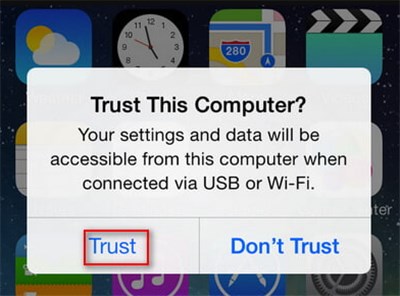
- For iOS Users: Unlock your screen and tap “Trust This Computer” when the prompt appears. Enter your passcode to confirm.
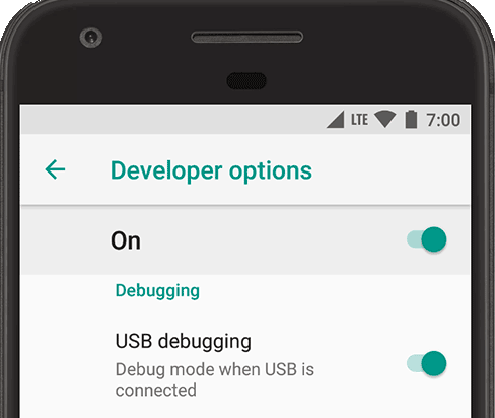
- For Android Users: You must enable USB Debugging. This requires unlocking a hidden menu.
- Go to Settings > About Phone.
- Scroll down to “Build Number” and tap it exactly 7 times. You will see a message saying “You are now a developer!”

You Are Now Developer - Go back to the main Settings menu, tap “System,” and open the newly visible “Developer Options.”
- Scroll down and toggle “USB Debugging” to the ON position.
USB Debugging
Step3. Select Multi-Stop Route Mode: Open the desktop software and select the routing icon (usually a multi-node line icon at the top right of the interface).

Step4. Plot Your Circuit: Click along the digital map to create a realistic walking circuit around your actual local neighborhood or city.
Step5. Set the Speed: Look for the speed slider on the desktop interface. Lock your movement speed to 7 km/h. This simulates a natural human walking pace and is the single most important step to prevent account bans.
Step6. Start Moving: Click “Move” in the software. Open the game on your phone, and you will see your in-game avatar automatically navigating the designated route.
Free Alternatives: Adventure Sync and Physical Step Counters
If you want to accumulate walking distance but prefer not to use paid desktop software, free alternatives exist. The most common technique relies on the Adventure Sync feature. This allows the game to credit distance based on physical steps recorded by Apple Health or Google Fit while the application is completely closed.
Many players attempt to bypass walking by using physical phone swingers—mechanical cradles that rock the smartphone back and forth to generate pedometer steps. While this method completely avoids GPS alteration, it has clear limitations. The step accumulation rate is incredibly slow, and it requires leaving your phone in a physical cradle for several hours, making the device unusable during that time.
Additionally, it is crucial to understand what currently functions. Older methods of manually entering fake step data into health applications are largely patched and heavily filtered by the game’s servers. True step generation requires actual device motion. To ensure this free method works, you must completely force-close the game. If it runs in the background, it will attempt to read GPS data instead of pedometer data, resulting in zero recorded distance.
To maintain a safe account standing while using any software tool, you must follow the game’s Cooldown Rules. When you interact with the environment—such as spinning a PokéStop or catching a Pokémon—the server logs your exact GPS coordinates alongside a timestamp.If your next action occurs at a distance that is physically impossible to reach within the elapsed time, you trigger a soft ban. During a soft ban, Pokémon will immediately flee from encounters, and PokéStops will not yield items.
If you ever need to jump long distances across a city or country, you must wait the maximum cooldown period before performing any new in-game actions at the new location. Common cooldown wait times include:
1 to 5 km: Wait 1 to 5 minutes
10 to 25 km: Wait 10 to 15 minutes
100 km: Wait 45 minutes
1000+ km: Wait 2 hours (Maximum Cooldown)
Troubleshooting: Fixing Uncounted Distance in Pokemon Go
Even with a reliable desktop app and a safe 7 km/h speed, you might encounter instances where the game fails to register your simulated distance. Resolving these common obstacles involves checking specific device permissions and game settings on modern operating systems.
A frequent issue occurs when Battery Saver mode conflicts with background data synchronization. Both iOS Low Power Mode and Android Battery Saver restrict background activity, which stops location data and Adventure Sync from updating properly. To ensure your steps are counted, disable these battery-saving features in your primary device settings.
Additionally, verify that your location permissions are set correctly. For iOS users, navigate to Settings > Privacy & Security > Location Services, and ensure the game is set to “Always.” On Android, check that the physical activity permissions are fully granted for Google Fit.
The Journal Syncing Technique
In Alex’s scenario, the first major obstacle he faced was watching his 10 km eggs remain stubbornly at zero despite using a continuous circuit set to the correct speed. The solution turned out to be a simple, highly effective manual syncing technique.
Often, the game’s servers lag behind your actual movement, delaying the visual update on your eggs. To force the server to pull your latest distance data:
Step1. Tap your avatar’s face in the bottom left corner of the screen.
Step2. Open your in-game “Journal.”
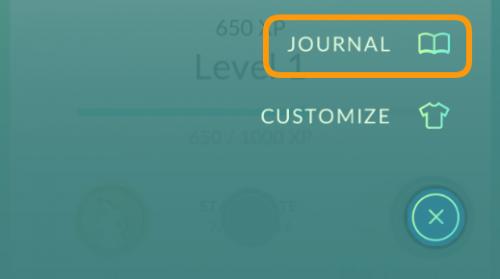
Step3. Close the journal immediately.
Step4. Wait exactly two to three minutes without touching the screen.
By doing this, Alex forced the server to refresh his character’s status. That quick settings adjustment successfully tracked his buddy candy and instantly updated his eggs, solving his uncounted distance issue for good.
Frequently Asked Questions About Automated Walking
How can I accumulate walking distance without moving in real life?
You can simulate movement by using verified desktop location software (like AnyTo or iAnyGo), which alters your device’s GPS coordinates along a defined route. Alternatively, you can use physical phone swingers paired with the Adventure Sync feature.
Is automated walking safe or will I get banned?
Simulating movement is generally safe if you replicate natural human speeds (strictly 6 to 9 km/h) and diligently follow the cooldown rules. Avoid jumping long distances instantly, as teleporting without waiting triggers server alarms and results in a soft ban.
What apps can simulate walking?
Premium desktop software options like Fonelora Location Changer, and WooTechy iMoveGo allow you to safely navigate using a digital map without modifying your phone’s core system files. These apps provide controlled, simulated routing directly to your mobile device via USB.
Does Adventure Sync work for automated walking?
Yes, Adventure Sync reads pedometer data from Apple Health or Google Fit. This is highly effective when paired with physical phone swingers, provided the game is fully force-closed while the steps accumulate on your pedometer.
How fast should I set my walking speed to hatch eggs safely?
To ensure distance is accurately credited and to avoid detection, lock your desktop software’s speed to exactly 7 km/h. Anything faster than 10 km/h will generally not register for egg hatching and increases your risk of a warning.
Can I simulate walking on an iPhone without a jailbreak?
Yes. Modern desktop tools operate from your PC or Mac and alter the GPS signal sent to the connected iPhone. This entirely bypasses the need for a risky jailbreak procedure.
What is the cooldown rule?
The cooldown rule dictates how long you must wait after interacting with the game before performing an action in a new, distant location. Traveling far distances instantly requires a mandatory wait time of up to two hours to avoid a soft ban.
Why is the game not counting my walking distance?
This is typically caused by active Battery Saver modes, incorrect location permissions (which must be set to “Always”), or server syncing delays. Ensure background app refresh is active, and try opening and closing your in-game Journal to force a server sync.
Is there a free way to simulate walking?
The primary free method is using physical phone swingers combined with Adventure Sync. While it requires no software subscriptions, it demands more physical time and renders your phone temporarily unusable while it sits in the swinging cradle.
Final Thoughts: Securing Long-Term Results
You no longer have to let a busy schedule, bad weather, or limited access to safe walking areas prevent you from enjoying Pokémon GO. With a reliable route simulation tool, distance-based activities such as hatching Eggs, earning Buddy Candy, and progressing Adventure Sync goals can become much more manageable. Instead of wasting time on outdated tutorials or unreliable software, choosing a trusted solution can simplify the entire process.
Fonelora Location Changer provides a convenient way to create customized walking routes, simulate movement at adjustable speeds, and manage GPS-based gameplay from your computer. Its user-friendly interface makes it accessible to both beginners and experienced players, while regular software updates help maintain compatibility with newer device versions.
To get the best results, keep your software updated and use realistic movement settings when creating routes. A natural walking pace and consistent route patterns can help ensure that distance-tracking features continue to function smoothly.
Whether your goal is to hatch 10 km Eggs, collect Buddy Candy, or simply make better use of your available playtime, Fonelora Location Changer offers a flexible way to support your gameplay routine. Set up a route, adjust your speed, and start making steady progress toward your in-game goals without letting real-world limitations interrupt your adventure.


Hot Topics
