Will iTunes Backup Photos Videos on iPhone
Does iTunes backup photos and videos on your iPhone? Can I get these photos and videos from backup? Read this post to get answers.
iTunes is an amazing way to create backups of your iOS devices like iPhone and iPad. Unlike other backup methods, iTunes ensures that all your important data from your mobile devices are backed up to your machine. If what you are looking for is to backup your photos with iTunes, you will want to find out if iTunes can actually back up the photos stored on your iPhone.
There is actually a list of items that iTunes can backup from your iOS devices. If you are not sure what items will be backed up, it is worth checking out the list and ensuring the items you want to backup are listed in there. This guide shows what items iTunes backs up and how you can extract photos from an iTunes backup using various methods.
What Does iTunes Back up
iTunes backs up a ton of data from your iOS-based devices like iPhone and iPad but it is always a good idea to learn what all these items are. This way you can be sure that what you want to back up is actually being backed up by the app on your computers.
Since iTunes does not allow you to selectively backup and extract your data, you can be sure that everything from your phone will be backed up when you that backup button. If you enable encryption for your backups, you can back up a few more items from your iOS device.
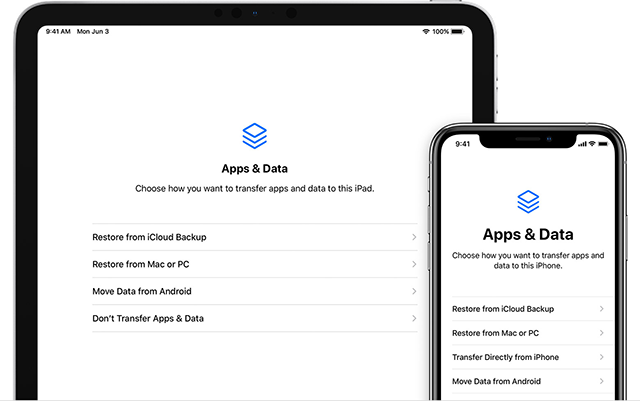
What Items iTunes Backs up
The following is a list of items that iTunes backs up from your iPhone and iPad when you create a backup.
- Photos – this includes various types of photos such as camera photos, screenshots, and favorites.
- Media files – this includes all the videos stored in the Photos app as well as your movies, music, and ringtones.
- Files obtained from the App Store and iTunes Store. This includes your Apple Books content as well.
- Synced content – this is the content that you have synced to your iOS device from your computer like photos, videos, music, and so on.
- Face ID and Touch ID configurations.
- Your iCloud account content.
- Your Apple Pay account information and settings.
- Your Apple Mail files.
- Your Activity, Health, and Keychain data (this only gets backed up if you use encryption for your backups in iTunes).
As you can see for yourself, it pretty much covers everything you would ever want to backup from your iPhone to your computer.
How to Extract Photos from iTunes Backup
An iTunes backup is meant to be restored on your iOS device at some point in time. If you have backed up certain content such as your photos, you may want to extract your photos from your iTunes backup. People often want to take certain data out of their backups so they can use that data without getting involved with any other files.
Unfortunately, the thing with iTunes is that it does not allow you to selectively restore content to your devices. If you made a backup of your device with iTunes, you need to restore the entire backup on your device to get access to your files. You cannot simply restore photos from your iTunes backup to your iPhone.
Also, restoring an iTunes backup means deleting all the existing data on your device. You need to wipe off your iPhone before an iTunes backup can be restored on it. This means you will lose your current data on your device if you want to restore a backup. If you would still like to proceed, the following shows how to do that.
This procedure uses Finder on macOS to restore a backup. The steps for iTunes should be similar.
Step 1. Connect your iPhone to your computer using a USB cable.
Step 2. Open a Finder window and click on your iPhone in the left sidebar.
Step 3. On the right-hand side pane, find the button that says Restore Backup and click on it. This will let you restore a backup on your iPhone.
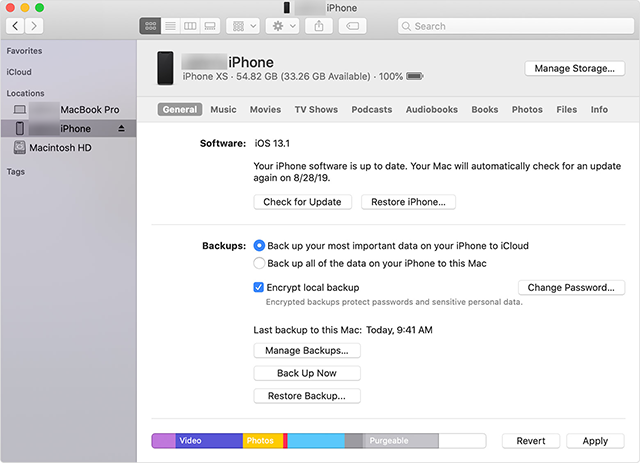
Restore An iTunes Backup
Step 4. On the following screen, you will be asked to choose the backup that you want to restore. Use the dropdown to select an option and click on Restore.
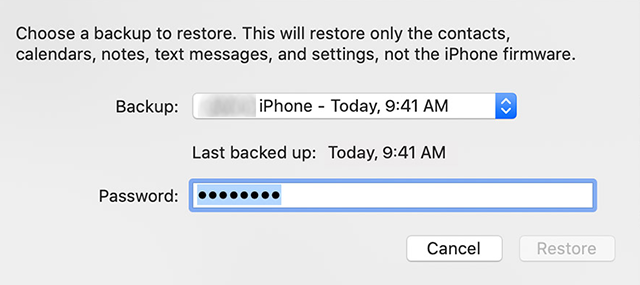
Select A Backup to Restore
How to Manually Sync iPhone Photos with iTunes
One of the features of iTunes is that you can manually sync your content with the app. If you have certain items loaded on your computer or on your iPhone, you can exchange this data between your device and your computer. This allows you to selectively sync your photos as well if that is what you want to do.
Accessing and using the manual photos sync option in iTunes is pretty easy. All you need to do is connect your iPhone to your computer and you can start syncing your photos. The following should walk you through the steps to do this procedure on your computer.
Step 1. Plug-in your iPhone to your computer using a USB cable.
Step 2. Launch the iTunes app on your computer and click on your iPhone in it.
Step 3. From the options available in the left sidebar, click on Photos. This will let you access the photo sync settings for your iOS device.
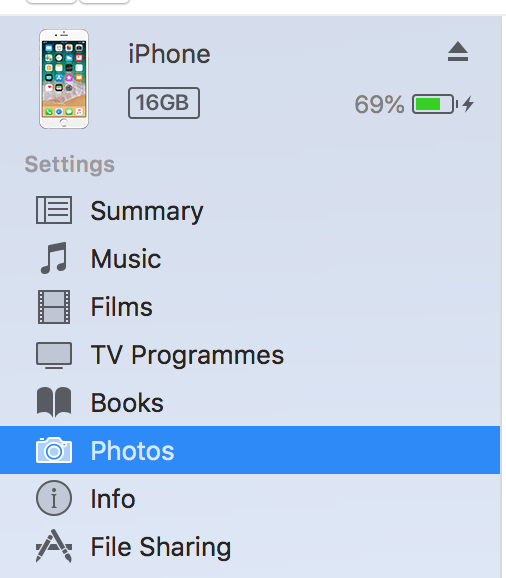
Access Photos Settings in iTunes for Your iOS Device
Step 4. On the right-hand side panel, you will see a few options for syncing your photos with iTunes. Tick-mark the box for Sync Photos. Then, select the folder where you want to sync your photos from and finally hit Sync at the bottom.
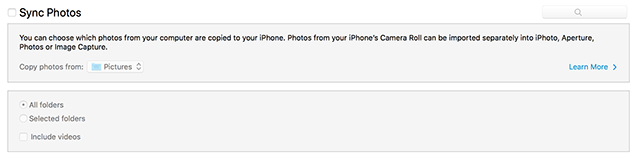
Manually Sync Photos with iPhone/iPad
Extract iTunes Backup Photos with AnyTrans
One of the disadvantages of using iTunes for your backups is that you cannot selectively restore content on your iOS devices. Luckily, this issue can be dealt with by using a third-party app on your computer. There are several apps in the market that let you extract photos and other content from an iTunes backup on your computer.
AnyTrans, as a professional data management tool on iPhone, allows you to open and access the contents of your iTunes backups. Not only can you view the files in backups but you can restore those as well to your devices. It gives you the option to selectively restore your files so that you only get the content that you actually want on your iPhone and iPad.
This way you can eliminate the unwanted files that you do not want to restore on your device. The following should teach you how you can extract photos and other files from an iTunes backup using the AnyTrans.
Step 1. Download AnyTrans and run it on your computer > Connect your iPhone to your computer, and click on Backup Manager.
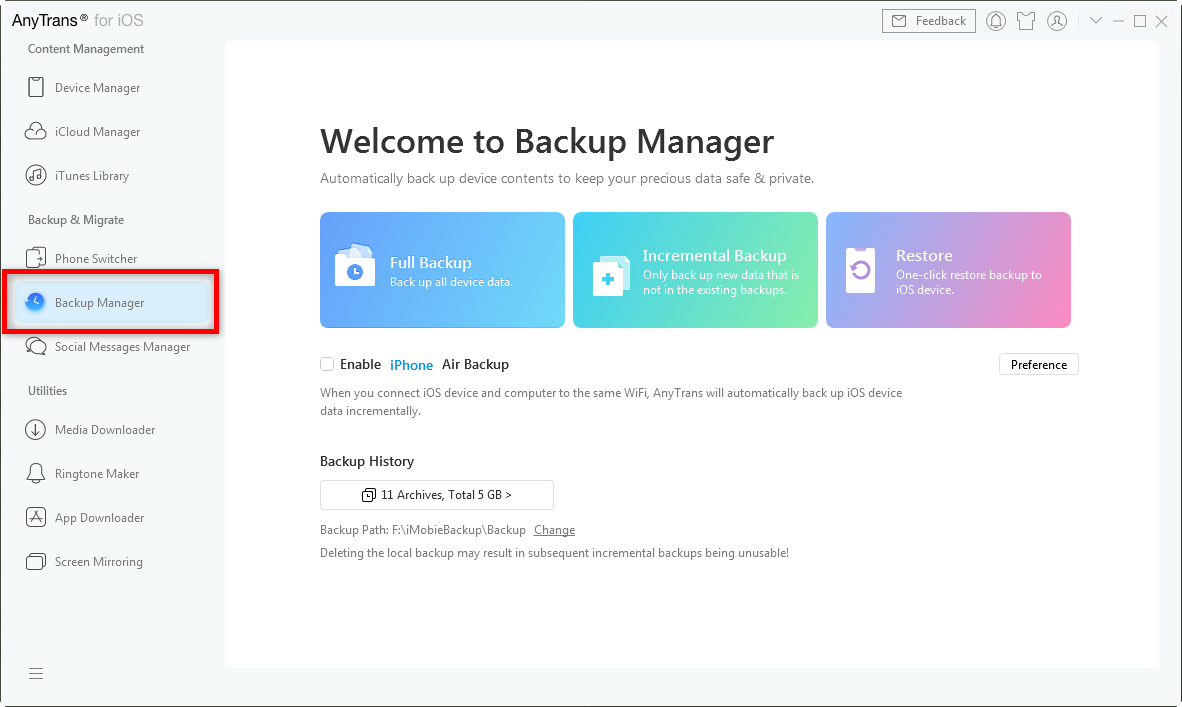
Use Backup Manager in the AnyTrans
Step 2. Click on the Backup History option and choose the backup you want to restore contents from.
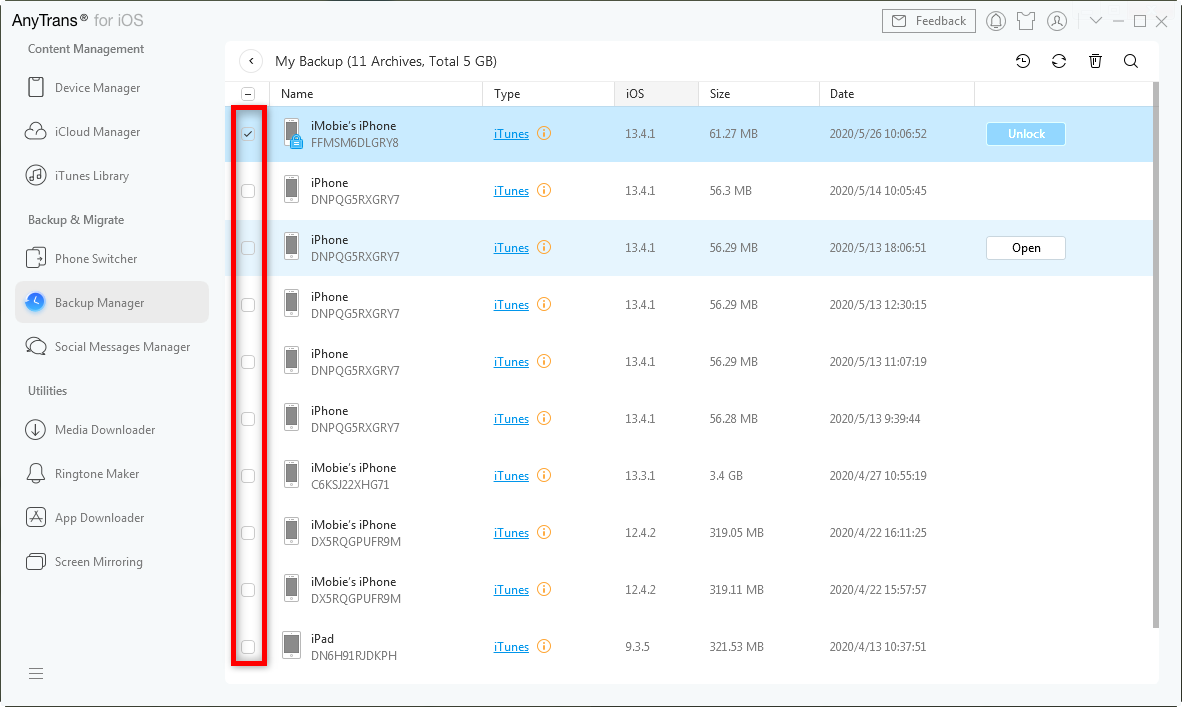
View Backups List
Step 4. Select the files you would like to restore on your device and click on Restore at the top.
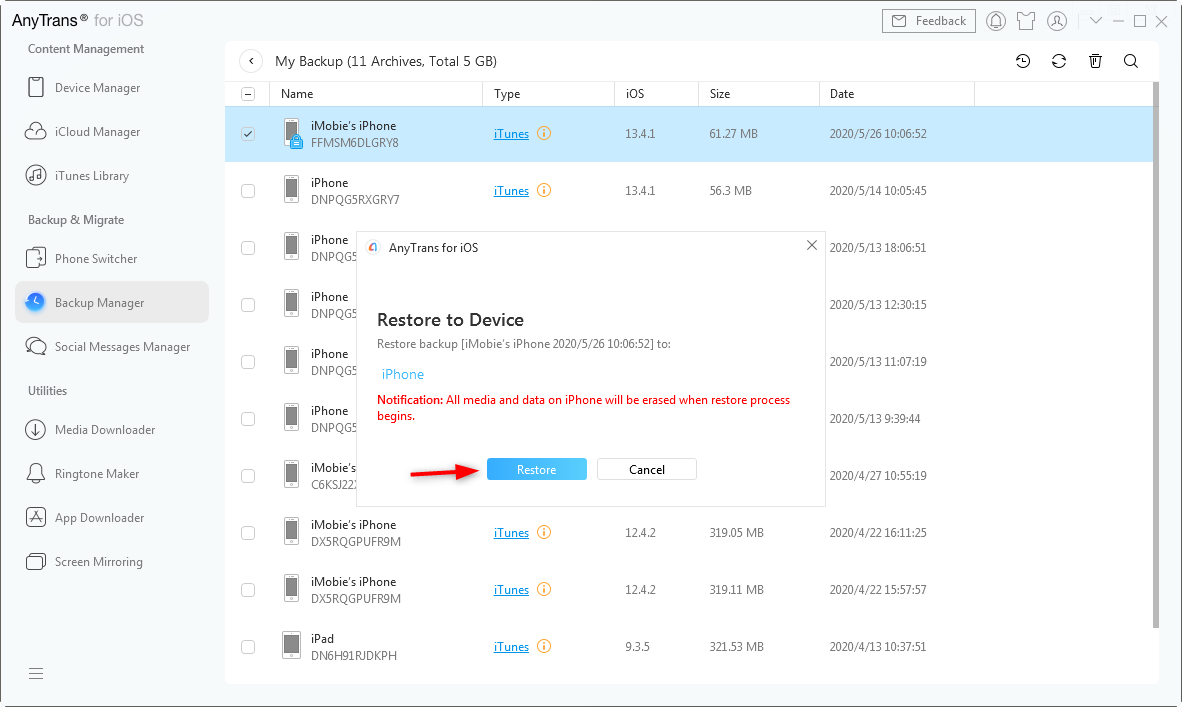
Restore Backup Contents on An iOS Device
Conclusion
If you have no idea what iTunes backs up from your iOS devices, the above guide should tell you all the items that are backed up in an iTunes backup. It also shows how you can extract photos from an iTunes backup in case you are not interested in restoring a full backup.



Member of iMobie team as well as an Apple fan, love to help more users solve various types of iOS & Android related issues.
Product-related questions? Contact Our Support Team to Get Quick Solution >
