How to Fix iPhone Deleting Contacts Randomly [iOS 26]
This article explains why iPhone keep deleting contacts randomly and provides effective ways to fix this issue. Moreover, you can learn how to recover iPhone deleted contacts with step-by-step instructions. Check the following part and get back your important contacts quickly.
PhoneRescue for iOS – Recover Deleted Contacts in One Click
Can you get back iPhone deleted contacts? Yes, PhoneRescue for iOS can retrieve deleted contacts from your iPhone in quick steps. It supports the latest iPhone 17 and iOS 26.

If you find that iPhone deleted contacts by itself and randomly, you must be curious, “Why did my contacts get deleted automatically on iPhone?”. Actually, you are not the only one who meets this iPhone randomly deleting contacts issue. To help you fix this problem, we need to first figure out what leads to it, so we can prevent it from happening again.
My contacts are randomly being deleted on iOS 18.3.1. I’ve tried everything I can find online (restarting, making sure contacts are synching, etc). Anyone else having this problem? Any solution? – A user asked on Reddit.
Contacts Deleted from iPhone
Why Is My iPhone Deleting Contacts Randomly?
The iPhone deleting contacts issues are mainly caused by iCloud syncing and software updating. Understanding the root of the problem is the first step toward a solution.
iCloud Syncing Glitches: It’s common to use iCloud to keep your contacts, calendars, and other data synchronized across all your Apple devices. When you delete contacts from one of the devices, they will lose on all synced devices.
Third-Party Account Syncing Issues: Like syncing contacts on iCloud, many people store their contacts in email accounts. If you set up iPhone to sync contacts with a Gmail or Outlook account, any disruption to that account can cause contact loss, including changing your email password on another device and not updating it on your iPhone, or if the email provider is experiencing a temporary service outage.
iOS Update Bugs: iOS updates can also interfere with how your iPhone manages and displays your contacts, especially when the contacts are missing after updates. A quick search of online forums after a major iOS release often reveals if others are experiencing similar contact-related problems.
General Software Glitches: Like any complex piece of software, iOS can sometimes experience random glitches that may affect your contact data.
Now, you can try the following methods to totally fix this issue and get back the missing contacts.
How to Fix iPhone Deleted Contacts Randomly
Knowing the possible reasons for iPhone randomly deleting contacts, you can check how to fix this issue by checking iCloud syncing, verifying your email account, and more.
#1. Fix iPhone Deleted Contacts Randomly with iCloud Sync
If you have enabled iCloud sync, all your contacts will be uploaded and stored in iCloud. If you disable this feature by accident, you will find contacts deleted from your iPhone. Just go to Settings and enable iCloud sync directly.
Step 1. Open iCloud to confirm.
Go to Settings > Your name > iCloud > Turn off Contacts if it is on, and then tap Keep on My iPhone to confirm.
Step 2. Fix contacts deleted from iPhone.
Turn on the contacts again and tap Merge, wait for a while and the lost contacts will appear on your iPhone.
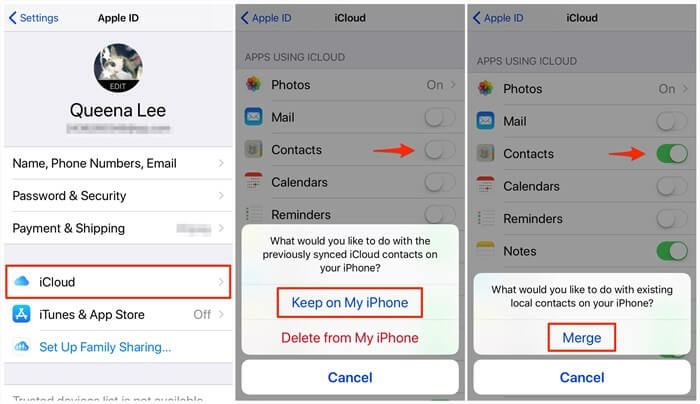
Fix iPhone Lost Contacts – Check iCloud Sync
That’s how you can enable iCloud sync and get back the deleted contacts on iPhone. If it’s enabled already, check the next method.
#2. Verify Your Email Accounts
If you have linked your iPhone to a third-party email account, such as Gmail, Outlook, or others, you should always keep the account information up to date so that your data will remain secure on your iPhone.
- For iOS 10 and earlier users: Open Settings app > Tap Mail > Tap Accounts > Tap your account > Turn Contacts on.
- For iOS 11 and later users: Open Settings app > Tap Accounts & Passwords > Tap your mail account > Turn Contacts on.
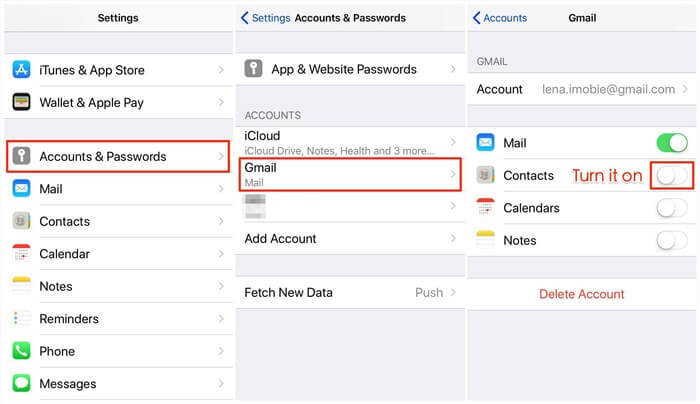
Fix iPhone Lost Contacts – Check Email Account
That’s how you can turn on account sync on iPhone and get back the deleted contacts. If you have changed your email password, you should also update it on iPhone to ensure contacts syncing.
#3. Reset Network Settings
Resetting your network settings is a troubleshooting step that can resolve these underlying connectivity issues. It’s important to understand that this action will erase all your saved Wi-Fi networks and their passwords, so be sure to have this information on hand before you proceed.
Here’s how to reset your network settings on your iPhone:
Step 1. Launch the Settings app from your home screen to access the main settings menu.
Step 2. Scroll down and tap on the General option.
Step 3. Select Transfer or Reset iPhone. Then tap on Reset and choose Reset Network Settings from the list of options.
Step 4. You will be prompted to enter your device passcode to confirm the reset.
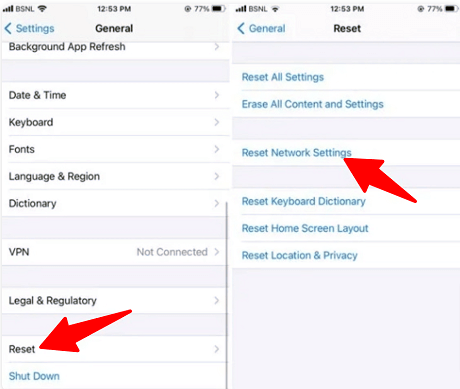
iPhone Reset Network Settings
Your iPhone will then proceed to reset its network settings and will automatically restart. Once your device has rebooted, you will need to reconnect to your Wi-Fi network. After reconnecting, check your contacts to see if the issue of random deletions has been resolved.
#4. Repair iPhone System After Update
If the iPhone randomly deleting contacts issue is caused by iOS updates, there might be system glitches. In this case, you may need to fix iPhone system issues and solve the problem effectively. AnyFix provides an easy way to repair iOS without data loss. It works well on all iPhone and iPad models, including the latest iPhone 17 and iOS 26. Common system-related issues that AnyFix can repair include iPhone stuck on Apple logo, iPad boot loop, iPhone stuck in recovery mode, and more. Follow the steps below to fix iPhone keeps deleting contacts randomly after updates.
Step 1. Download and install AnyFix on your Windows or Mac computer.
Free Download * 100% Clean & Safe
Step 2. Open AnyFix and choose System Repair.
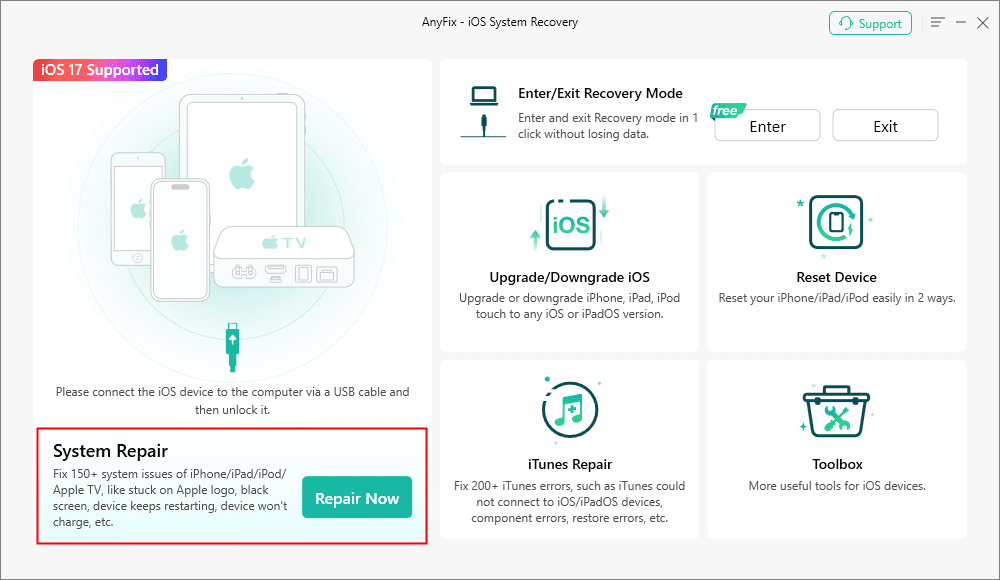
AnyFix System Repair Option
Step 3. Connect your iPhone to the computer and select Device Bug.
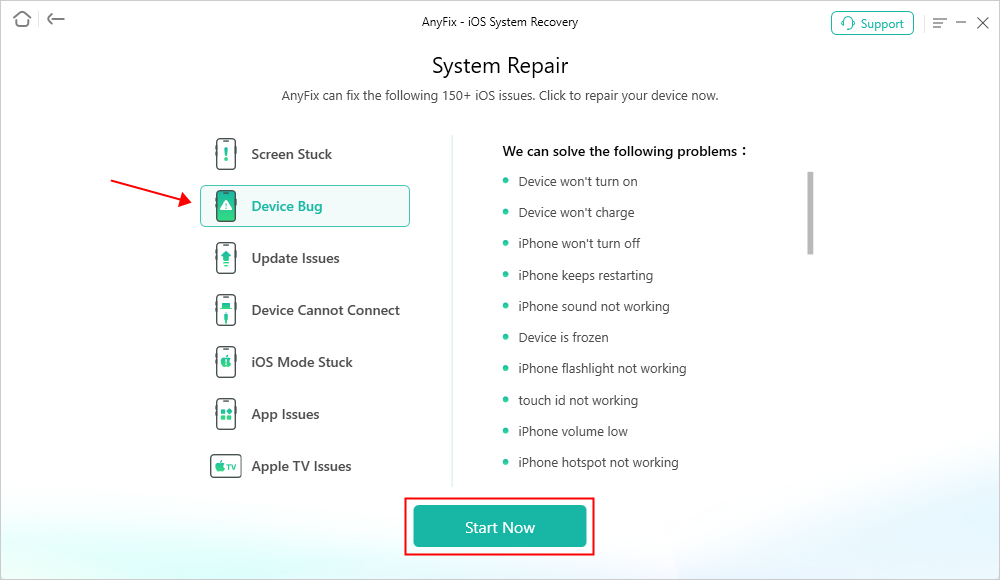
AnyFix System Repair Device Bug
Step 4. Choose Standard Repair from the 3 supported modes. Then follow the instructions to finish system repair on your iPhone.
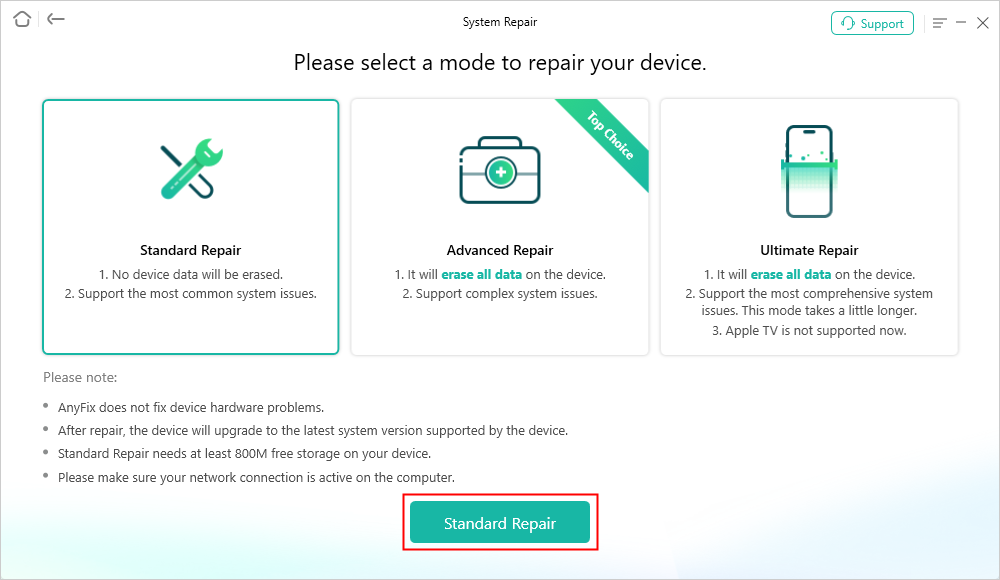
Choose Standard Repair Mode
After repairing, your iPhone will restart and you can check if the randomly deleted contacts are back or if it’s stopped from deleting again.
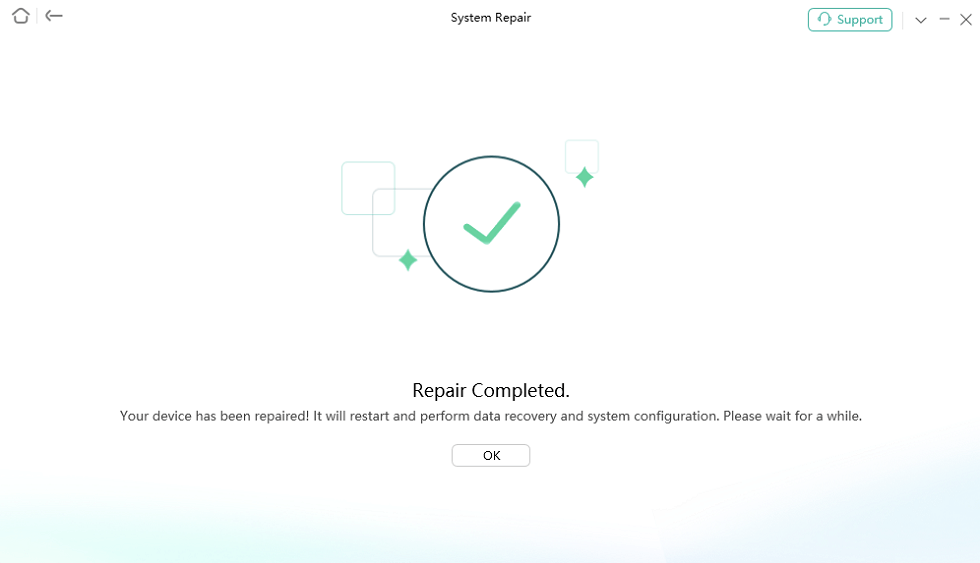
Repair Is Completed
How to Recover iPhone Deleted Contacts
When iPhone deletes the contacts randomly, can you recover them? Yes, it’s easy to get back lost contacts with iCloud backup or use an iPhone data recovery tool if you don’t have any backups.
Method 1. Retrieve iPhone Deleted Contacts in iTunes
Similar to the iCloud backup way, if you have backed up the iPhone to iTunes, then you can also try restoring to recover deleted contacts.
- Connect your iPhone to the computer you usually sync it with and open iTunes.
- When your iPhone appears in iTunes, click the Summary option.
- Click the Restore Backup option. If this option is grayed out, you may need to change your backup preferences from iCloud to Computer. You can always change this back after you have restored your iPhone.
- This process can take a while. Wait for its finishing, and then you will see the missing contacts in your Contact app again.
Also Read: How to Fix iTunes Stuck on Preparing iPhone for Restore >
Method 2. How to Recover Deleted Contacts on iPhone Without Backup
If the above methods cannot help you get lost contacts back, PhoneRescue for iOS is another workable solution that allows you to get deleted contacts back on your iPhone without backup. It will scan your iPhone and find your lost contacts in minutes.
More than anything, unlike restoring from iTunes or iCloud backup, PhoneRescue for iOS allows you to recover only the contacts category without erasing any existing data from iPhone backup. There’s no need for a blind full restore. Now, let’s first check the steps to recover deleted contacts on iPhone without a backup.
Free Download * 100% Clean & Safe
Step 1. Connect the iPhone and choose recovery mode.
Download PhoneRescue for iOS, install and launch it > Connect your iPhone to the computer via USB cable > Choose Recover from iOS Device > Click the Right Arrow to confirm.
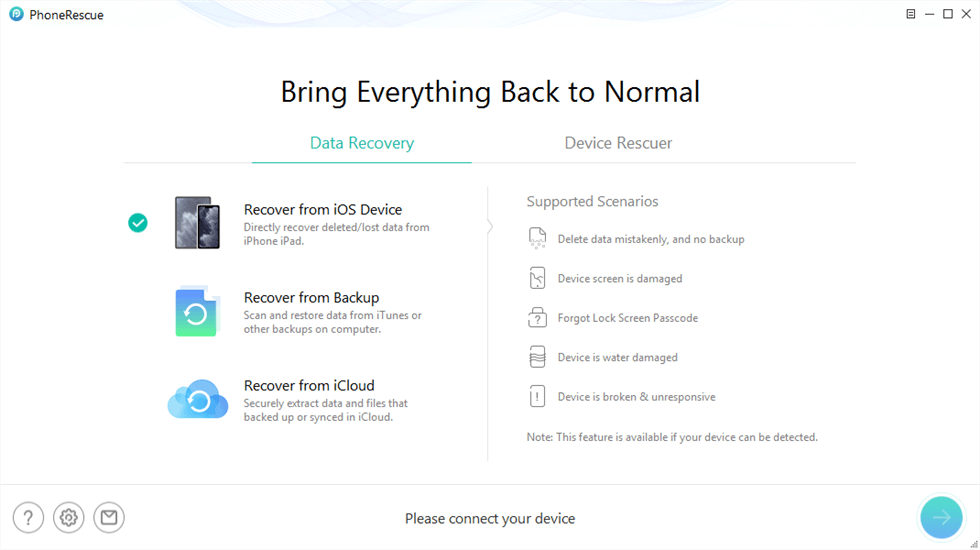
Choose Recover from iOS Device
Step 2. Scanning the contacts on your iPhone.
Uncheck the Select All option and then check Contacts only > Click on the OK button to scan the deleted contacts on your iPhone.
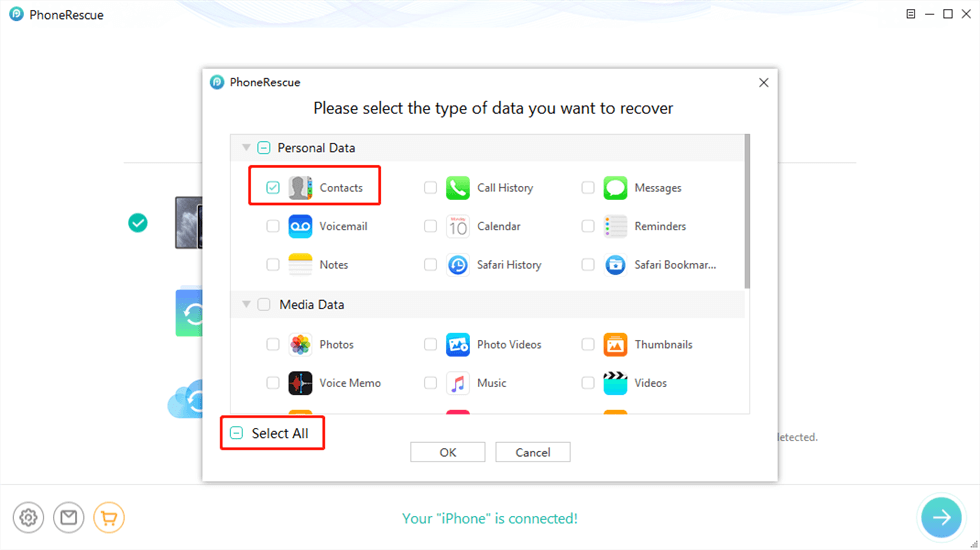
Select Contacts to Scan
Step 3. Select the contacts to recover.
Preview and select the contacts you want to recover > Click the Recover button on the bottom right corner to get them back.
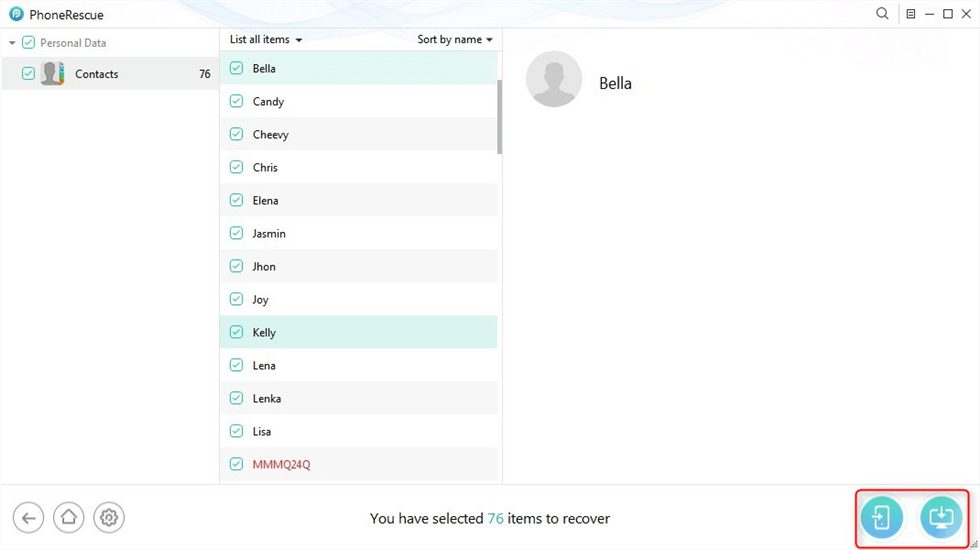
Recover Lost Contacts
The Bottom Line
In the above content, we have explained why iPhone deletes contacts randomly, how to prevent it from removing contacts, and how to recover lost contacts if they are not back after trying the fixes. It’s always frustrating to experience data loss without knowing. By enabling iCloud syncing, verifying your email account, resetting network settings, and repairing iOS, you are supposed to solve the iPhone deleting contacts issue effectively. Additionally, if you do have lost some important contacts and can’t recover them from a backup, PhoneRescue for iOS is recommended. It can help find the deleted contacts on iPhone and get them back in a few steps. Download PhoneRescue for iOS now and save your lost contacts immediately.
Free Download * 100% Clean & Safe



Wanda Norris is a junior author in iMobie specializing in iOS tips and solutions. She keeps a close eye on every iOS update to provide practical, easy-to-understand guides that help users solve problems and master their Apple devices.
Product-related questions? Contact Our Support Team to Get Quick Solution >
