Try PhoneRescue to Retrieve Your Lost Important Data Back!
View the most comprehensive guides to Recover Lost Data from iOS Device, iTunes Backup (even encrypted), iCloud Account, iCloud Backup, and Repair iOS System, Remove Lock Screen Passcode and Recover Screen Time Passcode. Download and try it now.
Free Download For Win & Mac | 100% Clean & Secure


Basic Info of PhoneRescue
Know everything you need to help you use PhoneRescue easier.
Tech Specs
| Windows | Windows 11, 10, 8, 7, Vista, both 32bit and 64bit |
| Mac | macOS 10.13 (High Sierra) and above |
| iOS | All iOS Devices with iOS Version 5 and above |
| Hard Disk Space | 100 MB and above free space |
| RAM | 512MB system memory |
| CPU | Pentium IV 2.4 GHz or above |
| Others | Apple Device Driver (iTunes) |
1. Before running PhoneRescue, you're supposed to download the newest version of iTunes to help detect iPhone/iPad/iPod touch.
2. To avoid the automatic sync, please don't launch iTunes while running PhoneRescue. We also suggest you to disable the automatic sync in iTunes beforehand: Launch iTunes > Preferences > Devices, check “Prevent iPods, iPhones, and iPads from syncing automatically”.
Supported Device Models
| iPhone Series | iPhone 3G - iPhone 18 Series |
| iPad Series | iPad - iPad 11 |
| iPod touch Series | iPod touch 1 - iPod touch 7 |
All devices with iOS version 5 and above.
Supported File Types
iMobie takes your satisfaction in priority. We sincerely hope you would have a happy experience with PhoneRescue. Thus, we highly recommend you to read the detailed supported file types before choosing PhoneRescue.
| Personal Data | Contacts, Call History, Messages, Message Attachment, Voicemail, Calendar, Reminders, Notes, Note Attachment, Safari History, Safari Bookmarks |
| Media Data | Photos, Photo Videos, Thumbnails, Music, Videos, AudioBooks, Playlists, Ringtones, iBooks, Voice Memo |
| App Data | App Documents, App Photos, App Audios, App Videos, WhatsApp, WhatsApp Attachment, Line, Line Attachment, Kik, Kik Attachment |
Differences between Free & Registered Version
| Benefits | Free Version | Registered Version |
| Scan & Preview device data |  |
|
| Scan & Preview backup data | |
|
| Scan & Preview iCloud data | |
|
| Recover data |  |
|
| Repair iOS System | |
|
| Remove Lock Screen Passcode | |
|
| Recover Screen Time Passcode | |
|
Activation Instructions
If PhoneRescue meets your needs, welcome to download and give it a try. To enjoy all benefits of PhoneRescue, you need to upgrade to the registered version (See Pricing). After the order is placed successfully, you will receive Account and Activation Code within several seconds to minutes. Please click “Activate” button.
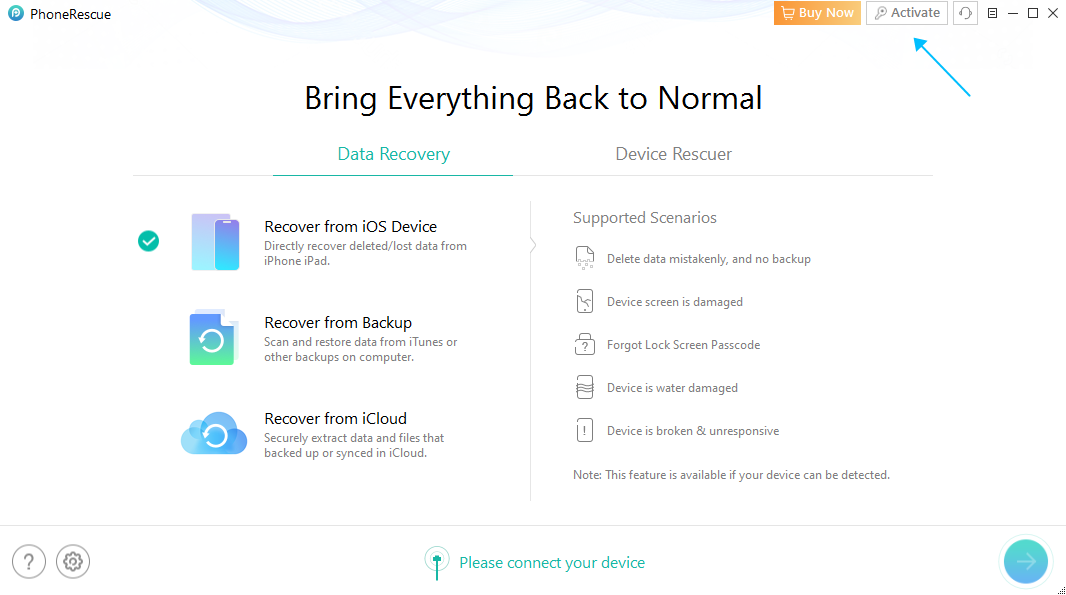
Click Activate Button of PhoneRescue
If you have any questions or problems while downloading or installing PhoneRescue on computer, please try the detailed instructions to solve it.
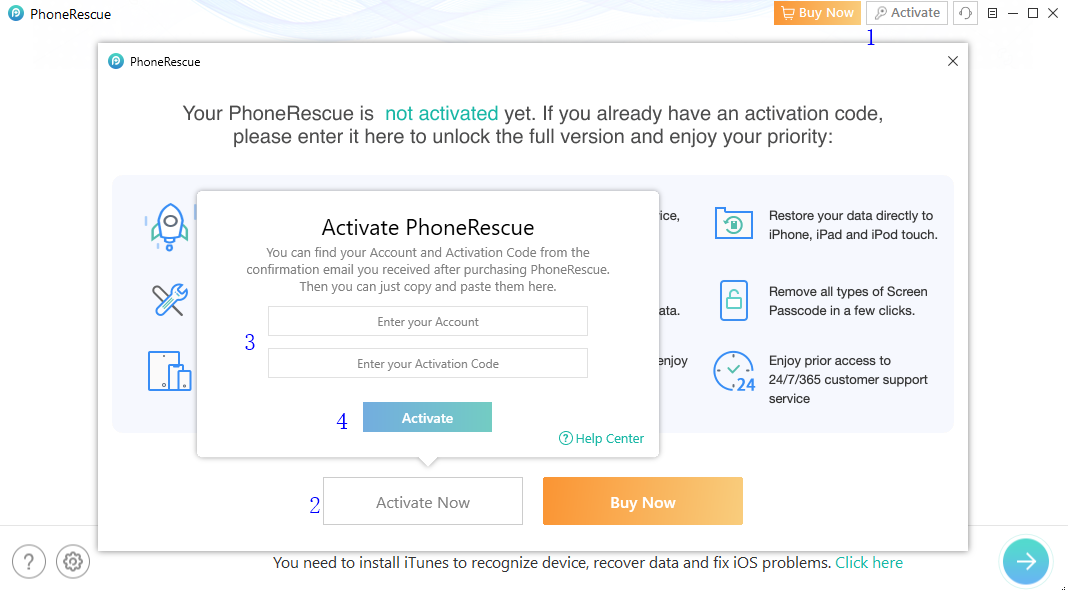
You can view the priority in the full version. Then, please click “Activate Now” button to enter email address and the activation code you received. Please copy & paste the Activation Code to avoid any typing mistakes. Please also connect your computer to the Internet when activating PhoneRescue.
PhoneRescue Activation Completed
Then, please click “Activate” button. After completing activating process successfully, you will see the interface below.
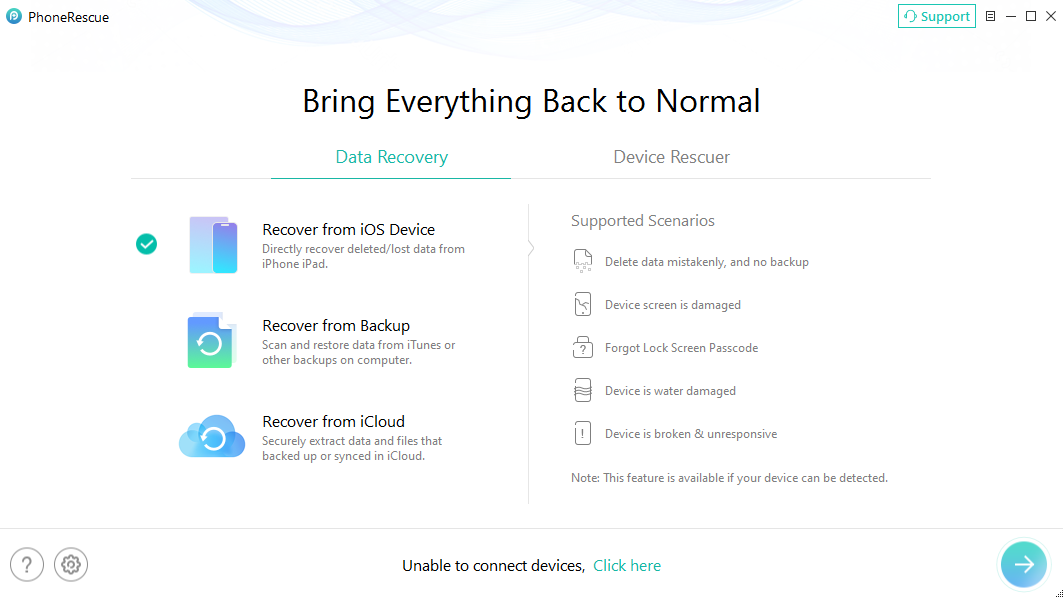
PhoneRescue Activation Completed
If you still did not receive Activation Code after completing the payment, please contact Support Team to get a solution immediately. All you request will be replied within 24 hours on work days and 48 hours on weekends.
Basics
Please launch PhoneRescue on your computer after installing it successfully. Then, the main interface will display. Please simply click different mode icons to choose the function you need.
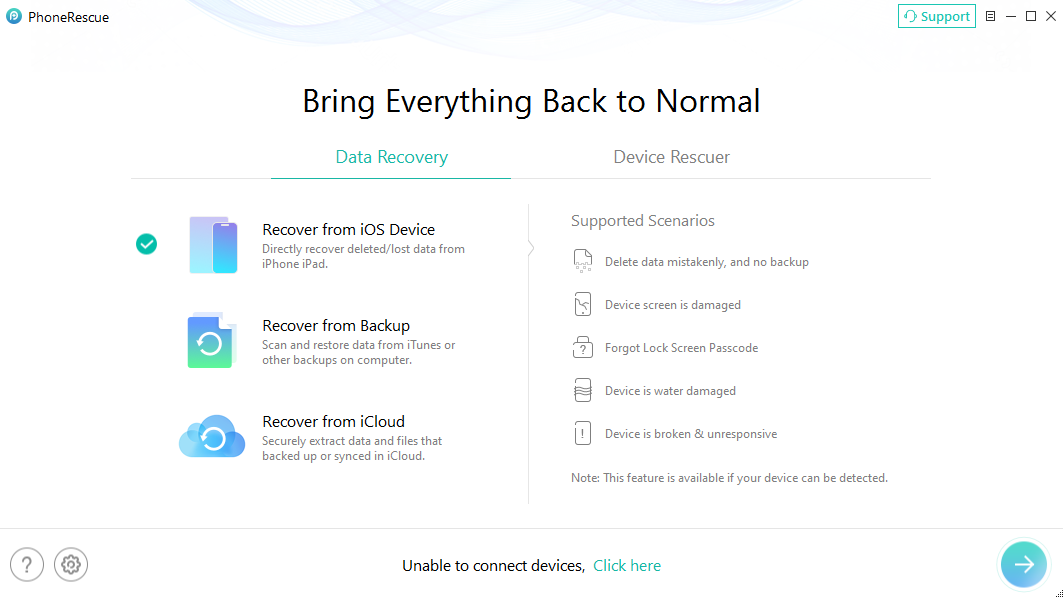
The Main Interface of PhoneRescue
By default, all categories will be selected. If you only want to recover some certain categories, please uncheck Select All option and then choose the data based on your needs.
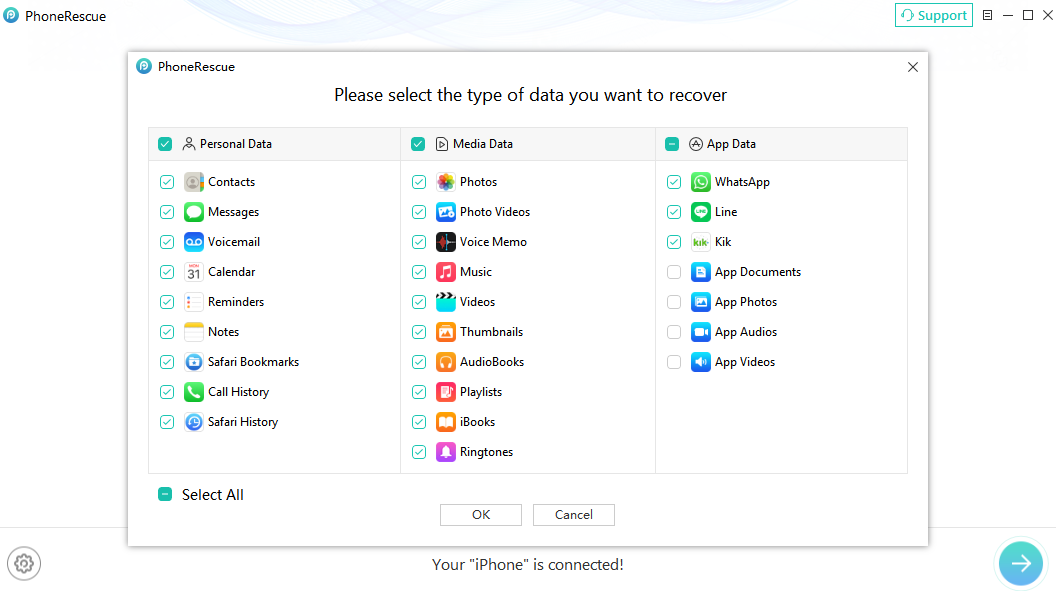
Select the Type of Data of PhoneRescue
PhoneRescue will display the scanning result window to you even with the free version. With the registered version, you can recover data to device or computer as you need.
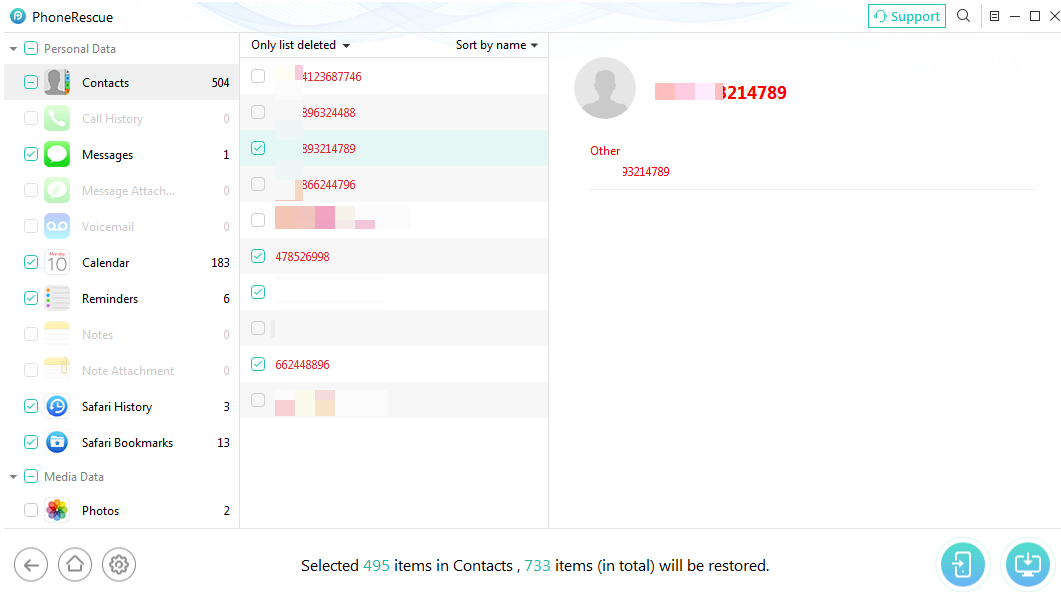
Scanning Result
PhoneRescue currently can support to restore the personal data (messages/contacts/notes), photos, app audios and app videos to both device and computer. For other data, PhoneRescue can only restore themto computer.
Settings
To make good use of PhoneRescue, please learn how to set up it prior to your use. Currently, PhoneRescue supports 9 languages (English, Japanese, German, French, Spanish, Simplified Chinese, Arabic, Italian and Portuguese). You can choose preferred language when you firstly launch PhoneRescue or change it from the menu bar.
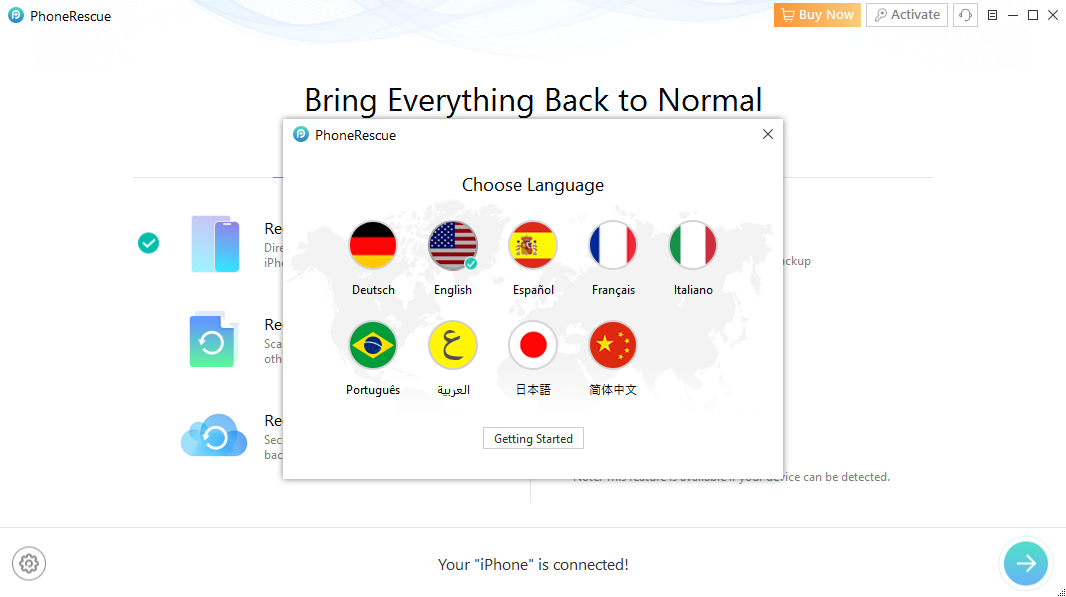
Set Language for PhoneRescue
Please click the Setting button on the lower left corner of the interface to set up the Output Format of files, Export Path and Backup Path. If you want to recover the contacts to Outlook on PC, please choose “Outlook” option under Contact settings. To keep the original date of the photos, please tick the box on the bottom of the setting page.
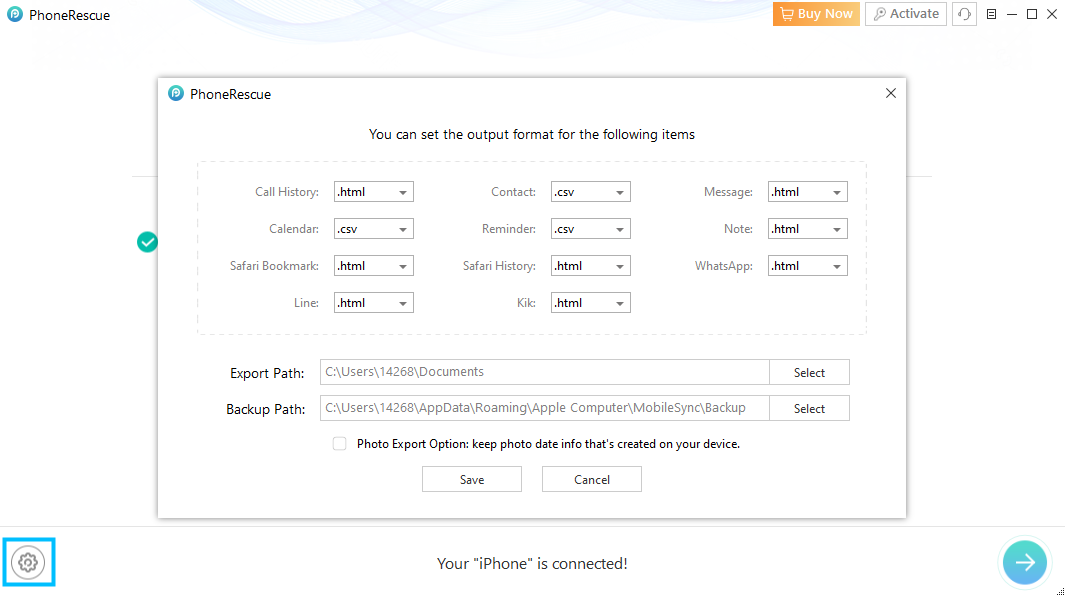
Set the Output Format
If you are using the Mac version of PhoneRescue, you can check “Export to Contacts app on your Mac” option to recover contacts to the Contacts app on Mac computer.
FAQs About PhoneRescue
1. What types of data can PhoneRescue for iOS recover?
PhoneRescue for iOS can help recover various types of data, including photos, messages, contacts, call history, notes, videos, and supported app data. The recoverable data types depend on the recovery mode, device, and available backups.
2. Can I recover deleted data from my iPhone without a backup?
Yes. PhoneRescue allows you to scan your iPhone or iPad directly for recoverable data without requiring an existing iTunes or iCloud backup. However, recovery results depend on whether the deleted data remains available and has not been overwritten.
3. How do I recover deleted data directly from my iPhone?
Launch PhoneRescue for iOS on your computer and connect your iPhone using a USB cable. Select Recover from iOS Device, choose the data types you want to recover, and click OK to start scanning. After scanning, preview and select the items you need, then click the recovery button to save them to your computer or device, depending on the available options.
4. Can I preview recoverable data before purchasing PhoneRescue?
Yes. PhoneRescue allows you to scan your device and preview the recoverable items before purchasing a license. We recommend checking whether the specific data you need appears in the scan results before deciding to purchase the software.
5. Will recovering data with PhoneRescue overwrite my existing iPhone data?
PhoneRescue lets you preview and selectively recover data. When you export recovered files to your computer, your existing iPhone data is not overwritten. If you choose to recover data directly to your device, available recovery options and their effects may vary by data type and software version.
6. What should I do if PhoneRescue cannot detect my iPhone or iPad?
Make sure your device is connected securely using a working USB cable. Unlock your device and tap Trust if prompted. If PhoneRescue still cannot detect your device, try another USB port, restart the software, and ensure that the necessary Apple device drivers or support components are installed on your computer.
7. Why can't PhoneRescue find the data I deleted?
Deleted data may have been overwritten by new data, or the information may no longer be available in the device or selected backup. Try other available recovery modes, such as recovering from an iTunes or iCloud backup. We recommend minimizing device use after data loss to reduce the risk of overwriting recoverable data.
8. Can I recover data from an iTunes backup without restoring the entire backup to my iPhone?
Yes. PhoneRescue allows you to scan an available iTunes backup, preview its contents, and select specific items to recover. This helps you retrieve the data you need without restoring the entire backup to your device.
9. What should I do if PhoneRescue gets stuck during scanning or recovery?
First, check your USB connection and make sure your computer has sufficient free storage space. Keep your device connected while scanning or recovery is in progress. If the software remains unresponsive or displays an error, restart the process when it is safe to do so. If the problem persists, contact the iMobie Support Team and provide your device model, iOS version, a screenshot of the error, and relevant log files.
10. Which devices and computer operating systems are compatible with PhoneRescue for iOS?
PhoneRescue for iOS supports compatible iPhone, iPad, and iPod touch devices and is available for Windows and Mac computers. Compatibility depends on the device model, operating system version, and PhoneRescue version. Please check the official PhoneRescue page for the latest system requirements and supported devices.

Try It Out & Share Your Feedback!

We'd love to hear how PhoneRescue for iOS is working for you.
Give it a try and share your thoughts—your feedback helps us keep improving.
If you're enjoying PhoneRescue for iOS, we'd be so grateful if you could leave us a review on Trustpilot. Your support helps others discover PhoneRescue for iOS and motivates our team!

Thank you for being part of the iMobie community — we couldn’t do it without you!
Try It Out & Share Your Feedback!
We'd love to hear how PhoneRescue for iOS is working for you.
Give it a try and share your thoughts—your feedback helps us keep improving.
If you're enjoying PhoneRescue for iOS, we'd be so grateful if you could leave us a review on Trustpilot. Your support helps others discover PhoneRescue for iOS and motivates our team!
Thank you for being part of the iMobie community — we couldn’t do it without you!