How to Fix iTunes Error 45075
Run into iTunes error 45075 but don’t know how to fix it? Here in this post, we will tell you three ways to fix iTunes error 45075.
Question: Can anybody help? I’m using Windows 10 on a brand new PC and when I try and run iTunes I get an error message saying missing component – 45075 please reinstall or repair. I’ve attempted to do reinstalling multiple times but it didn’t work, what should I do now?
A User from Apple Discussion
Answer: iTunes error 45075 usually occurs when you are trying to download iTunes to PC or upgrading iTunes from an old version. Frankly, among all iTunes errors, iTunes error 45075 is probably the most notorious one. Itself is rear and the solution could be somewhat complex. If you run into iTunes error 45075, please keep reading, here in this post, we will show you ways to fix iTunes error 45075.
Method 1. Reinstall iTunes
Get the latest version of iTunes, whenever you encounter iTunes error 45075, try this method first.
Step 1. Find the iTunes 64 setup.exe file and open it with WinRaR or any other program extractor.
Step 2. From WinRaR, please run the programs in the following order:
1. Boujour,
2. Apple Application Support 32-bit,
3. Apple Application Support 64-bit,
4. Apple Mobile Device Support,
5. Apple Software Update.
Method 2. Remove Related Software Components
One of the most likely reasons of why iTunes error 45075 occurs is iTunes components. While upgrading, old components may have large impact on the installation. To remove old components and successfully install iTunes, please go to Control Panel and uninstall related software components in the following order.
1. iTunes,
2. Apple Software Update,
3. Apple Mobile Device Support,
4. Bonjour,
5. Apple Application Support 32-bit,
6. Apple Application Support 64-bit.
If iTunes error 45075 still occurs, try to download iTunes again, then open iTunes 64 setup.exe file with WinRaR again, try to run program in another order.
1. iTunes,
2. Boujour,
3. Apple Application Support 32-bit,
4. Apple Application Support 64-bit,
5. Apple Mobile Device Support,
6. Apple Software Update.
Method 3. Fix iTunes Error 45075 by Checking Windows Firewall
Some computers may contain security applications blocking the installation of iTunes. If neither ways above work for you, follow the steps below to check firewall.
Step 1. Press and hold Windows key and the letter ‘R’ together, type “firewall.cpl”
Step 2. Direct go to Allow an app or feature through Windows Firewall.
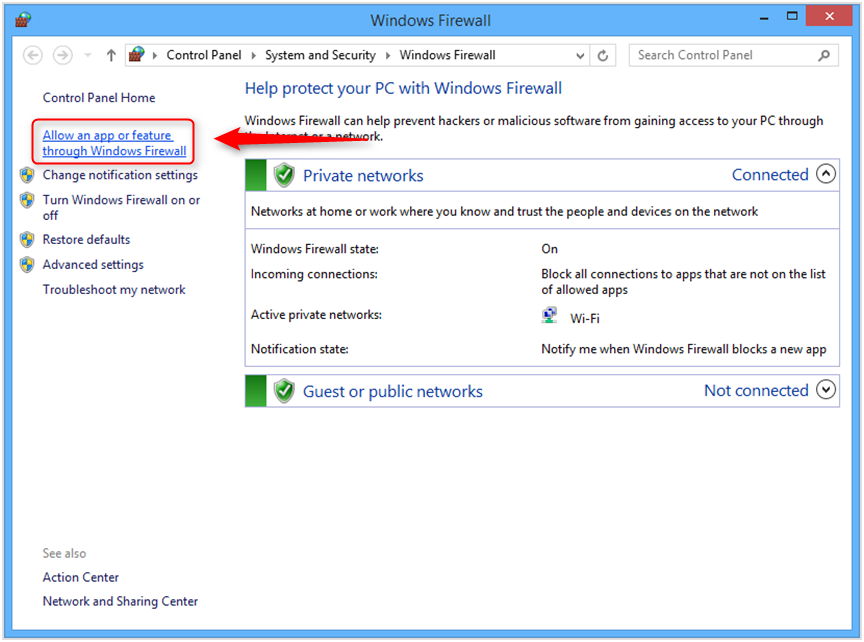
Fix iTunes Error 45075 by Checking Windows Firewall – Step 2
Step 3. Click change settings, then check if iTunes is selected under all categories of networks and Bonjour is selected only for private networks.
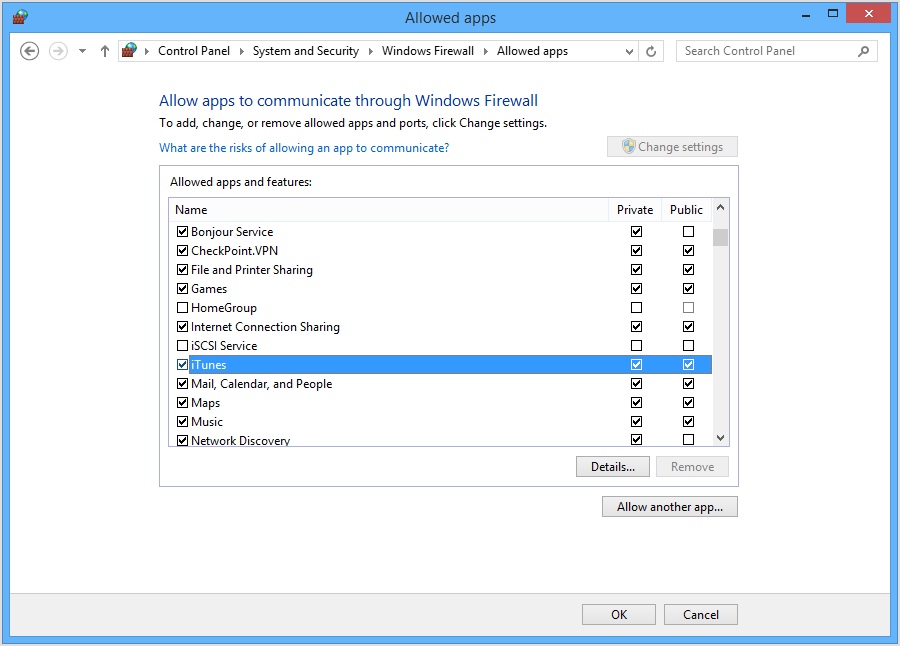
Fix iTunes Error 45075 by Checking Windows Firewall – Step 3
Step 4. Close Firewall and iTunes should be able to be installed.
The Bottom Line
That’s all for how to fix iTunes error 45075 and the introduction of an excellent iTunes alternative. If you have any questions about this article, let us know by email or leaving comments below.
More Related Articles



Member of iMobie team as well as an Apple fan, love to help more users solve various types of iOS & Android related issues.
Product-related questions? Contact Our Support Team to Get Quick Solution >
