Top 5 iPhone Photo Recovery Software
Here, we list the top 5 iPhone photo recovery apps for you and introduce their features, pros & cons respectively. With iPhone photos recovery tool, you can recover permanently deleted photos from iPhone without backup, with iTunes or iCloud backup.
PhoneRescue for iOS – Best Photo Recovery App
It is an iPhone/iPad/iPod touch data recovery software. You can recover photos from iPhone without backup. Also, you can restore iPhone from backup. Besides, it can repair iOS system issues to cause photos lost.

iPhone photos keep many memorable moments of our lives. And, the latest iPhone 13 models get such a huge camera upgrade like Apple ProRes, capturing more light and providing a cinematic experience.
However, photos may be lost due to mistakenly deleted, data lost after an iOS upgrade, or iPhone is disabled or bricked after crash/damage, etc. We can first recover deleted photos from the Recently Deleted album on iPhone, which will keep the accidentally deleted photos for 30 days. How can I recover permanently deleted photos from my iPhone? Is there an app for iPhone to recover deleted photos or other data, even without backup?
Here we will show you the top 5 iPhone photo recovery software 2026, including their pros, cons, and comparisons. Keep reading and pick up the best iPhone photo recovery software to get back deleted photos with or without backup.
iPhone photos can be lost in different situations, such as accidental deletion, missing backups, or deleted pictures from Messages attachments. A reliable iPhone photo recovery software can help scan your device and recover lost photos from different data sources.
What is iPhone Photo Recovery?
Usually, you can recover recently deleted photos from iPhone Recently Deleted album. Also, restore from iCloud backup by erasing data on iPhone, or restore from iTunes backup by replacing the data currently.
Therefore, when we talk about the iPhone photo recovery app, it is can be mainly defined as the professional iOS device photos recovery software that provides professional recovery modes to help you recover deleted iPhone photos without backup, or restore backup without losing data. That’s what iPhone photo recovery apps can do for you.
Can I Recover Permanently Deleted Photos from My iPhone?
If you can not find deleted photos from the Recently Deleted album, the photos can be permanently deleted. However, if you have not made any data changes on your iPhone, the photo recovery software can help you get them back. Now, choose the best iPhone photo recovery tool from the 5 tools listed below.
Important Checks Before Selecting a Solution
Prior to selecting a method, verify your device specifications, system version, target device, and whether existing data must be maintained. Similar scenarios should share a common workflow, with differences documented as additional notes rather than separate guides.
Top 5 Best iPhone Photo Recovery Apps 2026
No.1 – PhoneRescue for iOS
PhoneRescue for iOS is the reliable iPhone photo recovery software that provides you with 3 recovery modes to recover your lost or deleted photos in just 3 simple steps: choose one mode, select photos type, after scanning and preview then select to recover. And it is the only one that supports recovering photos to iPhone directly. Also, you can recover deleted iOS data to your Windows PC or Mac. This software supports the latest iOS 15, iPadOS 15, and macOS Big Sur., and new iPhone models like iPhone 13.
Besides recovering photos from the iPhone Photos app, some recovery tools can also restore pictures received through Messages and other apps. This can be helpful when important images are deleted from conversations.
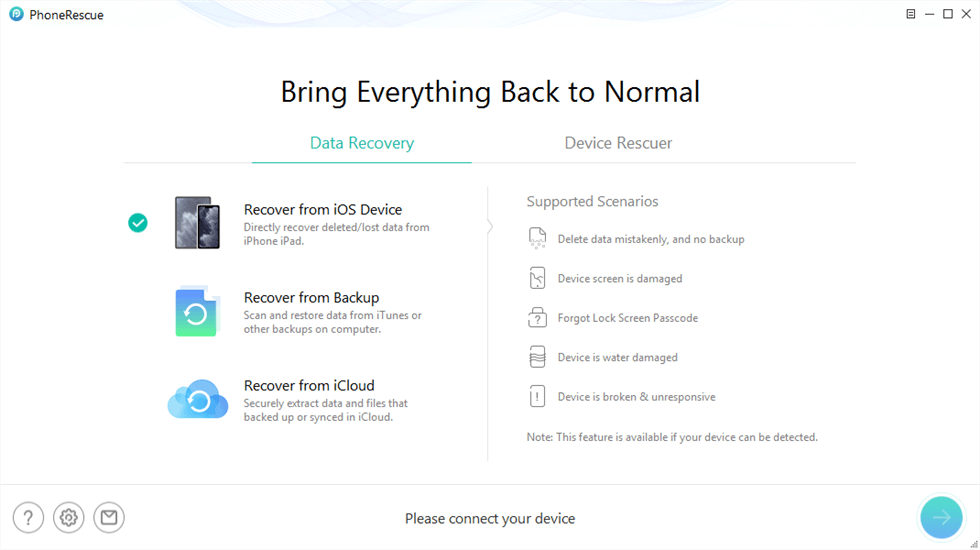
Recover from iOS Device without Backup
Features:
- Recover photos from iPhone without backup.
- Restore iPhone from iTunes and iCloud backup without erasing.
- Recover iPhone data from a broken/disabled iPhone.
- Repair your iOS/iPadOS system issues, unlock iPhone/iPad.
- Compatible with iOS 15, and all iPhone series including the latest iPhone 13.
Pros:
- Free to scan and preview deleted photos.
- Flexible recovery, you can preview and recover all photos or selected photos.
- Photos can be recovered to the computer, as well as recovered to iPhone directly.
- Besides photos, it also supports recovering other 30+ types of iOS data like WhatsApp, Line, etc.
- The interface is intuitive and user-friendly, easy-to-use.
- 60-day money-back guarantee.
Cons:
- The recovery duration will depend on how large the document is.
How can I recover photos from iPhone without backup?
Step 1. Download the data recovery tool – PhoneRescue for iOS. Launch it and choose Recover from iOS Device.
Free Download * 100% Clean & Safe
Step 2. Connect your iPhone with a USB cable. Select Photos to Scan.
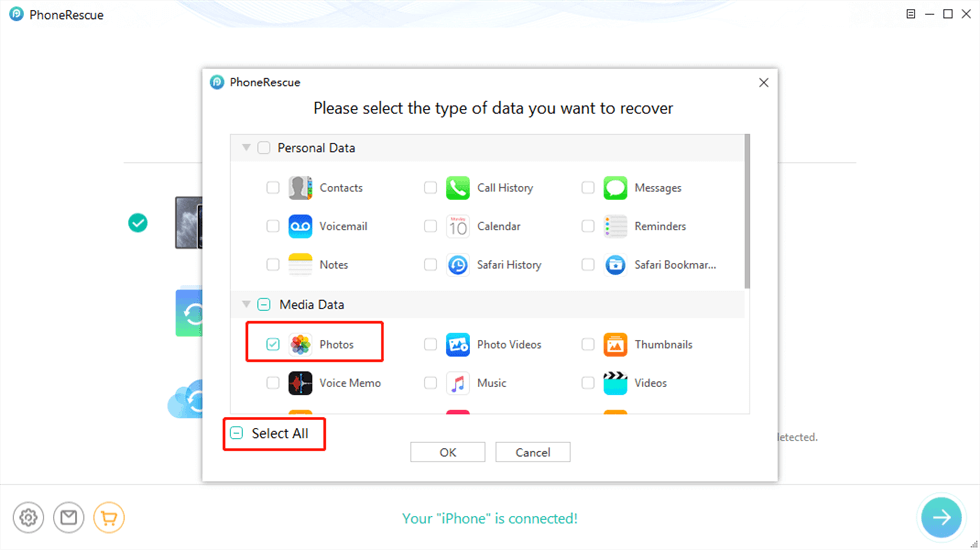
Select Photos to Recover
Step 3. Preview deleted photos on your iPhone, select what you want to recover, and click To iPhone or To PC/Mac.
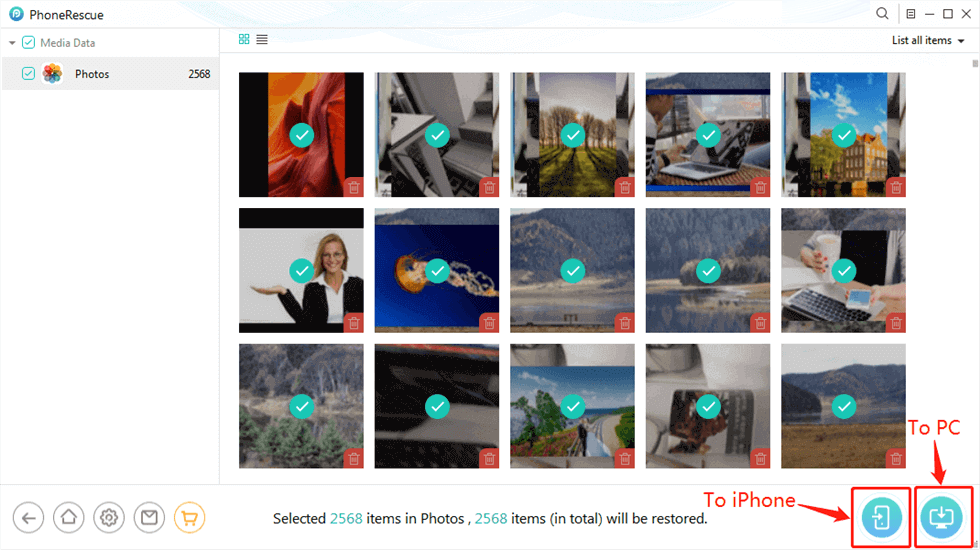
Preview and Select Photos to Recover
Also Read: How to View Text Messages on iCloud >
No. 2 – iMyFone iPhone Photo Recovery
iMyFone D-back is another award-winning iPhone Data Recovery to help users recover lost iPhone photos from iPhone, iTunes, or iCloud backup. It’s easy to use and supports preview photos before recovering. Besides photos, it also can help you recover other 18+ types of iOS data like Contacts, Messages, Call History, etc.
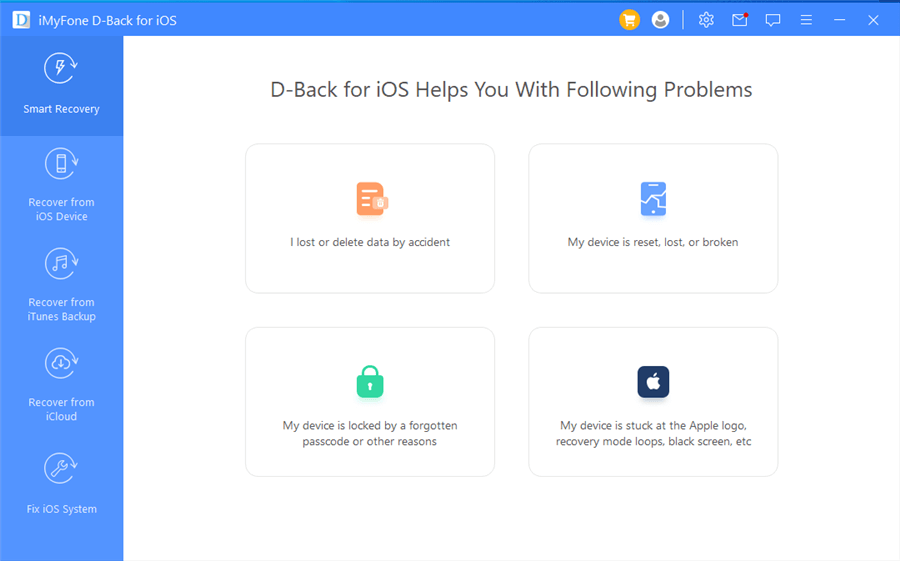
iMyFone iPhone Data Recovery
Features:
- Provides 3 recovery modes, namely recover from iOS device, from iTunes backup, and from iCloud backup.
- Also, fix iOS system issues.
Pros:
- Allows preview photos before recovering process.
- Besides most used files like photos, also supports social app data and other file types.
- Friendly UI interface and easy to use.
- Supports photos listed by time.
- 30-day money-back guarantee.
Cons:
- You can only recover photos and other data to the computer.
- Limited for data types to recover.
No. 3 – Wondershare iPhone Photo Recovery
Wondershare iPhone photo recovery is called Dr.Fone – Data Recovery iOS, which is another acclaimed iPhone Photo Recovery software developed by Wondershare. It is great for recovering deleted pictures from both iOS and Android mobile phones. It goes to work with simple steps: connect an iPhone to the computer, open Dr.Fone, and with a few clicks you can scan your iPhone and instantly see what images are recoverable and then recover them.

Wondershare iPhone Photo Recovery
Features:
- 3 recovery modes, recover photos from iPhone, iTunes, and iCloud.
- Supports nearly all iOS devices, including the latest iPhone 13.
- Said to have the high iPhone data recovery rate in the industry.
Pros:
- Compatible with all iOS devices.
- Supports previewing data before recovery.
- Also provides flexible recovery.
- Besides photos, videos, contacts, messages, notes, and more also be supported.
Cons:
- Doesn’t support recovering photos to iPhone directly.
- A little bit expensive.
- Only provides a 7-day free trial.
- Only supports a 7-day money-back guarantee.
No. 4 – iSkysoft Photo Recovery
iSkysoft iPhone Photo Recovery also called iSkysoft iOS Data Recovery, which is a high-grade data recovery tool and it is hard to beat its features. It provides in-depth scanning to help you find and recover deleted photos. Also enables you to preview photos before starting recovery so that you can find the lost photos you really want to recover. Plus, it also supports recovering other 15 type files.
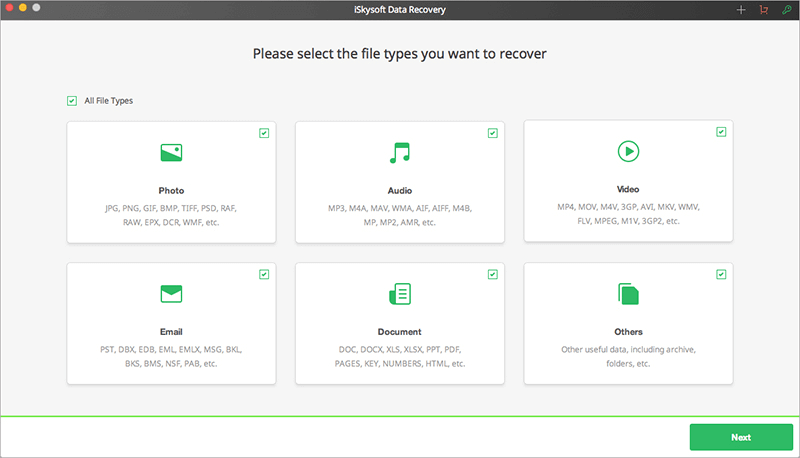
iSkysoft iOS Data Recovery
Features:
- 3 common recovery modes.
- Scan and preview data before recovery.
Pros:
- Simple to use.
- Supports previewing photos before starting recovery.
- Besides photos, also supports other 15 types of files.
Cons:
- Takes a long time to scan the iPhone.
- Only supports a 7-day money-back guarantee.
- Photos aren’t be supported to recover to iPhone directly.
No. 5 – ApowerRescue iPhone Photo Recovery
ApowerRescue is an easy-to-use iPhone photo recovery application that offers you the 3 common recovery modes to help you get back lost or deleted photos. But it might not be perfect for various problems you might encounter along the way, and it demands great patience as sometimes it is slow to react.
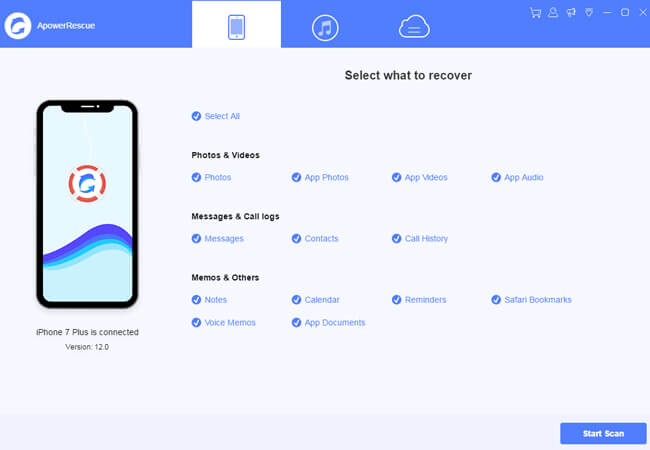
ApowerRescue iPhone Photo Recovery
Features:
- Recover deleted iOS data in various circumstances.
- Retrieve lost files from iTunes/iCloud backup.
Pros:
- Simple to use.
- User-friendly Interface.
- Supports different situations, such as accidental deletion, phone formatting, factory reset, etc.
Cons:
- Supports iPhone XS Max and older versions.
- Supports 13 types of data, including iPhone photos.
- Doesn’t support selectively scanning data.
- Photos can’t be recovered to the iPhone directly.
Comparison Chart
Here is a comparison table for the above 5 iPhone photo recovery software, the price reference is the Mac version.
When choosing an iPhone photo recovery tool, consider whether it supports recovery without backup. Some software can directly scan your iPhone storage to find deleted photos even when no iCloud or iTunes backup is available.
| Software | Recover to iPhone | Recover to Computer | 1-Year License | Money-Back Guarantee | Price |
| iMobie PhoneRescue for iOS | √ | √ | 1 computer
Unlimited numbers of iDevices Lifetime free support |
60-day | $ 49.99 |
| iMyFone iPhone Data Recovery | ✕ | √ | 1 iPhone
Auto-renewal. |
30-day | $ 59.95 |
| Wondershare Dr.Fone for iOS | ✕ | √ | 1-5 iPhones
Lifetime free update |
7-day | $ 59.95/Win
$ 69.95/Mac |
| ApowerRescue Photo Recovery | ✕ | √ | Auto-Renew. Cancel Anytime. | 30-day | $ 49.95 |
How to Define the Best Photo Recovery App for iPhone
What apps recover photos are listed above. Which is the best photo data recovery software for iPhone? Let’s look at the elements that make a good iOS data recovery tool. This will help you make the right choice when choosing a program. Best iPhone photo recovery criteria should include:
- A good iPhone photo recovery tool will be easy to use, with a user-friendly interface.
- Capable of the ability to provide you with multiple approaches to recover iPhone photos.
- The data analysis and scanning time should be quick to ensure that you don’t spend too much time scanning all the data on your iPhone or backup. That is to say, it must support selectively scanning and recovering.
- Also, it must have a functional preview feature for only iPhone photo recovery and make sure that you are recovering the right photos. It will be better if it also has the ability to recover other different file types.
- The last criterion of the best iPhone photo recovery must be the cost. As mentioned before, it’s tough to recover iPhone photos; even iPhone photo recovery also needs to spend a lot of effort to make for you. So, almost all iPhone photo recovery software is charged. However, good software is worth paying for.
With the above criteria, you can easily choose the best iPhone photo recovery tool from the 5 tools.
The Bottom Line
That’s all about the top 5 photo recovery app for iPhone/iPad. Hope you can find the one that suits your needs most.
PhoneRescue for iOS supports you to recover permanently deleted photos without backup. Besides, no matter whether your phone is lost or damaged, forgot iPhone backup password, unable to restore a backup with iTunes, etc., you can always recover from iPhone backup with PhoneReascue for iOS. And, you can get the latest version of PhoneRescue for iOS to recover deleted photos, contacts, videos, etc. now!
Free Download * 100% Clean & Safe



Joy Taylor is a seasoned technical writer with over a decade of experience in mobile technology. At iMobie, she specializes in producing in-depth content on iOS data recovery, iPhone unlocking solutions, and iOS troubleshooting.
Product-related questions? Contact Our Support Team to Get Quick Solution >
