How to Recover Erased Contacts Android With/Without Backup [2026]
To recover erased contacts from an Android phone, you can check if they exist in your device’s trash. Contacts deleted within the last 30 days will be in the Trash folder, and you can then select the contacts and choose to restore them. If not, you can recover erased contacts on Android using DroidKit, the Google Contacts app, the Google Contacts website, or by restoring from a Google backup.
Accidentally losing contacts on your Android can be a really upsetting situation, especially if those numbers are of your personal or work connections. Fortunately, the good news is that the recovery process is simpler than expected. This guide provides 5 proven solutions for how to recover erased contacts Android. Whether you have a backup or not, it can help you reconnect with important contacts quickly.
Is It Possible to Recover Erased Contacts Android?
Yes, it is possible to recover erased contacts on Android! In most situations, the deletion process does not completely erase the contacts; they might still be on your phone memory or your Google account for some time until the removal process is finished. Hence, there is a high probability of bringing them back to you if you do so without delay.
Plus, if you had a phone sync with Google Contacts or made some backups, then getting the erased numbers will be a lot easier. Even if you don’t have a backup, there are recovery tools that are specially made to help you get back the lost data.
How to Recover Erased Contacts Android by Unhiding Contacts
Sometimes, there is a strong possibility that your contacts on an Android device are not deleted permanently but just cannot be seen because of the display or the sync settings of your device. This type of incident may lead you to think that the contacts are gone while they are still on your phone. To make them visible again:
Step 1. Launch the Contacts application on your Android device, and from the menu, proceed to Settings.
Step 2. Select Contacts to display (or Display options).
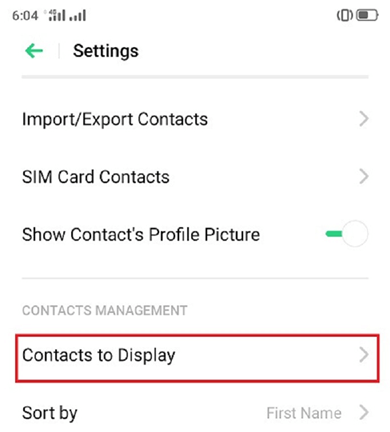
Step 3. Choose All contacts so that every saved number will be shown in your list.
Restore Erased Contacts on Android Without Backup [One-click]
Recovering deleted contacts on Android without a backup file might seem like a daunting task, but with the help of a one-click recovery tool like DroidKit, lost numbers can be retrieved in just a few minutes. To perform direct data recovery from your device, DroidKit removes the need for rooting or technical expertise, making the process simple for all users. Beyond contact recovery, it can retrieve deleted photos, messages, call logs, and other data from your device. With its user-friendly interface, DroidKit can help Android users solve almost any device-related problem.
Key Features of DroidKit:
- One-click recovery of deleted contacts without any backup file.
- Recovery after preview, thus, you only recover the contacts you want.
- Non-rooting needed; hence, your device security is maintained.
- Compatible with more than 20,000 Android models.
- Chances of success are high with both Quick and Deep Recovery modes.
Free Download * 100% Clean & Safe
Steps to recover deleted contacts with no backup using DroidKit:
Step 1. Get and run DroidKit on your PC. From the home screen, navigate to Data Recovery, and pick Quick Recovery from Device.
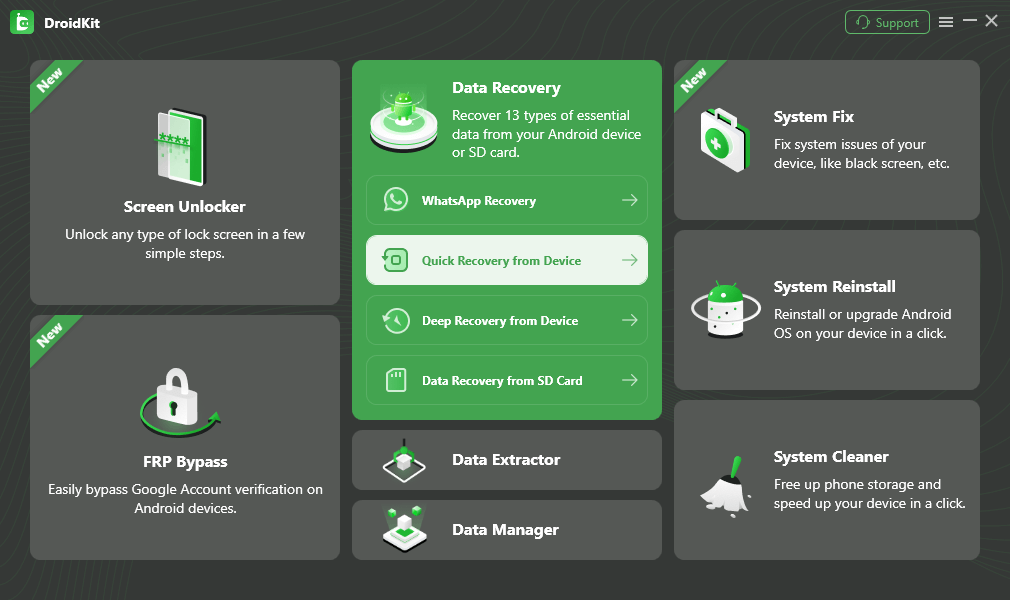
Choose Quick Recovery from Device from Data Recovery
Step 2. In the new window, tick the box next to Contacts as the target data, and click Start to continue.
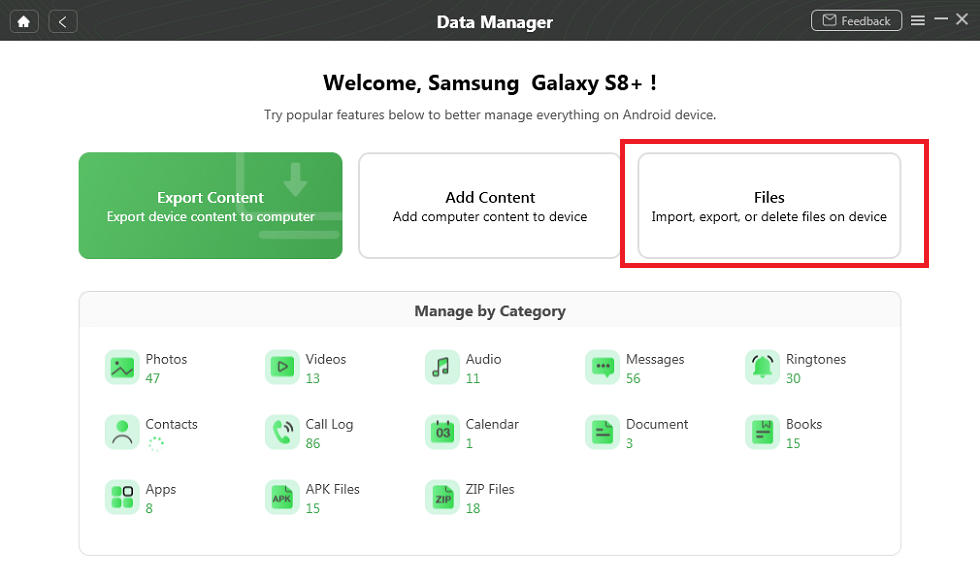
Click Files And Choose Contacts
Step 3. Link your Android handset to the computer using a USB cable. Give the command to Start so that the software can scan and access the device.
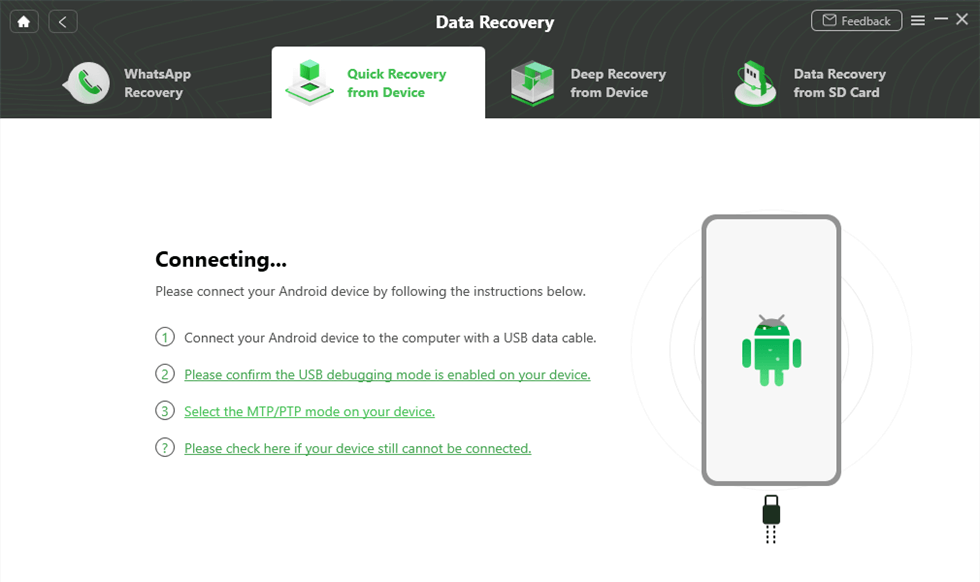
Connect Your Phone to Computer
Step 4. After scanning, look through the erased contacts, select the ones to be recovered, and click the button To PC (or To Device) to release them safely.
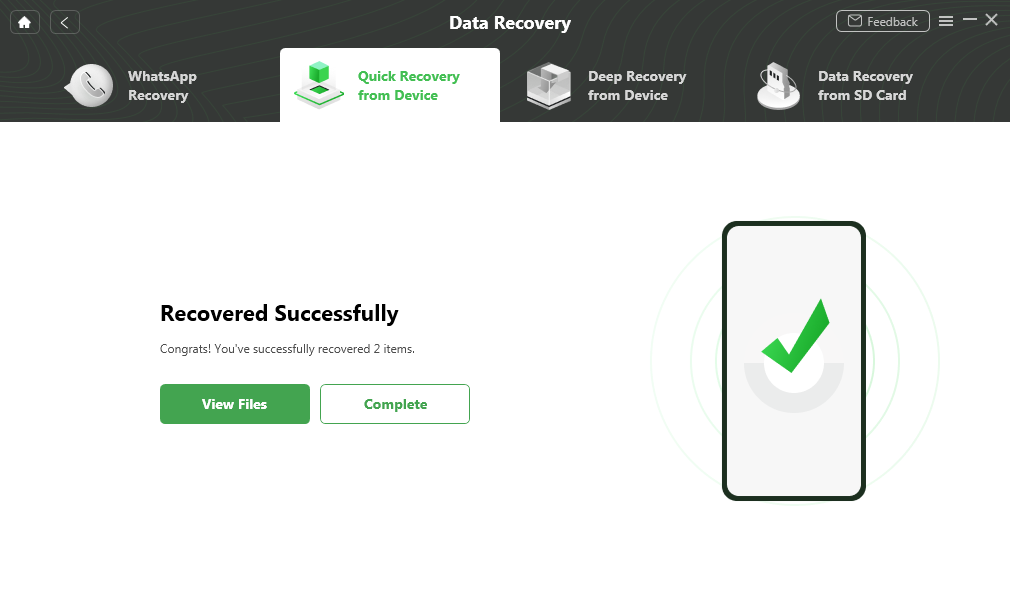
Quick Recovery from Device Successfully
Retrieve Deleted Contacts on Android with Google Contacts App
Provided that your Android contacts have been synced with your Google account, the Google Contacts app presents an easy option to get them back within a certain period. To facilitate this, Google makes a backup of your contacts for a maximum of 30 days; thus, you can undo changes made during this period and fetch the contacts that have been erased. Moreover, the process is handy since it can be done without additional tools; only the app on the device and the account link are necessary. However, this method only works if contact sync with Google was enabled before deletion, and recovery is limited to changes made within the last 30 days.
How to recover deleted phone numbers through Google Contacts:
Step 1. Start Google Contacts on your Android and go to the “Fix & manage” tab.
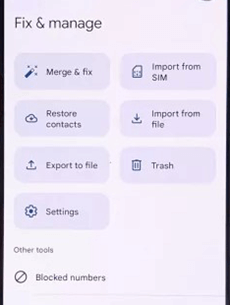
Hit Fix & Manage Button
Step 2. Click “Bin” (or “Trash”) from the list to see the contacts that have been deleted in the last 30 days.
Step 3. Find the contact you want to restore, tap on it, and then select “Recover” to restore it to your contact list.
Recover Erased Contacts Android via Google Contacts Website
If you don’t have your phone or simply prefer to work on a computer, the Google Contacts website is another dependable way to get back deleted phone numbers. This method is directly synced with your Google account, so it is effortless to retrieve your lost contact if the deletion takes place within the last 30 days.
Step 1. Open the Google Contacts website. Use the same Google account that is connected to your Android device, and log in.
Step 2. Click on Trash to access the folder where the contacts deleted in the last 30 days will be displayed.
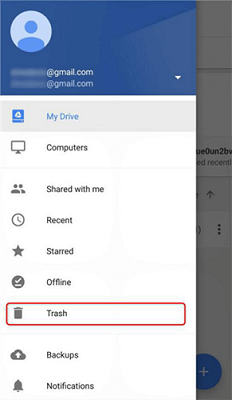
Click Trash
Step 3. Go through the list and tick the names of the contacts that you want to put back.
Step 4. Press Recover to move the selected contacts back into your main contact list, which will sync to your Android phone automatically.
How to Recover Erased Contacts Android from Google Backup
Google Backup through Google account sync with an Android device is the easiest way to keep an up-to-date backup of your contacts. Just in case of deletion or loss of contacts, this backup allows a recovery of the contacts without any additional software. You can re-access your contacts by either restarting your phone or performing a fresh sync with the Google Backup, which will get back the contacts that you have unintentionally deleted. However, if the backup was turned off or deleted, recovery through this option is not possible.
Step 1. Launch the Settings app and scroll down, and tap Google. Select All services.
Step 2. Tap Restore contacts from the list.
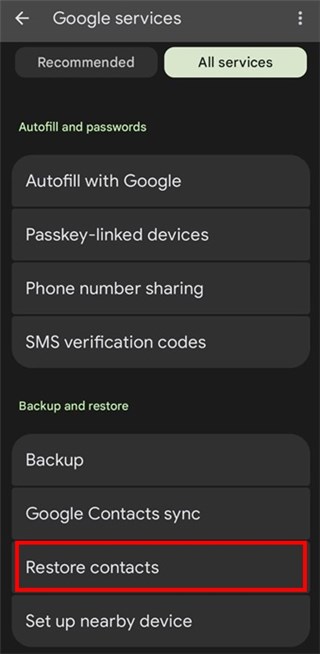
Tap Restore Contacts
Step 3. Select the most recent backup. Tap the Restore button.
Step 4. The contacts will be restored to your phone and automatically synchronized with your phone once the restoration is complete.
FAQs about How to Recover Erased Contacts Android
Q1: How do I recover an accidentally deleted contact list?
First off, you can recover your lost contacts from Google Contacts Trash only if it has not been more than 30 days since you deleted the files. Otherwise, by using the backup feature, if you have your contacts synchronized with your Google account, you can retrieve them.
Q2: How to retrieve deleted contacts in Samsung?
If the user has enabled the backup on Samsung Cloud, he/she can recover deleted contacts from there or try the Google Contacts recovery method. If these options are unavailable, DroidKit offers a safe and quick way to recover deleted contacts from Samsung devices.
Q3: Can I recover deleted phone numbers from an Android phone without a computer?
Definitely, on your Android device, you can use the Google Contacts mobile app or the web version to access your contacts, or you can simply recover them through a Google Backup account without needing a PC.
Conclusion
In summary, this article explains how to recover erased contacts on Android with or without backup. Getting back your deleted contacts on an Android is less complicated than you assume — via Google Contacts or Google Backup. However, when typical methods fail, DroidKit is a reliable way to get back the deleted contacts quickly. With only a few steps, this tool can help you recover Android data without a backup. Free download DroidKit now and retrieve your contacts with ease!
Free Download * 100% Clean & Safe


Roger Smith is a senior technical writer with years of experience in providing Android solutions. He loves to help users solve various problems such as Android unlock, Android data recovery, and Android system repair.
Product-related questions? Contact Our Support Team to Get Quick Solution >
