Free Download Android Service Tool for Android Unlock
As a popular FRP bypass tool, Android Service Tool can help bypass the Google account on some Android phones and tablets. Check this article and learn how it works and how to use its best alternative when Android Service Tool is not working for you.
Android phones are secured with Google’s Factory Reset Protection (FRP), which can lock you out if you forget your Google credentials. However, users can benefit from the Android Service Tool on their PC to bypass FRP locks on many devices, including Samsung and LG phones.
This tool removes Google account verification and helps you regain access without a password. While it’s cost-free, the tool is limited to Windows and only handles basic lock removals. Read on to learn how to use this tool and discover a superior alternative unlocking solution.
What Does Android Service Tool Do?
Android Service Tool is a Windows-based program for removing Google’s FRP locks on Android phones. It is available at no charge and supports a variety of devices, especially Samsung and LG. Its main functions are focused on FRP bypass and related operations.
Below are its key features, which set it apart from basic security removal tools:
- FRP Bypass: With this tool, you can bypass Google FRP locks using different protocols, such as MTP or ADB. Through this, it removes the Google account lock after a factory reset.
- Samsung Direct Unlock: The Android Service Tool specifically unlocks any Samsung Galaxy device via a direct FRP removal method. This mode lets you clear the FRP lock on any of the Galaxy models.
- ADB FRP Reset: This tool uses Android Debug Bridge to reset the security lock on specific Android devices. When USB debugging is enabled, the tool can send commands to remove the lock.
- Device Info and ADB Control: It provides basic device information and bootloader options to aid troubleshooting. Plus, this tool can show connected device details and offers ADB control for advanced operations.
- Offline Usage: To use this tool, you require no internet to bypass FRP. However, users must update the tool manually when new versions are released. It also requires USB drivers and USB Debugging enabled on the phone.
Free Download Android Service Tool
For universal access, the Android Service Tool is free to download and install. You only need to find a reputable download link and a ZIP file extractor to install this tool. Follow the steps given below to get your hands on this advanced Android phone unlocker.
Step 1. Start by visiting a reliable source offering Android Service Tool V1.2 and downloading the archive ZIP or RAR file.
Step 2. Now, make use of any ZIP extractor, such as WinRar, to extract the downloaded archive to a folder on your PC.
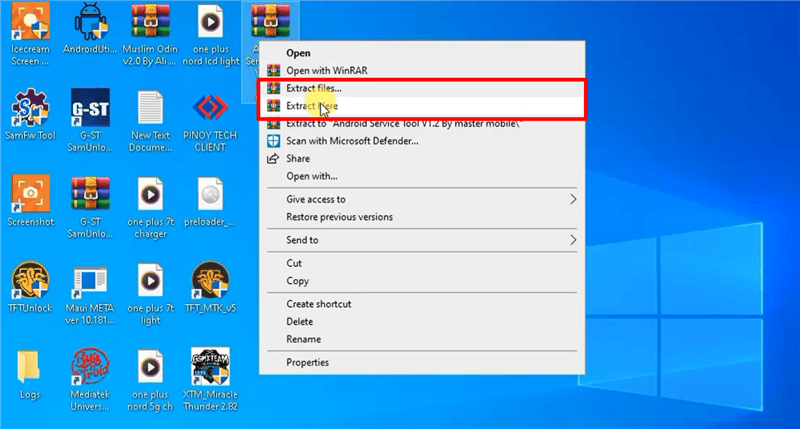
Extract Android Service Tool Zip
Step 3. Moving forward, simply open the folder and run the setup as an administrator. Next, you should follow the instructions on the screen to complete the Android Service Tool installation.
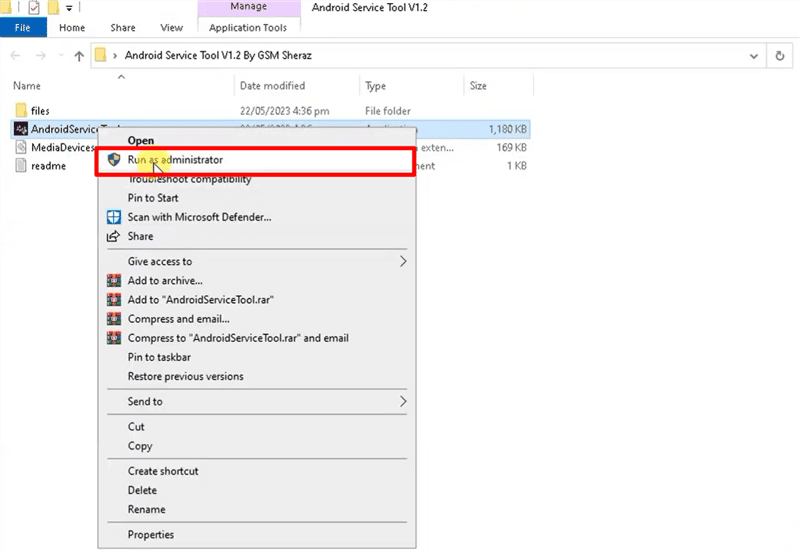
Run Android Service Tool as Administrator
How to Unlock Android with Android Service Tool?
Once installed, using Android Service Tool is pretty simple due to its basic interface. However, always turn on USB Debugging on your phone before trying the FRP bypass. After installing the required USB drivers on your PC, follow these steps to bypass the lock:
Step 1. First, launch the newly installed Android Service Tool on your PC through the Start menu. Then, use any USB cable to connect the locked Android device to the PC.
Step 2. On the main interface of the tool, select the appropriate FRP mode. From here, choose either Bypass FRP (MTP) or Direct FRP Unlock (Samsung). Once chosen, hit Enter and then follow the on-screen instructions to let this tool bypass the security lock.
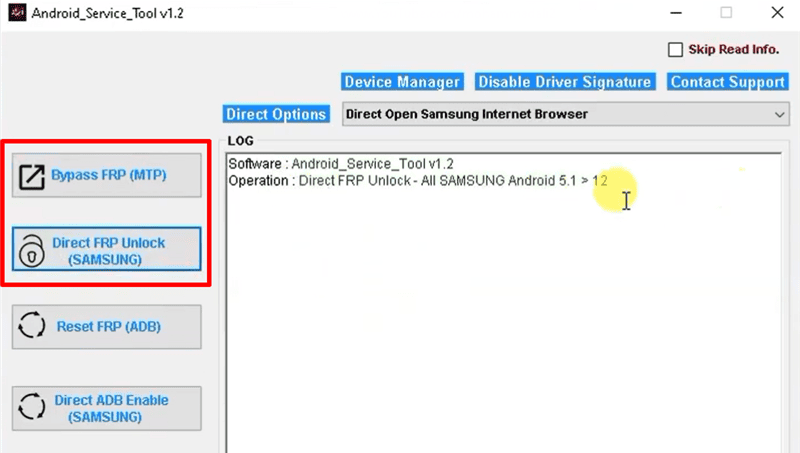
Bypass FRP with Android Service Tool
Best Alternative to Android Service Tool
Although the Android Service Tool is useful for FRP bypass, it has notable limitations. It only supports certain devices and FRP scenarios, and lacks modern features. To overcome these limitations, we recommend using DroidKit to remove FRP locks. Apart from unlocking Android devices, it also recovers lost data, repairs system issues, and more. Its simple interface means anyone can unlock or fix their phone in minutes, without technical skills.
Key Features of DroidKit:
- Instantly remove Google FRP locks on phones from Samsung and many other devices with a single click.
- Wipe any screen lock, including PIN, pattern, fingerprint, or face, on Android devices.
- Recover deleted or lost data, such as photos and messages, from an Android device, even with no backup.
- Fix Android system issues like boot loop and black screen without requiring root access.
- Manage your important files or move them between phones and PCs.
Steps to bypass FRP on Android with DroidKit:
Step 1. Download and install DroidKit on your computer. It supports Windows and Mac systems.
Free Download * 100% Clean & Safe
Step 2. Connect your phone with a USB cable and launch DroidKit. Choose FRP from the main screen.

DroidKit FRP Bypass
Step 3. Wait for DroidKit to detect your phone, then choose the brand.
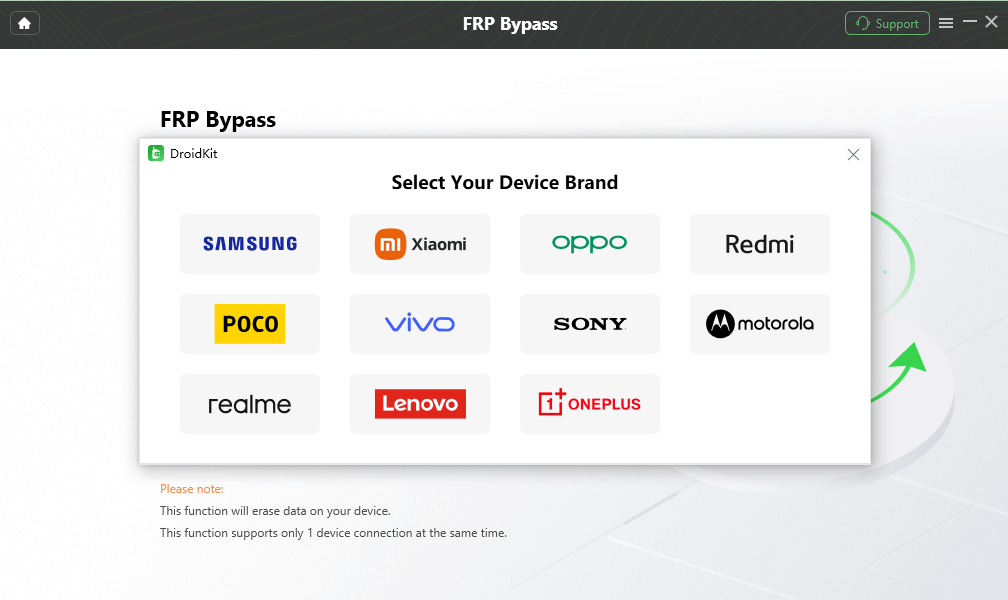
Select Correct Brand
Step 4. Follow the steps to enter recovery mode on your phone and finish the FRP bypass process.

FRP Bypass Complete
Comparison Chart of Android Service Tool & DroidKit
Go through this detailed comparison table to further recognize its superiority.
| Feature | Android Service Tool | DroidKit |
| Platform | Windows PC only | Windows and macOS |
| Lock Types | Google FRP locks only | FRP and all screen locks (PIN, pattern, fingerprint, and more) |
| Device Compatibility | Limited | Over 20,000 Android models (models from Samsung, LG, and more) |
| Other Functions | Only support FRP bypass | Screen unlocker Data recovery System repair Backup tools System Cleaner Data Extractor |
| User Interface | Basic text-based | Guided user interface |
Conclusion
In summary, Android Service Tool can free your phone from Google FRP locks on many devices. However, its functionality is quite limited and only Windows users can download this tool. So, you will need a better alternative to get rid of Android-related issues.
For this purpose, DroidKit goes beyond simple FRP removal, as it unlocks any Android screen and bypasses FRP easily. This tool even recovers data or repairs system errors. Therefore, we recommend you download DroidKit to manage your Android phone without restrictions.
Frequently Asked Questions
1. Is Android Service Tool really free to use?
Yes, Android Service Tool is completely free and requires no purchase or license key to operate. However, you must download this tool from reputable sources to avoid malicious versions.
2. Do I need to enable USB Debugging to use the Android Service Tool?
Absolutely, you should turn on USB Debugging from the Android developer settings to use this tool. Moreover, we recommend you install the correct USB drivers on your PC. Without this debugging mode, the tool may not recognize your phone.
3. What if the Android Service Tool fails to detect my phone?
This can happen if drivers or settings aren’t correct. To avoid this issue, make sure USB Debugging is enabled and install the proper PC drivers. Some phones or Android versions may simply be incompatible with this tool. In that case, using a different FRP bypass solution, such as DroidKit, is recommended.
Free Download * 100% Clean & Safe



Senior writer of the iMobie team as well as an Apple fan, love to help more users solve various types of iOS & Android-related issues.
Product-related questions? Contact Our Support Team to Get Quick Solution >
