How to Download and Use the MDM Fix Tool in 2026
How to bypass MDM via the so-called MDM fix tool? In this guide, you will find all the information and guide on MDM fix tool. Additionally, we provide a powerful FRP bypass tool for you.
Dealing with Mobile Device Management restrictions can block access to key features on your device. Regardless of how you got stuck in this mess, a program called MDM Fix Tool promises to remove it on Android. It claims to restore full phone access without needing original credentials or special skills.
So, this guide will explore if it is the case and tell you how to get the MDM Fix Tool and use it. Everything is updated for 2026, so you won’t waste time on outdated methods. When stuck with an MDM-locked device, follow along and get it fully usable again in just a few minutes.
Part 1. What Is MDM Fix Tool?
The question of ‘What is the MDM Fix Tool’ is something users must find an answer to if they wish to use it. That’s where this part helps by taking you through each aspect of this software:
1. MDM Fix Tool Overview
The MDM Fix Tool is a helpful software that removes control or restrictions set by schools or workplaces on mobile devices. It stands for Mobile Device Management, which works well with Android devices, especially those from Samsung and other major brands. If you bought a second-hand Samsung or forgot the MDM login, you may be locked out.
This tool helps remove these restrictions without needing passwords or accounts. Many people use it when their phone shows MDM-related messages or limits access to features. The tool is simple to install and doesn’t need advanced skills or a technical background.
2. Key Features
- MDM Removal: It removes Mobile Device Management restrictions, giving full control back to the user without needing login credentials.
- KG Unlock: You can also bypass Knox Guard lock on Samsung and Android phones, even if the status is broken or active.
- IT Admin Removal: The tool deletes restrictions set by IT administrators or schools, allowing full phone use in just a few minutes.
- Enable ADB: Users can also activate ADB mode using test code #0#, which is useful for phones stuck with limited settings access.
- Reset FRP: It even helps bypass FRP lock using ADB, a quick solution when Google verification blocks access to the phone.
- IMEI Repair: MDM also repairs IMEI numbers for SPD chipset phones using diagnostic mode without a full device reset.
3. Supported Devices
This MDM Fix Tool supports a wide range of Android smartphones and tablets from top brands worldwide. Below, we will explore detailed tables showing supported models by brand:
| Brand | Series / Models |
| Samsung | Galaxy S: S8, S9, S10, S20, S21, S22, S23Galaxy Note: Note 8, Note 9, Note 10, Note 20Galaxy A: A10, A20, A30, A50, A70, A80, A90Galaxy M: M10, M20, M30, M40Galaxy Tab: Tab A, Tab S |
| LG | G Series: G6, G7, G8V Series: V30, V40, V50Q Series: Q6, Q7, Q8 |
| Huawei | P Series: P20, P30, P40, P50Mate Series: Mate 20, Mate 30, Mate 40Nova Series: Nova 3, Nova 5, Nova 7 |
| Xiaomi | Mi Series: Mi 8, Mi 9, Mi 10, Mi 11Redmi Series: Note 7, Note 8, Note 9, Note 10Poco Series: F1, X3 |
| OnePlus | OnePlus 5, 5T, 6, 6T, 7, 7T, 8, 8T, 9, 9R, 9 Pro |
| Pixel Series: Pixel 2, Pixel 3, Pixel 4, Pixel 5, Pixel 6 | |
| Motorola | Moto G Series: G5, G6, G7, G8, G9Moto E Series: E5, E6, E7 |
| Nokia | Nokia 5.1, 6.1, 7.1, 8.1, 2.4, 3.4, 5.4 |
| Sony | Xperia XZ: XZ1, XZ2, XZ3Xperia XA: XA1, XA2 |
| OPPO | F Series: F9, F11, F15, F17Reno Series: Reno 2, Reno 3, Reno 4 |
| Vivo | V Series: V9, V11, V15, V17Y Series: Y11, Y15, Y17, Y19 |
4. Pros and Cons
Pros:
- It offers a free version for basic unlocking tasks, which makes it easier for users to try without upfront payment.
- Regular updates ensure the tool works with the latest Android security patches, models, and MDM types.
- Helpful for people who bought second-hand phones with MDM or KG locks that they cannot remove manually.
Cons:
- You may lose data or damage the device if the process is interrupted or done incorrectly.
- A few advanced features are actually locked in the free version, which requires a paid license for full access.
Part 2. MDM Fix Tool Free Download
After exploring the tool’s features and compatibility, you can easily get started by downloading it for free. So, take guidance from the steps below to safely download and install the MDM Fix Tool on your computer:
Instruction: When you access the MDM Fix Tool website, press the Download MDM Fix Tool v1.0.8.7 button to download it.
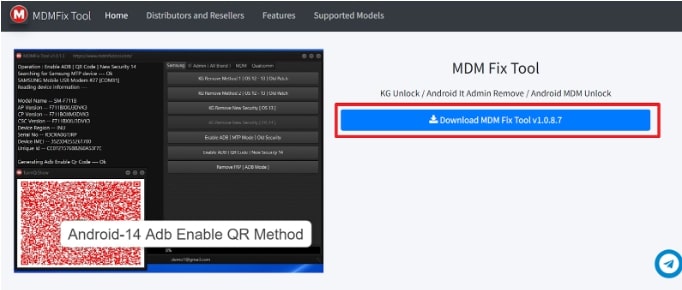
Down MDM Fix Tool
Part 3. How to Remove MDM Via MDM Fix Tool
As you get ready to delete MDM from the mobile, it needs to be at least 50% charged to avoid interruptions. Another recommendation is to temporarily disable antivirus on the PC, as it might block the tool’s operations. Once ready, adhere to the given steps to use the MDM Fix Tool to remove restrictions and regain full control over your Android device:
Step 1. Get started by restoring your mobile in Recovery Mode and connecting it to the computer with the MDM Fix Tool running. Following that, click the Enable ADB [QR Mode] New Security button to proceed.
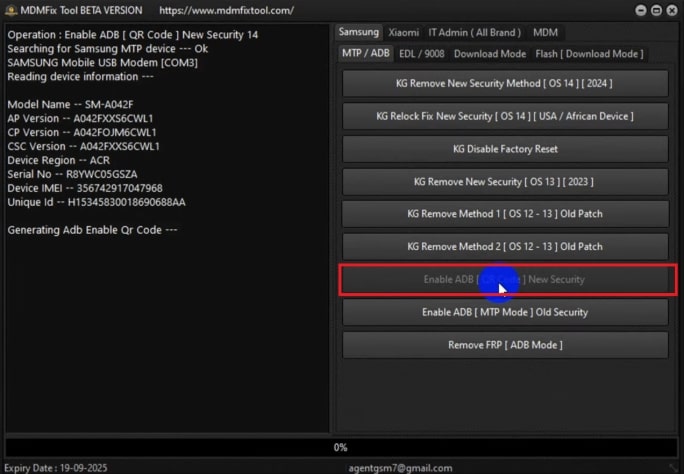
Tap Enable ADB QR Code
Step 2. As the QR Code appears on the tool screen, continuously tap the phone near the Emergency Call button. When the scanner opens, use it to scan the code from the computer to go to the Connect to Wi-Fi screen.
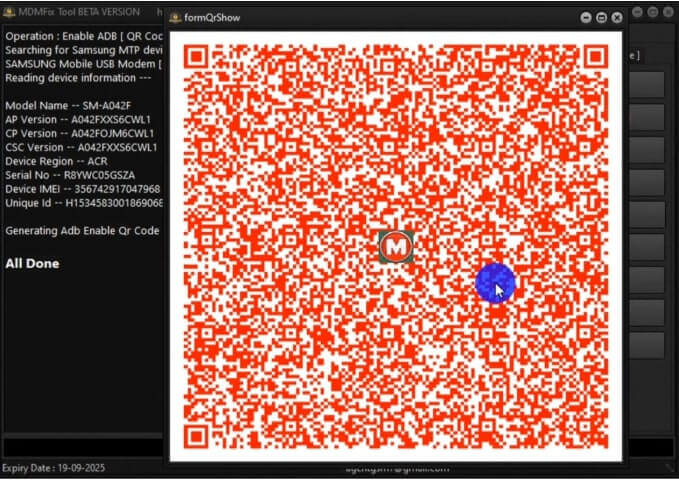
Scan the QR Code
Step 3. Then, link the phone to a suitable network and continue the device setup until you receive the Enable USB Debugging prompt. Here, check the Always Allow box and hit the OK button to continue.
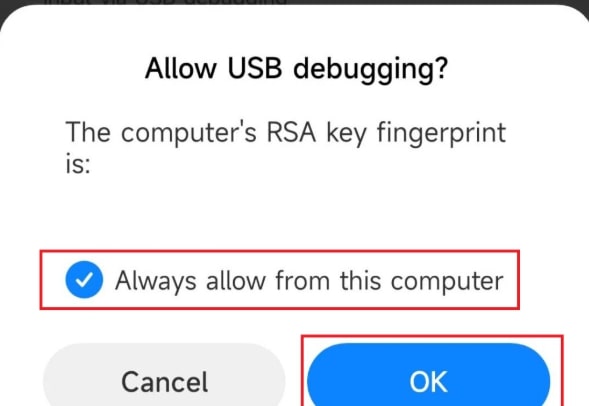
Allow USB Debugging
Step 4. With that done, move back to the tool and click the KG Remove New Security [OS 13] [2023] button. Now, follow the provided instructions to install the Borneo APK on the mobile to remove the MDM lock.
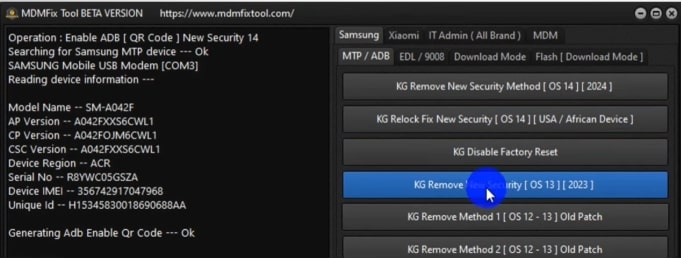
Press KG Remove New Security
Part 4. Bonus. Best Android Toolkit to Bypass FRP – DroidKit
MDM Fix Tool can also bypass FRP Lock on Android devices. However, if you need a safer way to bypass FRP without losing data, DroidKit is highly recommended. As a perfect alternative to MDM Fix Tool, it’s perfect for users stuck after a factory reset or locked out by Google verification. This advanced program can even handle encrypted devices and supports recovery or boot mode with clear guidance.
Furthermore, you can select your exact phone brand and model to customize the bypass steps. It also previews device info before you proceed, helping you make informed decisions. During the whole operation, no custom ROM flashing is required. You can sign in to a new Google account after bypassing and use your device normally.
Key Features:
- Device Compatibility: This program supports thousands of Android models from brands like Samsung and Xiaomi to ensure a high success rate.
- Without Root Access: Users can bypass the FRP without needing to root their device, which eventually helps them avoid complicated system changes.
- Data Extractor: DroidKit also offers a robust tool to get back the deleted content from a phone with relative ease.
- All Lock Removal: It handles all common screen locks effortlessly, including pattern and password to fingerprint and facial recognition.
Free Download * 100% Clean & Safe
How to bypass FRP on Android via DroidKit:
Step 1. Download and open DroidKit on your computer. Then choose FRP Bypass among the available options.

DroidKit FRP Bypass
Step 2. Connect your Android device to your PC. When it succeeds, click on the Start button and choose the device brand.
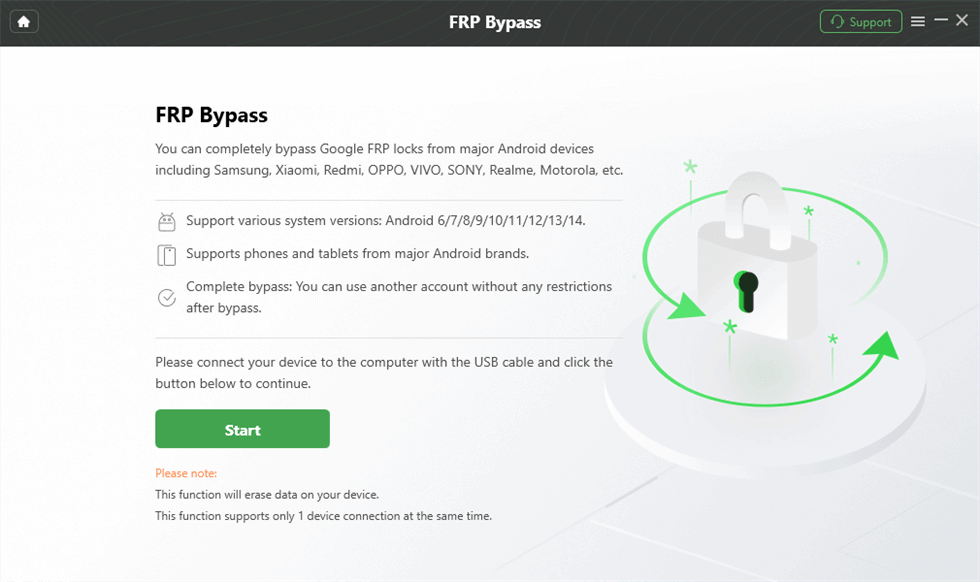
Launch the FRP Operation
Step 3. It will prepare the configuration file for your device. After that, you need to tap on Start to Bypass.
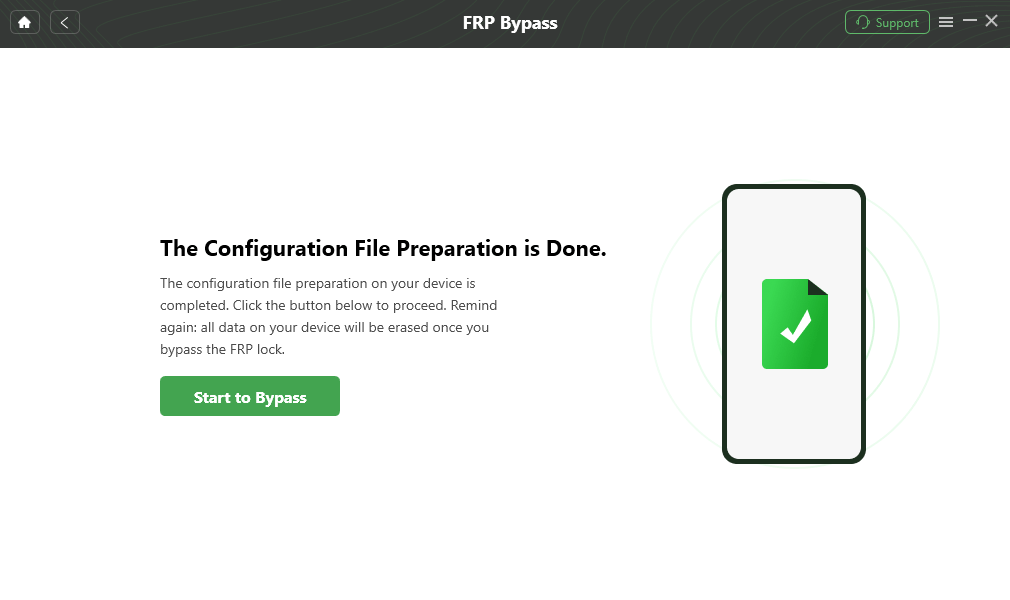
Click Start to Bypass
Step 4. Then, select the Android system version of your device and tap Next.
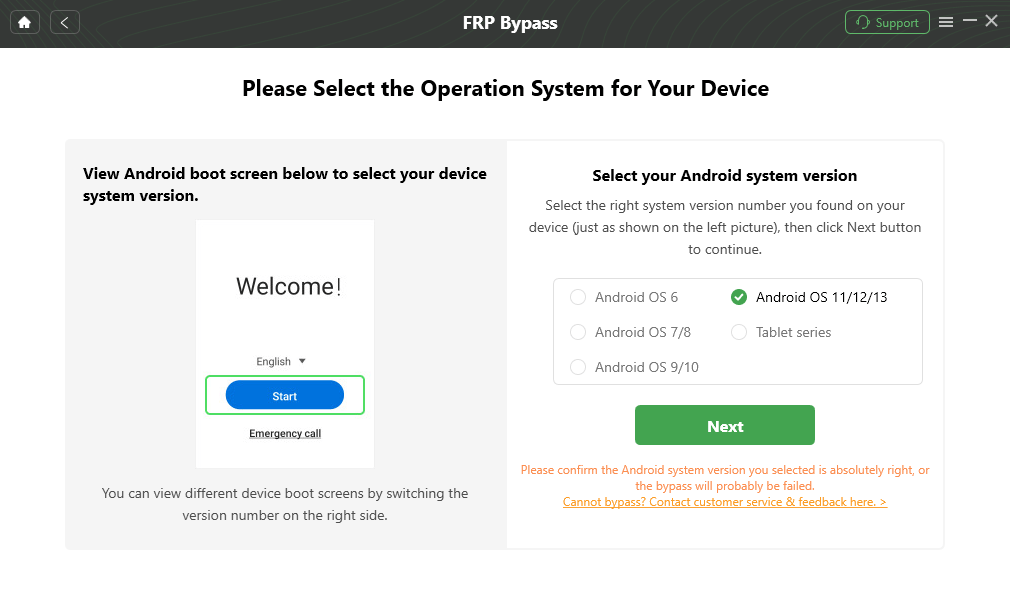
Select the Correct System Version
Step 5. Follow the instructions on the screen to complete the settings. After that, the device will reboot, which means the FRP Lock is removed successfully.

FRP Bypass Complete
Part 5. FAQs
Q1. What is the MDM lock in Samsung?
It is a security feature used by organizations to control and manage a mobile device remotely. Aimed at restricting access to certain settings or functions, it requires administrator permission to remove or modify. Usually applied to corporate-owned devices, MDM ensures compliance with company policies but limits user freedom on the device.
Q2. How do I remove MDM from my Android phone?
With access to the proper credentials, navigate to Settings > Security > Device Admin Apps and disable the targeted controlling app. Lastly, delete the application from the mobile and restore the phone if prompted.
Q3. Will a factory reset remove an MDM?
A factory reset will not typically remove an MDM lock, as it reinstalls during the reboot process. MDM profiles are often configured to reapply automatically through the device’s initial setup after a reset. Nonetheless, you need a specialized MDM bypass tool or professional service that disables the profile permanently.
Conclusion
In summary, the MDM Fix Tool is a useful solution for anyone locked out of their Android device due to MDM settings. With support for many phone brands, it’s a simple option even for non-tech users. However, if you also need to unlock FRP easily, DroidKit is the best tool for you.


Roger Smith is a senior technical writer with years of experience in providing Android solutions. He loves to help users solve various problems such as Android unlock, Android data recovery, and Android system repair.
Product-related questions? Contact Our Support Team to Get Quick Solution >
