How to Remove a Work Profile on Android When the Option Is Missing
Quick Answer: On a personally owned Android phone, open Settings > Passwords, Passkeys & Accounts , select the Work section, and tap Remove work profile > Delete . Menu names vary by phone brand. If the removal option is missing, the device may still be controlled by an organization, or you may need to unenroll it through Company Portal or another device-management app. Removing the profile deletes its work apps and local work data.
An Android Work Profile keeps work apps and company data separate from personal apps. You may want to remove it after leaving an organization, changing device-management services, or no longer needing work apps on a personal phone. The correct method depends on who owns the device and which management app created the profile.
Before you continue: Remove a Work Profile only from a device you own or are authorized to manage. If the phone is company-owned, contact the organization before changing its management settings.
What Happens When You Remove a Work Profile?
Deleting a Work Profile removes the apps, accounts, policies, and locally stored data inside that profile. This can include work email, contacts, downloaded files, certificates, VPN settings, and managed apps. Cloud-based work data may still be available after you sign in on another authorized device.
On a personally owned phone, content in the personal profile—such as personal photos, messages, and personal apps—normally stays on the device. However, save any permitted work files before removal because local Work Profile data cannot be restored from the deleted profile.
| Item | After Work Profile Removal |
|---|---|
| Managed work apps | Removed |
| Local work email, contacts, files, and settings | Removed from the device |
| Organization policies inside the Work Profile | Removed with the profile |
| Personal apps and personal files | Normally remain on a personally owned device |
| Access to company resources | Usually ends until the device is enrolled again |
Which Removal Method Should You Use?
| Your Situation | Best Next Step | Main Limitation |
|---|---|---|
| You own the phone and see “Remove work profile” | Delete it through Android Settings | Work apps and local work data are erased |
| You enrolled through Microsoft Company Portal | Use Remove Device or Remove Company Portal | The option can depend on enrollment type and company policy |
| The phone is company-owned or removal is blocked | Ask IT to retire, release, or unenroll the device | End users may not have removal permission |
| You only want to stop work notifications temporarily | Pause the Work Profile | The profile and its data remain on the phone |
| Other options failed | Review the factory-reset risks first | All personal data is erased, and management may return |
Method 1. Remove the Work Profile in Android Settings
This is the preferred method for a personally owned device. Google’s current path is documented for Pixel phones, while Samsung and other Android brands may use different menu names.
- Open Settings .
- Tap Passwords, Passkeys & Accounts , Passwords & accounts , or the closest account-management option on your phone.
- Open the Work tab or Work Profile settings.
- Tap Remove work profile .
- Tap Delete and enter your screen PIN, pattern, or password if requested.
- After removal, check whether the policy app used for enrollment is still installed. Uninstall it only when your organization’s instructions allow it.
Samsung Galaxy: Android 13 and Later
Samsung Knox documentation for the unified Work Profile introduced with Android 13 places the removal control under Settings > Accounts and backup > Manage accounts . Open the Work tab and tap Uninstall Work profile . The exact wording can still vary by One UI release and organization policy. See the Samsung Knox documentation .

Can’t find the same menu? Search Android Settings for work profile , remove work profile , or accounts . On some devices, you may need to select the managed work account first and then tap Remove account .
Why Is “Remove Work Profile” Missing on Android?
This is the most important troubleshooting step because a missing option usually reflects device ownership, enrollment type, or organizational policy—not a simple Settings error.
1. The Device Is Company-Owned
Android allows users to delete a Work Profile when they personally own the device or when the organization has formally transferred ownership. A company-owned phone may remain under organization control even when it contains a personal profile. In that situation, ask IT to retire or release the device.
2. Your Organization Blocks Removal
If Android displays an error when you try to remove the account or profile, the organization may not allow self-service removal. Contact the administrator listed in your device-management app or company support portal.
3. You Must Unenroll Through the Management App First
Profiles created through Microsoft Intune Company Portal or another enterprise mobility management app may need to be removed inside that app. Continue to the Company Portal instructions below, or follow the organization’s documented unenrollment process.
4. The Setting Has a Different Name
Android menu names vary across Pixel, Samsung Galaxy, Motorola, Xiaomi, OPPO, and other devices. Search Settings instead of relying on one universal path. Possible labels include Work , Work Profile , Managed account , or Remove account .
5. The Profile Is Paused, Not Deleted
Gray briefcase icons normally mean the Work Profile is paused. Turn it on temporarily, then return to the account or Work Profile settings and check for the removal option again.
Method 2. Remove a Company Portal Work Profile
Use this method when your personal Android phone was enrolled through the Microsoft Intune Company Portal app. Microsoft notes that the steps do not apply to corporate-owned devices enrolled through the Microsoft Intune app. See Microsoft’s Android unenrollment instructions .
Option A. Remove the Device
- Open Company Portal and sign in with your work account.
- Select Devices .
- Select the Android device you want to remove.
- Open the menu and tap Remove Device .
- Tap OK to confirm.
Option B. Remove Company Portal from the Current Device
- Open Company Portal and sign in.
- Open the main menu.
- Tap Remove Company Portal .
- Tap OK to unenroll the current device.
- After unenrollment, uninstall Company Portal if it is no longer needed.
If you no longer have access to the work account, use the Company Portal website or contact the former organization’s IT team. Do not assume that uninstalling the app alone removes every management policy.
Method 3. Ask Your IT Administrator to Retire or Release the Device
Use this route when the device is company-owned, the removal option is blocked, or the management app does not provide an unenrollment command. Depending on the management platform, IT may use an action named Retire , Remove Device , Delete Work Profile , Wipe Work Data , or Release Ownership .
Tell the administrator whether the phone is personally owned or company-owned and whether personal data must remain. These details affect which remote action is appropriate.
Do not use unauthorized bypass methods. Removing a company policy controller with ADB or another workaround may fail, leave the device in an inconsistent state, violate company policy, or cause loss of access to protected resources.
How to Pause or Turn Off a Work Profile Without Deleting It
If you only want to stop work notifications or hide work apps outside working hours, pause the profile instead of deleting it. See Google’s Work Profile pause instructions .
Pause It from the App Drawer
- Swipe up to open the app drawer.
- Tap the Work tab.
- Turn off the Work apps or Pause work apps switch.
Pause It from Quick Settings
- Swipe down from the top of the screen.
- Find the tile with the briefcase icon.
- Tap the tile to pause or turn on the Work Profile.
Pausing keeps the profile and its data on the device. On a company-owned phone, the organization may limit how long the profile can remain paused.
Should You Factory Reset the Phone?
A factory reset is not the first choice for removing a Work Profile. It erases personal accounts, photos, apps, messages, settings, and the Work Profile from the phone. Back up permitted personal data before considering it.
A reset also may not permanently remove enterprise management. A device registered through Android zero-touch enrollment or another automated enrollment system can be assigned management again during setup. The organization may need to remove or release the device from its enrollment portal first.
Before resetting, read why MDM may block or affect a factory reset , and contact the organization if the device displays a company enrollment screen after setup.
What If You Cannot Access Android Settings?
If you cannot reach Settings because you forgot the screen lock on a personal device you own or are authorized to use, first try the account-recovery and manufacturer-support options available for that phone.
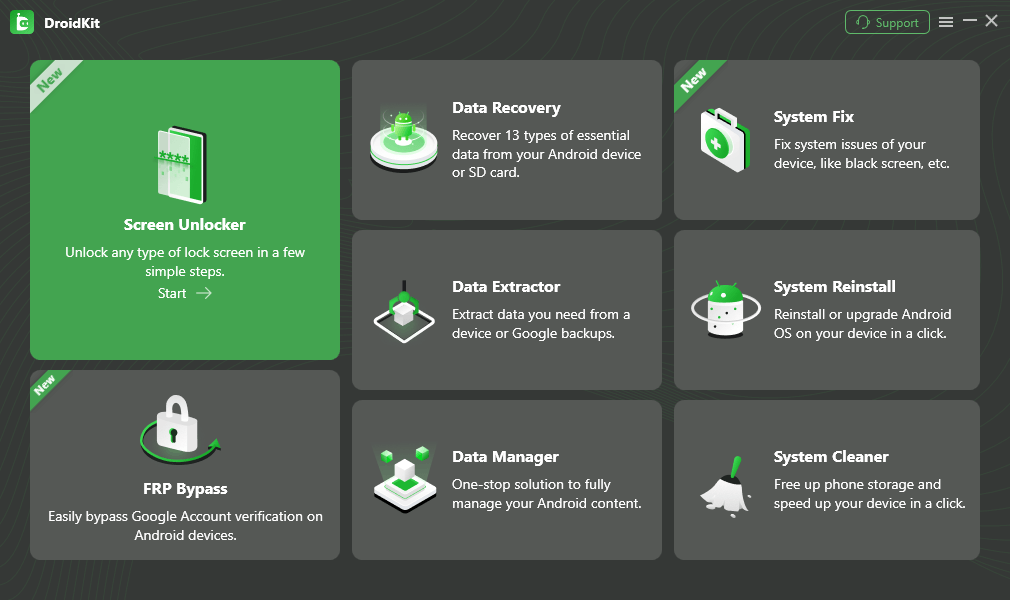
Tool-assisted option: According to iMobie’s current documentation, DroidKit Screen Unlocker runs on Windows and macOS and supports Android 6.0 or later across many phone brands. Compatibility still varies by model and unlocking route. In most cases, removing the screen lock erases all data on the device; only some older Samsung models may preserve data. Back up the phone when possible and confirm support for the exact model before proceeding. DroidKit does not remove Work Profiles, bypass organization policies, or replace administrator authorization.
FAQs About Removing an Android Work Profile
1. What happens when I remove a Work Profile from Android?
Removing a Work Profile deletes the work apps, managed accounts, settings, and local work data stored inside that profile. Personal apps, photos, messages, and other personal-profile data normally remain on a personally owned device. Save or sync any permitted work files before deleting the profile.
2. Why is the “Remove work profile” option missing?
The option may be missing because the device is company-owned, the organization has restricted removal, or the management app requires you to unenroll first. Search Settings for the Work Profile, check Company Portal or the policy app, and contact IT if removal is blocked.
3. Can I remove a Work Profile without resetting the phone?
Yes. On a personally owned device, you can normally remove it through Android Settings or the management app without erasing the personal profile. A factory reset should be a last resort because it erases personal data and may not permanently remove automated enterprise enrollment.
4. Can my employer prevent me from removing the Work Profile?
It depends on device ownership and management type. A personally owned device generally provides a way to delete its Work Profile. A company-owned device may remain managed until the organization retires it or formally transfers ownership.
5. Will a factory reset permanently remove company management?
Not always. A phone registered through Android zero-touch or another automated enrollment program may enroll again during setup. The organization may need to deregister or release the device before the management screen disappears permanently.
6. How do I remove an Intune Company Portal Work Profile?
Open Company Portal, select Devices , choose the phone, open the menu, and tap Remove Device . You can also use Remove Company Portal for the current device when that option is available. Corporate-owned Intune enrollment may require IT assistance.
7. Can I turn off the Work Profile without deleting it?
Yes. Open the app drawer, select the Work tab, and pause work apps, or tap the briefcase tile in Quick Settings. This stops work apps and notifications while keeping the profile and its data on the phone.
8. Can I remove the owner Work Profile with ADB?
ADB is not the recommended removal method for an organization-managed profile. Device-policy restrictions may prevent it, and forcing profile removal can leave management components or protected resources in an inconsistent state. Use Android Settings, the approved management app, or an authorized IT-admin action instead.
Conclusion
On a personally owned Android phone, start with the Work Profile settings or the management app that enrolled the device. If the removal option is missing, check device ownership, company policy, and Company Portal before considering a reset. Pause the profile when you only need a temporary break from work apps. For a company-owned phone, the safest and most reliable route is to ask the organization to retire or release the device.
Related iMobie Guides
Sources
- Google: Remove a Work Account from an Android Device
- Google Android Enterprise: Pause or Turn On a Work Profile
- Microsoft Intune: Remove a Device from Company Portal
- Samsung Knox: Work Profile Settings on Android 13

Product-related questions? Contact Our Support Team to Get a Quick Solution >
