Samsung A03 FRP Bypass Without PC [Android 13/12/11]
Stuck on Google verification after resetting your Samsung A03 or A03 Core? This guide explains Samsung A03 FRP bypass methods without PC, Android 13/12/11 compatibility notes, APK risks, and when a PC-based Samsung FRP tool may be easier.
Stuck on the Google verification screen after factory resetting your Samsung A03 or Samsung A03 Core? This is usually caused by Factory Reset Protection, also known as FRP. It is an Android security feature that asks for the previously synced Google account after a reset.
In this guide, you will find practical Samsung A03 FRP bypass methods, including no-PC options such as Google Keyboard and Alliance Shield X, plus a guided PC-based option when manual methods are blocked by Android 12/13 updates or newer security patches. If you are comparing FRP solutions for other Galaxy A models, check the full Samsung Galaxy A FRP guide for more A-series model options.
Quick Answer: Samsung A03 FRP Bypass Options
For Samsung A03 and Samsung A03 Core FRP bypass, you can try no-PC methods such as Google Keyboard or Alliance Shield X. However, these methods are not always available on every Android version or security patch. If your Samsung A03 runs Android 12 or Android 13, or if APK-based steps are blocked, a PC-based Samsung FRP tool is usually easier to follow.
| Method | Best For | PC Needed | Difficulty |
| DroidKit FRP Bypass | Users who want guided Samsung A03 FRP bypass steps | Yes | Easy |
| Google Keyboard Method | Older Android versions or older security patches | No | Medium |
| Alliance Shield X | Users comfortable with APK, Galaxy Store, and Samsung account steps | No | Hard |
If you only want to know which path to start with: try a no-PC method first when your phone is on an older Android version. If the keyboard, APK, or Alliance Shield X steps do not appear on your Samsung A03/A03 Core, move to a guided PC-based method.
Samsung A03 vs. Samsung A03 Core: FRP Compatibility
Samsung A03 and Samsung A03 Core are budget-friendly Galaxy A-series phones. Both models can trigger FRP after a factory reset if the previously synced Google account is not removed before resetting the phone. The FRP bypass steps are similar, but the Android version and security patch can affect whether no-PC methods still work.
| Samsung A03 | Samsung A03 Core | |
| Original Android Version | Android 11, upgradable on some models | Android 11 Go edition |
| Resolution | 720 x 1560 pixels | 720 x 1600 pixels |
| RAM | 3 GB and more options | 2 GB |
| CPU Cores | 2 GHz | 1.6 GHz |
| Rear Camera | 48 MP + 2 MP Dual | 8 MP |
| FRP Bypass Note | Manual methods may vary by Android 11/12/13 and security patch | No-PC methods may be more limited because of Go edition behavior |
Before you start, make sure the phone is your own device or you have permission to unlock it. You also need a stable Wi-Fi connection, enough battery, and the correct Google account information if you plan to complete the official verification process.
Before You Choose a Samsung A03 FRP Method
Confirm the exact model, Android version, security patch, and available setup-screen options before following a Samsung FRP guide. Samsung A03 and A03 Core may show similar Google verification screens, but their hardware, firmware, Android version, and available shortcuts can differ.
| What to Check | Why It Matters | Recommended Direction |
| Exact model number | Samsung A03, A03 Core, and other Galaxy A models do not necessarily use the same firmware or setup process. | Open Settings or check the device label, box, receipt, or recovery screen before choosing a guide. |
| Android version | A method written for Android 9 or 10 may not match Android 12 or 13. | Use instructions that explicitly match the system version displayed on your device. |
| Security patch | Samsung and Google updates may remove keyboard, browser, accessibility, APK, or settings shortcuts. | If an expected option is missing, stop repeating the method and choose another supported route. |
| Previously synced Google Account | FRP normally requests an account that was previously added and synced to the device. | Try Google Account Recovery or ask the previous owner to remove the device from their account first. |
| Ownership and proof of purchase | An authorized Samsung service center may be able to assist the legitimate owner when account recovery is unavailable. | Keep the receipt, IMEI information, and proof of ownership available. |
Do not follow another Galaxy A model’s instructions only because its setup screen looks similar. A Samsung A15, A24, A53, or A70 guide may depend on a different Android build, chipset, USB mode, firmware file, or security patch. Use the methods below specifically for Samsung A03 and A03 Core.
Best Way to Bypass Samsung A03 FRP with PC
If no-PC methods are blocked or too complex, a PC-based FRP bypass tool can be a more practical choice. iMobie DroidKit provides a guided FRP Bypass mode for Samsung devices, including Galaxy A-series models. It is especially useful when APK downloads, keyboard shortcuts, or older manual tricks do not work on your Samsung A03/A03 Core.
For users comparing tool-based options, you can also check more Samsung FRP tool solutions before deciding which method fits your phone.
Free Download * 100% Clean & Safe
With iMobie DroidKit, you can:
- Follow guided FRP bypass steps: The process is easier for users who do not want to rely on complicated APK or keyboard tricks.
- Choose Samsung-specific instructions: DroidKit provides device-brand-based guidance and helps you continue based on your Samsung model and system version.
- Use a PC-based path when no-PC methods fail: This is helpful when Android 12/13 updates or security patches block older manual methods.
Now download DroidKit and follow the steps below to bypass FRP on Samsung A03/A03 Core using a computer.
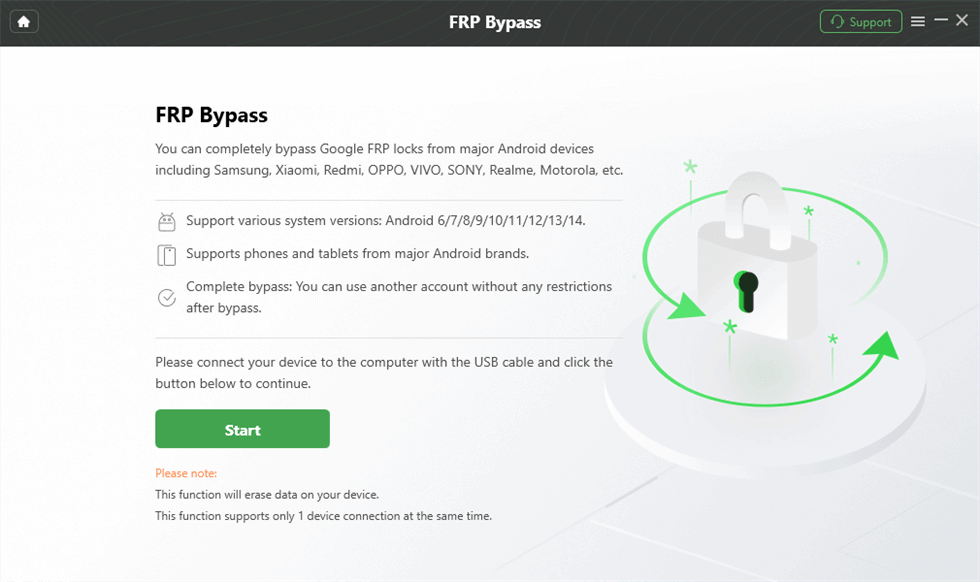
Step 1. Launch iMobie DroidKit and click on FRP Bypass mode.

Choose FRP Bypass Mode
Step 2. Connect your Samsung A03 or Samsung A03 Core to the computer with a USB cable. Click on the Start button and select Samsung as your device brand.
Connect Device to Computer
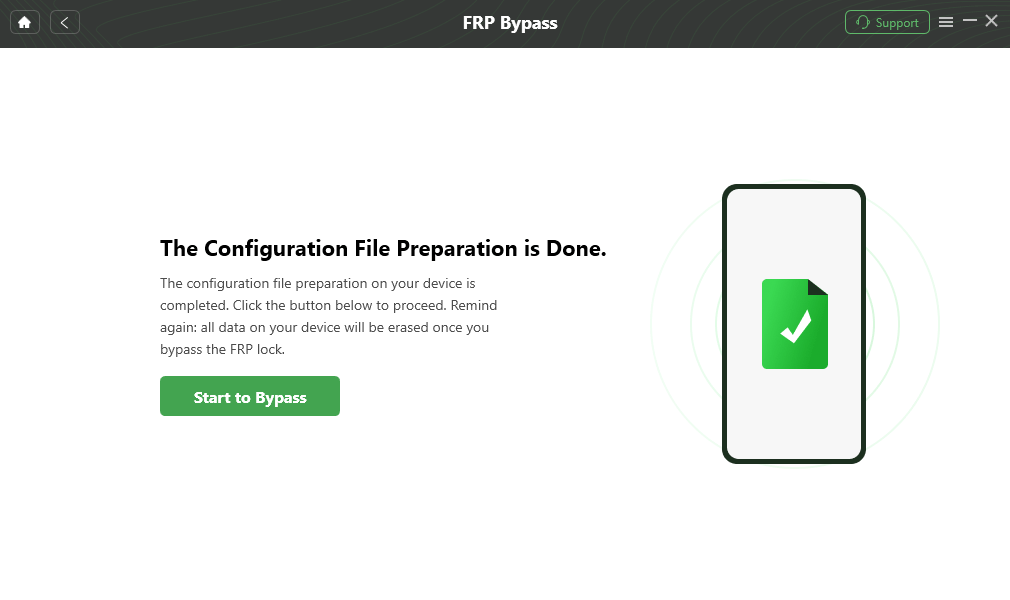
Step 3. Wait while DroidKit prepares the configuration file for your device. When the preparation is complete, click on the Start to Bypass button.
Complete Configuration File Preparation
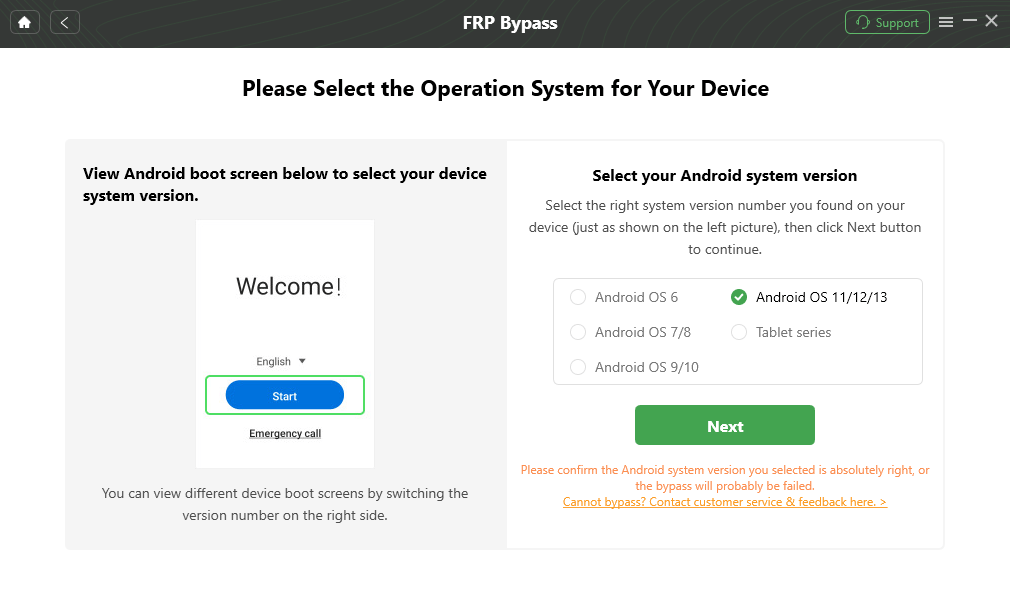
Step 4. Select the operating system and device model according to the screen interface. Then click on the Next button.
Choose System Version
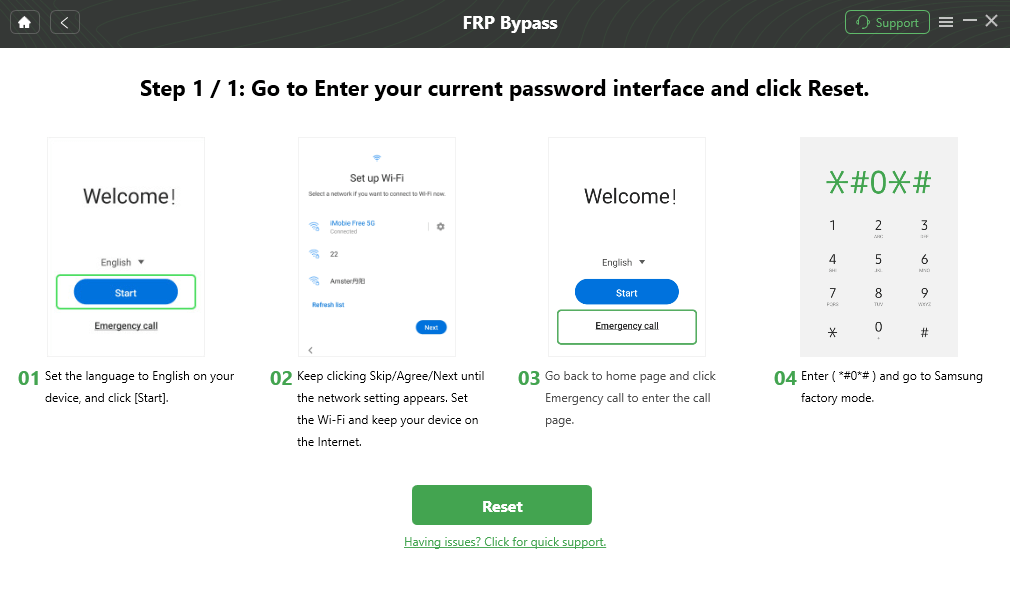
Step 5. Follow the on-screen instructions to put your Samsung A03/A03 Core into the required mode and complete the corresponding settings.
Enter Samsung A03 Factory Mode
Step 6. Wait for the process to finish. Your device will restart after the FRP bypass process is completed.

FRP Bypass Complete
If the no-PC methods below do not work on your Samsung A03/A03 Core, return to this PC-based method. It is a more guided option for users who want to avoid downloading Samsung A03 FRP files or APKs from unknown websites.
Free Download * 100% Clean & Safe
Samsung A03/A03 Core FRP Bypass Without PC via Google Keyboard
The Google Keyboard method is one of the commonly used Samsung A03 FRP bypass without PC methods. It uses the keyboard settings and Help & Feedback path to access the Settings app. However, it is more likely to work on older Android versions or older security patches. If the options below do not appear on your phone, your system version may have blocked this method.
Follow the steps below to try the Google Keyboard method:
Step 1: Get to the Help Page
- Step 1. Turn on your Samsung A03 or Samsung A03 Core.
- Step 2. Select a language and connect the device to a stable Wi-Fi network.
- Step 3. When you are asked to verify the previously synced Google account, tap the text field.
- Step 4. When the keyboard appears, tap and hold the @ key to open the keyboard settings menu.
- Step 5. Choose Google Keyboard Settings.
- Step 6. Tap the three-dot icon in the upper-right corner and select Help & Feedback.
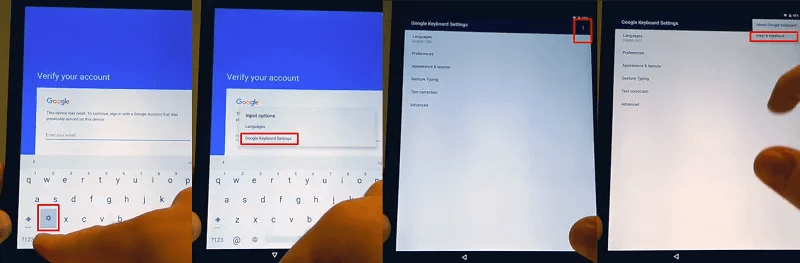
Enter Help & Feedback Page
Step 2: Open the Settings Menu
- Step 1. Once the Help page appears, tap the Use Google Keyboard option.
- Step 2. Tap and hold any text on the screen, and then tap Websearch.
- Step 3. Type Settings in the search bar and tap Settings from the search results.
Step 3: Try to Finish the FRP Bypass
- Step 1. In Settings, find and tap About phone.
- Step 2. Tap Software information and find Build Number.
- Step 3. Tap Build Number 7 times to enable Developer mode.
- Step 4. Go back and tap Developer options.
- Step 5. Tap OEM Unlocking if this option is available.
- Step 6. Restart the device and connect to Wi-Fi again. Then add a Google account when prompted.
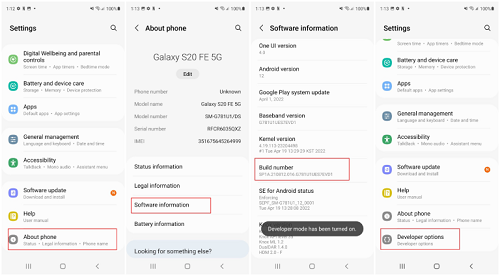
Click on Developer Options
Note: If you cannot open Help & Feedback, cannot access Settings, or cannot find OEM Unlocking, this method may not work on your Samsung A03/A03 Core. In that case, try the PC-based method above or check the Android version notes below.
Samsung A03/A03 Core FRP Bypass Without PC via Alliance Shield X
Alliance Shield X is another no-PC method sometimes used for Samsung A03 FRP bypass. It is more complex than the Google Keyboard method because it may involve Samsung account sign-in, app settings, Galaxy Store, and APK-related steps. It is not suitable for every user, and the availability of this method can change after Android updates or security patches.
Before you try this method, keep these points in mind:
- Only download apps or APK files from sources you trust.
- Do not enter account information on unknown websites.
- If Galaxy Store, Samsung Account, or Android Setup settings cannot be opened, this method may be blocked on your phone.
Here is the stepwise guidance for Samsung A03/A03 Core FRP bypass via Alliance Shield X:
Step 1. Switch on the phone and tap Start. Agree to the terms and conditions, and then tap Next.
Step 2. Connect your phone to a Wi-Fi network and return to the welcome screen. Tap several times on the blank area of the welcome screen until the setup is processed.
Step 3. Go to the Wi-Fi setup screen, tap See All Networks, and then tap Add new network.
Step 4. Tap the QR code scanner icon. When the QR code scan screen appears, tap the image icon.
Step 5. When Files appears on the screen, tap the top-left corner to expand Open from. Then press and hold the Drive icon until Google Drive info appears.
Step 6. Select permission and tap the Search icon. Type and search for Settings.
Step 7. Tap Settings from the search results. Tap Accounts > Add Account > Samsung Account. Sign in with your Samsung account ID and password.
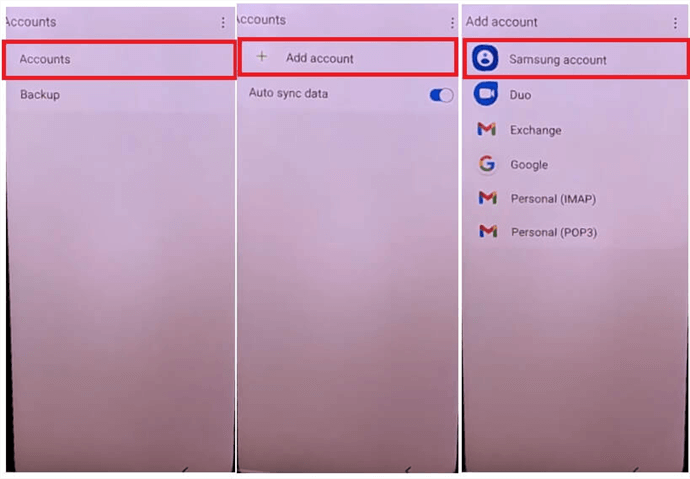
Select Samsung Account
Step 8. Go back to Settings. Find and tap Apps & Notifications. Tap All Apps, find Android setup, and select Force Stop. Then tap Storage and Clear Cache.
Step 9. Select Google Play Services. Tap Disable and Force Stop. Then select Samsung Setup wizard and tap Force stop. Open Chrome and search for the FRP app resources you need.
Step 10. Open the FRP bypass APK page you trust and choose the Alliance Shield Manager installation option. The Galaxy Store should open. Install and open the Alliance Shield X app.
Step 11. Tap Next > Next > Next > Got it.
Step 12. Tap Register and enter your username, password, email, and confirmation code. Tap Submit and verify your email. If you already have an Alliance Shield account, sign in directly.
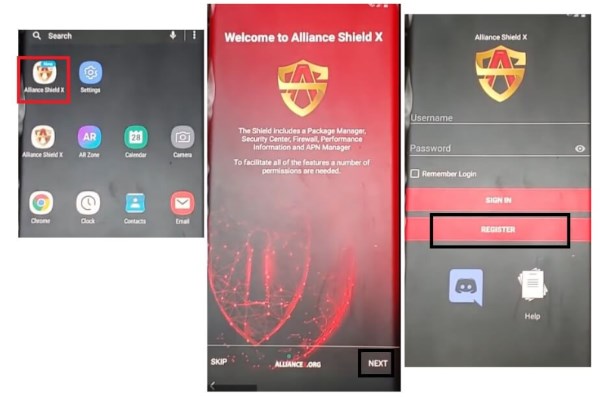
Access the Alliance Shield App
Step 13. Name your device and tap Next. Enable Device Admin and tap Activate. If Samsung Knox is not present on the phone, tap Next and Finish. Then tap App Manager.
Step 14. Search for and open Android setup. Tap Actions, then tap Force Stop and Wipe App Data.
Step 15. Go to Activities. Select and open Android Setup with the activity name com.google.android.setupwizard.predeferred.PreDeferredSetupWizardActivity.
Step 16. Your device may show To Unlock Sign In With your Google Account. Lock the phone by pressing the power key.
Step 17. Open the notification bar and tap Settings. Select General Management > Reset > Factory Data Reset. Enter your Samsung account password and tap OK.
If the steps are successful, your Samsung A03/A03 Core should continue past the FRP screen. If the process stops at Galaxy Store, account sign-in, Android Setup, or app permissions, this method may no longer work on your Android version or security patch.
APK safety note: Samsung A03 FRP file download resources from unverified websites may include security and privacy risks. If you do not want to rely on APK files from unknown sources, use a guided PC-based method instead.
Free Download * 100% Clean & Safe
Samsung A03 FRP Bypass on Android 13/12/11
The Android version is one of the biggest factors that affects Samsung A03 FRP bypass. Samsung A03 originally came with Android 11 on many models, while some devices may have been updated to Android 12 or Android 13. Samsung A03 Core usually runs Android 11 Go edition. Methods that worked on Android 11 may not work the same way after a newer security patch.
| Android Version | What to Expect | Suggested Path |
| Android 11 | Older no-PC methods may still appear on some devices | Try Google Keyboard first, then use DroidKit if blocked |
| Android 12 | Some keyboard and APK paths may be limited | Try manual methods carefully, but prepare a PC-based fallback |
| Android 13 | Manual methods are more likely to fail after security updates | Use a guided FRP tool or check dedicated Android 13 FRP bypass methods |
If your Samsung A03 is on Android 13 and the Google Keyboard or Alliance Shield X path does not match your screen, do not keep repeating the same steps. The method may be patched. Move to a PC-based solution or check whether you can recover the original Google account first.
What If Samsung A03 FRP Bypass Fails?
FRP bypass can fail for several reasons. The most common reason is that your Samsung A03/A03 Core has a newer Android security patch that blocks older shortcuts. Use the table below to find the likely cause and next step.
| Problem | Possible Reason | What to Try |
| Help & Feedback does not open | Google Keyboard shortcut is patched | Try another method or use a PC-based tool |
| OEM Unlocking is missing | The option is hidden, blocked, or not available during setup | Do not rely on this path; try DroidKit or account recovery |
| Alliance Shield X cannot be installed | Galaxy Store, account sign-in, or app permissions are blocked | Avoid unknown APK files and switch to a guided method |
| Samsung A03 FRP file download looks unsafe | The source may be unverified | Do not enter passwords or install files from suspicious pages |
| Google verification appears again after reset | The previously synced Google account is still required | Try official account recovery or read this Google account verification after reset guide |
When a manual method fails, the safer choice is to stop downloading random APK files and use a more controlled process. DroidKit can be a practical fallback for users who have a computer and want clearer Samsung FRP bypass instructions.
FAQs about Samsung A03 FRP Bypass
Can I bypass FRP on Samsung A03 without PC?
Yes, you can try no-PC methods such as Google Keyboard or Alliance Shield X. However, these methods depend on your Android version, security patch, available menus, and whether Samsung or Google has blocked the shortcut. If the steps do not match your screen, use a PC-based method instead.
Does Samsung A03 FRP bypass work on Android 13?
Samsung A03 FRP bypass on Android 13 is usually harder than on older versions. Many keyboard, APK, and setup-wizard tricks may be blocked by newer security patches. A guided PC-based FRP bypass option is often easier for Android 13 users.
Is Samsung A03 FRP file download safe?
It depends on the source. FRP files or APKs from unknown websites can carry security risks, and some pages may ask for unnecessary permissions or account information. If you are not sure whether a download source is safe, avoid it and choose an official or guided solution.
Why does my Samsung A03 still ask for the previous Google account?
This happens because FRP is still active on the device. After a factory reset, Android may ask for the previously synced Google account to confirm that the phone belongs to you. The official way is to sign in with that Google account or recover it through Google account recovery.
What should I do if Google Keyboard method does not work?
If Google Keyboard does not open Help & Feedback or cannot reach Settings, the method may be patched on your Samsung A03/A03 Core. Try a different method, check your Android version, or use a PC-based FRP bypass tool with guided steps.
The Bottom Line
Samsung A03 FRP bypass without PC is possible in some cases, especially on older Android versions or older security patches. Google Keyboard and Alliance Shield X are two no-PC options, but both can be complex and may fail on Android 12/13 or newer Samsung security updates.
If you want a simpler path and have access to a Windows or Mac computer, DroidKit is a practical option to try. It provides guided Samsung FRP bypass steps and avoids relying heavily on unknown APK or Samsung A03 FRP file download resources.
Free Download * 100% Clean & Safe
More Related Articles


Roger Smith is a senior technical writer with years of experience in providing Android solutions. He loves to help users solve various problems such as Android unlock, Android data recovery, and Android system repair.
Product-related questions? Contact Our Support Team to Get Quick Solution >
