Samsung A10 Unlock Code: Carrier Unlock, Screen Lock, and FRP Explained
Trying to unlock a Samsung Galaxy A10? This guide explains what a Samsung A10 unlock code really means, how to request and enter a carrier network unlock code, and how to tell whether your problem is actually a screen lock, Google FRP, SIM PUK, or account verification issue.
A Samsung A10 unlock code usually means a carrier or SIM network unlock code. It is used when your Galaxy A10 was sold by one carrier and refuses to accept a SIM card from another compatible carrier. You may see messages such as “SIM network unlock PIN,” “Network locked,” “Enter network unlock code,” or “Network unlock request unsuccessful.”
However, the word “unlock” is often used for several different Samsung A10 problems. A carrier unlock code will not remove a forgotten lock screen PIN, will not bypass Google FRP after a factory reset, and will not unblock a SIM card that needs a PUK code. Choosing the wrong method can waste limited code attempts, trigger a phone freeze state, or erase your data.
Quick Answer: If your Samsung A10 asks for a “SIM network unlock PIN,” request the network unlock code from the original carrier or retailer. Samsung’s support guidance says that when a phone asks for an unlock code after inserting a new SIM, the original service provider or retailer is the right place to request that code. If your issue is a screen PIN, pattern, password, or Google verification after reset, skip the carrier-code steps and use the correct screen lock or FRP solution instead.
What Is a Samsung A10 Unlock Code?
A Samsung A10 unlock code is most commonly a network unlock code, also called an NCK code. It removes a carrier network restriction so your Galaxy A10 can accept a compatible SIM card from another carrier. This is useful if you bought the phone from a carrier, finished paying for it, and now want to switch networks or use a local SIM card while traveling.
This code is different from a screen lock PIN, Samsung account password, Google account password, PUK code, or bootloader unlock status. Before taking action, check the exact wording on the phone. The unlock prompt tells you what type of lock you are dealing with.
| Term or code | What it unlocks | Who provides it | Data loss? |
|---|---|---|---|
| NCK / Network unlock code | Carrier or SIM network lock | Original carrier or retailer | No, usually not |
| MCK / Unfreeze code | Phone freeze state after wrong network unlock attempts | Usually original carrier or service channel | No, usually not |
| PUK code | Blocked SIM card after wrong SIM PIN attempts | SIM carrier | No phone data loss |
| Screen PIN / pattern / password | Android lock screen | User-set credential or reset/unlock method | Often yes |
| Google FRP verification | Factory Reset Protection after reset | Previously synced Google account or supported FRP solution | Reset already erased local data |
Which Samsung A10 Lock Are You Facing?
Use this table before entering any code. It prevents the most common mistake: trying to use a carrier unlock code to fix a screen lock or FRP problem.
| What you see on Samsung A10 | Likely issue | Best next step |
|---|---|---|
| “SIM network unlock PIN” after inserting a new SIM | Carrier/network lock | Request an unlock code from the original carrier or retailer |
| “Enter PIN,” “Enter pattern,” or “Enter password” on the lock screen | Screen lock | Use Samsung/Google recovery options, reset, or a supported screen unlock tool |
| “Verify your account” after factory reset | Google FRP | Sign in with the previously synced Google account or use a supported FRP solution |
| “SIM blocked” or “Enter PUK” | SIM card lock | Get the PUK from your SIM carrier |
| No unlock prompt, but mobile data/calls do not work | Compatibility, APN, blocked IMEI, inactive SIM, or carrier issue | Check carrier compatibility and service status before requesting another code |
Before Requesting a Network Unlock Code
Not every Samsung A10 can be unlocked immediately. Carriers usually check whether the phone is eligible before issuing a code. In the United States, FCC documents describe industry unlocking commitments where participating providers unlock eligible postpaid devices after the service contract or financing plan is fulfilled, and prepaid devices within one year after activation, subject to reasonable requirements.
Prepare these details before contacting the carrier:
- IMEI number: Dial
*#06#on the Samsung A10, or check Settings > About phone. - Model number: Galaxy A10 variants include models such as SM-A105F or SM-A105G. The exact model matters for network compatibility.
- Original carrier: The unlock code must come from the carrier or retailer that locked the device.
- Account status: The carrier may require the device to be fully paid off, active for a required period, and not reported lost or stolen.
- Proof of purchase: This may be needed if you bought a used Samsung A10.
- New carrier compatibility: Unlocking only removes the carrier restriction. It does not add missing network bands or guarantee that 4G/LTE will work on every carrier.
Important: Avoid guessing unlock codes from random lists. Many Samsung network unlock codes are generated from the IMEI, carrier, region, and lock type. A code that worked for another Galaxy A10 may not work for yours.
How to Get a Samsung A10 Network Unlock Code
The safest method is to request the code from the original carrier or retailer. Samsung’s support guidance explains that when a device asks for a PIN or unlock code after inserting a new SIM, you need to contact the original service provider or retailer for the unlock code.
- Find the IMEI by dialing
*#06#. - Confirm the Samsung A10 model number in Settings > About phone.
- Contact the original carrier or retailer that sold the phone.
- Ask specifically for the network unlock code or SIM network unlock PIN.
- Provide the IMEI, model number, account details, and proof of purchase if requested.
- Wait for carrier review. Some requests are processed quickly; others require account or payment verification.
- Keep the code exactly as provided, including any note about NCK, MCK, or PUK.
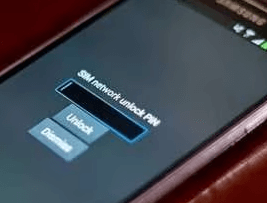
Request Samsung A10 Unlock Code
How to Enter the Unlock Code on Samsung A10
Once you receive a valid code, enter it carefully. Some phones allow only a limited number of attempts. If you are not sure whether the code is the network unlock code, unfreeze code, or PUK, confirm with the carrier first.
- Power off your Samsung Galaxy A10.
- Remove the original SIM card.
- Insert an active SIM card from another carrier.
- Power on the Samsung A10.
- Wait for the prompt that says SIM network unlock PIN, Network unlock code, or similar wording.
- Enter the carrier-provided unlock code exactly as given.
- Tap Unlock, OK, or Done.
- After the unlock succeeds, test calls, messages, and mobile data with the new SIM.
If the phone accepts the code but data does not work, check APN settings, carrier coverage, SIM activation, and whether the Galaxy A10 model supports the new carrier’s network bands. Unlocking a phone does not automatically make it compatible with every carrier.
What If the Samsung A10 Unlock Code Does Not Work?
If the code fails, stop entering random codes. Repeated wrong attempts can put the phone into a freeze state, where an additional unfreeze code, sometimes called an MCK code, may be needed before the NCK code can be accepted.
Common reasons include:
- Wrong original carrier: A code from the wrong network will not unlock the phone.
- Wrong IMEI: One incorrect digit can generate an invalid code.
- Wrong code type: PUK, MCK, and NCK codes are not interchangeable.
- Unpaid or reported device: Carriers may reject unlock requests for unpaid, financed, blacklisted, lost, or stolen phones.
- Region lock: Some devices may have regional activation restrictions separate from carrier network locks.
- No network compatibility: The phone may be unlocked but still incompatible with the new carrier’s LTE bands or VoLTE requirements.
Contact the original carrier again with the exact error message. Ask whether you need an NCK, MCK/unfreeze, or a different service code. If you bought the phone second-hand, ask the seller for the original carrier details and proof of purchase.
What If You Forgot the Samsung A10 Screen Lock?
If your Samsung A10 is asking for a screen PIN, pattern, or password, the carrier network unlock code will not help. You are dealing with Android screen lock, not carrier lock.
Try these options instead:
- Check Samsung or Google recovery options: Availability depends on the Samsung account, Google account, region, device settings, and software version.
- Factory reset the phone: This can remove the screen lock but erases local data and may trigger Google FRP after restart.
- Use a supported screen unlock tool: If manual options do not work, a tool-assisted option such as DroidKit Screen Unlocker may help remove Android screen locks on supported devices. For Samsung A10, expect data loss unless product support confirms a no-data-loss path for that exact model and Android version.
Important: DroidKit is not a Samsung A10 carrier unlock code generator. It does not replace a carrier-provided NCK code. It is relevant only when your actual issue is screen lock removal or Android FRP after reset on a supported device.
Tool-assisted option: unlock Samsung A10 screen lock with DroidKit
If your actual issue is a forgotten Samsung A10 screen lock, DroidKit can be considered as a tool-assisted option for supported Android devices. Use it only on a device you own or have permission to unlock, and check compatibility before starting.
Free Download * For supported devices
Step 1. Launch DroidKit on your computer and choose Screen Unlocker.
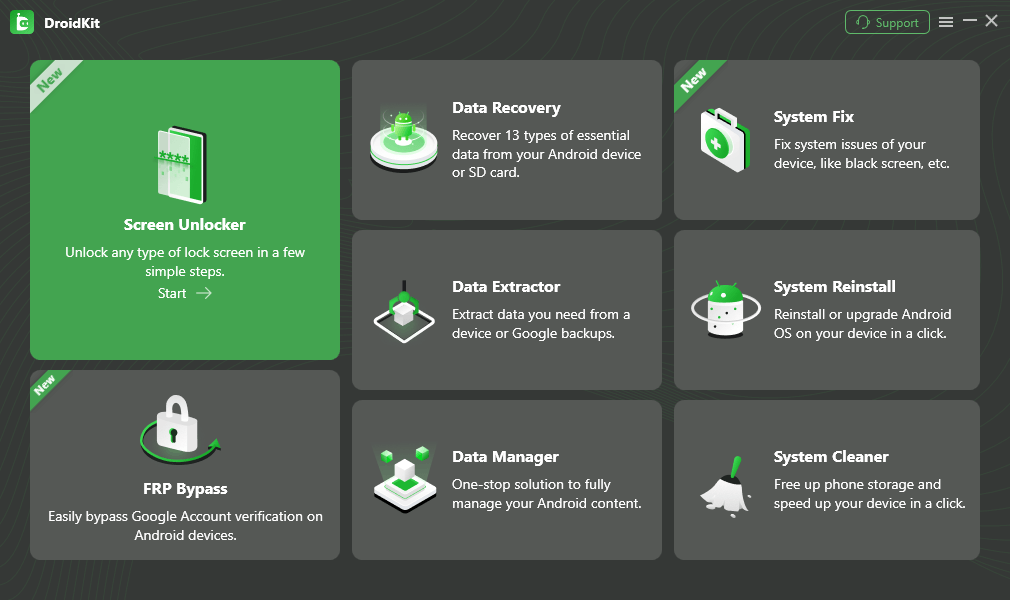
Choose Screen Unlocker
Step 2. Connect your Samsung A10 and prepare the configuration file. When the tool is ready, click Remove Now.
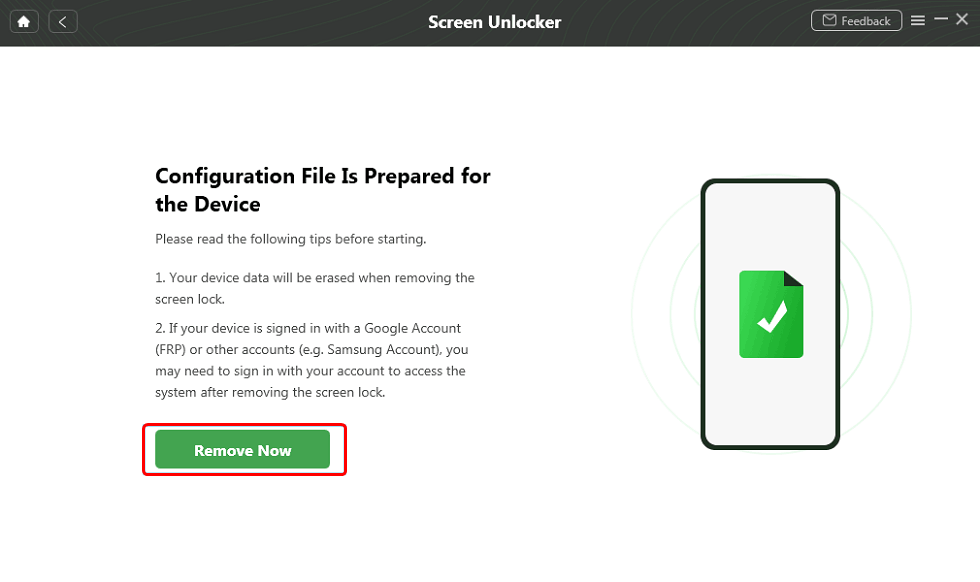
Click Remove Now Button
Step 3. Follow the on-screen instructions for your Samsung device model. Do not disconnect the phone during the process.

Finish Settings on Samsung
Step 4. When the process finishes, set up the phone again. If Google verification appears, sign in with a Google account previously synced on the device.
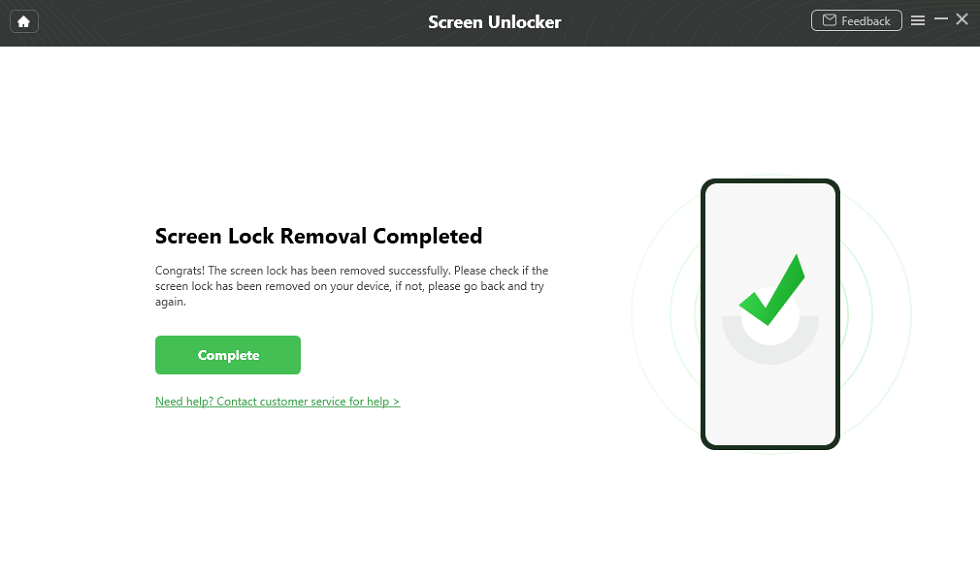
Lock Screen Removal Completed
FAQs About Samsung A10 Unlock Code
What is a Samsung A10 unlock code?
A Samsung A10 unlock code usually means a carrier network unlock code, also called an NCK code. It removes the network restriction placed by the original carrier so the phone can use a compatible SIM card from another carrier. It is different from your lock screen PIN, Samsung account password, Google account password, or FRP verification.
Where can I get a Samsung A10 network unlock code?
The safest place is the original carrier or retailer that sold the phone. Samsung’s support guidance says network locks are handled by the original service provider or retailer. You may need the IMEI, proof of purchase, account details, and confirmation that the device is paid off and eligible.
Can I get a free Samsung A10 unlock code?
Sometimes yes, but it depends on the carrier’s policy and your eligibility. Many carriers unlock eligible paid-off devices without a separate fee, while others may charge, reject the request, or require a minimum active service period. Avoid random free code lists because incorrect attempts can create more problems.
Will a Samsung A10 unlock code remove the screen password?
No. A network unlock code only removes a carrier SIM restriction. It will not remove your screen PIN, pattern, password, fingerprint, or face lock. If you forgot the screen lock, you need a screen-lock recovery, reset, or supported screen unlock method, and those methods may erase local data.
Can DroidKit unlock a Samsung A10 network lock?
No. DroidKit is not a carrier network unlock code generator and should not be used as a replacement for an NCK code. DroidKit may be relevant only if your actual problem is a screen lock or Google FRP after factory reset on a supported Samsung device.
Does using a network unlock code delete data on Samsung A10?
Usually no. Entering a valid carrier network unlock code should not delete photos, apps, contacts, or settings. Data loss becomes a risk when you use reset-based methods, screen unlock tools, or FRP-related solutions because those methods may erase the device or require setup again.
What if my Samsung A10 says the unlock code is incorrect?
Stop entering guesses. Confirm the IMEI, original carrier, region, model variant, and code type with the carrier. If too many wrong attempts were entered, the phone may require an MCK or unfreeze code before the normal network unlock code can work.
Is a PUK code the same as a Samsung A10 unlock code?
No. A PUK code unlocks a blocked SIM card after too many wrong SIM PIN attempts. A network unlock code removes a carrier lock from the phone. A screen lock PIN unlocks the device screen. These codes are not interchangeable.
What is FRP on Samsung A10 after reset?
FRP, or Factory Reset Protection, is Google verification that may appear after a factory reset. It asks for a Google account previously synced on the phone. A carrier unlock code will not bypass FRP. If you bought a used Samsung A10, ask the previous owner to remove their Google account before resetting the phone.
The Bottom Line
A Samsung A10 unlock code is mainly for carrier or SIM network unlocking. If your phone asks for a SIM network unlock PIN after inserting a new SIM, contact the original carrier or retailer and request the correct network unlock code. Do not confuse it with a screen password, PUK code, or Google FRP verification.
If your Samsung A10 is screen-locked, use a screen-lock recovery or reset method instead. If it is stuck on Google verification after a factory reset, you are dealing with FRP. DroidKit may be a tool-assisted option for screen lock or FRP scenarios on supported devices, but it is not a carrier unlock code tool.
More Related Articles



Senior writer of the iMobie team as well as an Apple fan, love to help more users solve various types of iOS & Android-related issues.
Product-related questions? Contact Our Support Team to Get Quick Solution >
