What Is SB Mobile Lab? Download, Use & FRP Bypass Guide 2025
SB Mobile Lab is a free platform with a collection of tools like FRP bypass and repair for Android devices. However, it compromises the device’s security and stability. Hence, for a safe and easy removal of FRP, you can go with iMobie DroidKit.
Locked out of your Android by Factory Reset Protection? SB Mobile Lab has gained traction in 2025 as a go-to hub for tech enthusiasts seeking quick, free solutions like FRP bypass on Samsung, Xiaomi, and more. This community-driven platform packs APKs, utilities, and tutorials—but it’s not without pitfalls, including malware risks and potential warranty voids.
In this comprehensive 2025 guide, we’ll break down what SB Mobile Lab is, how to safely download and use its tools to bypass FRP. And offer a safer, beginner-friendly alternative (iMobie DroidKit) if you’d rather skip the danger zone.
Part 1. What Is SB Mobile Lab?
SB Mobile Lab is a free, online resource platform tailored for Android repair technicians and advanced users. Launched as a community effort, it aggregates tools, APKs, and guides for unlocking, flashing, and bypassing restrictions like FRP on major brands (Samsung, Xiaomi, Huawei, OPPO, Vivo) and chipsets (MediaTek, Qualcomm). No registration required, but it’s unofficial—relying on user contributions via its website (sbmobileslab.com) and YouTube channel.
1. Main Functions of SB Mobile Lab
- FRP bypass tools: The website features a list of tools such as Artemis, MRT Tool, Android Utility Tool, XTM ADB, etc., which are designed for the removal of Google FRP on different brands and chipsets.
- Unlocking & repair software: In addition to FRP, SB Mobile Lab provides tools that can be used for flashing firmware, removing demo-mode or MDM restrictions, unlocking bootloaders, or, in some cases, unlocking iCloud-like locks.
- Free downloads & guides: Anyone can access the tools without registration. Direct links to APKs, drivers (ADB/USB, MTK/QC), and video tutorials with test-point diagrams.
- Multi‐brand & chipset support: The platform covers a wide range of Android brands and supports both MediaTek and Qualcomm chipsets; thus, it has become a great source of attraction for repair professionals.
2. Pros and Cons
Pros
- It is an excellent source of free access to multiple unlocking and repair tools, which in turn can be very helpful for technicians working on a variety of device brands.
- Extensive device support across major Android manufacturers and chipsets.
- Guides the user through the process by providing step-by-step instructions, test-point images, and flashing instructions, which save deep technical effort.
Cons
- There is a risk of malware, corrupted files, and unstable performance.
- The absence of manufacturer support, the possibility of voided warranties, and the legality of usage in some regions may be doubtful.
Part 2. How to Download and Install SB Mobile Lab
Downloading and setting up tools from SB Mobile Lab is straightforward, but ensure to follow each step closely to avoid mistakes or corrupted installations. Here is how you can do it without risking any errors:
Step 1. Visit the official SB Mobile Lab website
Check out the SB Mobile Lab site or its verified Telegram group. There, you can download various tools that assist you with FRP bypassing, flashing, and unlocking.
Step 2. Select a compatible tool for your device
Ensure the tool you intend to use is the right one by confirming that your phone’s brand and chipset match the tool — e.g., if you have a Samsung device, Prime Tool X or SamFw Tool is your go-to. Never fail to check for compatibility before hitting the download button.
Step 3. Download and extract the tool
If you haven’t downloaded the file, do so, and then unzip the folder using either WinRAR or 7-Zip. In case you are asked for a password, most of the time the answer is “sbmobilelab” for SB Mobile Lab archives.
Step 4. Install the required drivers
Ensure that all the ADB/USB, MediaTek, and Qualcomm drivers needed for your tool are installed before using it.
Step 5. Run the tool’s setup file
To install the tool on your computer, simply click the setup (exe) file and follow the instructions that appear on your display. Go ahead and click “Run as Administrator”.
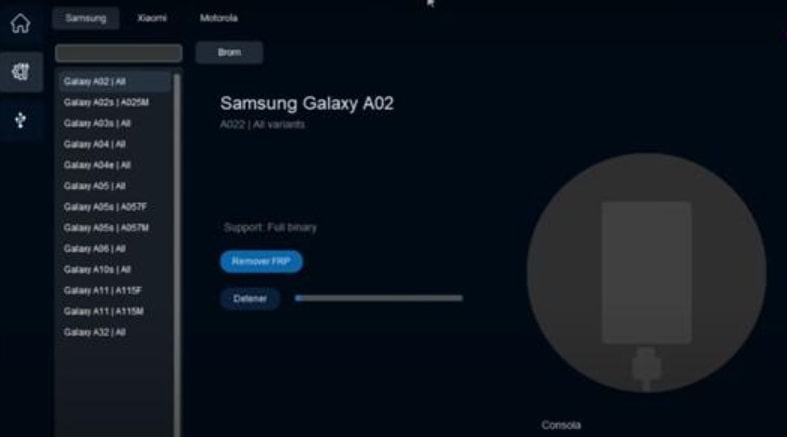
Part 3. How to Bypass FRP via SB Mobile Lab
To bypass FRP via SB Mobile Lab, follow the steps below carefully:
Step 1. Launch & connect
FRP tool should be run as an administrator, a locked phone needs to be connected to your PC using a good USB cable, and USB debugging should be enabled if possible.
Step 2. Choose brand & mode
Select the brand/model of your phone (or chipset) in the tool. The tool will show you a picture of the device and the mode that the device needs to be in (ADB, Fastboot, Download/ODIN, or EDL).
Step 3. Run the bypass & verify
Click on the Remove FRP / Bypass FRP button to start the operation. Follow the instructions on the screen and keep the cable plugged in. After the tool finishes and the phone restarts, go through the setup to make sure that the FRP lock has been removed.
Part 4. Best FRP Bypass Alternative Tool-iMobie DroidKit [Safe & Easy]
iMobie DroidKit is a refined, official FRP removal tool that is generally chosen by a few technicians for the most trustworthy outcome. It supports a large number of brands (Samsung, Xiaomi, OPPO, Vivo, OnePlus, Motorola, Sony, etc.), is compatible with both Windows and Mac, and the simple steps lead you through FRP removal with a high success rate.
Key Features
- Remove Google FRP on Android 6 to 15.
- Interactive, user-friendly interface-no deep ADB knowledge needed.
- Runs on Windows & Mac
- Removes the Google account from which you may add a new one (data will be erased).
- It can also remove Screen locks and recover 13 types of essential data from your Android device or SD card.
How to Remove FRP Bypass via iMobieDroidKit
Step 1. Download & install iMobie DroidKit
Only download the iMobie DroidKit from the official iMobie website and put it on your Windows or Mac computer.
Free Download * 100% Clean & Safe
Step 2. Launch & connect
Open iMobie DroidKit, select FRP bypass, and connect the locked phone to your PC using a good USB cable. If possible, enable USB debugging; if the device is totally unresponsive, follow the app’s instructions for setting the mode.
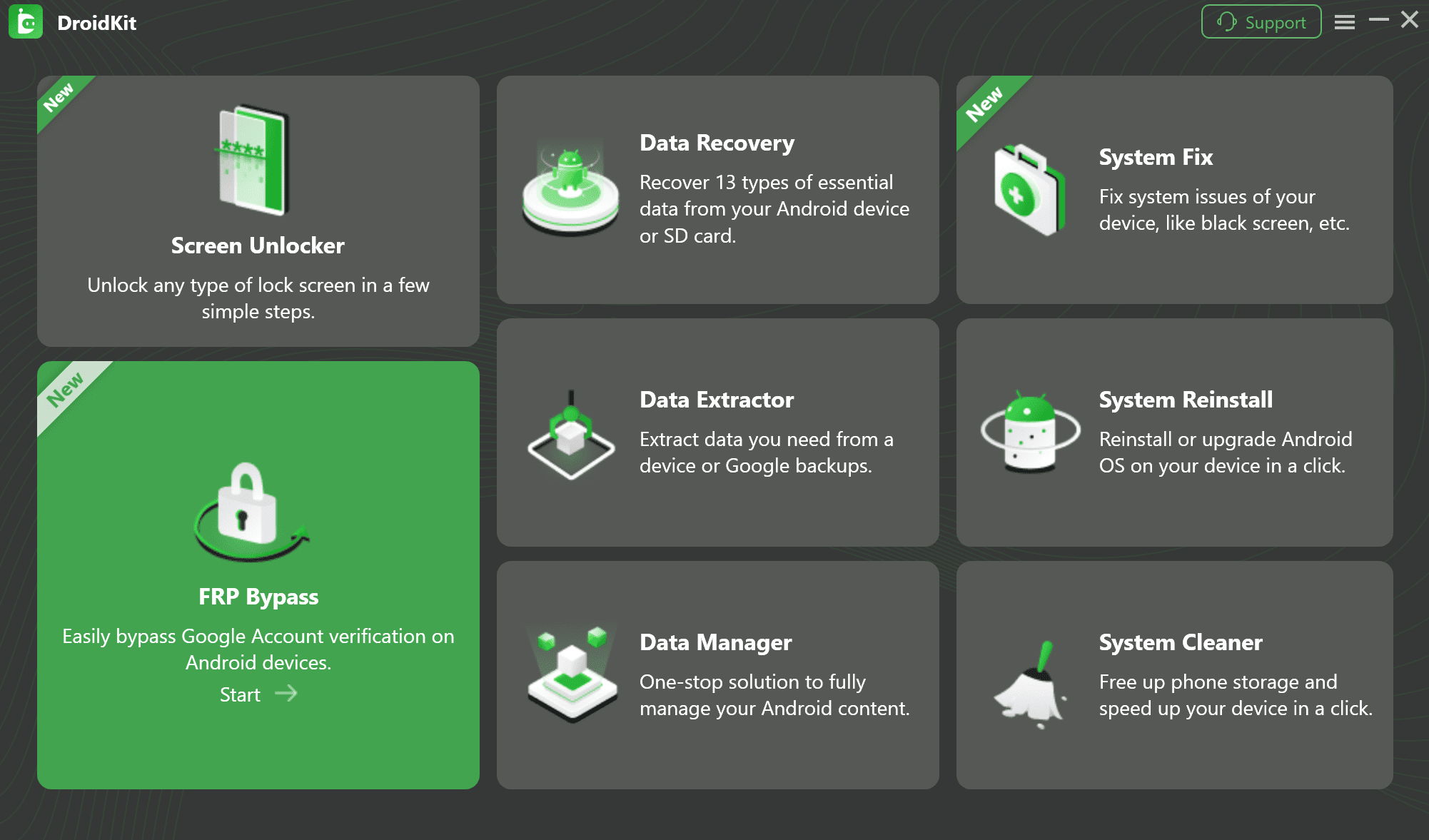
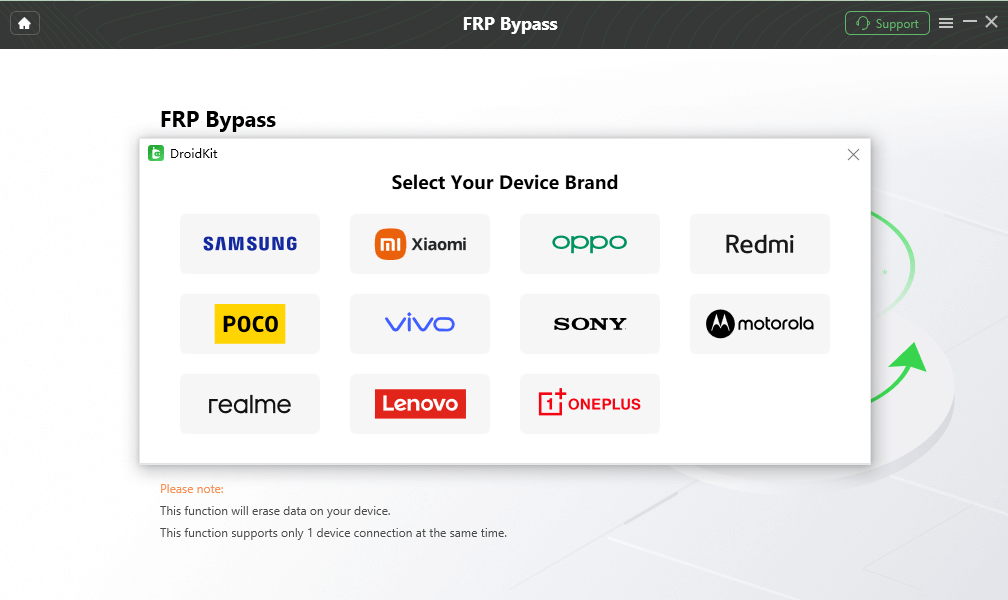
Step 3. Select brand & version
In iMobie DroidKit, make sure to select the correct brand of the device and the Android version that is displayed on the app.
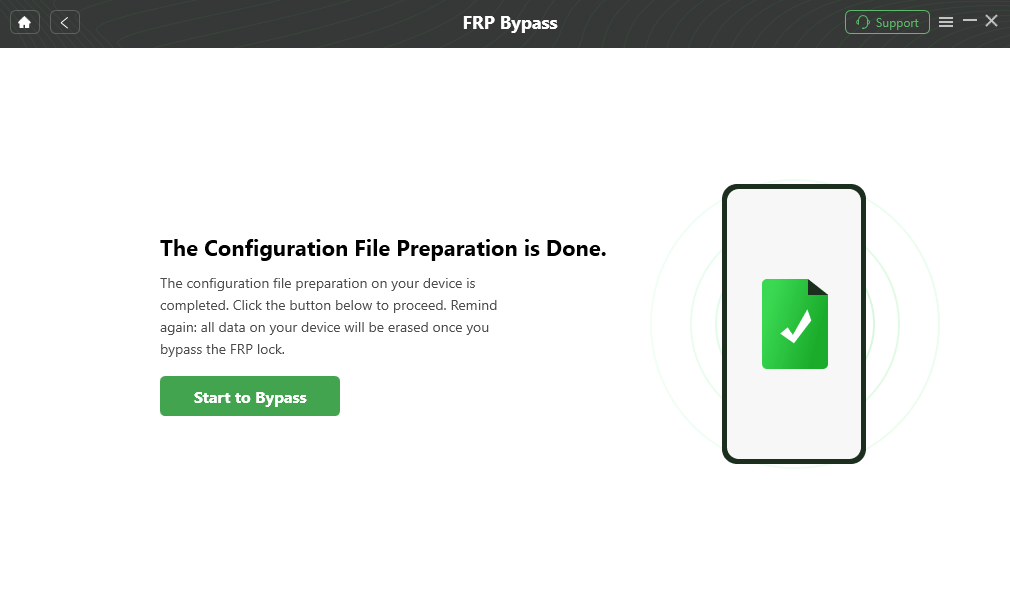
Step 4. Prepare configure & follow prompts
iMobie DroidKit will prepare a configuration file for the device and will show you the steps for the instructions on the phone (enter factory mode, confirm menus, etc.). You must follow each prompt strictly.
Step 5. Start FRP bypass
After tapping Start to Bypass, you should wait for the process to be done and then allow the phone to restart.
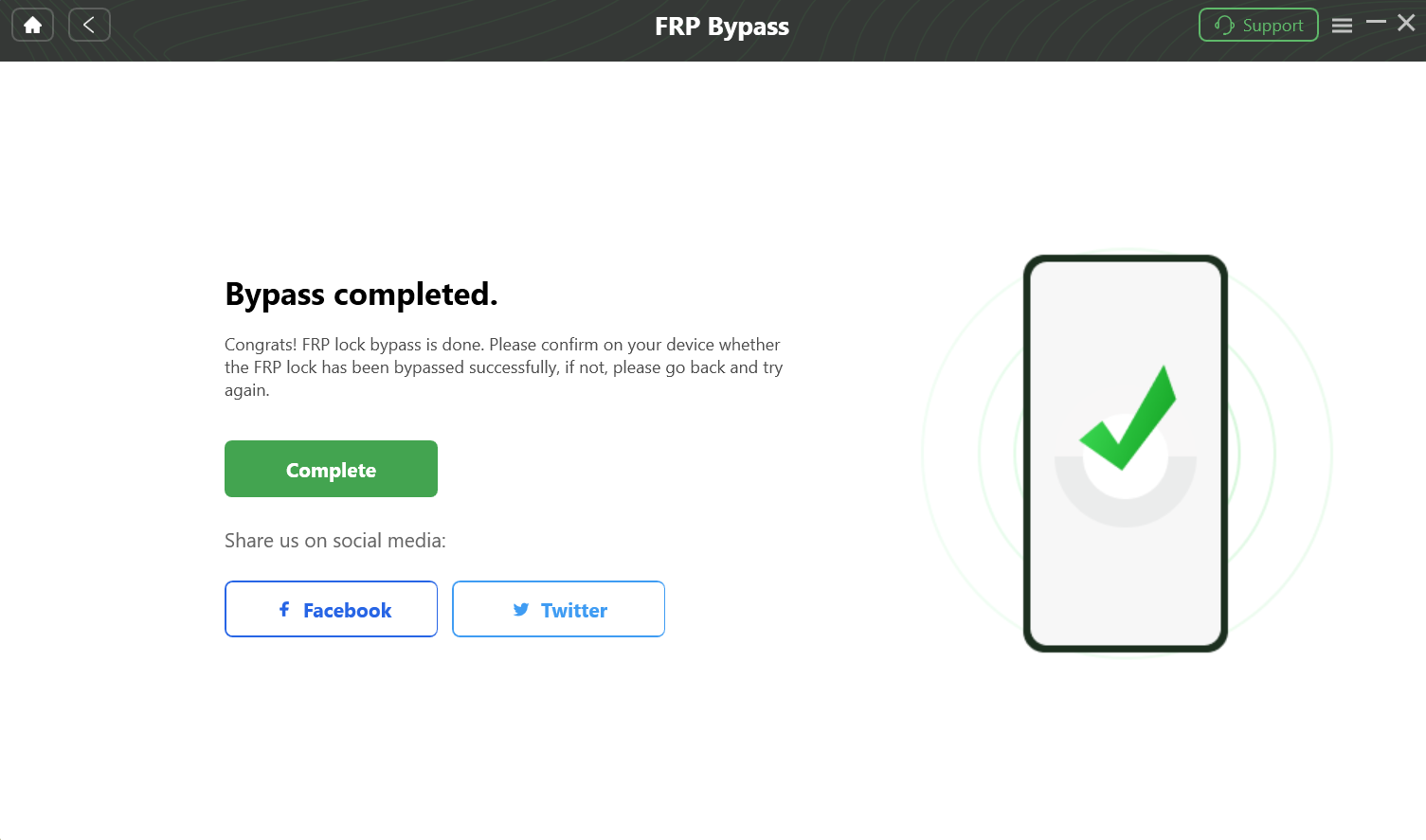
When you see the below interface which displays the Bypass completed message, then you have passed the FRP lock succussfully.
Part 5. FAQs
Q1. What devices does SB Mobile Lab support?
It supports a wide range of Android devices, including Samsung, Vivo, Oppo, Xiaomi, Huawei, and Tecno phones. You can check the official support list on their website to confirm compatibility before using.
Q2. Is SB Mobile Lab safe to use?
SB Mobile Lab is generally safe if downloaded from its official source. However, always ensure you are using the latest version to avoid malware risks or data loss during repair.
Q3. Is SB Mobile Lab free to use?
No, SB Mobile Lab is a paid software. You need to purchase a license or credits to use its advanced features. However, you can explore limited functions in the free version before buying.
Part 6. Conclusion
SB Mobile Lab is a handy, cost-free toolkit for users. However, it comes with certain risks, such as the chance of viruses and the device becoming unstable. For most users and less technical technicians, a polished alternative like iMobie DroidKit offers a much safer, easier path to remove Google FRP with guided steps and official downloads.
Free Download * 100% Clean & Safe


Roger Smith is a senior technical writer with years of experience in providing Android solutions. He loves to help users solve various problems such as Android unlock, Android data recovery, and Android system repair.
Product-related questions? Contact Our Support Team to Get Quick Solution >
