Why Google Say “Please Sign in Using the Owner’s Account”
Getting stuck on the “Please sign in using one of the owner’s accounts for this device” screen? This guide explains what it means, why it happens, how to fix it (even without the previous owner’s info), and how to stop it from showing up again.
The “Please sign in using one of the owner’s accounts” issue is mainly caused by a factory reset without processing through Android settings. To solve this problem, you can use your old Google account, contact the previous owner, or try some third-party FRP bypass tools.
You just factory restored your Android device, or bought a second-hand factory restored device, with the expectation that it would start fresh. But instead of a welcome screen, a message appears saying “Please Sign in Using the Owner’s Account”. Using easy-to-use tools like DroidKit, you can bypass this message without the original login credentials. Now, you’re locked out and thinking about what went wrong. The article makes it simple for you to understand and fix it quickly.
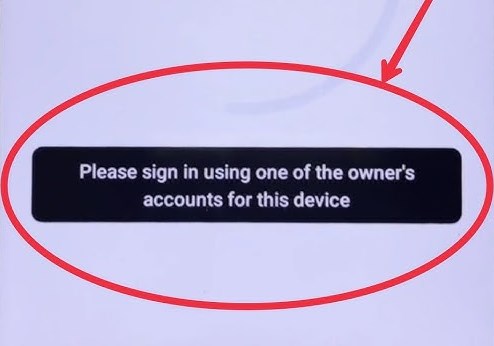
Sign in Using Previous Owner’s Account
Before following the steps, confirm your device brand, Android system version, and whether you can still contact the original account owner. If your issue involves specific brand setup variations (such as Samsung FRP, Xiaomi FRP, or strict 2-step verification locks after password resets), follow the main bypass steps below and refer to the specific notes instead of looking for separate guides.
What Does “Please Sign in Using One of the Owner’s Accounts” Mean?
This message, “Please sign in using one of the owner’s accounts for this device,” appears when you are setting up an Android after a reset. This happens because of a security layer referred to as Factory Reset Protection or simply FRP Lock. After a reset, FRP activates and prompts this message, preventing access until the device owner signs in.
Here’s when it usually happens:
- You bought a second-hand or a refurbished Android, and the previous owner didn’t remove their Google account.
- You forgot your own Google login after a reset.
- The device was reset remotely or through Android recovery mode.
This security layer helps in minimizing phone theft. Tools like DroidKit get around FRP by using tricks in the setup process or by changing the system software. They do not recover the old account. They simply let you use the phone without needing the previous login.
How to Fix Google Asking for Owner’s Account Sign In
Method 1. Use Your Old Google Account
If you are using an old phone and find it asking for sign-in with the owner’s account, you can verify with the original Google credentials that were used on the device before factory reset. If you can’t think of your Google account password when verifying, try to recover your Google password before unlocking the device.
1. If you recently changed your Google Account password, you may need to wait for the 24- to 72-hour period to pass before the new password is accepted.
2. Make sure the device is connected to a stable Wi-Fi network.
Method 2. Contact the Previous Owner
If you are not the owner of the device, you can contact its previous owner to solve the sign-in problem. This method is available for those who bought a second-hand phone from someone, or received a giveaway from families or friends.
Method 3. Bypass the Google Account Verification
The above 2 methods are recommended for users who can use one of the owner’s accounts for this device. What if you can’t have any information for the previous account? Don’t worry, using a powerful FRP bypass tool like DroidKit can be a great choice. DroidKit is a reliable tool that makes it easy to bypass FRP lock and remove your Android lock screen, whether it’s a PIN, pattern, fingerprint, or password, without needing the original account. It works with most Android devices, so you’re likely covered.
What DroidKit can do:
- Bypass Google account verification after reset without any account information.
- No FRP bypass technique is required. Easy for new users.
- Unlock your Android phones or tablets without needing a password.
- Works with most Android models, including Samsung, Xiaomi, Sony, Lenovo, etc.
Steps to bypass the “Please Sign in Using One of the Owner’s Accounts” issue with DroidKit:
Step 1: DroidKit Download & Installation
Download DroidKit with the following button. Follow the instructions to install it on your Windows or Mac computer.
Free Download * 100% Clean & Safe
Step 2: Connect Android to DroidKit
Open DroidKit and click on FRP Bypass. Then connect your locked Android phone via a USB cable.

DroidKit FRP Bypass
Step 3: Choose Android Brand
DroidKit supports bypassing FRP on several Android brands. You can choose your Android brand by clicking the brand logo.
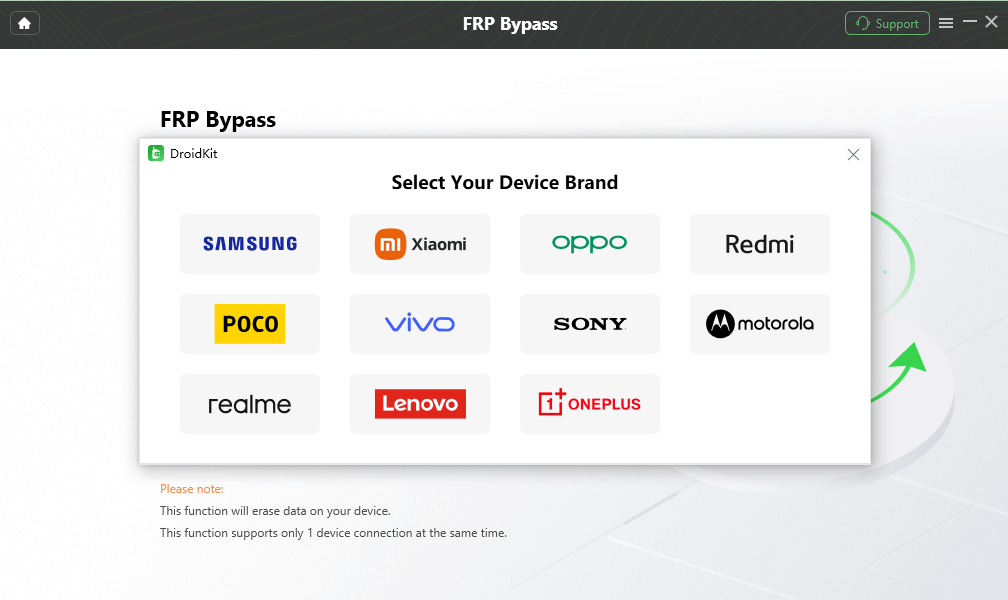
Select Correct Brand
Step 4: Follow FRP Bypass Guide
Follow the instructions to put your phone into recovery mode and continue. Once all settings are done, start bypassing FRP with DroidKit.
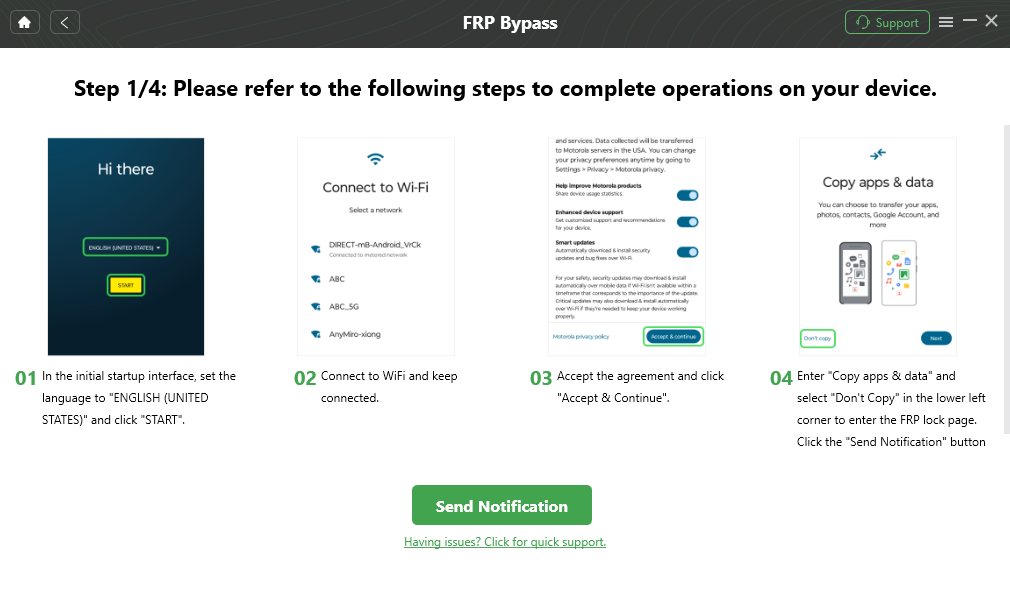
Follow the Bypass Steps
After the process is finished, your device will restart and the Google account verification page will be bypassed. Use your own Google account to set it up quickly.

FRP Bypass Complete
For Samsung Users, don’t forget to enable OEM Unlocking under the developer options from your settings app. This option reduces the chance of being locked out.
How to Avoid the “Please Sign in Using One of the Owner’s Accounts” Screen
To keep it simple, remove the original Google account before factory resetting to avoid the message “Please sign in using one of the owner’s accounts for this device” during setup. If you are buying a used Android, and the previous owner has not removed their login credentials from it, and you have access to them. Follow the following steps to avoid FRP after resetting the device.
Step 1: Navigate to the accounts section under the “Account and Backup” or “Users and Accounts” options in your Android’s settings app.
Step 2: Tap the Google account you want to remove.
Step 3: Tap Remove Account.
Once the Google account is removed, you can safely reset the phone without triggering FRP. You can also check how to disable FRP for detailed information.
If you’re buying a used device, always ask the seller to:
- Remove their Google account before handing over the phone
- Reset the device only after the account is removed
- If the device is already FRP locked or gets locked after a reset, ask the seller to bypass it before you pay for the device.
If they can’t do this, don’t buy it. You’ll likely get stuck at the same locked screen.
FAQs About Google Account Sign-In on Android
1. How do I remove my owner account from Android?
Search for the User and Accounts section in the settings app, take your time, and remove all of the accounts listed there. Simply choose the account you want to remove and select Remove Account.
2. Can I remove a Google account without the previous owner?
If FRP is active, no, you’ll need their account credentials. But tools like DroidKit can help bypass the lock screen even if you don’t have the previous owner’s login.
Conclusion
The “please sign in using one of the owner’s accounts for this device” message appears when Google’s FRP lock is triggered after a reset. Whether you forgot your own login or bought a used phone, tools like DroidKit can help you bypass the lock. Want a smooth setup? Remove accounts before resetting and buy second-hand devices only from trusted sources.
Free Download * 100% Clean & Safe


Roger Smith is a senior technical writer with years of experience in providing Android solutions. He loves to help users solve various problems such as Android unlock, Android data recovery, and Android system repair.
Product-related questions? Contact Our Support Team to Get Quick Solution >
