Samsung Face Recognition Not Working? 9 Fixes for Galaxy Phones
If Samsung face recognition is not working, the cause is usually the front camera, lighting, face data, One UI settings, or a temporary software issue. This guide explains how to fix Galaxy face unlock step by step, when to use Samsung Members diagnostics, and what to do if you cannot unlock the phone with any backup method.
Samsung Face recognition is designed to unlock a Galaxy phone quickly, but it depends heavily on the front camera and the conditions around your face. It can stop working when the camera area is dirty, the light is too weak, your face is partly covered, a screen protector blocks the camera cutout, the stored face data is outdated, or a One UI update changes biometric behavior.
This guide is specifically about Samsung face unlock, not the face tagging feature in the Samsung Gallery app. If your issue is that Gallery no longer recognizes people in photos, that is a different app-level problem. If your issue is that your Galaxy phone will not unlock with your face, follow the fixes below.
Quick Answer: To fix Samsung face recognition not working, first clean the front camera, remove accessories or face coverings, improve lighting, and restart the phone. Then open Settings > Security and privacy > Screen lock and biometrics > Face recognition to check the setting, remove old face data, and register your face again. If it still fails, enable Brighten screen, add an alternative appearance, update One UI, run Samsung Members diagnostics, or reset all settings.
Which Samsung Face Recognition Problem Do You Have?
Before changing settings, identify the exact situation. This helps you avoid unnecessary resets and prevents a screen lock tool from being used for the wrong problem.
| Situation | Likely Meaning | Best Next Step |
|---|---|---|
| Face unlock fails, but PIN/fingerprint works | Face data, lighting, camera, or One UI setting issue | Use the fixes in this guide |
| Face unlock works in daylight but not at night | Low-light recognition problem | Enable Brighten screen and re-register face data |
| It stopped after a screen protector or case change | Front camera may be blocked or distorted | Remove or realign the accessory |
| It asks for PIN after restart | Normal backup-lock requirement | Enter PIN/password first, then test face unlock |
| You forgot PIN, pattern, password, and fingerprint also fails | This is no longer just a face recognition issue | Treat it as a Samsung screen lock problem |
Why Samsung Face Recognition Stops Working
Face recognition depends on a clear front-camera view and accurate stored face data. If the camera cannot clearly scan your face, or if the stored face data no longer matches your current appearance, your Galaxy phone will fall back to the backup PIN, pattern, password, or fingerprint.
Samsung’s support guidance recommends making sure your face is visible and centered, holding the phone steadily, registering an alternative appearance when your look changes, and using the Samsung Members diagnostics tool if the issue continues. Samsung also notes that Face recognition is less secure than Pattern, PIN, Iris, or Fingerprint, so it should be treated as a convenience feature rather than your only unlock method.
| Possible Cause | What It Looks Like | Best First Fix |
|---|---|---|
| Dirty front camera | Face scan starts but fails repeatedly | Clean the camera and screen area |
| Low light | Works in daylight but fails in dark rooms | Enable Brighten screen |
| Appearance changed | Fails after glasses, makeup, beard, hairstyle, or hat changes | Add alternative appearance or re-register face |
| Screen protector/case interference | Started after installing accessories | Remove or reposition the accessory |
| One UI glitch | Started after update or app conflict | Restart, update, run diagnostics |
| Hardware issue | Front camera also fails in Camera app or diagnostics | Contact Samsung Support or service center |
Before You Start: Quick Checks
Run through these checks first. They solve many Galaxy face unlock issues without deleting your face data or resetting the phone.
- Use the backup lock first: Unlock your Galaxy phone with PIN, pattern, password, or fingerprint before changing biometric settings.
- Clean the camera area: Wipe the front camera and the top screen area with a soft, lint-free cloth.
- Remove face coverings: Sunglasses, masks, hats, heavy makeup, or a major beard/hairstyle change can reduce recognition accuracy.
- Improve lighting: Test face recognition in bright indoor light. If it works there, low light is likely the problem.
- Check the front camera: Open the Camera app and switch to selfie mode. If the front camera is blurry or unavailable, fix the camera issue first.
- Check accessories: Remove a privacy screen protector, camera lens cover, or case edge that may block the front camera.
9 Ways to Fix Samsung Face Recognition Not Working
Fix 1. Make Sure Face Recognition Is Available After Unlock
After a restart, after several failed biometric attempts, or after some security checks, your Samsung phone may require the backup PIN, pattern, or password before biometrics work again. This does not mean face recognition is broken. Enter the backup lock once, then lock the screen and test face recognition again.
If you cannot remember the backup lock at all, skip to the section about being fully locked out. If you can still enter the phone, continue with the normal troubleshooting steps below.
Fix 2. Clean the Front Camera and Hold the Phone Steadily
Start with the simplest fix. Fingerprints, dust, oil, or a slightly covered front camera can make Samsung Face recognition fail. Clean the camera area, hold the phone at normal eye level, keep your face centered, and look directly at the screen.
If you use a thick case, privacy screen protector, or damaged film around the camera cutout, remove it temporarily and test again. If the issue disappears, replace the protector or realign it.
Fix 3. Check Face Recognition Settings
Open the Samsung face recognition page and confirm that face unlock is enabled. On many recent Galaxy phones, the path is:
Settings > Security and privacy > Screen lock and biometrics > Face recognition
On some older One UI versions, the path may appear as Settings > Biometrics and security > Face recognition. If you cannot find it, search “Face recognition” inside the Settings app.
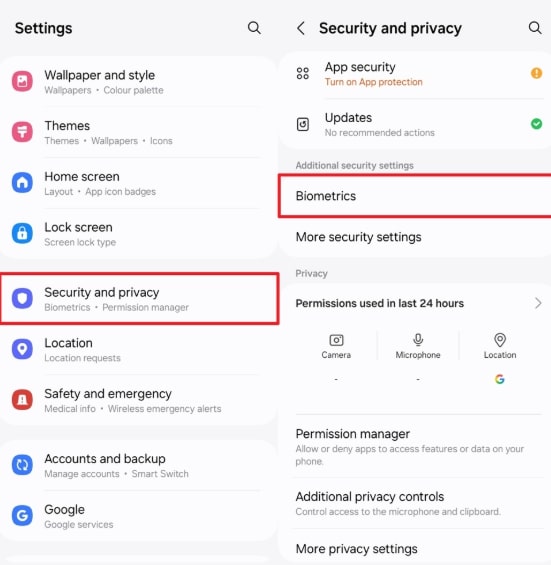
Tap Security and Privacy
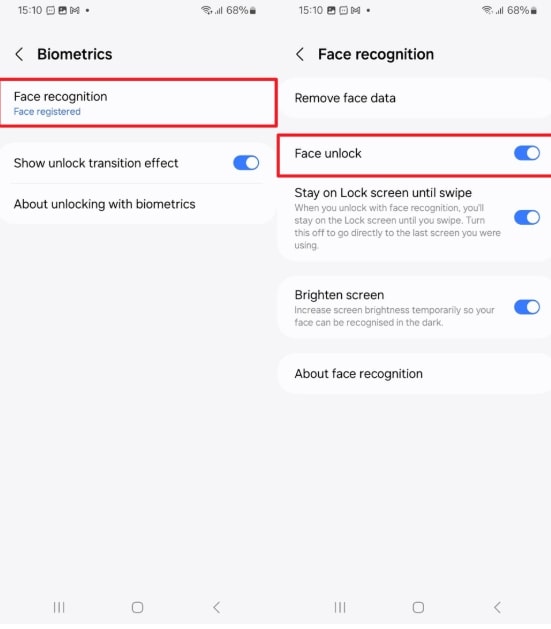
Tap Face Recognition and enable Face Unlock
Fix 4. Remove Accessories That Block the Camera
If face recognition stopped working after installing a new screen protector, phone case, lens cover, or privacy film, remove the accessory and test again. Even a small misalignment near the front camera can affect scanning.
For foldable Galaxy models or phones with camera cutouts, check both the protector and the case edges. A protector that worked before may become cloudy, lifted, or scratched over time.
Fix 5. Improve Lighting and Enable Brighten Screen
If Samsung face recognition works during the day but fails in dark rooms, enable Brighten screen. This setting temporarily increases screen brightness when face recognition starts, helping the front camera see your face more clearly.
Go to Face recognition settings and turn on Brighten screen. Then test face unlock in the same low-light environment.
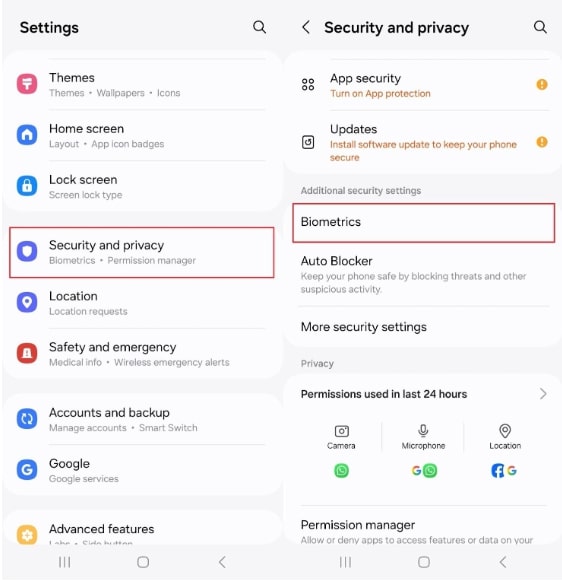
Choose Biometrics settings
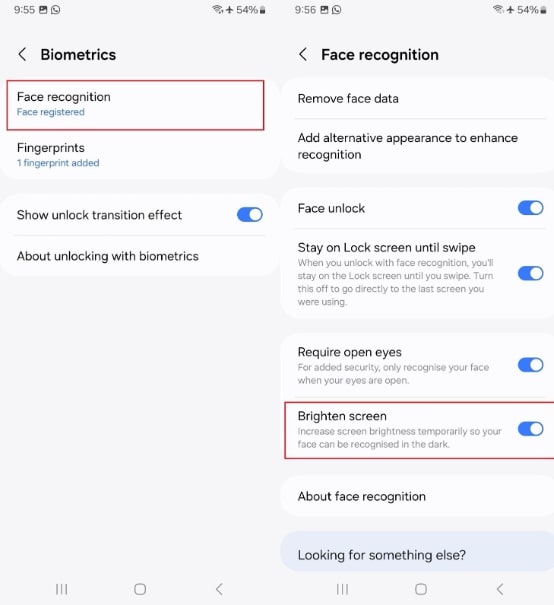
Toggle on Brighten Screen
Fix 6. Remove and Re-register Your Face Data
Outdated or corrupted face data is one of the most common reasons face recognition stops working. Remove the current face data and register your face again in good lighting.
Go to Settings > Security and privacy > Screen lock and biometrics > Face recognition. Enter your PIN, pattern, or password, then remove existing face data and register your face again.
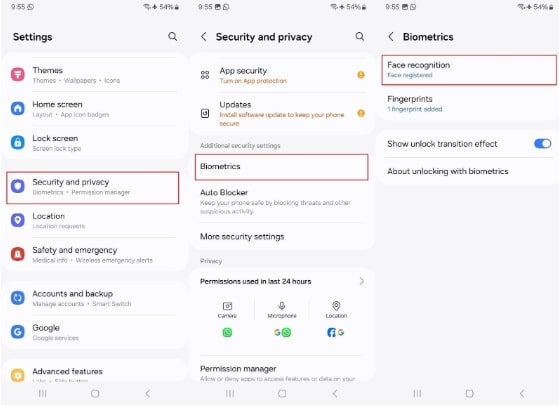
Open Face Recognition in Biometrics
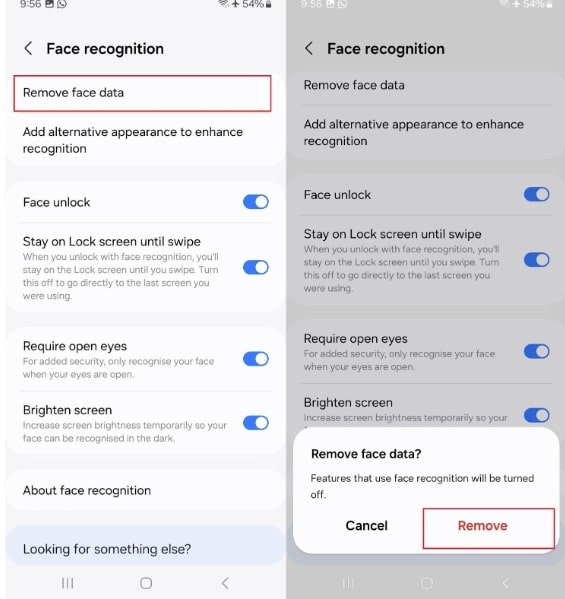
Remove the current face data
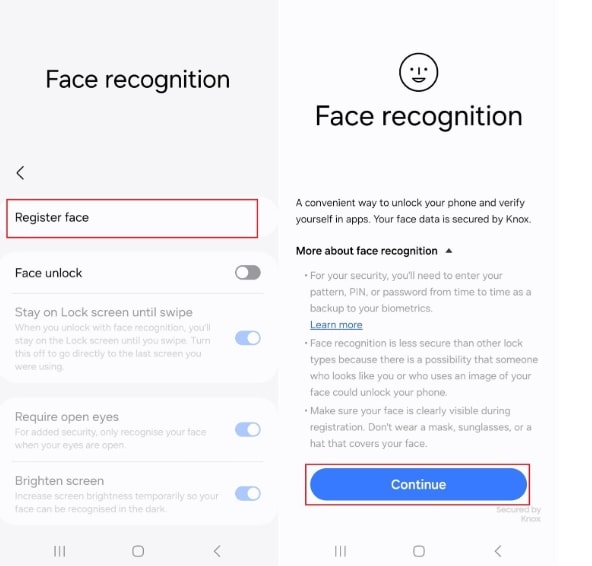
Register your face again
When registering, hold the phone at eye level, avoid strong backlight, and keep your face inside the frame. If you often wear glasses, hats, or makeup, register the appearance that matches your daily use.
Fix 7. Add an Alternative Appearance
Some Samsung models and One UI versions allow an alternative appearance. This is useful if face recognition fails when you wear glasses, change facial hair, change makeup, or use the phone in different lighting. On the Face recognition page, look for an option such as Add alternative appearance to enhance recognition.
If the option is not available on your model, remove the old face data and register your face again under your most common daily condition.
Fix 8. Update One UI and Run Samsung Members Diagnostics
Samsung face recognition can be affected by system bugs, especially after major One UI updates. Go to Settings > Software update > Download and install. Install available updates, restart the phone, and test face unlock again.
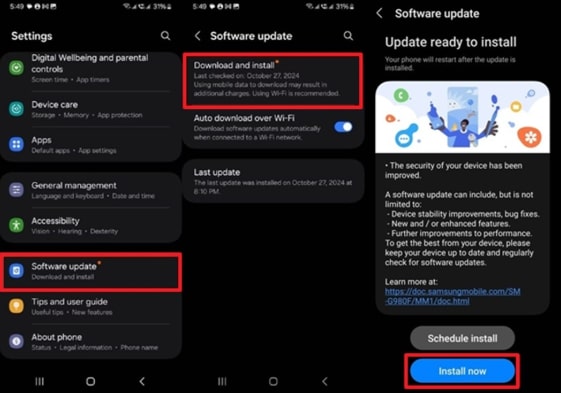
Install the latest Samsung software update
If the issue continues, use the Samsung Members app to test whether the phone detects a face recognition or front camera problem. Open Samsung Members > Support > Phone diagnostics, then run the Face recognition or camera-related test if available.
Fix 9. Reset All Settings or Contact Samsung Support
If diagnostics does not report a hardware issue, reset all settings before considering a factory reset. This is less destructive than factory reset, but it can change preferences such as network, permissions, display, and security settings. Back up important data first.
Go to Settings > General management > Reset > Reset all settings, then follow the prompts.
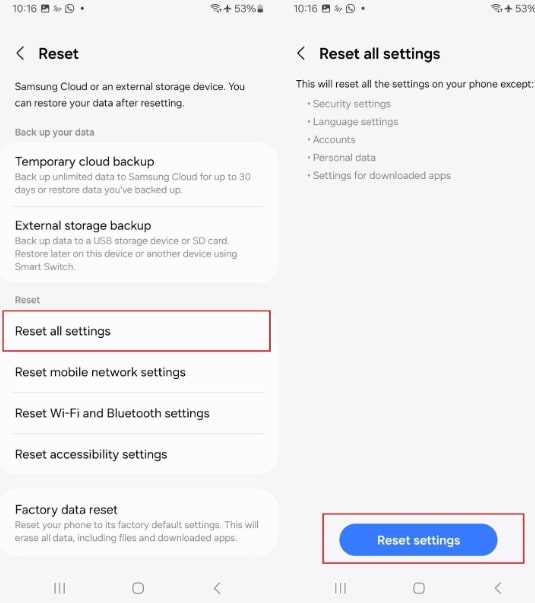
Reset all settings if face recognition still fails
If the front camera fails in the Camera app or Samsung Members diagnostics reports a hardware issue, contact Samsung Support or visit an authorized service center. A lock removal tool will not repair a damaged camera or biometric feature.
What If You Cannot Unlock Your Samsung Phone?
Face recognition is not the only screen lock method on Samsung phones. If face recognition is unavailable, first use your PIN, pattern, password, or fingerprint. If you can still access the phone, do not use a lock removal tool. Fix the biometric setting from inside Settings instead.
If you forgot every backup screen lock and cannot enter the phone, the problem is no longer just “Samsung face recognition not working.” It becomes a Samsung screen lock issue. In that edge case, DroidKit Screen Unlocker may be a tool-assisted option for supported Android devices.
Important: Removing a Samsung screen lock with a tool can erase device data, and the exact result depends on the model, Android version, and device state. DroidKit does not repair the face recognition sensor, camera, or Samsung biometric settings. Use it only when you cannot access the device with any normal backup method.
Free Download * Check compatibility before use.
Step 1. Install and open DroidKit on your computer. Select Screen Unlocker.
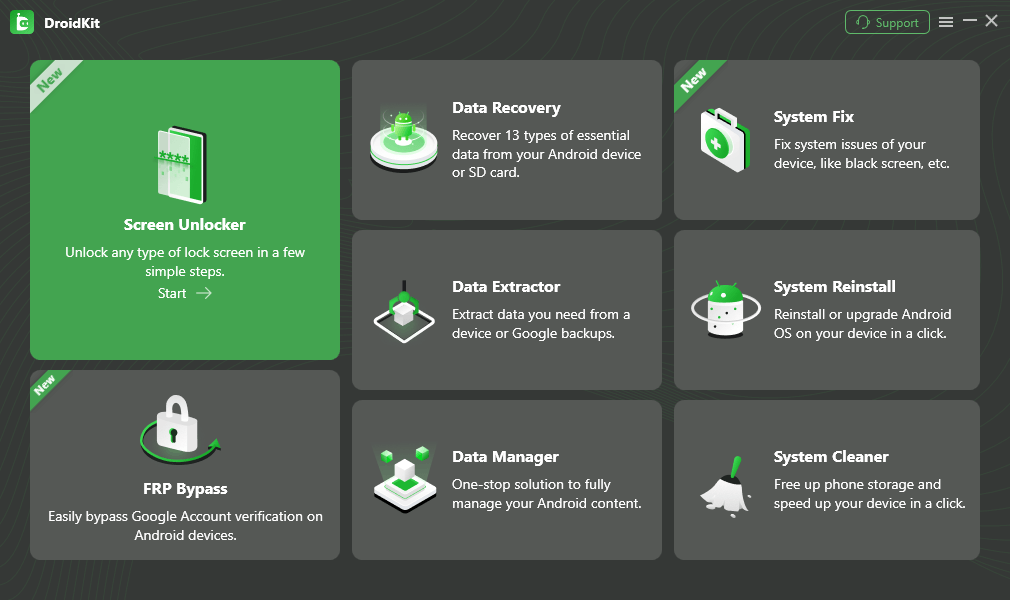
Select Screen Unlocker Mode
Step 2. Connect the Samsung phone to the computer and follow the on-screen instructions. Review device compatibility and data-loss notes before continuing.
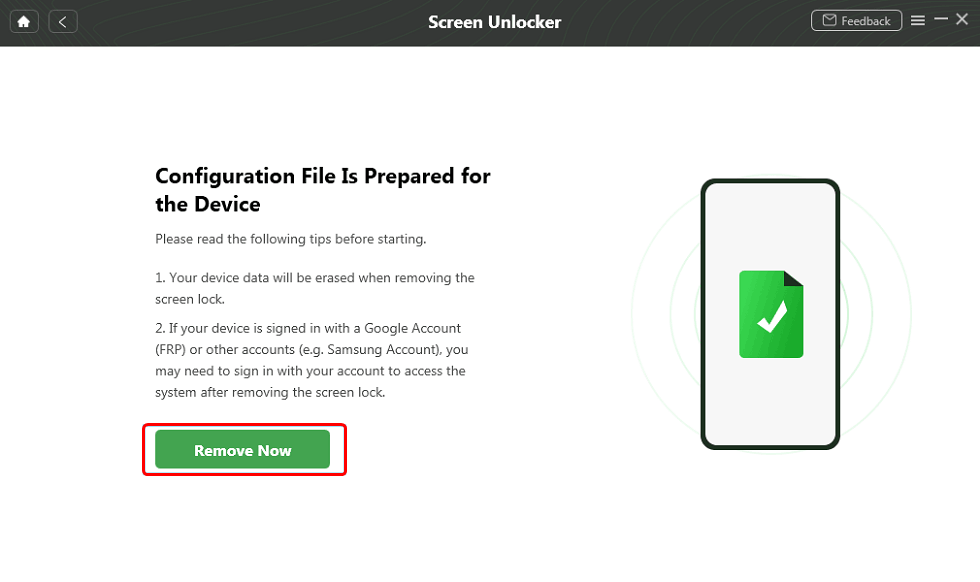
Continue only after reviewing the limitation
FAQs About Samsung Face Recognition Not Working
Why is Samsung face recognition not working?
Samsung face recognition may fail because the front camera is dirty or blocked, your face is not clearly visible, the lighting is too weak, your appearance changed, face data is outdated, or a One UI update caused a temporary issue. Start with camera cleaning, better lighting, and re-registering your face.
Is this guide about face unlock or Samsung Gallery face tagging?
This guide is about Samsung Face recognition used to unlock a Galaxy phone. It is not about face tagging or people recognition inside the Samsung Gallery app. If Gallery stops grouping faces after an update, troubleshoot the Gallery app, app permissions, and indexing instead.
Is Samsung face recognition as secure as fingerprint or PIN?
No. Samsung states that face recognition is less secure than Pattern, PIN, Iris, or Fingerprint. Use face recognition for convenience, but keep a strong PIN, pattern, or password as your backup lock and consider fingerprint unlock for higher security when available.
Where are Samsung face recognition settings?
On many recent Galaxy phones, go to Settings > Security and privacy > Screen lock and biometrics > Face recognition. On older One UI versions, the path may be Settings > Biometrics and security > Face recognition. Menu names vary by model, region, and One UI version.
Why does my Samsung phone ask for a PIN instead of face recognition?
Samsung may ask for the backup PIN, pattern, or password after a restart, after too many failed biometric attempts, or when security rules require stronger verification. This is normal. Face recognition is a convenience unlock method, not a replacement for the backup screen lock.
What should I do if face recognition fails after a Samsung update?
Restart the phone, install any pending security patch, remove and re-register face data, enable Brighten screen, and run Samsung Members diagnostics. If the issue started after a major One UI update, a follow-up patch may be needed. Contact Samsung Support if diagnostics indicate a hardware issue.
Will resetting all settings delete my photos or files?
Resetting all settings is not the same as a factory reset. It usually resets system preferences such as network, permissions, display, and security settings, but does not delete personal photos or files. Still, back up important data before changing security or reset settings.
Can DroidKit fix Samsung face recognition not working?
No. DroidKit does not repair the front camera, biometric sensor, or Samsung Face recognition feature. It may be relevant only if you cannot access the phone because face recognition and all backup locks are unavailable. In supported screen-lock cases, lock removal can erase device data.
The Bottom Line
When Samsung face recognition is not working, start with visibility, lighting, accessories, and biometric settings. Most Galaxy face unlock problems can be fixed by cleaning the camera, enabling Brighten screen, re-registering face data, adding an alternative appearance, updating One UI, or running Samsung Members diagnostics.
If you can still unlock the phone with a PIN, pattern, password, or fingerprint, repair face recognition from Settings. If you cannot access the phone with any backup lock, treat it as a screen lock problem instead. A tool-assisted option such as DroidKit may help in supported cases, but it can erase data and should not be used as a normal face recognition repair method.
More Related Articles


Roger Smith is a technical writer focused on Android troubleshooting, screen lock issues, and practical mobile device guides.
Product-related questions? Contact Our Support Team to Get Quick Solution >
