3 Ways to Reset Apple ID Security Questions
Resetting your Apple ID security questions is easy and helps keep your account secure. On iOS 26, you can do it directly on your device, through Apple’s iForgot website, or with Apple Support, making sure you never get locked out.
Your Apple ID security questions help keep your account safe, but forgetting them can be annoying. Don’t worry, resetting them is easy. In this guide, we’ll walk you through simple steps to reset Apple ID security questions, so you can secure your account, avoid getting locked out, and use your Apple ID on iOS 26 without any stress.
When Do You Need to Reset Apple ID Security Questions
Apple ID security questions add an extra layer of protection, but there are times when you might need to update them. Common reasons for doing so include:
- Forgot Your Answers: Can’t remember the responses you picked when setting up your account? Don’t worry, you can reset them.
- Changing Your Password: Some Apple services ask for your security questions before letting you change your password.
- Recovering Your Account: If Apple notices unusual activity or locks your account, updating your security questions can help you get back in.
- More Security: Changing your security questions from time to time keeps your account safer.
- Setting Up a New Device: When signing into Apple on a new iPhone, iPad, or Mac, you might be asked your security questions to confirm it’s really you.
How to Reset Apple ID Security Questions
Generally, you can reset your Apple ID in iPhone Settings app or on the iForgot website. Some users don’t know anything about their Apple IDs, they can also contact Apple customer service for a reset chance. Check how these methods perform in the following part.
Method 1: Reset Directly on Your iPhone
Keeping your Apple ID secure is crucial, and updating your security questions is a quick way to protect your account. You can do it directly from your iPhone in just a few steps:
Step 1. Open Settings on your iPhone.
Step 2. Tap your name at the top (Apple ID, iCloud, iTunes & App Store).
Step 3. Enter your Apple ID password if asked.
Step 4. Go to Password & Security, then tap Change Security Questions.
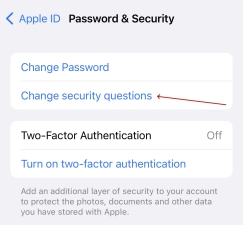
Step 5. Answer your current questions, confirm, and select new questions with answers that are easy for you to remember but hard for others to guess.
Method 2: Reset via Apple iForgot Website
Apple’s iForgot website is designed to make recovery simple and fast. It guides you step by step to verify your identity, reset your security questions, and get your account fully secure without any confusion.
How to reset Apple ID security questions using iForgot:
Step 1. Open the iForgot website on your iPhone, iPad, or computer.
Step 2. Enter your Apple ID and password to log in.
Step 3. Click I need to reset my security questions and then tap Continue.
Step 4. Apple will ask you to verify your identity, which could be through your email, phone number, or other account info. Just follow the instructions on the screen.
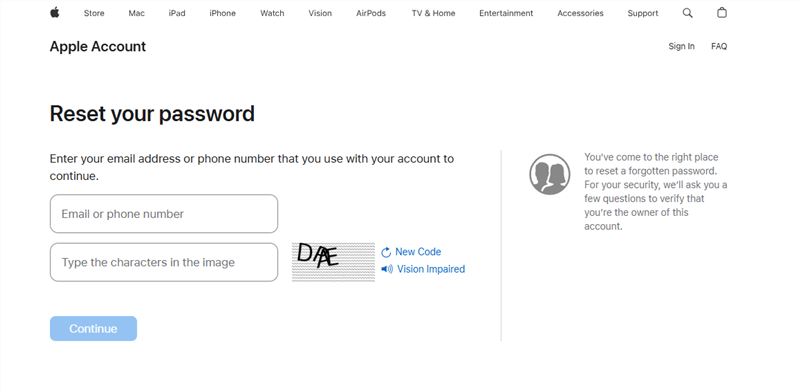
Step 5. After verification, pick new security questions that you’ll remember easily. Type in your answers and hit Save.
You may also like: How to unlock Apple ID with iForgot Apple
Method 3: Contact Apple Support
If the above 2 methods don’t work for Apple ID security question reset, you can also contact Apple Support for more assistance. They will walk you through the process of resetting your security questions and safely regaining access. Some account information is required to authenticate your identity, but the procedure is basic.
You may need to provide some verification during the contact. Or you should prove that you are the owner of the Apple account.
Why Can’t I Reset Apple ID Security Questions
Sometimes, even when you try everything, resetting your Apple ID security questions doesn’t work. Here are the most common reasons why:
- Apple needs your password to verify your identity. Without it, you won’t be able to update your questions.
- When two-factor authentication is active, Apple replaces security questions with stronger checks, so the option to reset may not appear.
- Entering the wrong answers several times can temporarily block you from making changes.
- If Apple notices unusual activity, it may lock your account. You’ll have to unlock it before updating your questions.
- Some older devices or outdated iOS versions don’t show the option to reset security questions.
- Apple might ask you to update your email, phone number, or verify your identity before allowing changes.
Bonus Tip. How to Remove Apple ID Without Password
Apple ID lockout can be very annoying, especially if you’re unable to recall your password. AnyUnlock is a great choice to remove Apple ID and get full control of your device whether it’s a second-hand iPhone or one you forgot the credentials for. It’s safe and fast with no technical skills needed, so anybody can do it.
AnyUnlock gives you back full control of your iPhone or iPad with no password, no stress, and no complicated steps. It is a simple and reliable way to unlock your device and then you can use it again normally.
Why AnyUnlock is a Great Choice:
- Unlock Apple ID without a password or any verification code.
- Support the latest iOS 26 and iPhone 17.
- No security questions will be asked during the unlock process.
- Also available for iPhone screen unlock, iCloud activation lock bypass, MDM bypass, and more.
Download AnyUnlock now and remove your Apple ID without password.
Free Download * 100% Clean & Safe
Steps to Unlock Apple ID on iPhone With AnyUnlock:
Step 1: Download and install AnyUnlock on your Windows or Mac computer. Open the app and select Unlock Apple ID.
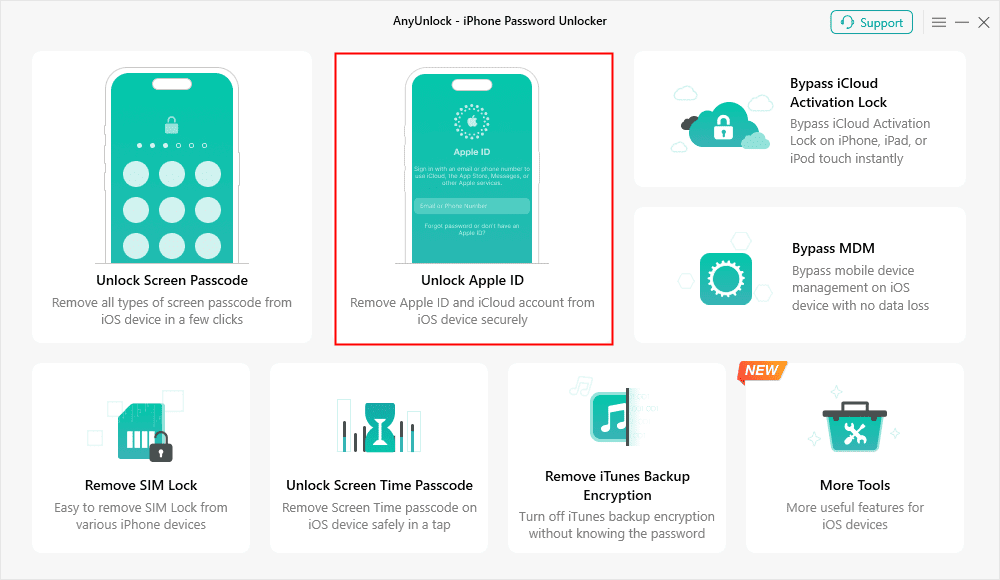
Step 2: Connect your iPhone or iPad. Once recognized, click Unlock Now.
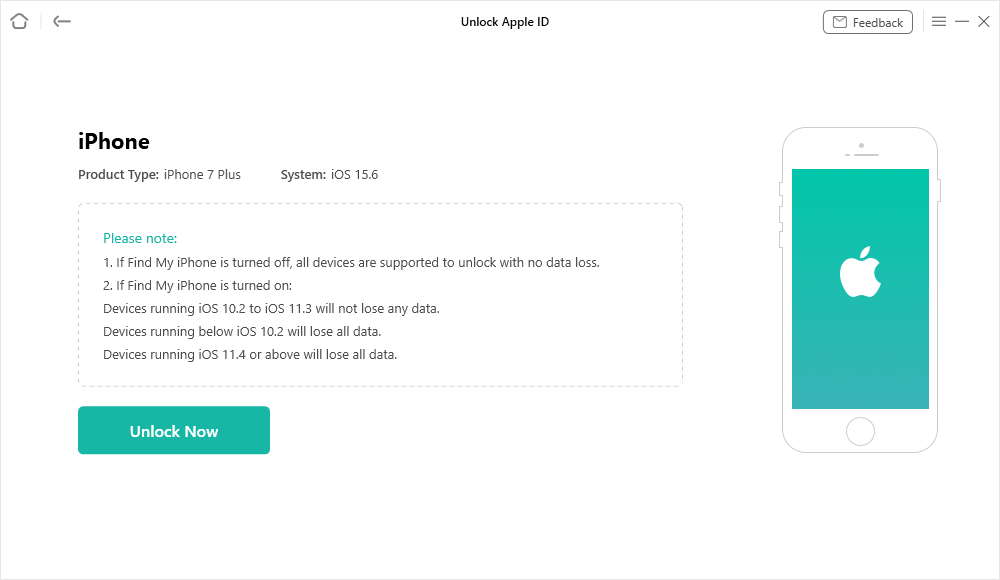
Step 3: If Find My iPhone is off, AnyUnlock will automatically unlock your Apple ID. Keep the device connected until finished.
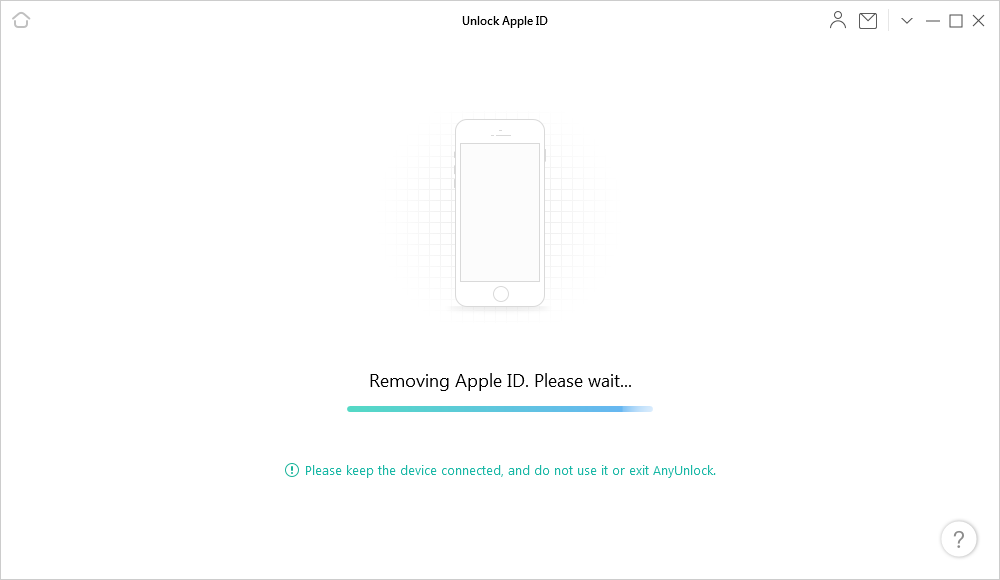
If Find My iPhone is turned on (iOS 11.4 or below): Go to Settings > General > Reset All Settings. After the restart, AnyUnlock will continue unlocking the Apple ID.
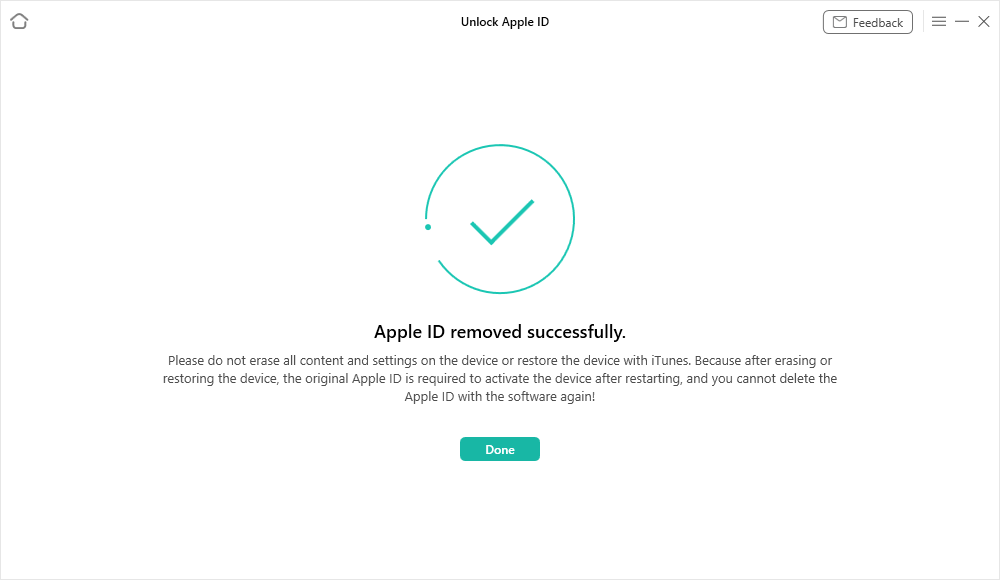
Step 4: Wait a few minutes. When finished, you’ll see a confirmation that your Apple ID has been unlocked successfully.
Conclusion
Reset Apple ID security questions and keep your account secure and make recovery simple if you forget your password. You can update them directly on your device, use Apple’s iForgot website, or reach out to Apple Support for help. In case you lost your Apple ID password? AnyUnlock can get you back into your iPhone or iPad fast, letting you use your devices without worry.
Free Download * 100% Clean & Safe



Wanda Norris is a junior author in iMobie specializing in iOS tips and solutions. She keeps a close eye on every iOS update to provide practical, easy-to-understand guides that help users solve problems and master their Apple devices.
Product-related questions? Contact Our Support Team to Get Quick Solution >
