How to Export Passwords from iPhone [Full Guide]
To export passwords from your iPhone, you can use iCloud Keychain, Google Chrome, or System Preferences on Mac. For a more reliable solution, AnyUnlock can help you easily and securely export all your iPhone passwords, making it more convenient for everyday use.
Managing saved passwords on an iPhone can be challenging, especially since Apple stores them securely inside iCloud Keychain. While this setup protects your accounts, it also makes exporting logins less straightforward when you need to switch devices, back up credentials, or share access across platforms. Fortunately, there are reliable methods to export iPhone passwords. In this guide, we’ll walk you through 4 effective ways to export passwords from iPhone, helping you to manage all your iPhone passwords in one place easily and safely.
Can You Export Saved Passwords From an iPhone?
Yes, you can export saved passwords from an iPhone, but it’s not so straighforward. Apple keeps your login details protected in iCloud Keychain not built for everyday use. This function makes direct export difficult and requires extra steps, but it is still possible.
Important Considerations Before Exporting iPhone Passwords
Exporting passwords from an iPhone can be handy, but there are important factors to think about first. Apple’s security framework makes the process less flexible. Once passwords are moved out, they are no longer guarded in the same way.
- Security Risk: Moving passwords outside the secure system can expose them to misuse if not managed carefully.
- Limited Export: Apple restricts direct export, so the process is not as open as many expect.
- iOS Version: Available options may change depending on which iOS version is installed. Newer updates often adjust how password data is handled.
Taken together, these points highlight why careful planning is essential before exporting your iPhone passwords.
How to Export Passwords from iPhone
Below are the four effective ways to export passwords from iPhone easily.
Way 1: Export iPhone Passwords from iCloud Keychain
If iCloud Keychain is enabled to save passwords on your iPhone, you can export iPhone passwords to your Mac. However, the iPhone and the Mac must be signed in with the same Apple ID, and iCloud Keychain must be enabled. This is how one can export passwords in iCloud Keychain on a Mac.
Step 1: First, click the Apple logo on the menu bar. Select System Settings.
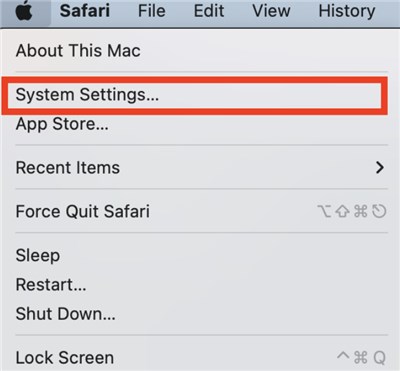
Choose System Settings
Step 2: Next, choose Passwords and enter your device’s password.
Step 3: You can export all passwords or choose specific ones. Hold Cmd and click the passwords you want. Now open the three dots menu. Then choose Export All Passwords or Export Selected Passwords.
Way 2: Export Passwords from iPhone Using Google Chrome
You can also export passwords from iPhone using Google Chrome. When you save logins on Chrome, they sync to your Google account. That is where you can see or relocate them. All you need to do is ensure you are signed in to Chrome on your iPhone. Here are the stes:
Step 1: The first step is to launch the Google Chrome application on your iphone.
Step 2: Click 3 dots on the upper right side of your browser window. Tap Settings > Passwords.
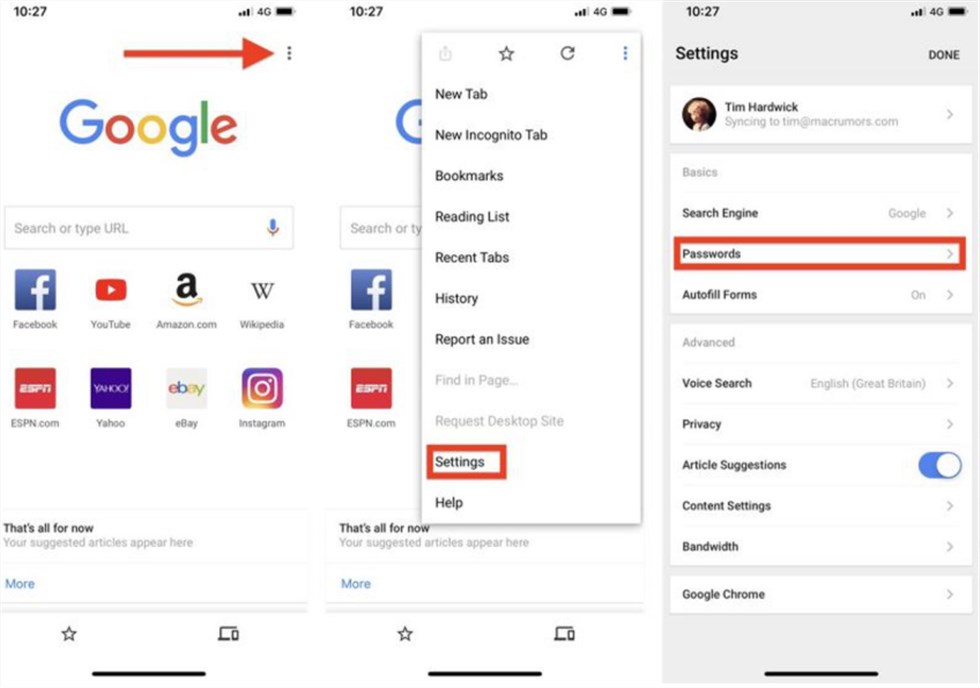
Choose Passwords
Step 3: Tap Export Passwords. Confirm the warning message by selecting Export Passwords again.
Step 4: Select a secure method of CSV export in the Share Sheet. As an example, select Save to Files to save it on your iPhone or iCloud Drive.
Way 3: Export iPhone Passwords via System Preferences
Apple devices use iCloud to sync Keychain passwords. Once you sign in, all saved passwords appear across the system. You can view them in System Preferences. You can also edit or delete them easily. Here are the steps:
Step 1: Click the Apple menu on your Mac. Select System Preferences > Passwords.
Step 2: Log in to your account.
Step 3: Next, click the three dots. The import and export options will appear. Click the Export Passwords option.
Step 4: Click Export password to confirm your action.
Step 5: Choose the best location to save the exported passwords and click Save as a CSV file.
Way 4: Export Passwords from iPhone Easily & Securely – AnyUnlock
For users who want a hassle-free and secure solution, AnyUnlock offers the easiest way to export iPhone passwords. Unlike built-in options that are limited or complex, AnyUnlock lets you access all saved logins in one place and export them safely. With its Password Manager feature, you can view, copy, or export your iPhone passwords into a CSV file and even transfer them to trusted password managers for better organization. AnyUnlock is designed for both Mac and Windows, and supports the latest iPhone 17 and iOS 26. It ensures that your data stays safe throughout the process with no risk of leaks or unauthorized access.
Key Features of AnyUnlock:
- Instantly find all saved passwords on your iPhone without manual searching.
- Export your logins directly into popular password managers for seamless migration.
- Works across iPhone, iPad, and iPod so you can manage all devices easily.
- Supports both older and the latest iPhone 17 & iOS 26 versions.
- Protects your passwords with encryption, ensuring no leaks during export.
Free Download * 100% Clean & Safe
Step-by-Step Guide to Use AnyUnlock to Export Passwords from iPhone:
Step 1: Download AnyUnlock on your computer. Install it and launch the tool on your computer, and choose “More Tools” mode.

Click more tools
Step 2: Choose “iOS Password Manager” mode to use the function.
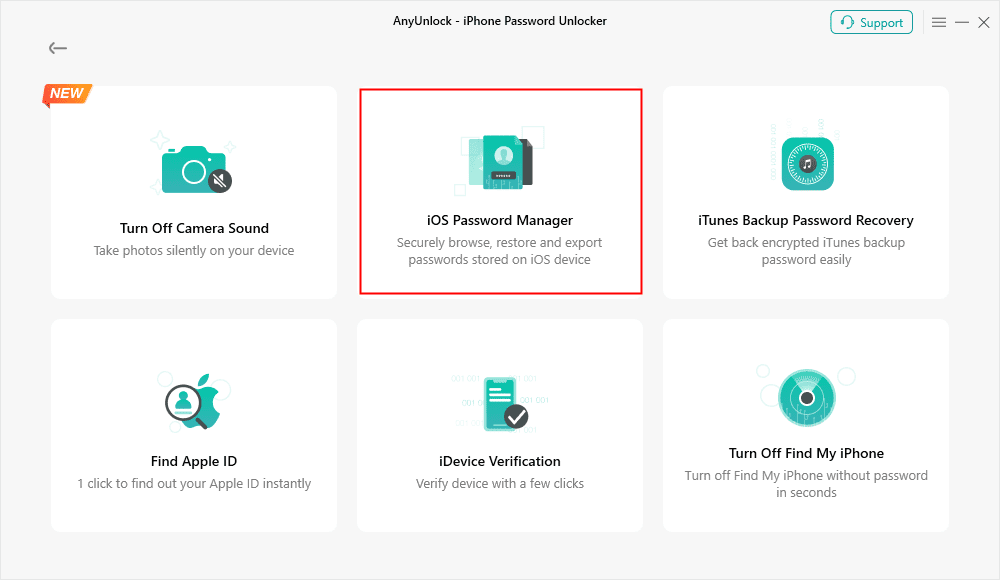
Click on iOS Password Manager
Step 3: AnyUnlock reads your iPhone passwords from an encrypted backup. If you don’t have one, click Scan Now and set a password to create it first. Remember the password you set, then click OK to continue.
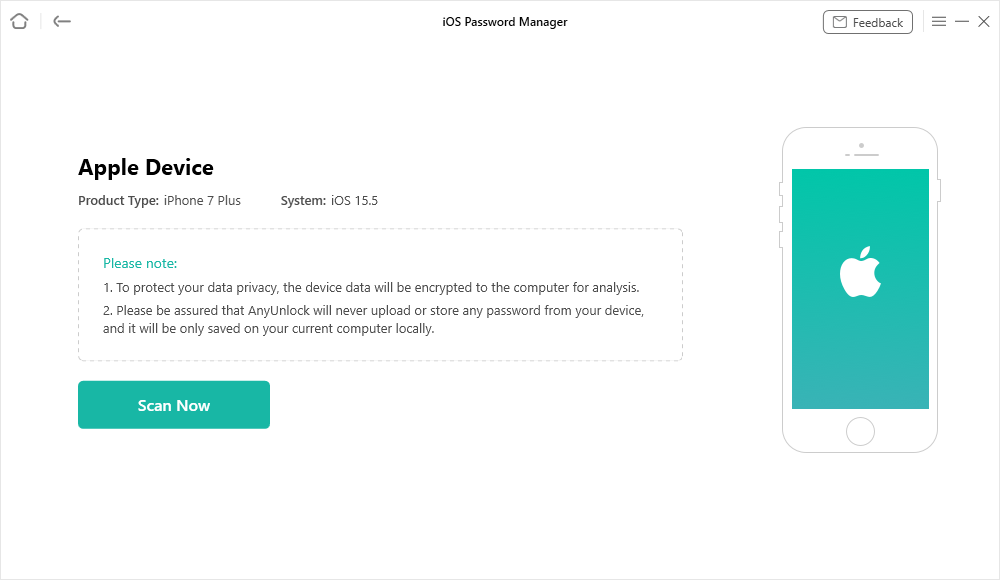
Click on Scan Now to Scan for Safari Passwords
Step 4: After backup, AnyUnlock displays all saved details, like Wi-Fi, app logins, emails, Apple ID, so you can select and export them to your computer.
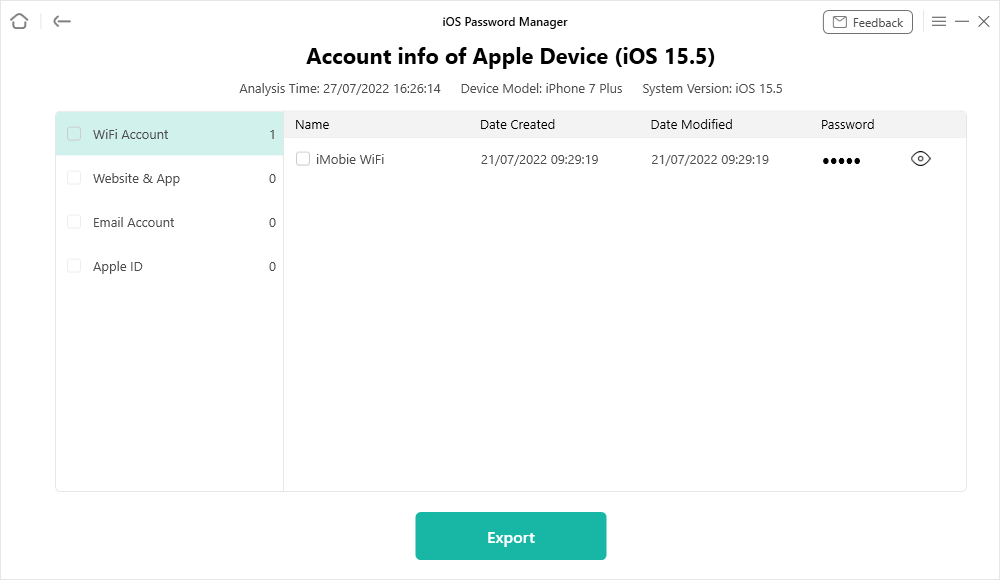
Export Your Passwords to Computer
FAQs about How to Export Passwords from iPhone
Q1. How do I export iPhone passwords to CSV?
You can export iPhone passwords to a CSV file by going to Settings > Passwords > Export Passwords, then saving the file through the Share Sheet to Downloads or Files.
Q2. How to export iPhone passwords to LastPass?
To export iPhone passwords to LastPass, first export your iPhone passwords as a CSV file, then sign in to LastPass and use its Import option to upload the file.
Q3. Is there any way to export passwords on iOS 18?
To export passwords on iOS 18, open Settings > Passwords > Export Passwords, then save the CSV file to Downloads. Remember to delete it afterward since it’s not encrypted.
Q4. How do I transfer my iPhone Passwords to my computer?
To transfer my iPhone Passwords to my computer, install iCloud for Windows and enable the Passwords option.
Q5. Can I export iPhone passwords without iCloud?
Yes. You can copy individual logins with AirDrop or use a third-party tool like AnyUnlock to scan and export all saved passwords.
Conclusion
In summary, this guide shares 4 effective way to help you export passwords from iPhone. Options like iCloud Keychain, Google Chrome, and System Preferences allow you to view or move saved logins, but each comes with limitations. For a faster and safer choice, AnyUnlock allows you to find saved passwords from iPhone, exportinh and gathering all your iPhone passwords in one place securely to your computer or a password manager. Download AnyUnlock today to manage and export your iPhone passwords easily and keep your data under your control.
Free Download * 100% Clean & Safe



Joy Taylor is a seasoned technical writer with over a decade of experience in mobile technology. At iMobie, she specializes in producing in-depth content on iOS data recovery, iPhone unlocking solutions, and iOS troubleshooting.
Product-related questions? Contact Our Support Team to Get Quick Solution >
