5 Ways to Fix iPhone Unavailable Without Computer [Updated]
To fix iPhone Unavailable without computer, you can try the Erase iPhone option, the Find My app, or iCloud. These methods let you reset and unlock your device wirelessly. For an easier solution, AnyUnlock or iTunes Recovery Mode also provide safe and effective ways to regain access.
Being locked out of your iPhone with the “iPhone Unavailable” message can be annoying and stressful. Many users believe that they need a computer to resolve the issue. Still, the good news is that there are several methods for solving the iPhone unavailability issue without a computer. This tutorial will guide you through the reasons why your iPhone shows this error, whether you can fix it without a computer, plus the 5 best solutions that you may try.
Why Does My iPhone Show iPhone Unavailable?
When the incorrect passcode is entered too many times consecutively, your iPhone will indicate “iPhone Unavailable”. Once multiple incorrect passcodes have been used to unlock your iPhone, it will be locked for a specific time and display “iPhone Unavailable” with a countdown (e.g., try again in 1 minute, 5 minutes, or another)
Can iPhone Unavailable Be Fixed Without Computer?
Without the aid of a computer, an iPhone Unavailable error might still be fixed, though. In such cases, the technology giant has unveiled various on-device troubleshooting methods that allow access without the assistance of a computer. In the next section, we’ll walk you through each of these methods step by step.
How to Fix iPhone Unavailable Without Computer
Here are three effective methods to fix the “iPhone Unavailable” error, letting you erase and reset your device without a computer.
Solution 1. Fix iPhone Unavailable Without Computer via Erase iPhone Option
The Erase iPhone option is the quickest way to fix the “iPhone Unavailable” error without using a computer. This feature works on iPhones running iOS 15.2 or later and lets you reset the device directly from the lock screen. Here are the steps:
Step 1. If you have tried to unlock your device by entering the wrong passcode multiple times, then tap the Erase iPhone option.
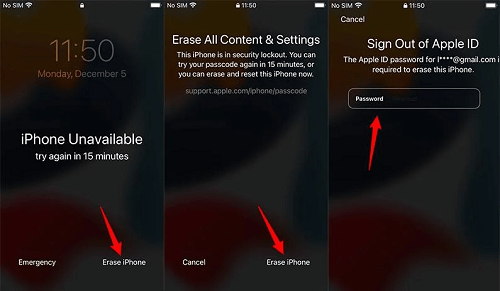
Unlock iPhone via Erase iPhone
Step 2. The iPhone will be erased of all data and settings and will be reset automatically.
Solution 2. Fix iPhone Unavailable Without Computer via Find My App
Suppose you have another Apple device that shares the same Apple ID as your iPhone and is available. In that case, you can get access to your unavailable iPhone by erasing it remotely via the Find My app.
Step 1. On another Apple device, open the Find My app and sign in with the Apple ID linked to your unavailable iPhone.
Step 2. From the list of devices, select your iPhone and tap Erase Device.
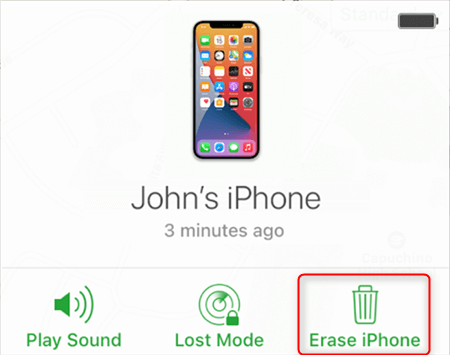
Tap on the Erase iPhone icon
Step 3. After the erase is complete, you can restore your iPhone from an iCloud backup or set it up as a new device.
Solution 3. Fix iPhone Unavailable Without Computer via iCloud
iCloud website offers a convenient way to erase and reset your iPhone remotely with only an iPhone. As long as your unavailable iPhone is connected to the internet and has Find My iPhone enabled, you can reset it using any smartphone, tablet, or computer browser. Here are the steps:
Step 1. Go to iCloud website, and log in with your Apple ID.
Step 2. Click on Find My, then select the iPhone from the list of devices.
Step 3. To erase the device, click on Erase. Once the device is erased, reboot your iPhone.
How to Fix iPhone Unavailable With Computer
Although you can fix the “iPhone Unavailable” error without a computer, these methods may have more limitations. For easier solutions, you can also fix this issue with a computer.
Solution 1. Fix iPhone Unavailable via AnyUnlock [Easy & Secure]
To fix iPhone unavailable easily, AnyUnlock would be a good choice to help you restore access in minutes. It removes various types of screen locks, including digital passcodes, Face ID, and Touch ID, without requiring iTunes or complex steps. With its clear interface and guided instructions, even non-technical users can unlock their devices safely and easily. Except for screen unlock, AnyUnlock also supports unlocking Apple ID, bypassing iCloud Activation Lock, etc.
Key Features of AnyUnlock:
- Remove iPhone screen passcodes, Face ID, or Touch ID in minutes.
- Bypass the lock screen without relying on iTunes.
- Simple steps and a clean interface, easy for anyone to use.
- Works with all iPhone and iPad models, including the latest iOS versions.
Free Download * 100% Clean & Safe
How to Factory Reset A Locked iPhone with AnyUnlock:
Step 1. Free download and launch AnyUnlock on your computer >Click Unlock Screen Passcode mode.
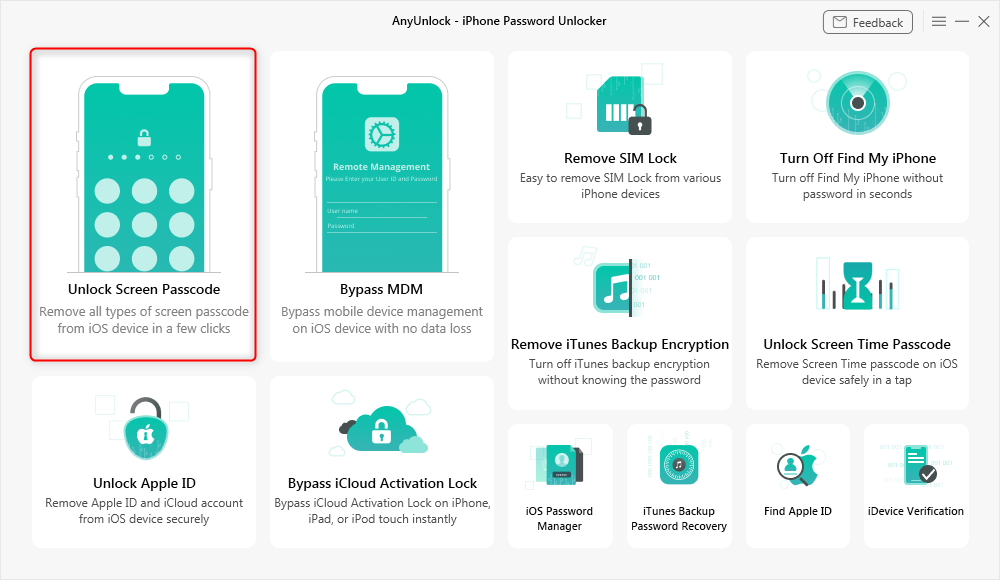
Choose Unlock Screen Mode
Step 2. Connect your iPhone to your PC/Mac. Follow the on-screen instructions to get a matching firmware package > Click the Unlock Now option.
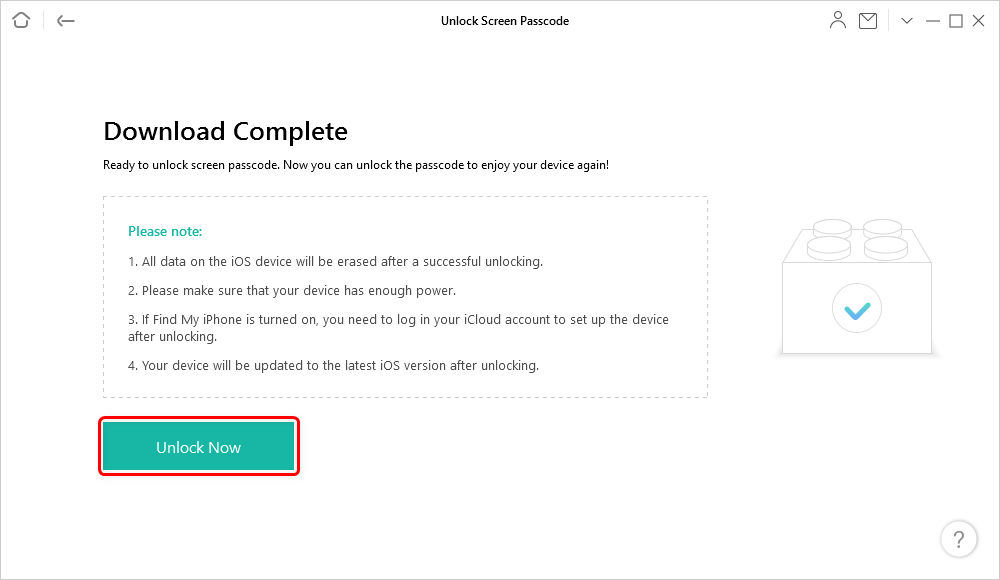
Tap on Unlock Now to Remove Screen Passcode
Step 3. Wait for the unlocking process to be completed, and you will get the page below.
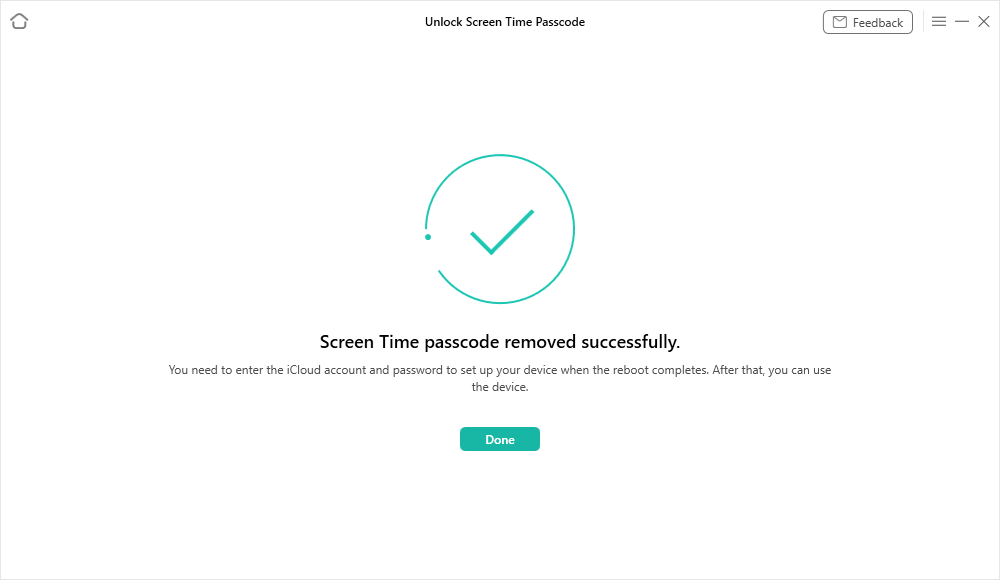
Successfully Removed Screen Time Passcode
Solution 2. Put iPhone into Recovery Mode via iTunes
Another reliable way to fix the “iPhone Unavailable” error with a computer is by using iTunes Recovery Mode. This process erases your device and reinstalls iOS, removing the passcode in the process. However, it will also erase all data on your iPhone, so backing up your iPhone beforehand is important. Also, if Find My iPhone is enabled, your Apple ID and password will be required to complete the setup after the restore.
Step 1. First, check if your computer has the latest version of iTunes. Connect your iPhone to the computer with a USB cable. In case you can unlock your device, and if a request to select Trust comes up, do so.
Step 2. Put your iPhone in recovery mode.
Step 3. Click the Restore iPhone button to erase and reinstall iOS on the device.
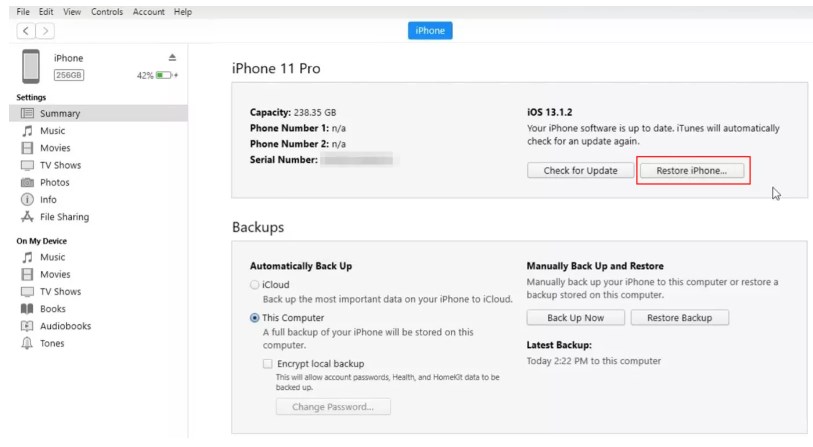
Restore iPhone Using iTunes
FAQs about How to Fix iPhone Unavailable Without Computer
Q1. Is iPhone unavailable permanently?
No, the “iPhone Unavailable” message is not permanent. It appears after multiple failed passcode attempts as a security measure, and the device can be reset or unlocked to regain access.
Q2. How do I get my iPhone out of unavailable mode?
You can get your iPhone out of unavailable mode by erasing and resetting it. Built-in options include the Erase iPhone button (iOS 15.2+), the Find My app, or iCloud. Also, you can use AnyUnlock to help you in easy steps.
Q3. Does iPhone Unavailable also happen on iPad or Apple Vision Pro?
Yes. Not just iPhones, most iOS devices, like iPad and Apple Vision Pro, also have similar security mechanisms.
Q4. How to fix iPhone unavailable without computer or a passcode?
If you don’t have a computer or the passcode, you can still fix iPhone Unavailable by using built-in reset options. On iOS 15.2 or later, tap Erase iPhone on the lock screen, or erase it remotely via the Find My app or iCloud.com.
Conclusion
In summary, this article provides several proven solutions for how to fix iPhone unavailable without computer, including iCloud, Find My app, and Erase iPhone, to help you regain access. For an easier solution to fix iPhone unavailable, AnyUnlock is the right choice in unlocking your device. Its Screen Unlock feature removes passcodes and restrictions smoothly, helping you regain full access to your iPhone without complicated steps or technical skills. Download AnyUnlock today and get your iPhone back in use effortlessly.
Free Download * 100% Clean & Safe



Joy Taylor is a seasoned technical writer with over a decade of experience in mobile technology. At iMobie, she specializes in producing in-depth content on iOS data recovery, iPhone unlocking solutions, and iOS troubleshooting.
Product-related questions? Contact Our Support Team to Get Quick Solution >
