How to Unlock a Disabled iPhone with Android Phone [6 Ways]
This updated guide shows you how to unlock a disabled iPhone with an Android phone, whether you have a computer available or not. We’ll walk you through step-by-step methods to remove the lock screen, regain access to your data, and safely reactivate your device. You’ll also discover recommended tools that make the process faster, easier, and more secure.
Putting the wrong passcode in several times can lock your iPhone, and that’s definitely annoying. For many users, this feels stressful—especially when you don’t have a computer at hand to factory reset your iPhone. The good news is, there are reliable solutions. In this guide, we’ll walk you through 6 practical solutions for how to unlock a disabled iPhone with Android phone, both with and without a computer. Step by step, you’ll learn how to remove the lock screen, restore access, and safely get your iPhone working again.
How Many Wrong Passcode Attempts on iPhone Before Disabled?
Many users wonder exactly how many wrong passcode attempts will disable an iPhone. Apple’s lockout system gradually increases the wait time after each failed attempt, and once you reach 10 tries, the device becomes permanently disabled and requires a reset. Here’s the breakdown:
- 1–4 attempts: No delay, you can try again right away.
- 5th attempt: iPhone shows “iPhone Unavailable” and locks for 1 minute.
- 6th attempt: Lockout increases to 5 minutes.
- 7th attempt: Lockout becomes 15 minutes.
- 8th attempt: Lockout jumps to 1 hour.
- 9th attempt: Lockout stretches to 8 hours.
- 10th attempt: Device is permanently disabled and needs a factory reset.
Can I Use an Android Phone to Unlock a Disabled iPhone?
Yes, you can use an Android phone to help unlock a disabled iPhone, though the options are more limited compared to using iTunes or Finder on a computer. Most solutions still rely on Apple’s iCloud services, which you can access through a web browser on Android. While it’s not the most common approach, it offers a convenient alternative when you don’t have a computer available.
How to Unlock a Disabled iPhone with Android Phone
One practical way to unlock a disabled iPhone with an Android phone is by using the iCloud website. Through your Android browser, you can sign in with your Apple ID, access Find My iPhone, and remotely erase the disabled device. This removes the lock and lets you set up the iPhone again with a new passcode. You don’t need a computer, and the process can be done anywhere with internet access. However, this method only works if Find My iPhone was enabled beforehand and the device is online.
Steps to Unlock a Disabled iPhone with an Android Phone:
Step 1. Open the Browser on your Android phone and go to the iCloud Website.
Step 2. Sign in using your Apple ID and choose Find My from the menu.
Step 3. If asked, enter your Apple ID Password again to continue.
Step 4. From the list of devices, select your disabled iPhone.
Step 5. On the screen, tap Erase This Device and follow the instructions. Upon completion, you will be able to set up your iPhone.
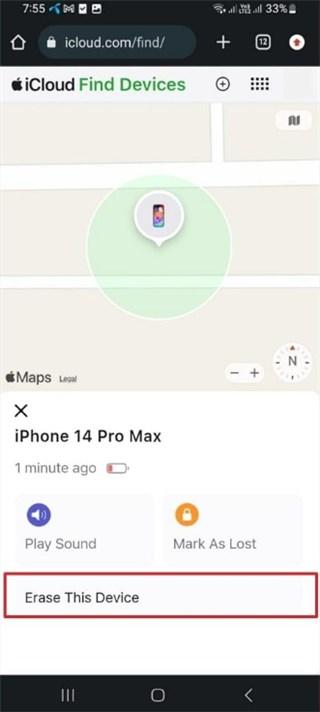
Unlock a Disabled iPhone Using Android
Other Ways to Unlock a Disabled iPhone Without Computer
Apart from using an Android phone, there are also two more built-in ways to unlock a disabled iPhone without relying on a computer. Let’s take a look.
Option 1. How to Unlock A Disabled iPhone via Erase iPhone Feature
Apple now offers an Erase iPhone option directly on the lock screen, allowing you to reset your iPhone without a computer. With a stable internet connection and your Apple ID credentials, you can erase the iPhone and set it up again with a new passcode. But this method is only available on newer iOS versions, requires the correct Apple ID and an active internet connection.
Step 1. Keep animating wrong for Passcode until you see the Erase iPhone button.
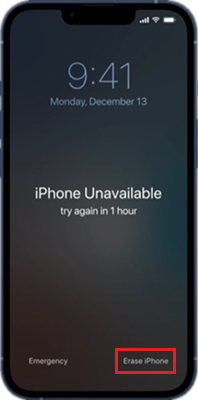
Click on Erase iPhone Option
Step 2. Choose that option and sign in with your Apple ID.
Step 3. Confirm the reset and let the phone erase itself.
Step 4. When it restarts, set it up like new or bring back your data from a Backup.
Option 2. Unlocked A Disabled iPhone via Siri
In earlier iOS versions, there was a Siri bug that let users bypass the lock screen. By asking Siri to open certain apps and going through a series of steps, people could sometimes access apps or photos without entering the passcode. However, this was never an official feature, only a temporary glitch. Apple has long since patched it, so it no longer works on modern iPhones. Here are the steps you can try:
Step 1. Wake up Siri and ask for the time, the clock app opens.
Step 2. Tap the clock and hit the plus sign to add a city, type anything there.
Step 3. Double-tap the text, pick select all, then choose share.

Choose Select All
Step 4. From the share options, pick the message app, type something in the “to” box, and hit return.
Step 5. The text shows in green. Tap the plus sign next to it and choose create new contact.
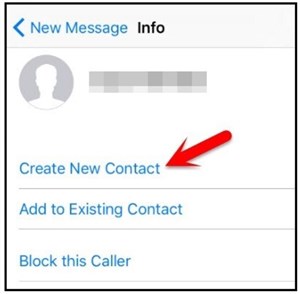
Select Create New Contact Option
Step 6. On the new contact screen, tap add photo, then choose photo, your albums pop open, and from there you could move around and even reset the passcode.
How to Unlock a Disabled iPhone with Computer
When you have access to a computer, unlocking a disabled iPhone is more reliable and controllable, especially when the device is offline or Find My is disabled. Below are two common methods for unlocking via computer:
Option 1. How to Unlock a Disabled iPhone via iTunes
If you’ve got a computer, you can use Recovery Mode to unlock the iPhone. It basically wipes the phone and puts a fresh copy of iOS on it. But this method requires a computer, erases all data if no backup exists, and can be confusing for beginners since the recovery steps vary by iPhone model. Here is how to:
Step 1. On your Windows PC, download and install the latest version of iTunes from Apple’s official website.
Step 2. Use a Lightning cable to connect your disabled iPhone to the computer.
Step 3. Put your iPhone into Recovery Mode: press the correct button combination for your iPhone model until the recovery screen appears.
Step 4. In iTunes, a pop-up will appear saying there is a problem with your iPhone. Choose Restore IpHONE to erase the device and reinstall iOS.
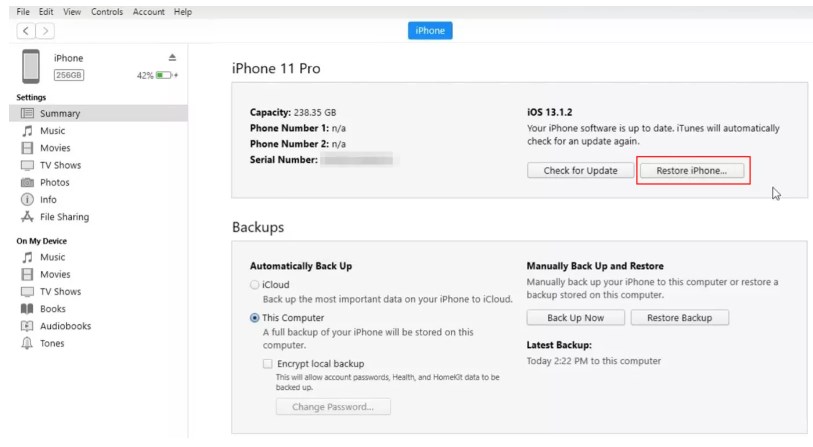
Restore iPhone Using iTunes
Step 5. Once the process finishes, set up your iPhone as new. If you have a backup available, you can restore it during setup.
Option 2. Unlock a Disabled iPhone with iCloud on Computer
If Find My iPhone is enabled and you know the Apple ID, you can erase your device remotely from any browser. This clears the passcode and lets you set up the iPhone again. However, this method requires internet access and the correct Apple ID credentials, and you may lose data if no backup is available. Follow the steps below:
Step 1. On your PC or Mac, open a browser and go to the iCloud website. Sign in with the Apple ID linked to the disabled iPhone.
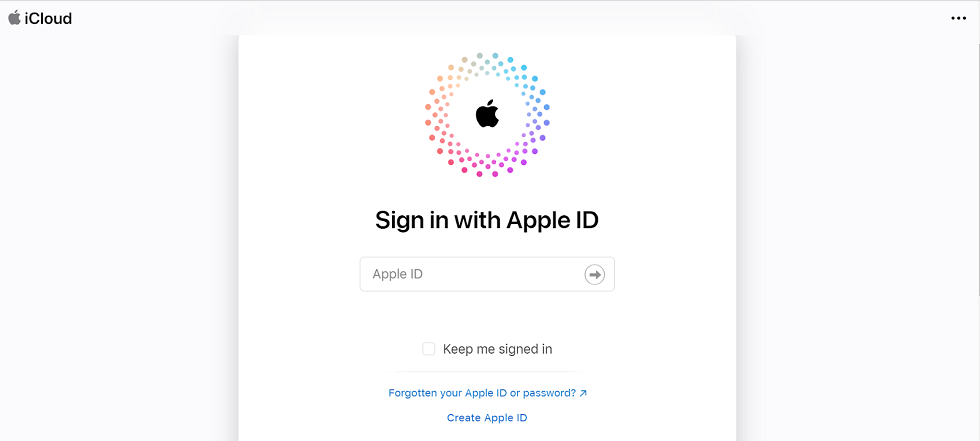
Sign in to iCloud
Step 2. If two-factor authentication is prompted, verify it using another trusted device or enter the code sent.
Step 3. Select Find My and wait while it loads your devices.
Step 4. At the top, click All Devices and choose your disabled iPhone.
Step 5. Click Erase iPhone. Enter your Apple ID password again if asked, then confirm.
Step 6. After the process completes, your iPhone restarts without the passcode. You can now set it up as new or restore from a backup if available.
Option 3. Unlock a Disabled iPhone via AnyUnlock [Easy & Safe]
To unlock a disabled iPhone in a more stress-free solution, AnyUnlock would be a good choice. Designed for both Windows and Mac, it provides an intuitive interface and guided steps, so you don’t need to be tech-savvy. Unlike iTunes or iCloud, AnyUnlock focuses on making the process of unlocking a disabled iPhone faster and easier. With this tool, you can also remove a forgotten screen passcode, bypass an Apple ID, skip MDM restrictions, and even handle iTunes backup passwords. For anyone looking for a safe, all-in-one alternative to traditional methods, AnyUnlock is a reliable choice.
Main Benefits of AnyUnlock:
- Unlock a disabled iPhone without a passcode in easy steps.
- Unlock all screen locks, like passcode, Face/Touch ID, PIN, etc.
- No tech knowledge is required. 1-click unlock a disabled iPhone.
- Support all iPhone models and iOS versions, including the latest iOS 26.
Free Download * 100% Clean & Safe
How to unlock a disabled iPhone with Android phone with AnyUnlock:
Step 1. Download AnyUnlock and launch it > Connect your locked iPhone via USB cable > Click Unlock Screen Passcode as below.
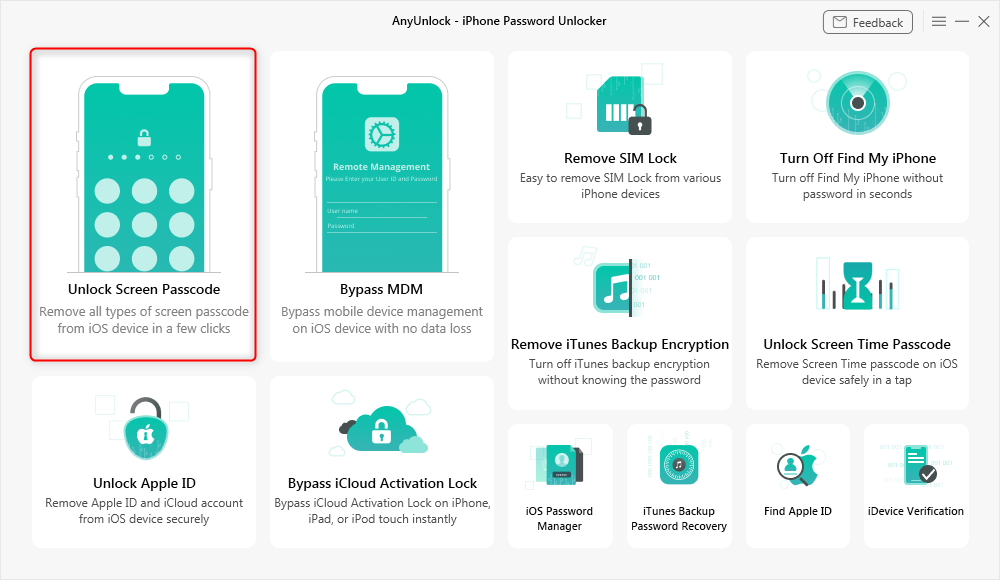
Choose Unlock Screen Mode
Step 2. Click the Start Now button to continue.
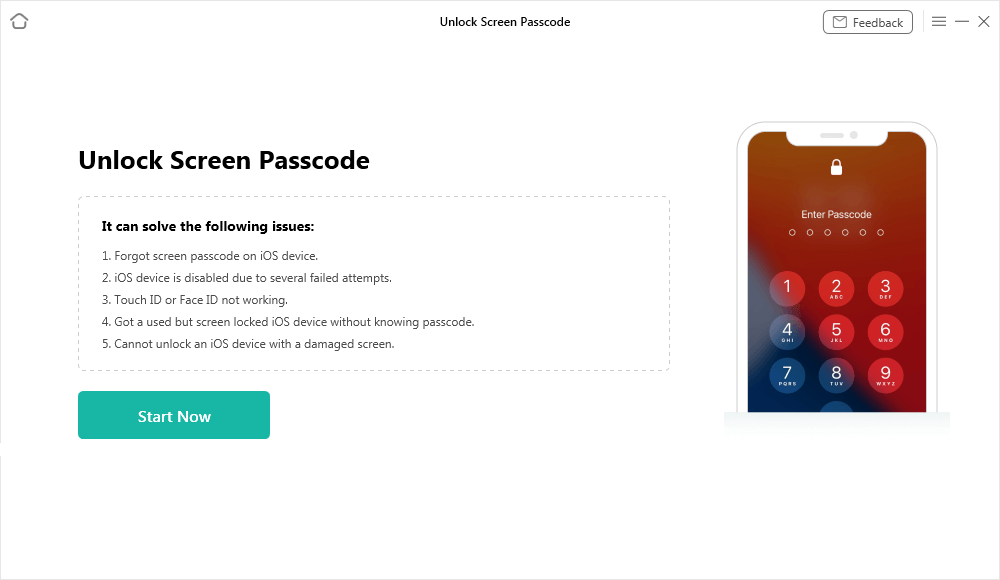
Connect iPhone to Computer
Step 3. Then click the Download button to get the iOS firmware. When the firmware is downloaded, click Unlock Now.
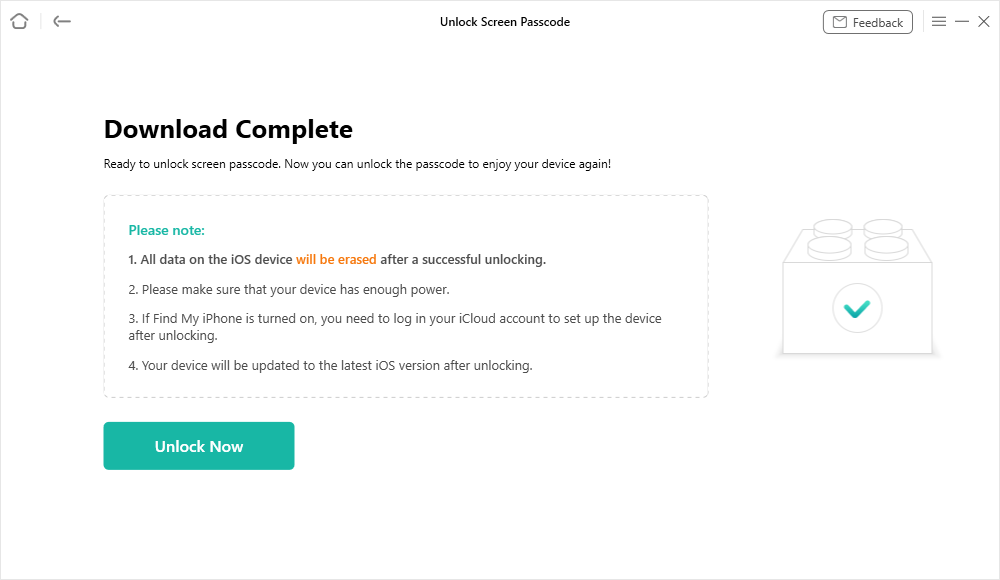
Download Suitable Firmware
Step 4. In just a few minutes, you will get the Screen passcode removed successfully page as shown below. Now you can get into the disabled iPhone.
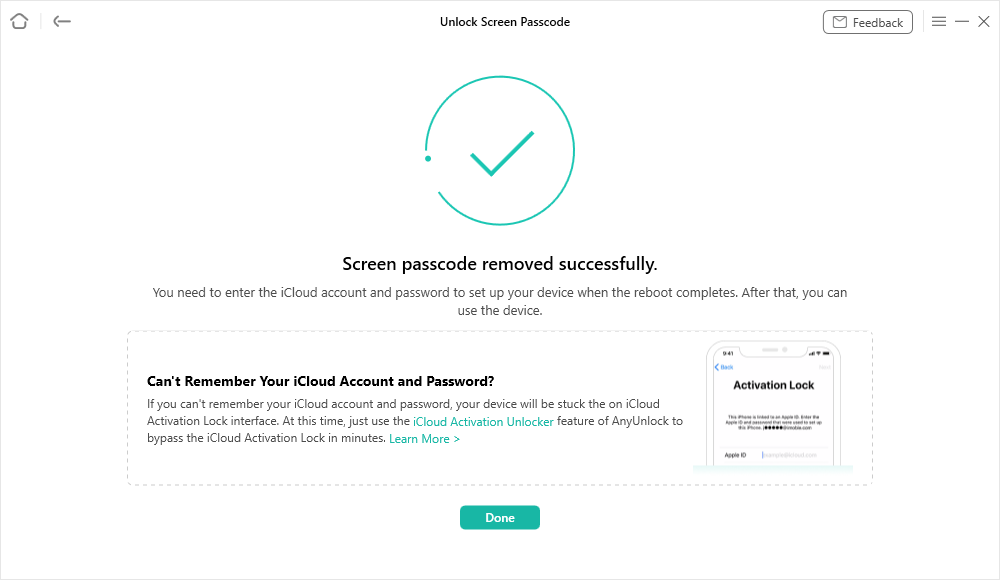
Remove Screen Passcode Successfully
FAQs about How to Unlock a Disabled iPhone with Android Phone
Q1. Can I access my iPhone from my Android phone?
Yes. You can visit iCloud website in your Android browser, sign in with your Apple ID, and manage your iPhone remotely.
Q2. Can you unlock your iPhone from another device?
Yes. By logging into iCloud website on any device with your Apple ID and password, you can erase the iPhone and set it up again.
Q3. Is it possible to open a disabled iPhone?
Yes. A disabled iPhone can be unlocked by resetting it, typically through iCloud, iTunes, or a third-party tool like AnyUnlock.
Q4. How to unlock a disabled iPhone with an Android phone without a computer?
Use iCloud website on your Android, sign in with your Apple ID, select the iPhone, and choose Erase iPhone. This removes the passcode so you can set it up as new.
Conclusion
In this guide, we explore how to unlock a disabled iPhone with Android phone, and also share other effective ways to help you unlock a disabled iPhone. While iCloud and built-in features can work, they usually require the correct Apple ID, a stable internet connection, and may risk data loss. For the most reliable solution, AnyUnlock stands out as the best choice to unlock a disabled iPhone without a password. Also, remember to back up your iPhone before unlocking it to avoid data loss. Download AnyUnlock today and regain full access to your iPhone quickly, safely, and without hassle!
Free Download * 100% Clean & Safe



Joy Taylor is a seasoned technical writer with over a decade of experience in mobile technology. At iMobie, she specializes in producing in-depth content on iOS data recovery, iPhone unlocking solutions, and iOS troubleshooting.
Product-related questions? Contact Our Support Team to Get Quick Solution >
