How to Unlock a Locked iPhone 2026 | Stepwise Guide
Are you one of those who say, “I bought a locked iPhone how do I unlock it?” A second-hand iPhone might be locked with a screen passcode or even tied to someone’s Apple ID. This article explains what it means when an iPhone is “locked” in these ways and how to unlock it.
AnyUnlock – All-in-one iPhone Unlocker
Free download AnyUnlock to remove screen passcode, unlock Apple ID, bypass iCloud activation lock and more in minutes. [iOS 26 supported]
Buying a used iPhone can save money, but a locked device can be a headache. If you’re asking, “I bought a locked iPhone, how do I unlock it?” you’re not alone. Locks like screen passcodes, iCloud Activation, Apple ID, MDM, or carrier restrictions can block access to your device. This comprehensive guide explains each lock type, how to identify them, and proven solutions to unlock your iPhone safely.
Part 1. What Does a “Locked iPhone” Mean?
When an iPhone is “locked,” it can mean different types of restrictions for the screen, iCloud or SIM, etc. Here are the main types:
- Screen Passcode Lock: This is the basic lock with a passcode, Face ID, or Touch ID. Without the correct code, you can’t access the home screen or apps, and repeated wrong attempts may disable the phone.
- iCloud Activation Lock: Activation Lock links the iPhone to the previous owner’s Apple ID via Find My iPhone. If the account isn’t removed, you’ll see “iPhone Locked to Owner” during setup and need that Apple ID and password to continue.
- Apple ID Lock: This happens when the iPhone is already set up but still tied to the old owner’s Apple ID. You can use the phone partially but you can’t download apps or disable “Find My iPhone” without that login.
- MDM Lock (Mobile Device Management): This lock restricts how the phone is used and is mostly used by companies or schools. You might see “This iPhone is supervised and managed” or be asked for a management login during setup.
- Network Carrier Lock: A SIM or carrier lock ties the iPhone to one mobile network. You’ll see “SIM Not Valid” or “SIM Not Supported” if you insert another carrier’s SIM.
Part 2. How to Check What Type of Lock Your iPhone Has
Not sure what’s causing your “I Bought a locked iPhone how do I unlock it” issue? Here’s how to identify it:
- Screen Passcode Lock: It’s a screen passcode lock if you power on the device and immediately see a passcode, Touch ID, or Face ID prompt.
- Activation Lock (iCloud Lock): It’s under Activation Lock if the device asks for a previous owner’s Apple ID with a message like “iPhone Locked to Owner” during setup.
- Apple ID Lock: It’s Apple ID locked if you can access the Home Screen but the iPhone is still signed into someone else’s Apple ID in Settings.
- MDM Lock: The phone is under MDM lock if you see a Remote Management login screen or find an MDM profile in Settings > General > VPN & Device Management.
- Carrier/SIM Lock: Insert a SIM from another carrier. It’s SIM-locked if you see “SIM Not Supported” or if the phone doesn’t connect. You can also check under Settings > General > About > Carrier Lock to see if the phone has restrictions.
Contact the seller for lock details or credentials. If unavailable, proceed with the methods below, but ensure proof of ownership to avoid legal issues.
Part 3. How to Unlock Screen Passcode-Locked iPhone
You can unlock a screen passcode-locked iPhone quite effectively via a third-party dedicated tool. For instance, tools like AnyUnlock can bypass various iPhone screen locks without even requiring the previous passcode.
Free Download * 100% Clean & Safe
Here’s how you can use AnyUnlock to breach a screen passcode:
Step 1: Download and Launch AnyUnlock
Begin by downloading and installing AnyUnlock – iPhone Password Unlocker on your computer and opening it. On the main screen, choose “Unlock Screen Passcode” mode.
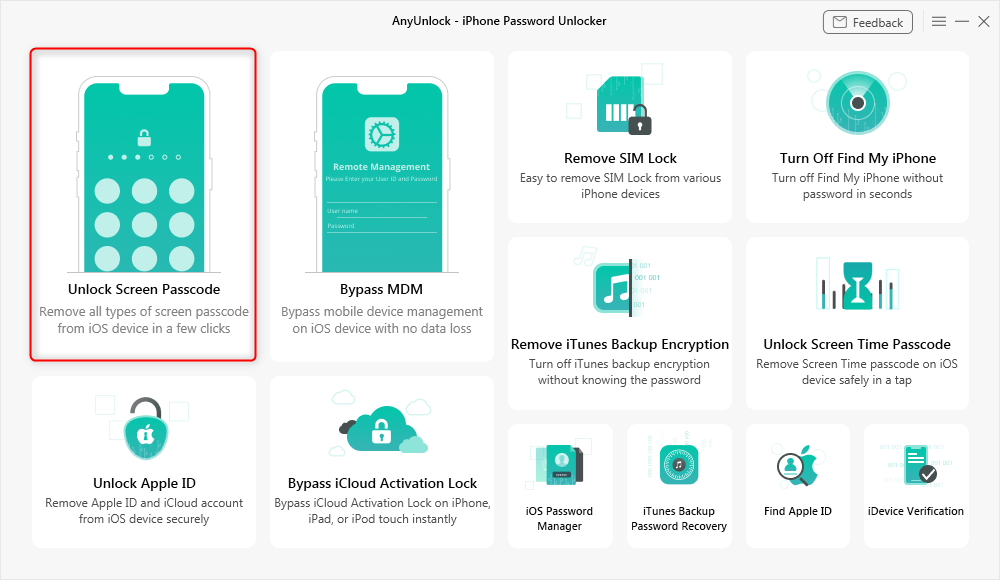
Choose Unlock Screen Mode
Step 2: Connect Your iPhone
Use a USB cable to connect your locked iPhone to the computer. Then, click the “Start Now” button to begin the unlocking process.
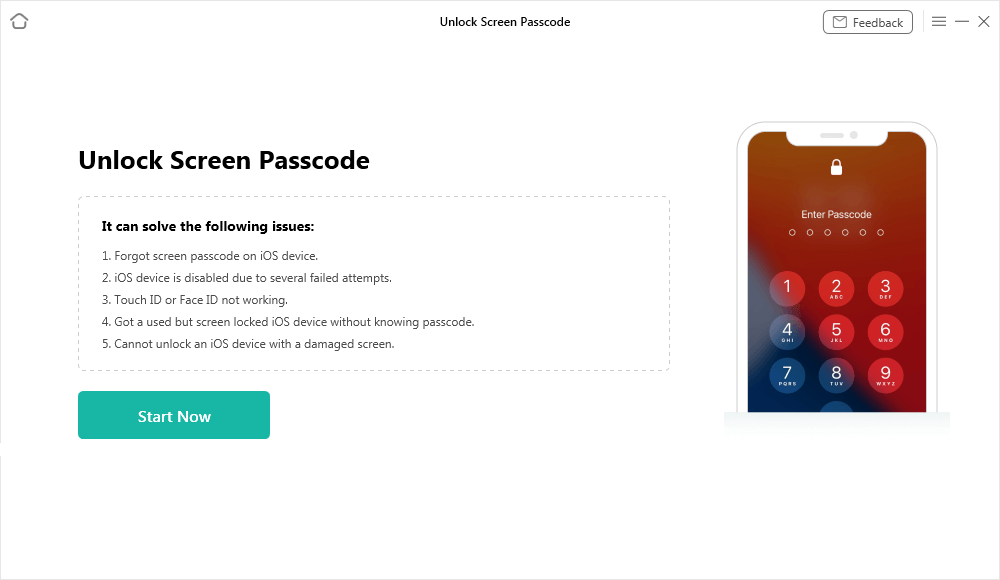
Connect iPhone to Computer
Step 3: Download Firmware
Allow AnyUnlock to download the matched iOS firmware package for your iPhone by clicking the “Download” button.
Step 4: Proceed to Screen Unlock
Once the firmware is ready, click the “Unlock Now” button. AnyUnlock will then start removing the screen passcode from your iPhone.
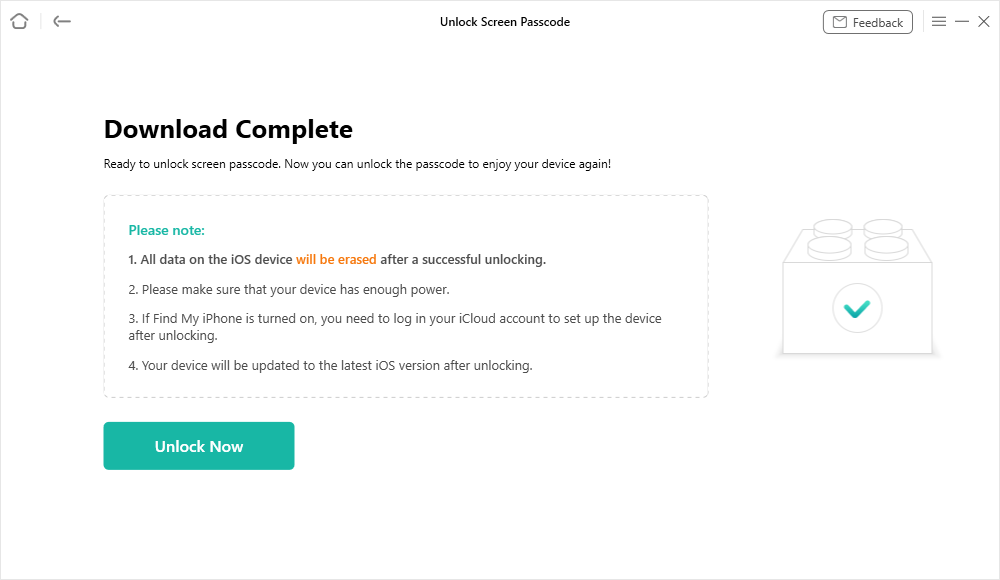
Download Suitable Firmware
And when the recovery process is completed, you will see the Screen passcode removed successfully.
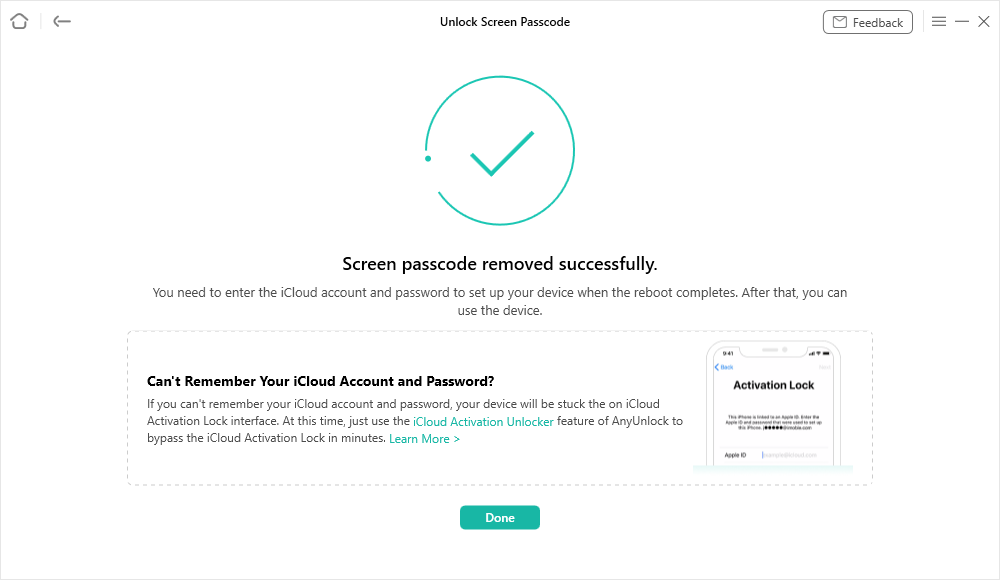
Remove Screen Passcode Successfully
Part 4. How to Unlock an Apple ID Locked iPhone
You’ll face the “I Bought a locked iPhone how do I unlock it?” problem if the iPhone you bought is still logged into the previous owner’s Apple ID. Use AnyUnlock to remove the previous owner’s Apple ID.
Here’s how to unlock an Apple ID-locked iPhone using AnyUnlock:
Step 1: Select Unlock Apple ID
After launching the AnyUnlock program on your computer, click on the “Unlock Apple ID” mode.
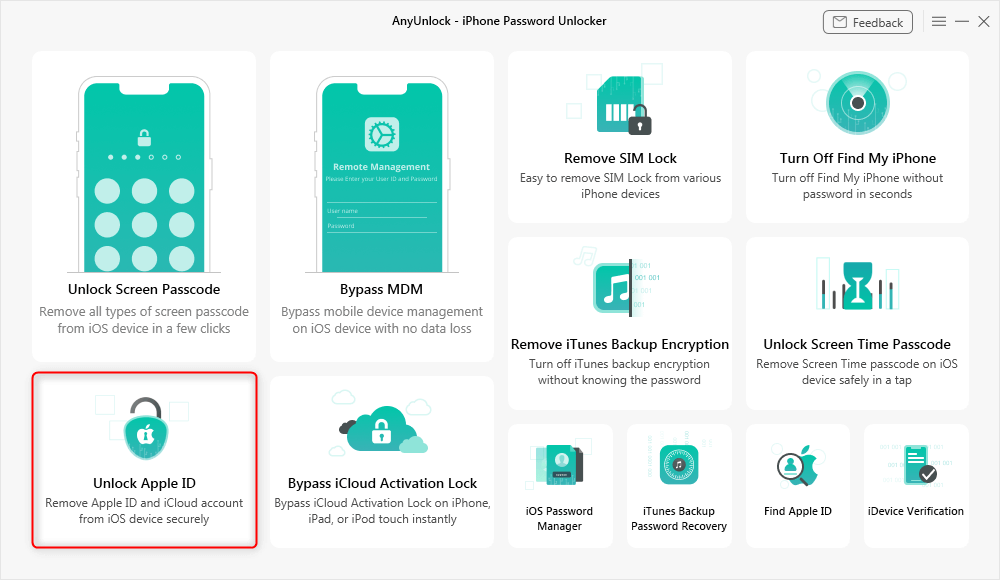
Click Unlock Apple ID from the Homepage
Step 2: Proceed with Start Now
Next, hit “Start Now” and plug your iPhone into the computer via USB.
Step 3: Choose “Unlock Now”
Finally, click the “Unlock Now” button in AnyUnlock tol begin the process of removing the Apple ID from the device.
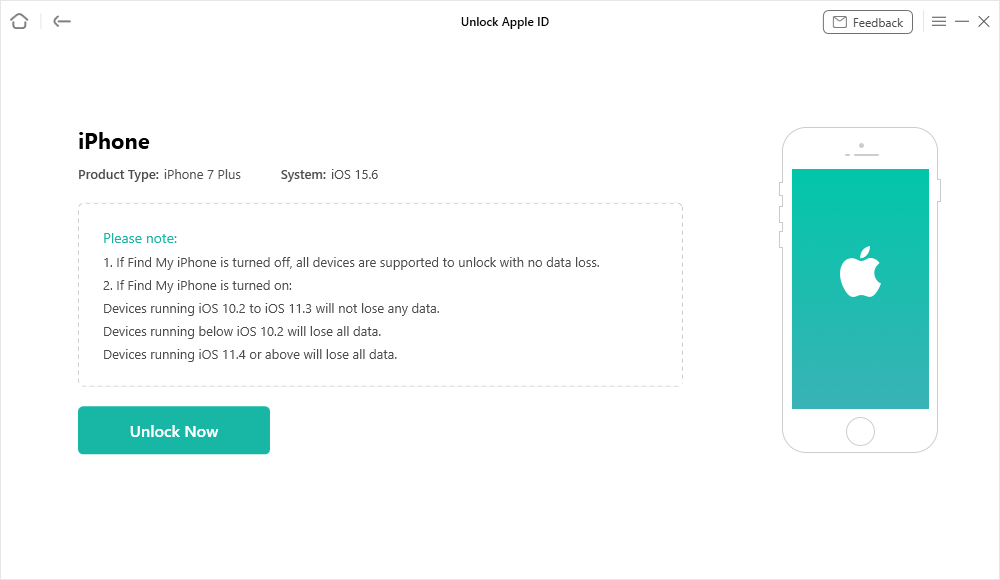
Click Unlock Now Button
Part 5. How to Unlock an Activation Lock on a Locked iPhone
AnyUnlock’s “Bypass iCloud Activation Lock” mode can perform a jailbreak-driven bypass of the Activation Lock. This means it doesn’t obtain the Apple ID password but lets you access the iPhone’s functions by skipping the Activation Lock screen.
Check out how to unlock an Activation-locked iPhone via AnyUnlock:
Step 1: Choose Bypass iCloud Activation Lock
On your computer, open AnyUnlock and select the “Bypass iCloud Activation Lock” option.
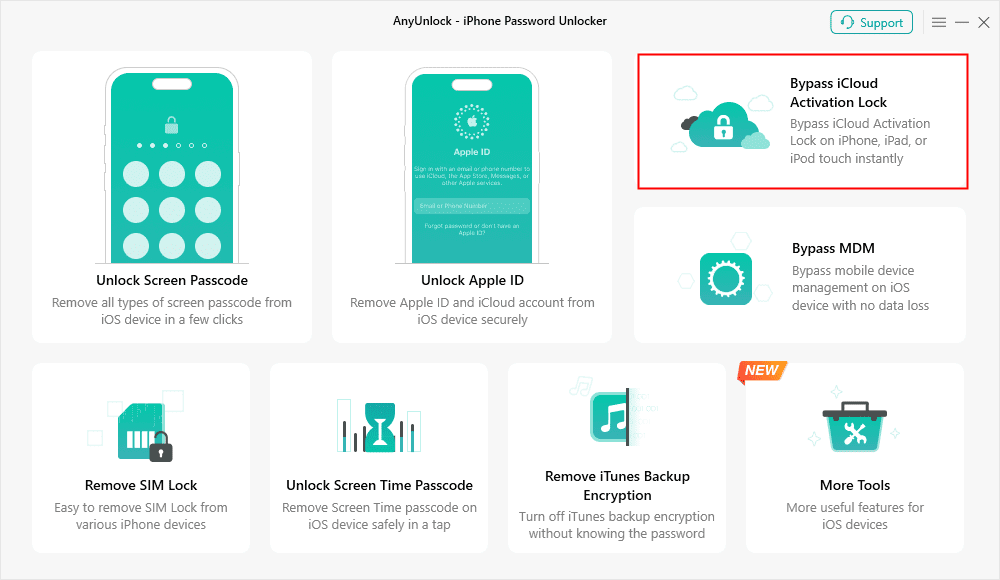
Bypass iCloud Activation Lock
Step 2: Proceed with Connecting Your iPhone
Click “Start Now” to begin and attach the locked iPhone to your computer.
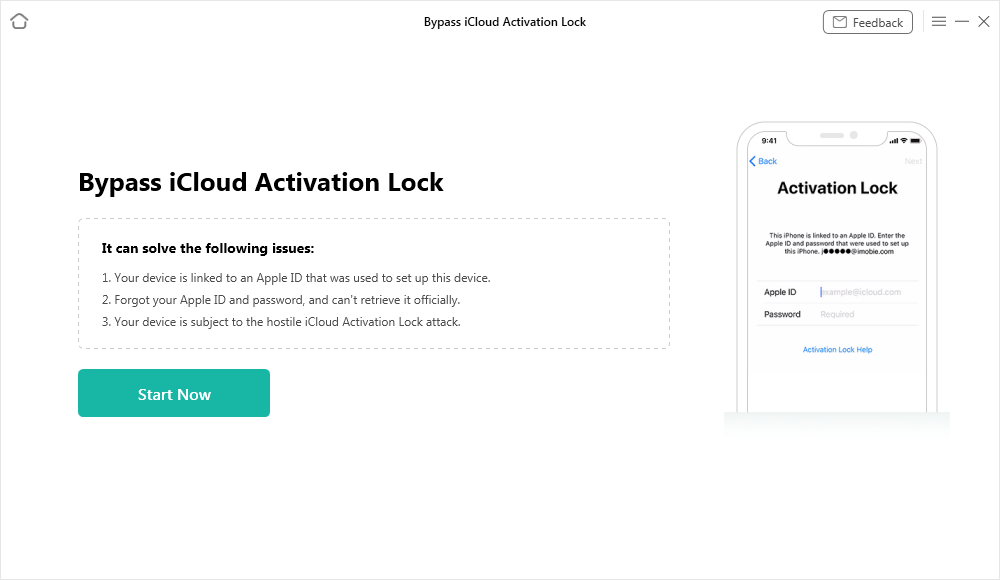
Connect Your iOS Device to the Computer
Step 3: Jailbreak Your iPhone
Once detected, AnyUnlock will display device info. Proceed by clicking the “Jailbreak Now” button.
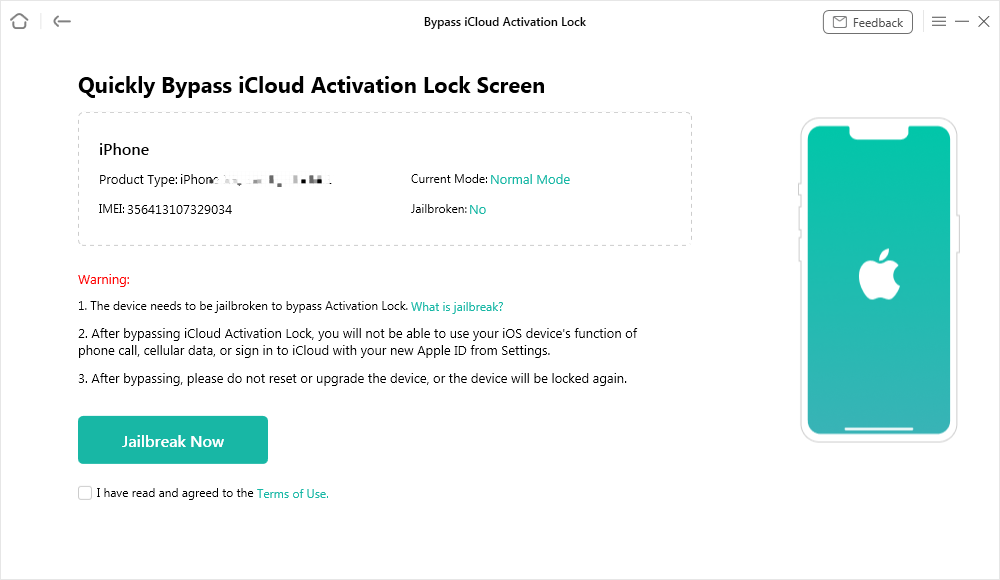
Jailbreak Your Device
Step 4: Continue to Bypass iCloud
Once the Jailbreak is done, hit “Next” to proceed to the bypass step.
Step 5: Bypass iCloud Activation Lock
Finally. click the “Bypass Now” button and the software will bypass the Activation Lock screen.
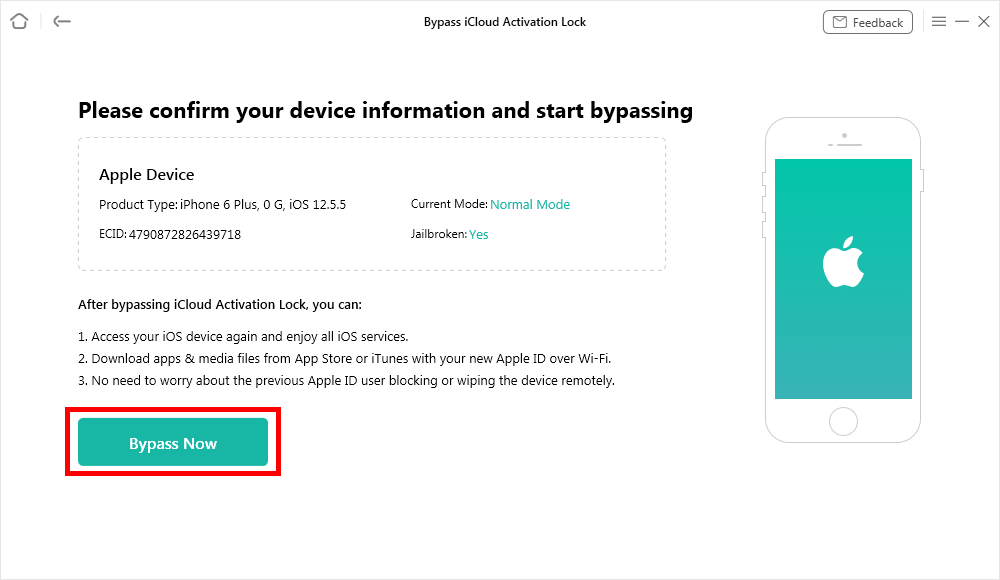
Click Bypass Now Button
Part 6. How to Unlock a Network Carrier-Locked iPhone
The usual method is to contact the carrier and wait for them to unlock it remotely, which can take days or might be denied. With AnyUnlock, however, you can attempt to unlock the carrier restriction yourself using its “Remove SIM Lock” feature.
Walk through this guide to remove a carrier lock with AnyUnlock:
Step 1: Select Remove SIM Lock
Launch AnyUnlock on your computer and click on “Remove SIM Lock” in the interface.
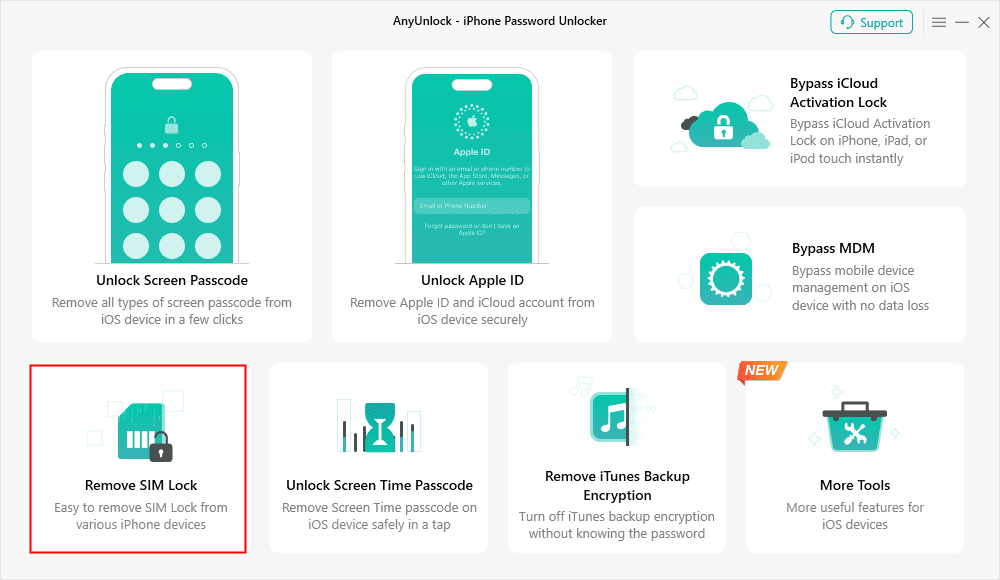
Choose Remove SIM Lock
Step 2: Connect Your iPhone to the Computer
Connect the iPhone via USB and click “Start Now” on the next screen.
Step 3: Jailbreak the iPhone
Click the “Jailbreak Now” button when prompted. AnyUnlock will guide you to jailbreak the device, as this is required to remove the SIM lock.
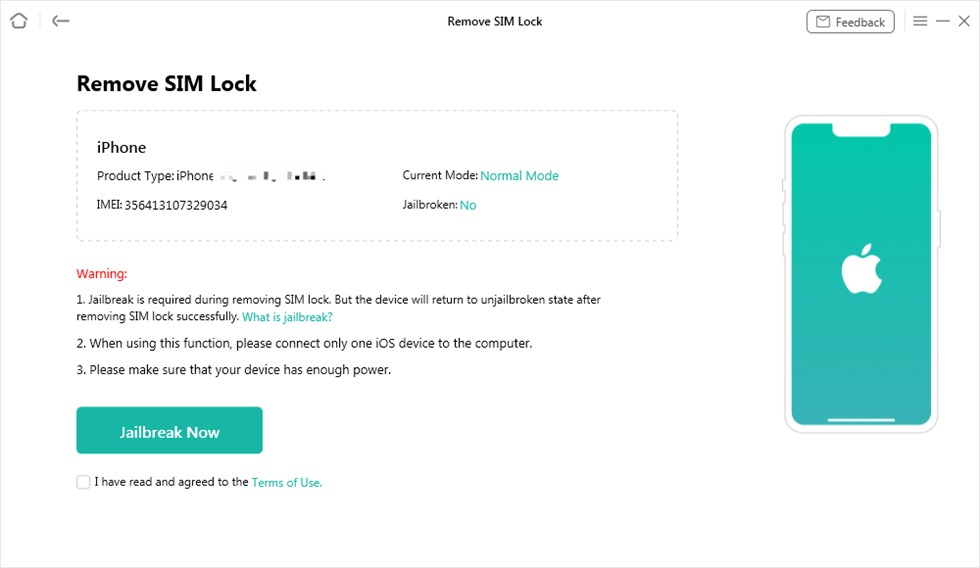
Click Jailbreak Now Button
Step 4: Disable Wi-Fi and Reinsert SIM
Before applying the unlock, you’ll need to turn off Wi-Fi on the iPhone and reinsert the SIM card.
Step 5: Unlock the SIM Lock
Now, in AnyUnlock, click the “Remove Now” button to start removing the SIM lock.
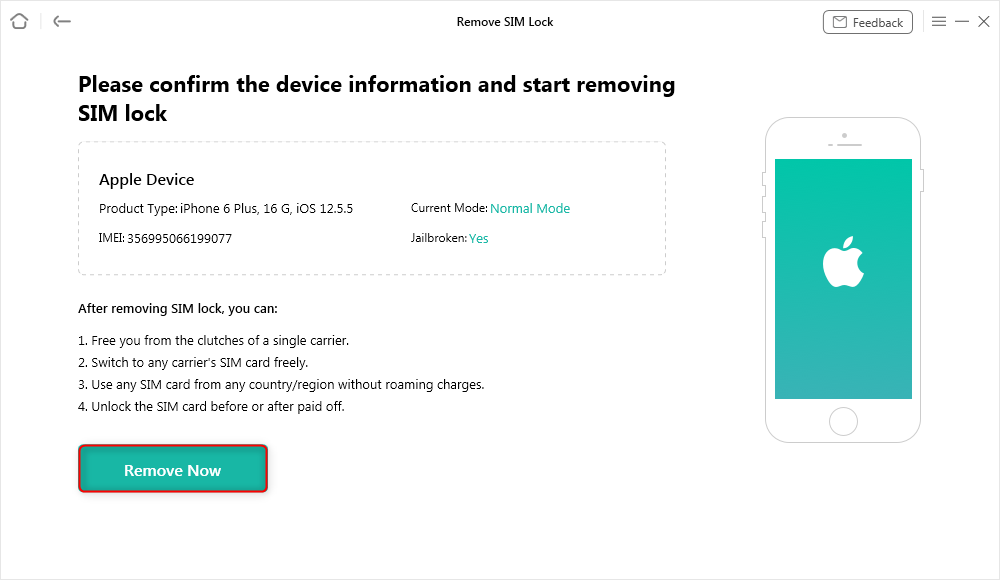
Click Remove Now
Part 7. FAQs
Q1. Can Apple unlock my iPhone with proof of purchase?
Apple may unlock iCloud Activation Locks with valid proof (e.g., original receipt), but not screen or carrier locks. Submit via al-support.apple.com.
Q2. Is it legal to unlock a second-hand iPhone?
Yes, if you legally own it. Unauthorized unlocking (e.g., stolen devices) violates Apple’s policies and local laws.
Q3. Will unlocking erase my data?
Official methods (e.g., iTunes restore) and some AnyUnlock processes may erase data. Always back up via iCloud/iTunes first.
Conclusion
This guide outlines the main lock types you may encounter and how to identify them to deal with the common question, “I bought a locked iPhone, how do I unlock it?” We also explained step-by-step solutions for almost all iPhone-related locks or restrictions.
Essentially, tools like AnyUnlock make these processes much simpler for a practical way to resolve phone locking issues. You can access your iPhone with the right method and start enjoying it fully without unnecessary delays.



Wanda Norris is a junior author in iMobie specializing in iOS tips and solutions. She keeps a close eye on every iOS update to provide practical, easy-to-understand guides that help users solve problems and master their Apple devices.
Product-related questions? Contact Our Support Team to Get Quick Solution >
