4 Ways to Share Wi-Fi Password iPhone to PC
To share an Wifi password iPhone to PC, you can use Personal Hotspot, Bluetooth, or USB tethering, but these methods only share the internet connection. To actually view or export the stored Wi-Fi password from your iPhone, use AnyUnlock to retrieve your Wi-Fi credentials directly on your computer.
Many iPhone users face trouble when trying to connect their PC to a saved Wi-Fi. A Reddit user shared frustration about finding hidden networks in a big apartment building. Such cases show why people look for easier ways to connect both devices. After seeing mixed reviews online, we tested different options to help users. This guide explains 4 simple ways to share WiFi password iPhone to PC.
Can I Share Wi-Fi Password from iPhone to PC?
It’s not possible to directly share a saved Wi-Fi password from an iPhone to a Windows PC, as Apple doesn’t provide a native option for cross-platform password sharing. The built-in feature only works between Apple devices, such as iPhones, iPads, and Macs.
However, there are still alternative ways to connect your PC to the same network — for example, by turning on Personal Hotspot, using USB or Bluetooth tethering, or viewing the saved Wi-Fi password through external tools or settings.
Way 1. Share Wi-Fi Password Using a Personal Hotspot
The first way to share WiFi password iPhone to a PC is through the Personal Hotspot. It turns your iPhone into a portable router using mobile data for connectivity. This method may drain your battery quickly, and it depends on your carrier plan. Weak signals can also lead to slow browsing or cause connection drops during extended use. Adhere to the given steps to find out how you can share a wireless network password through this method:
Step 1. Once you head to the “Cellular” section, enable the “Cellular Data” toggle. Tap the “Personal Hotspot” option and then toggle on the “Allow Others To Join.”
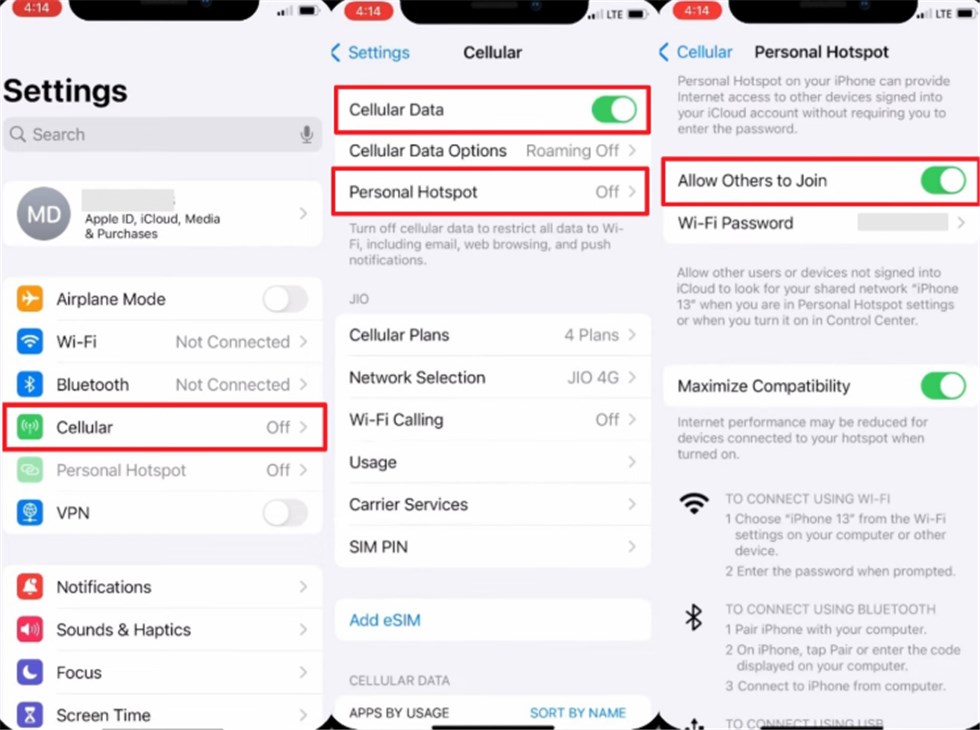
Step 2. On your PC, access the “Wi-Fi” option from the taskbar and press “Connect” on your iPhone.
Step 3. Enter your set phone’s “Wi-Fi Password” and click “Next” to connect it.
Way 2. Share Wi-Fi Password iPhone to PC via Bluetooth
Bluetooth is another simple way to share Wi-Fi password from iPhone to PC . It keeps your internet connection private but doesn’t display the saved Wi-Fi password. The setup process takes time, as it needs manual pairing for both devices. Its short range limits connections to around ten meters, suitable for nearby use. Review the following guide to share your Wi-Fi password without much hassle:
Step 1. Upon accessing the “Cellular” settings, toggle on “Cellular Data” and then head to “Personal Hotspot.” When you see the new settings screen, enable “Allows Others To Join.”
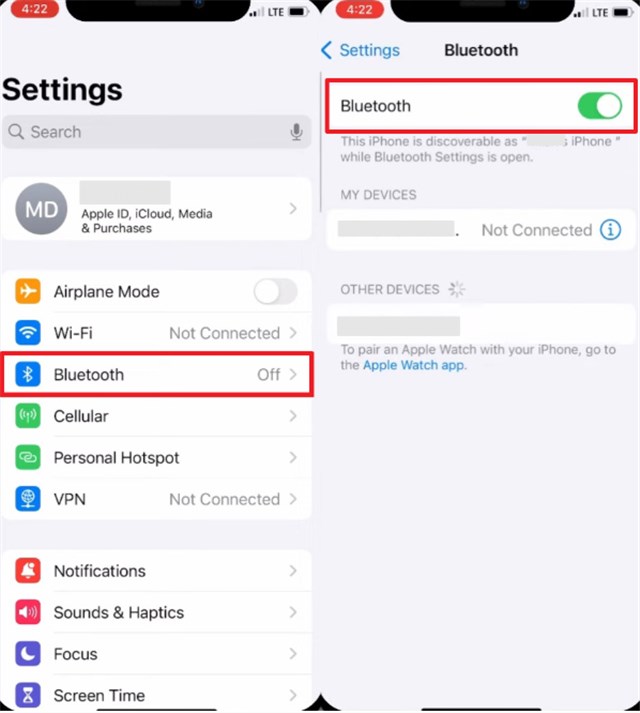
Step 2. Again, go to the settings main screen and tap the “Bluetooth” option to enable it.
Step 3. In your computer’s settings, navigate to “Bluetooth & Devices” to enable “Bluetooth.” Press the “Add Device” button that appears next to “Device.”
Step 4. When you see a pop-up, choose the “Bluetooth” option. After a few moments, select your iPhone and let the PC pair with it.
Step 5. Go back and head to the “Devices” section to find your recently connected iPhone under “Other Devices.” Click the “Three Dots” icon and choose the “Join Personal Area Network (PAN)” option.
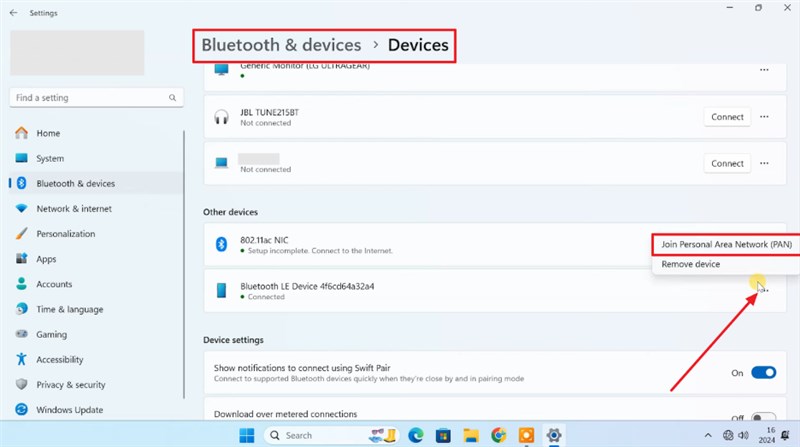
Step 6. Upon seeing a prompt, select “Access Point” and press the “Connect” button.
Way 3. Share Wi-Fi Password from iPhone to PC by USB Tethering
You can also share Wi-Fi password iPhone to PC through a simple USB tethering setup. It uses a wired link that prevents wireless issues or signal interruptions during transfers. However, it requires iTunes on Windows to install essential Apple connection drivers. The cable limits movement, and your iPhone must remain unlocked for consistency. Go through the given quick and easy steps to share your phone’s wireless internet password:
Step 1. As you tap the “Cellular” option, enable “Cellular Data” and head to “Personal Hotspot.” After accessing the next display, toggle on “Allow Others To Join.”
Step 2. Upon installing and running “iTunes,” connect your iPhone to the PC and tap “Trust This Computer.” You will then see an “Ethernet” icon on your desktop’s taskbar.
Way 4. Share Wi-Fi Password iPhone to PC via AnyUnlock [One-click]
When you want an effortless way to share WiFi password iPhone to PC, AnyUnlock is the best choice. It offers a simple iOS Password Manager that helps find saved passwords in just a few clicks. You can securely view, copy, and export all iPhone passwords to your computer. This tool also allows exporting passwords into CSV files for easy backup and organization. Beyond password management, Besides, as a complete iOS password unlocker, AnyUnlock can also help you unlock iOS screen passcode, MDM lock, Apple ID, SIM lock, iCloud Activation Lock, and other iOS locks on your iPhone/iPad.
Key Features of AnyUnlock:
- Fully supports the newly released iOS 26 without technical issues.
- Scans large password databases quickly without slowing your device.
- Also helps unlock iPhone screens or bypass forgotten iCloud activation locks.
- Finds Wi-Fi, email, and Apple ID passwords for effortless access recovery.
Free Download * 100% Clean & Safe
Detailed Steps to Share Wi-Fi Password iPhone to PC via AnyUnlock:
Step 1. Download and run AnyUnlock, head to the “More Tools” section and choose “iOS Password Manager.”
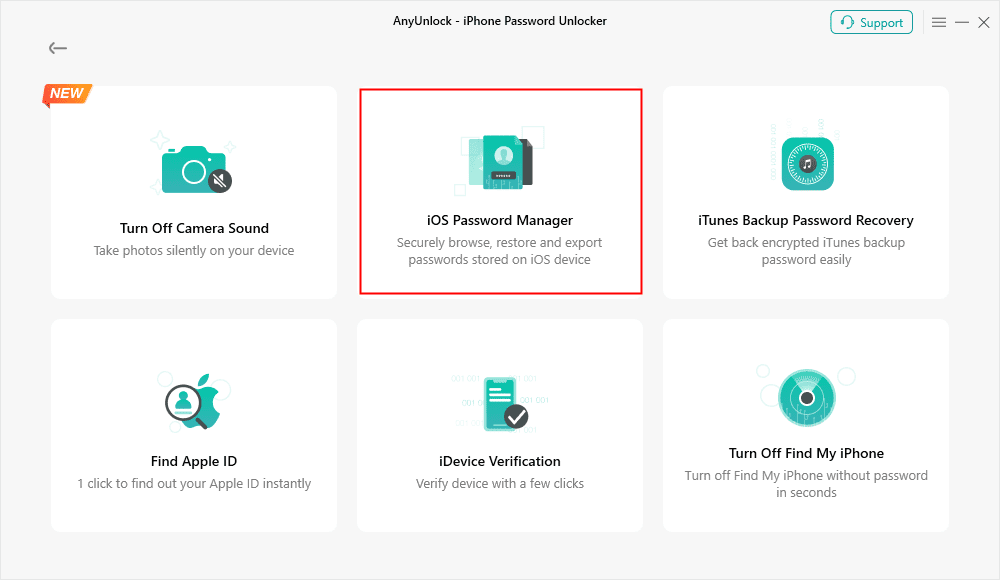
Click on iOS Password Manager
Step 2. Connect your phone to the PC and hit “Scan Now.”
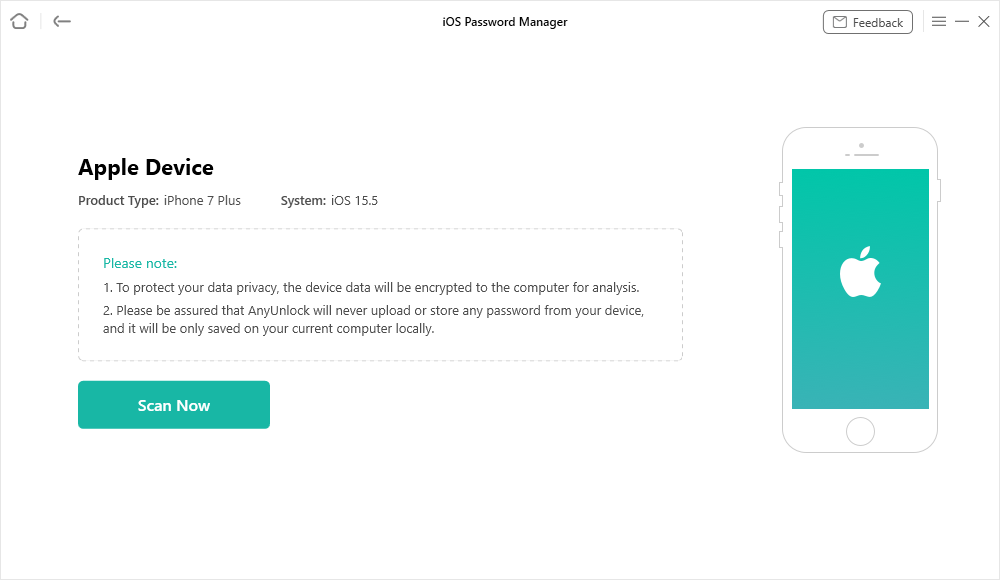
Scan iPhone to Find All the Passwords Saved on your Device
Step 3. The program scans your iOS device passwords. After that, you can view all passwords and press “Export” after selecting the items to export.
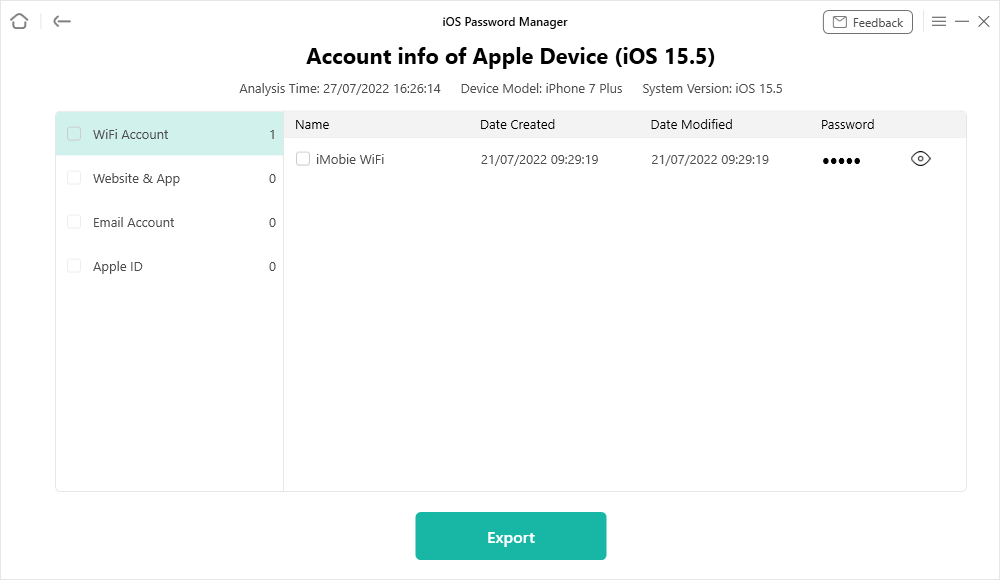
Gmail Account & Gmail Password Recovery
FAQs about How to Share Wi-Fi Password iPhone to PC
Q1. How can I transfer a Wi-Fi password from my phone to my PC?
You can share your internet using common methods like Personal Hotspot, Bluetooth, or USB tethering. For viewing and exporting actual Wi-Fi passwords securely, use AnyUnlock for a quick and safe process.
Q2. How do I share a known network on my iPhone to my PC?
To share a known wireless network password from your phone to a desktop, use the Personal Hotspot feature. Enable Personal Hotspot in the phone’s settings and connect your computer using the displayed password.
Q3. How do I AirDrop my Wi-Fi password?
First, enable “Wi-Fi” and “Bluetooth” on both Apple devices and keep them nearby. When the other device selects your Wi-Fi, tap “Share Password” on your iPhone.
Conclusion
To conclude, this article has explained multiple easy ways to share Wi-Fi password iPhone to PC. Users can choose their preferred method based on needs and device compatibility. Each method has benefits and some limitations depending on the distance or cables. For safe and easy Wi-Fi password access, AnyUnlock is highly recommended as the best tool. Download and try AnyUnlock today to manage your iPhone password effortlessly.
Free Download * 100% Clean & Safe



Joy Taylor is a seasoned technical writer with over a decade of experience in mobile technology. At iMobie, she specializes in producing in-depth content on iOS data recovery, iPhone unlocking solutions, and iOS troubleshooting.
Product-related questions? Contact Our Support Team to Get Quick Solution >
