[Guide] How to Retrieve Deleted Text Messages from iPhone Even without Backup
PhoneRescue
Retreive Your Deleted iPhone Messages in 3 Steps
- Scan your deleted text messages from iPhone or iTunes Backup/iCloud
- Preview lost messages & select only the items you want to retrieve.
- Recover text messages & iMessages to your iPhone, or to the computer.
Free DownloadAvailable for Windows & Mac
As one of your frequently used iPhone apps, the Message app may contain some important text messages and iMessages that you would like to keep forever. But what to do if you mistakenly deleted the messages during cleaning iPhone storage, updating the iOS system, or erasing your iPhone contents? Well, this guide will tell you everything about how to easily recover deleted messages from your iPhone, even when there is no iPhone backup available.
How to Recover Deleted Text Messages from iPhone without Backup
If you have not backed up your iPhone before, is there any way to find the deleted text messages? Technically, the answer is yes and the deleted texts messages are recoverable if they have not been overwritten. Cause the texts stored on your iPhone are written in the form of code and saved on the internal memory. You cannot see deleted messages on the screen, but they may be still in the internal storage unless some other new data take up its storage room.
To scan the deleted text messages hidden behind the iPhone screen, you can use one professional iPhone data recovery software – PhoneRescue, which helps you easily recover data from devices within a few clicks.
Step 1. Download and Install PhoneRescue
PhoneRescue works on Windows and Mac computers. To use PhoneRescue, you should download it to your computer, run it and connect your iPhone to the computer using a USB cable.
Free Download * 100% Clean & Safe
Step 2. Choose Recovery Mode
PhoneRescue tries its best to recover your deleted data with three recovery modes. If you have no iPhone backup, you can choose to Recover from iOS Device. Just select the mode and click the arrow button on the bottom-right corner.
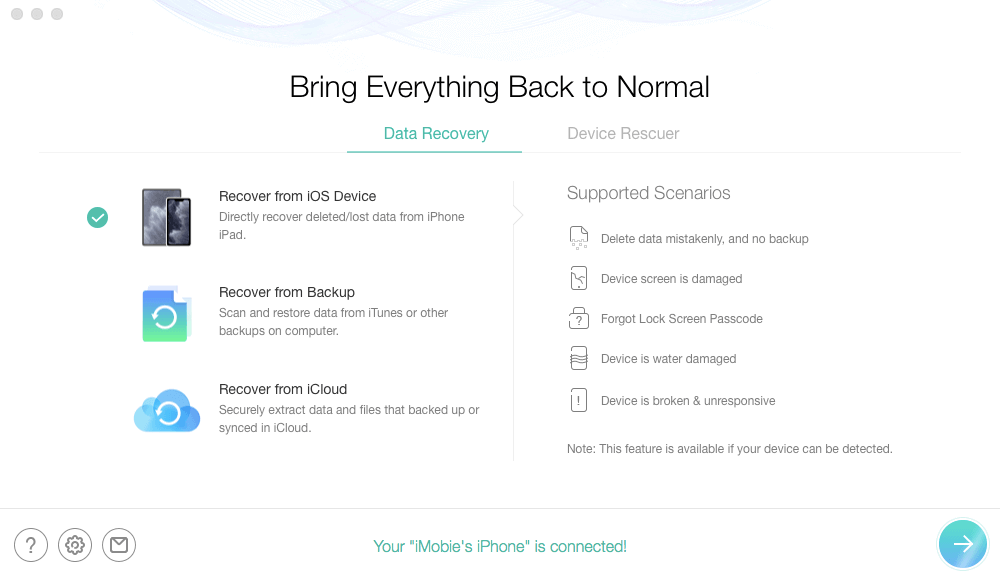
Choose Recovery Mode
Step 3. Select Your Deleted Messages
PhoneRescue helps recover more than 30 types of data. If you only want to recover messages, you can select only the Messages to scan your deleted text messages and iMessages.
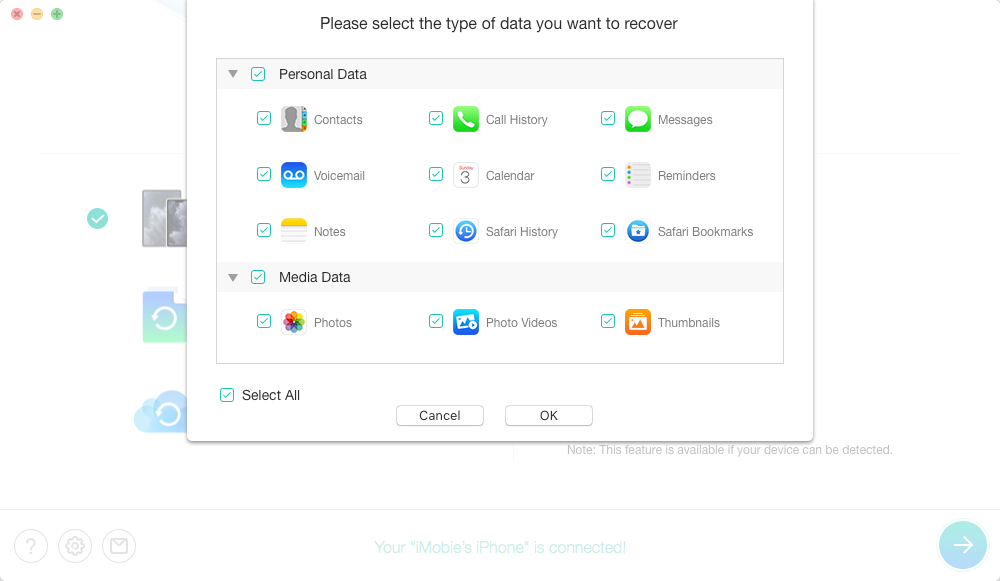
Select Messages to Scan
Step 4. Preview and Recover Deleted Text Messages.
After scanning, you can see the text conversations as below. Check the items that you want to recover, and click the To Computer or To Device button to retrieve them back to your computer or your iPhone.
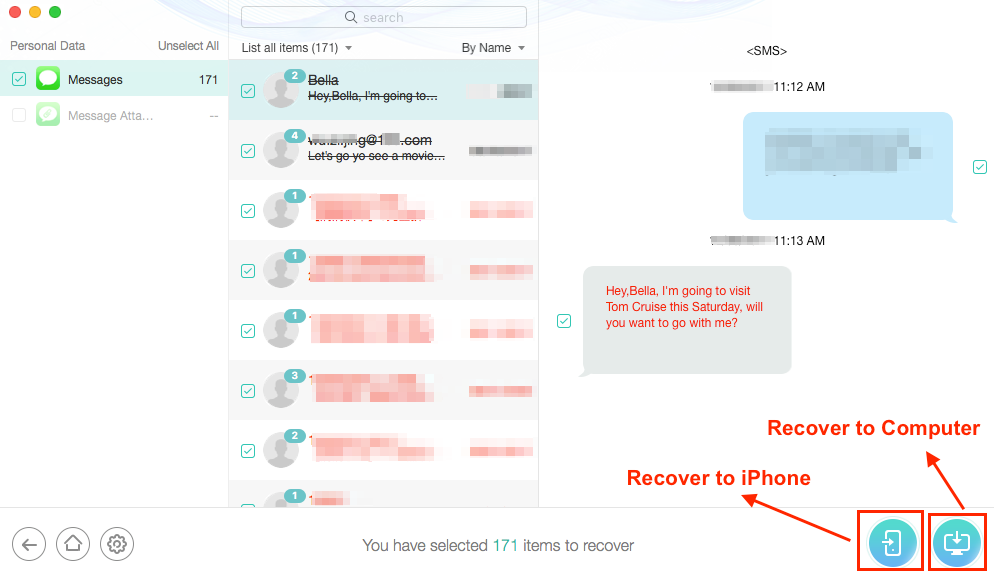
Recover Deleted Text Messages from iPhone
How to Extract Only Deleted Text Messages from iTunes Backup
If you’ve created iPhone backups using iTunes, restoring from the backup will get back all your messages to your iPhone. But as we mentioned before, restoring requires you to reset your iPhone firstly, which means it will erase all the contents on your iPhone and then use the backup files to cover the iPhone storage. As a result, you may lose something that you didn’t back up to iTunes.
So it’s a better and safer choice to use PhoneRescue to preview and extract only your lost messages from the iPhone backup instead of doing a full restore process.
Step 1. Choose “Recover from Backup”
This is another mode PhoneRescue provided, which will help you get data back from iTunes or other backups on the computer. Just choose the mode and click the right arrow at the bottom right corner of this screen to start.
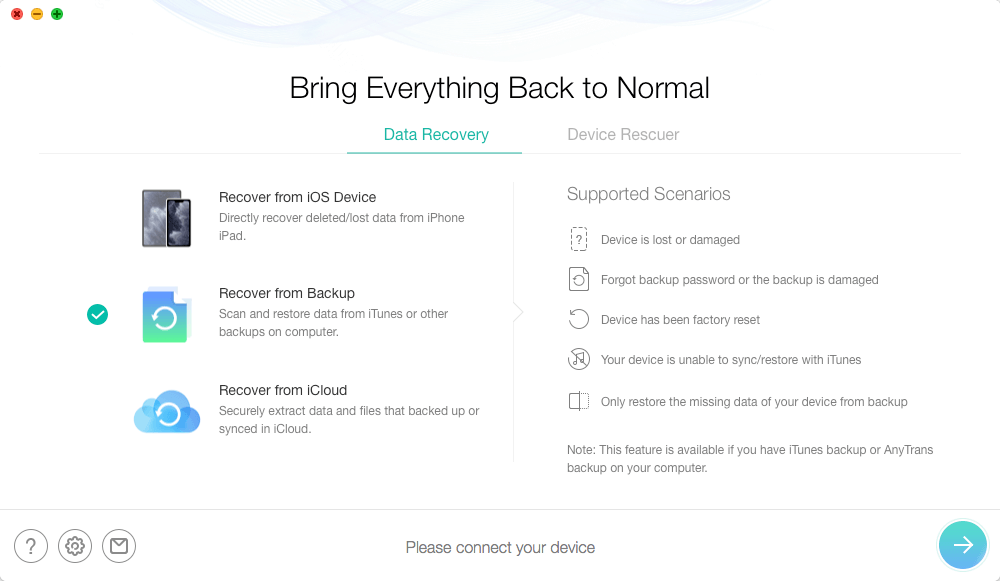
Recover from iTunes Backup
Step 2. Select iTunes Backup to Start Scan
PhoneRescue will suggest the backup files based on your connected iPhone. And you can also select backup files based on the provided information like backup size, created time, and iOS version. After you select backup and go to the next step, there is a compare feature you can use to find only those data that exist on your backup but don’t exist on your iPhone device.
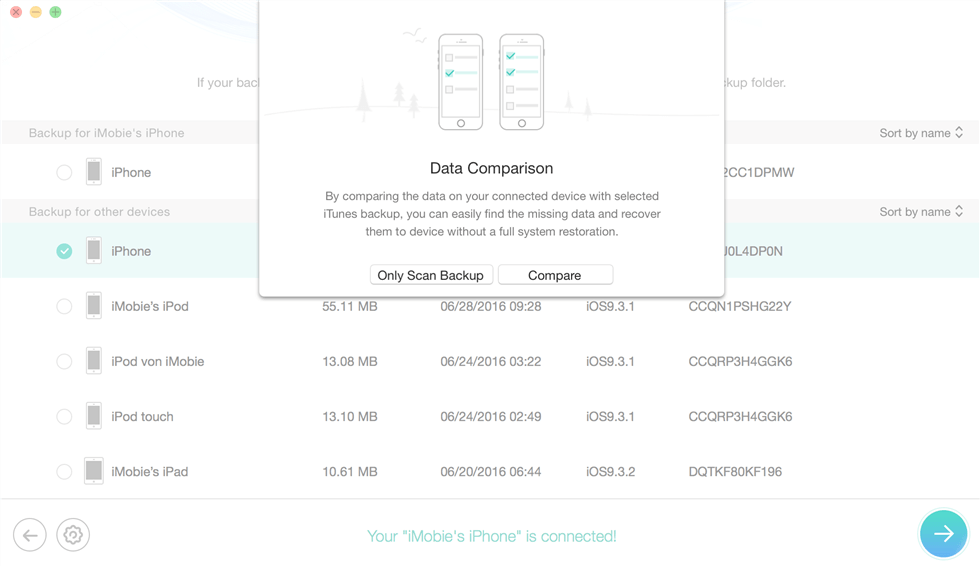
Compare iTunes Backup
Step 3. Scan, Preview and Recover Messages
The process will be similar to that of the first method to recover messages without backup. After finishing the scan process, you can preview all messages on your backup. And you can choose any message conversations and get them back to your device directly, or save them as PDF, HTML, or TXT files on your computer.
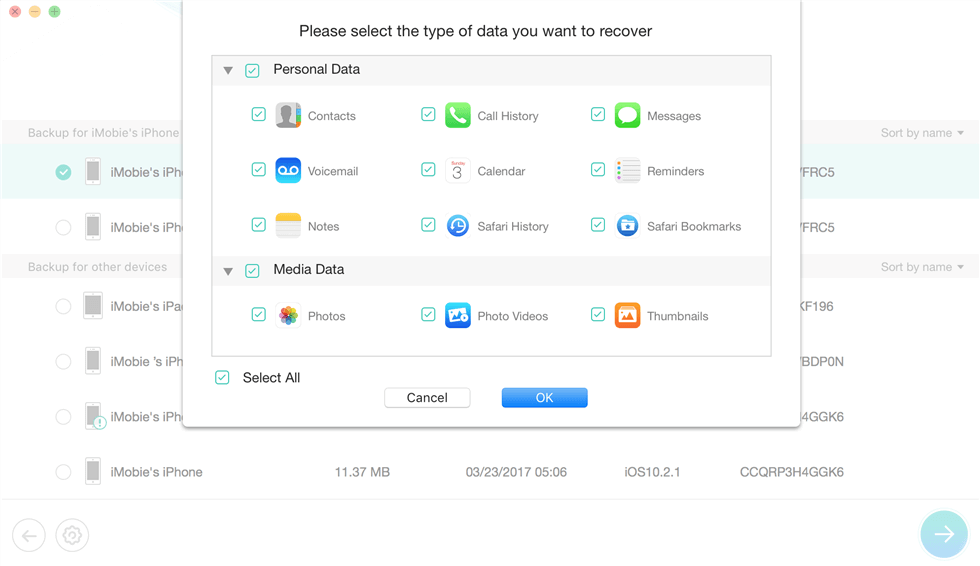
Choose Messages in iTunes Backup
How to Retrieve iPhone Texts from iCloud Backup
Similar to restoring from iTunes, restoring from iCloud will also erase your iPhone before it put all things from the iCloud backup to your iPhone. To restore deleted texts from iCloud without erasing your current data, you can also have a try on PhoneRescue. The process will be very similar. And firstly, you will download PhoneRescue, install and run it. And after you select the Recover Mode as Recover from iCloud, you can follow the below steps to finish the recovering process.
Step 1. Log into Your iCloud Account
You will be required to sign in to iCloud with your Apple ID and password to get all contents stored in your iCloud.
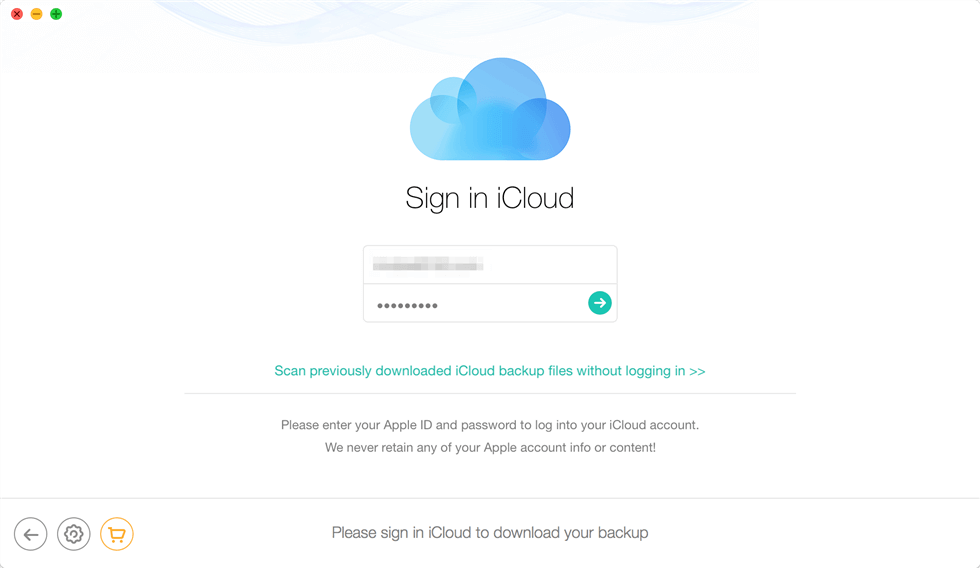
Sign in iCloud in PhoneRescue
Step 2. Download iCloud Backup
Since the text messages are stored in the iCloud backup, so you should go to the backup section to find your lost messages. And firstly you should download the backup based on the backup time, size, and any information it provided. After that, scan the backup to find your deleted text messages and iMessages.
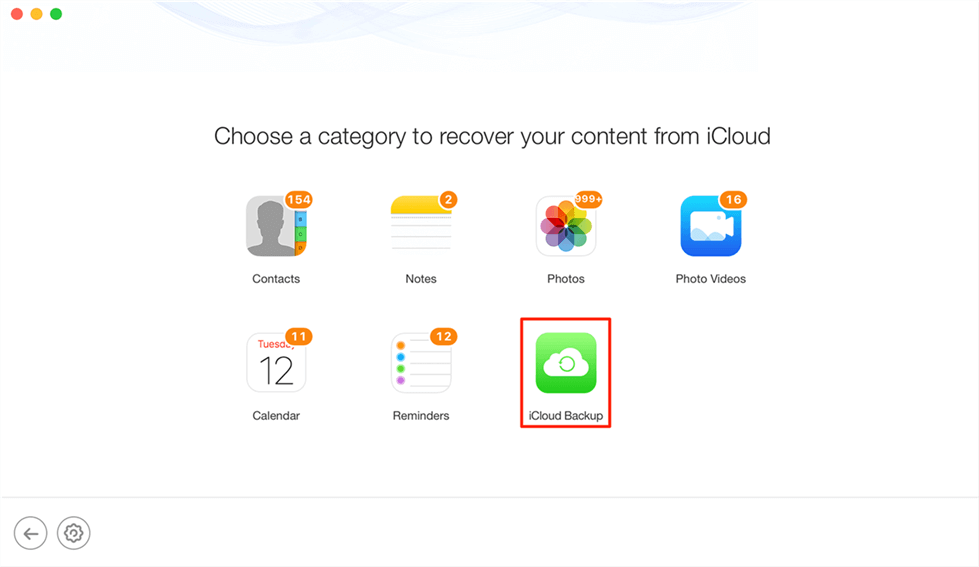
Choose iCloud Backup
Step 3. Preview and Recover Messages
Just preview all messages it shows, and check the items you want to recover. You can click To Device to recover them to your iPhone. And the To Computer button helps to save text messages and iMessages as readable documents to the computer.
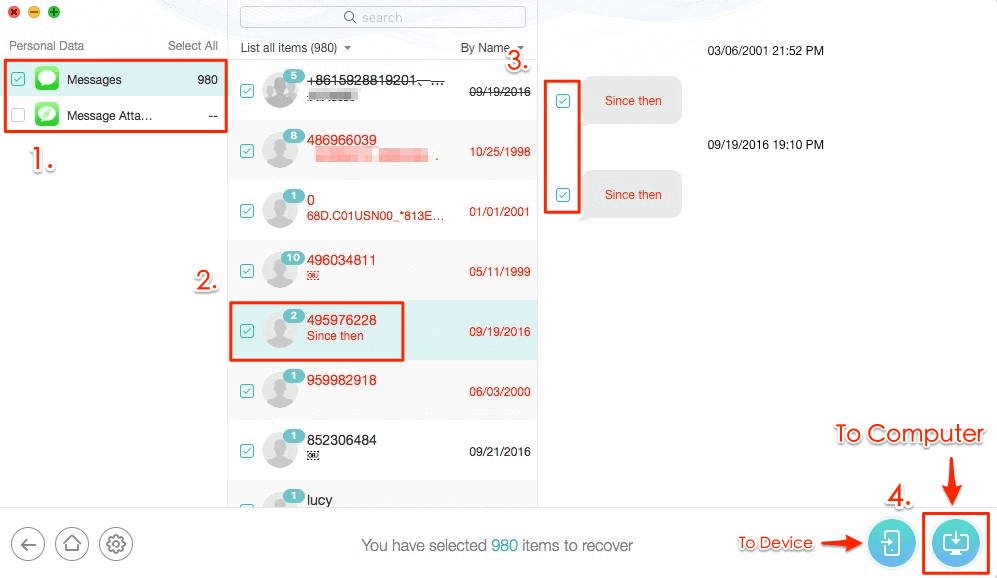
Recover Messages to iPhone or Computer
How to Recover iPhone Messages without Backup [Videos]
Bonus Tips:
1. Which Method Should Go First?
When we apply the methods, can we just take anyone to start? can we just go directly with the backup method if we have iTunes or iCloud backup? There is one order that we can follow so that we can get back the deleted iPhone text messages with the highest probability. Basically, if you have backed up your iPhone to iTunes or iCloud, we do not recommend you to directly restore your iPhone from iTunes/iCloud backup, and here are the reasons:
- iTunes and iCloud do not enable users to preview what exactly information is stored in the backup files. So there will be some difficulties in making sure whether the deleted text messages are there or not.
- Restoring iPhone from iTunes or iCloud backups requires you to reset your iPhone first, which means it first erases the data and files on your iPhone and then uses the backup files to cover the iPhone storage. There is a big problem that the deleted text message storage will be written by the backup files if the backup file does not contain what you want.
- Try some professional iOS message recovery tool like PhoneRescue – find the deleted text messages on iPhone directly; If there is no trace of them, then we can turn to the backup method; And the backup file does not provide you what you want, the last option is to ask help from your cellular carrier. So please try the methods one by one in the following order.
2. Always Backup Your iPhone
Backing up your iPhone must be the most efficient way to rescue your deleted text messages when they are gone. So no matter what you are doing with your iPhone for upgrading, restoring, jailbreaking, or more, please back up your iPhone. And the best option that we sincerely recommend is backing iPhone up regularly. If you have no idea of how to back up your iPhone, here is a guide you can refer to How to Backup iPhone to iTunes/iCloud/PC/Mac >>
3. Keep Your Messages Forever
Have you ever encountered this weird thing: Your iPhone text messages are deleted or disappear suddenly, even if you have done nothing at all? Actually, if you are suffering from this, there is a high probability that you have changed the Message History option in Settings, where there are three choices for keeping messages: 30 days, 1 year, and forever. So if you have selected the 30-days or 1-year option, when the time is up, the messages will be deleted automatically. So why not check it now and set it to forever?
The Bottom Line
The above are all methods to recover deleted iPhone messages, you can choose the one you need. If you have any questions about this article, please contact us. At last, don’t forget to download the free trial of PhoneRescue for iOS to have a try!
Free Download * 100% Clean & Safe


Work for iMobie team for 5 years as well as an Apple fan, love to help more users solve various types of iOS or Android related issues.
Product-related questions? Contact Our Support Team to Get Quick Solution >
