Facing a locked game that restricts your progress based on your physical location can be a significant obstacle. If you play a location-based mobile game that requires traveling to different areas to unlock rare items, but you cannot physically make the trip, you are not alone. Like many players, you have probably searched for mock location apps to simulate movement, only to face pure frustration.
You install a fake GPS app, but it does not change your location. Worse, your GPS keeps snapping back to your real location, or you get hit with terrifying in-game warnings like Pokémon Go’s infamous “Error 12” (Failed to detect location), leaving you worried your account will be permanently banned.
If you do not know which mock location apps are actually reliable, or if the app requires you to navigate hidden Android Developer Options and you feel lost, you are in the right place. This procedure will show you exactly how to configure your device properly, recommend specific trusted tools, and keep your account safe from detection.
Table of ContentsHide
Best Mock Location Apps for Android: Specific Recommendations
When selecting a mock location app, you must choose between free, on-device apps and premium desktop-tethered software. A common and highly valid concern among users is: “I do not know which apps are reliable or safe to download.”
To resolve this, we have curated a list of tested, proven applications. Free apps available on the Google Play Store are a good starting point for basic testing, but they often trigger modern game detection methods (like Error 12). Conversely, premium desktop-tethered solutions are specifically designed to bypass strict anti-cheat engines safely.
1. Free On-Device Apps (Best for Basic Testing)
- Fake GPS Location by Lexa: A lightweight and long-standing app on the Play Store. It works well for testing geo-restricted websites and basic apps, but is not suitable for modern games as most anti-cheat systems can detect it.
- GPS Emulator: A free and user-friendly tool for simple location spoofing. However, it lacks advanced movement simulation, making it less effective for avoiding detection in games.
2. Premium Desktop-Tethered Tools (Best for Gaming & Safety)
- MocPOGO / iToolab AnyGo / Tenorshare iAnyGo: Industry-leading desktop-based spoofing tools. Install them on your PC or Mac, connect your phone via USB, and control your device’s location directly from your computer. They offer realistic movement speeds, customizable routes, and built-in cooldown timers to help avoid detection and bans.
Comparison: Free Apps vs. Desktop-Tethered Tools
| Feature/Metric | Free Play Store Apps | Premium Desktop-Tethered Tools |
|---|---|---|
| Success Rate | Low to Moderate (frequent Error 12) | Very High (bypasses most game restrictions) |
| Time Cost | High (requires frequent troubleshooting) | Low (reliable, plug-and-play setup) |
| Technical Skill | Moderate (manual system tweaks) | Beginner-friendly (software handles the heavy lifting) |
| Safety Risk | High (frequent account bans or warnings) | Low (built-in anti-detection algorithms) |
| Movement Simulation | Basic point-to-point jumping | Realistic routing, variable speeds, joysticks |
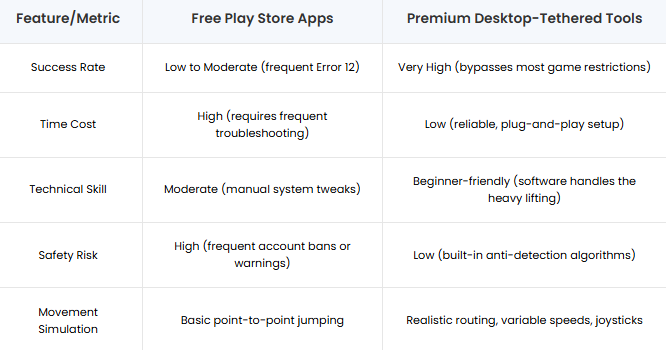
For users who value their game accounts and want a guaranteed outcome, desktop-tethered software is the only recommended solution. These tools do not just jump your location instantly; they simulate actual human walking, cycling, or driving, keeping your account safe from automated detection.
How to Set Up Location Spoofing (Step-by-Step)
Configuring your device can feel overwhelming, especially because menus vary significantly between Android versions and manufacturers (like Samsung vs. Google Pixel). Below are the specific steps for both on-device and desktop-tethered setups.
Part 1: Unlocking Developer Options
Whether you use a free app or a premium desktop tool, you must first unlock Android’s hidden Developer Options menu.
- Access Device Settings: Open your device Settings and scroll down to About Phone.
- Find the Build Number (Device Differences):
– On Google Pixel / Motorola: The Build Number is located at the bottom of the About Phone page.
– On Samsung (One UI): Tap Software Information first to reveal the Build Number. - Unlock Developer Mode: Tap the Build Number seven times. Enter your PIN if prompted until you see “You are now a developer!”
- Locate Developer Options: Go back to the main Settings menu. You will now find Developer Options (usually at the bottom or under the System menu).
Part 2: Desktop-Tethered Setup (Highly Recommended)
If you are using a premium tool like MocPOGO or iAnyGo on your PC/Mac to protect your game account, follow these exact setup steps:
- Enable USB Debugging: In Developer Options, scroll to the Debugging section and turn on USB Debugging.
- Connect to Computer: Use a high-quality USB cable to connect your Android phone to a PC or Mac.
- Authorize Connection: When prompted on your phone, select “Allow USB debugging”, check “Always allow”, and tap OK.
- Launch Spoofing Software: Open your desktop spoofing tool, select your device, and use the map interface to change your location. The software will sync with your phone’s GPS automatically.
Part 3: On-Device Free App Setup
If you are using a free app directly on your phone, you must manually assign it:
- Open Developer Options: Scroll within Developer Options to find the Location or Debugging section.
- Select Mock Location App: Tap Select mock location app.
- Choose Your App: Pick your installed spoofing app (e.g., GPS Emulator) from the list.
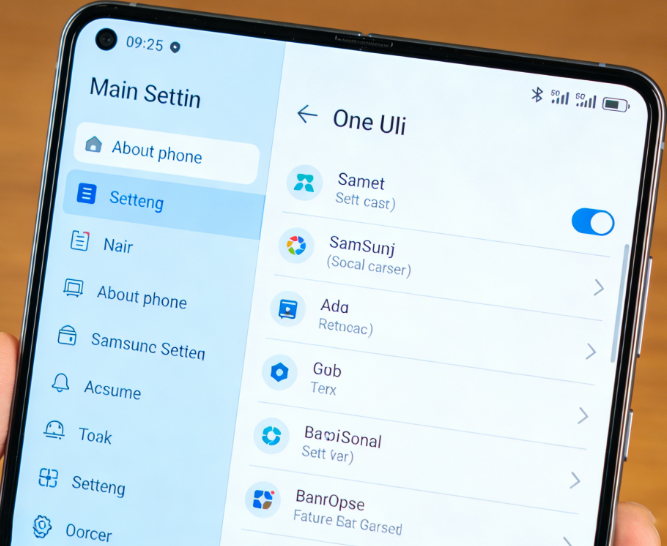
Android 14 & 15 Quirk – Background App Limits: If you are running Android 14 or 15, the operating system aggressively closes background apps to save battery. If your free spoofing app gets closed, your location will instantly revert, risking a ban. You must go to Settings > Apps > [Your Spoofing App] > Battery and set it to Unrestricted.
Fixing “Rubberbanding” and GPS Override Conflicts
Even after a correct setup, you might face a highly frustrating scenario: your in-game avatar rapidly snaps back and forth between your real home and your spoofed destination. This is called “rubberbanding,” and it is the fastest way to get your account flagged.
Here is the critical expert insight to fix this: Android allows only one active mock location provider at a time. Furthermore, modern smartphones use a “Fused Location Provider,” which combines GPS satellites with nearby Wi-Fi networks and Bluetooth beacons to pinpoint your location. If your app tells the phone you are in Tokyo, but your Wi-Fi radio detects your local home router in New York, the system conflicts and overrides the mocked coordinates.
🚨 Preventing Rubberbanding: To stop apps from detecting your real location and snapping you back, disable high-accuracy location scanning. Go to Settings > Location > Location Services (or Improve Accuracy on some devices), then turn off both Wi-Fi scanning and Bluetooth scanning. Also, uninstall any unused spoofing apps to avoid background conflicts.
Disabling these secondary scanning features ensures your device perfectly follows the coordinates provided by your single, chosen tool [Internal Link Suggestion: Link the preceding phrase to ‘/best-pokemon-go-spoofing-methods’]. This is the ultimate fix for resolving rubberbanding obstacles.
Understanding Why Apps Detect Spoofing
To fully grasp how these solutions work and why games throw errors like “Failed to detect location,” it helps to understand the original purpose of the Developer Options menu.
Google did not build this menu for mobile gaming. Instead, it is an official tool designed exclusively for software engineers and Quality Assurance (QA) testers. When developing an application that relies on geolocation—like a ridesharing service or a local weather app—engineers need a reliable method to test location features without physically traveling around the world.
When you select an app in the developer menu, you are borrowing this testing architecture. The OS accepts these injected coordinates as legitimate hardware data and broadcasts them to every other application on your phone. However, aggressive game developers know this menu exists. Their anti-cheat engines are designed to scan your phone to see if “Allow Mock Locations” is active. This is precisely why free on-device apps fail, and why desktop-tethered tools (which push data over a USB debugging bridge rather than directly triggering the on-device mock location flag) are vastly superior for evading detection.
Bonus Recommendation: FoneLora Location Changer
If you’re looking for an easy-to-use GPS spoofing solution beyond the apps listed above, FoneLora Location Changer is another option worth considering.
FoneLora Location Changer helps Android and iPhone users change their GPS location with just a few clicks. Besides setting a virtual location anywhere in the world, it also supports route simulation and movement customization, making it useful for location-based apps, games, and privacy protection.

Frequently Asked Questions
Even after configuring your setup perfectly, you might still have a few remaining questions about compatibility and performance.
- What are mock location apps?
- They are software tools designed to feed artificial GPS coordinates to your phone’s operating system, tricking your device into believing it is in a different physical location than it actually is.
- What is the best mock location app for Android?
- The best tool depends on your needs. For simple website testing, free apps like GPS Emulator work fine. For gaming and avoiding account bans (like Error 12), premium desktop-tethered software like iAnyGo or MocPOGO is the superior, necessary solution.
- Why is my fake GPS location not working on some apps?
- If spoofing works in Google Maps but fails in games, it is because advanced applications use different verification methods. While simple apps strictly read your GPS coordinates, games scan for the active developer flags, analyze altitude data, or check your IP address.
- Do I need root to spoof my location?
- No. Standard spoofing can be achieved securely through Developer Options and USB Debugging without rooting your device.
Conclusion
The best mock location app for Android depends on your specific needs, whether it’s gaming, privacy protection, social apps, or testing location-based services. The apps introduced in this guide offer different features and levels of customization, so you can choose the one that fits your requirements best.
If you prefer a desktop-based solution with more control over virtual locations, FoneLora Location Changer is also worth trying. It provides an easy way to change GPS locations and simulate movement, making location spoofing more flexible and convenient. By selecting the right tool, you can enjoy a safer and more customized location experience on Android.


Hot Topics
