How to Change Your App Store Region (The Official Method)
Quick Answer:
To change your App Store region officially, open your iPhone Settings, tap your name, and select Media & Purchases. Tap View Account, authenticate, and choose Country/Region. From there, you can select your new country, agree to the Terms & Conditions, and enter a valid local payment method for the new region.
If you have a local payment method for the country you want to switch to, and no active subscriptions blocking you, the official method is straightforward.
Here is the exact step-by-step process to change the App Store country on your iPhone:
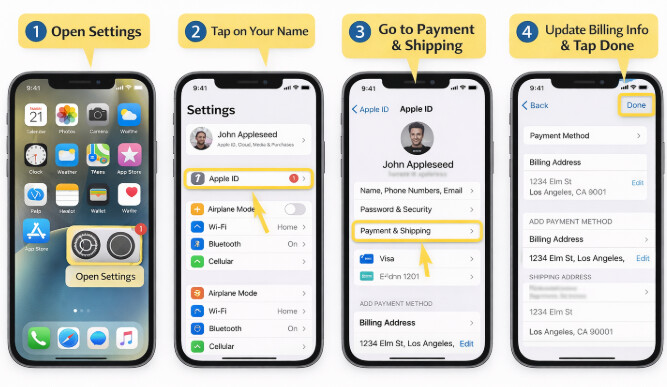
- Open the Settings app on your iPhone and tap your name at the top.
- Tap Media & Purchases, then select View Account. (You may be asked to sign in with your Face ID or password).
- Tap Country/Region.
- Tap Change Country or Region.
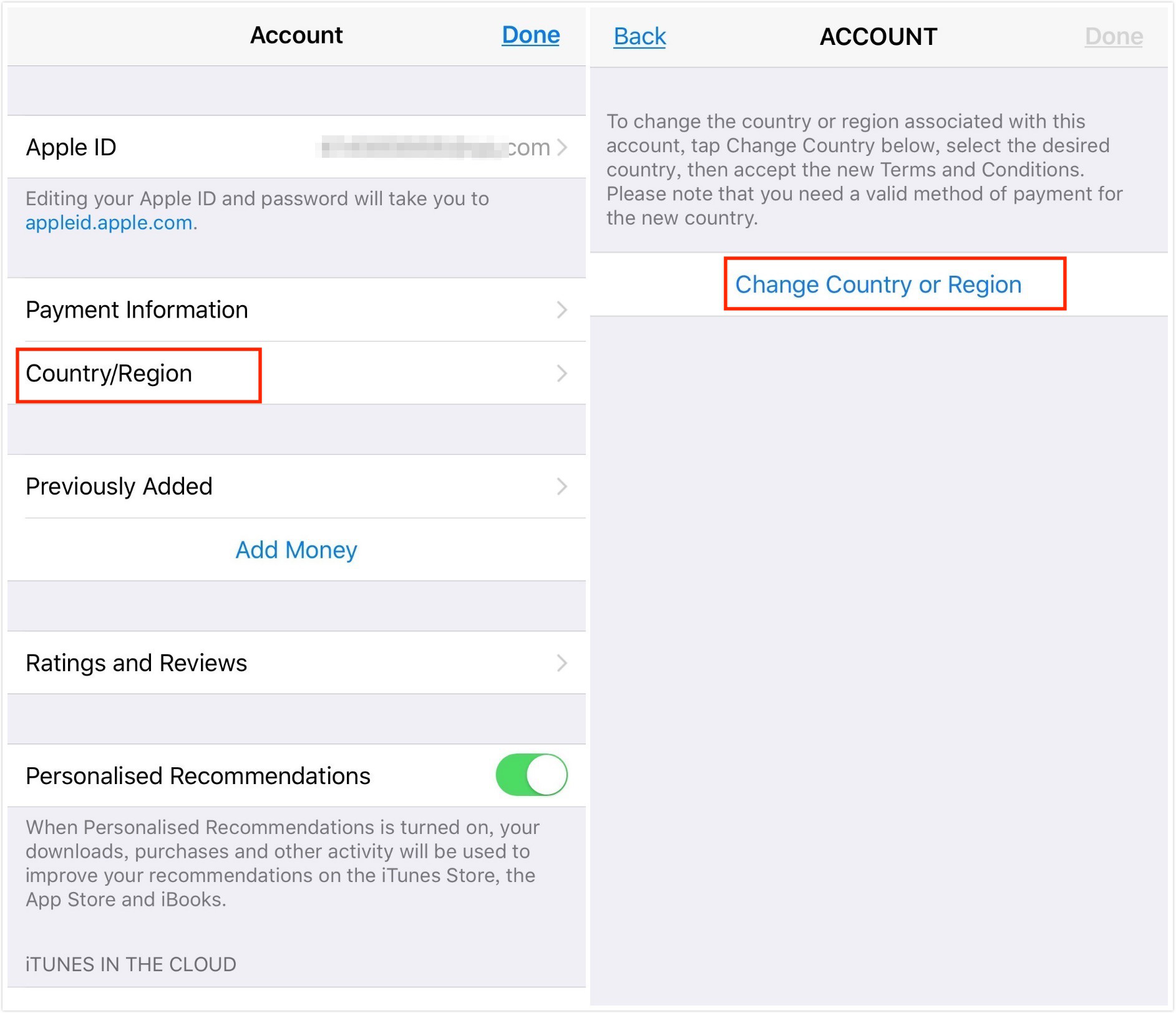
- Scroll through the list and select your target country or region.
- Review the Apple Terms & Conditions, then tap Agree in the top right corner, and tap Agree again to confirm.
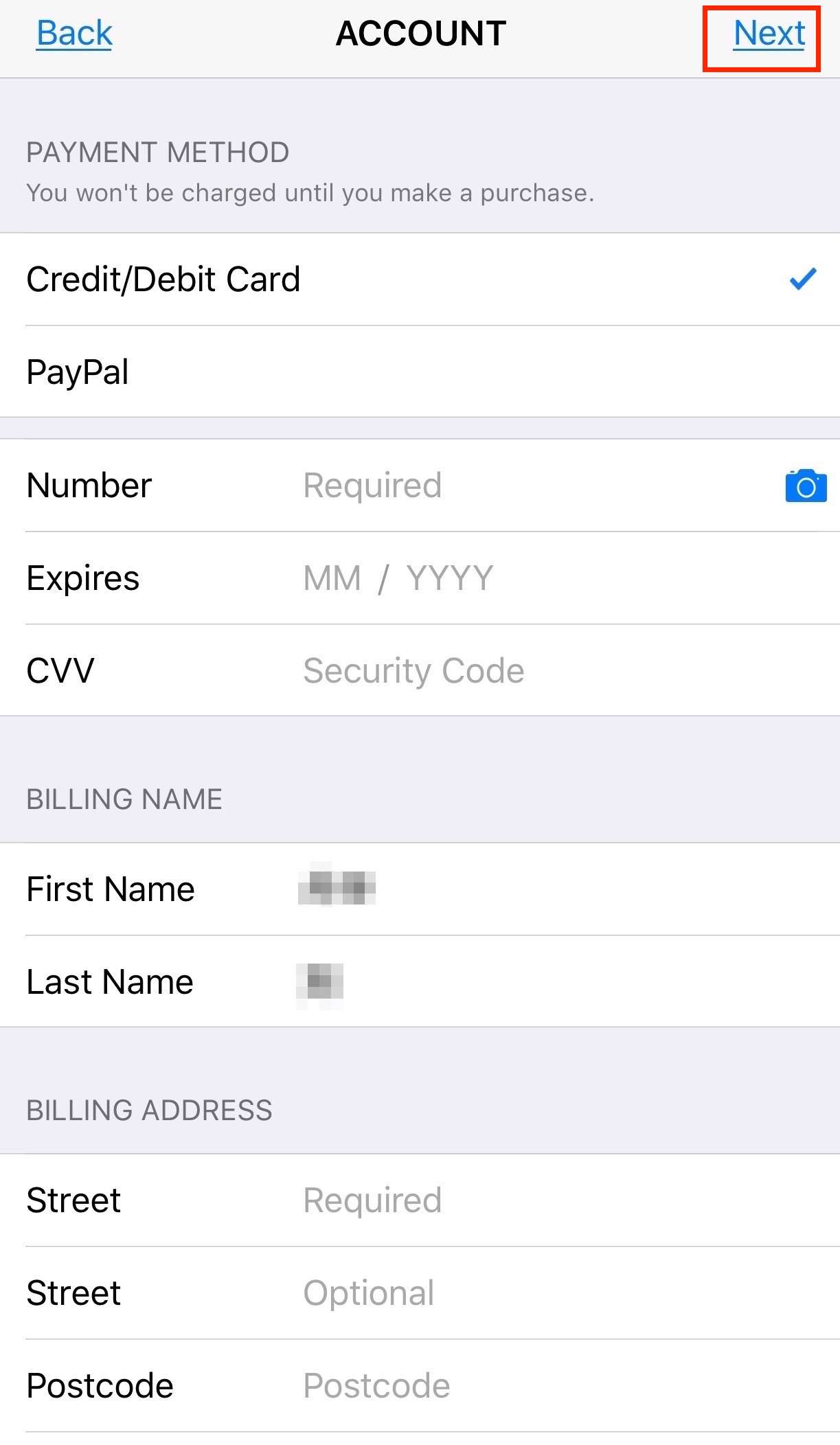
- Select a payment method and enter your new payment information and billing address. (You must have a valid local payment method for this specific country).
Why Can’t I Change My App Store Country?
If you just tried the official method above and found the “Country/Region” option greyed out, or if the process failed, you are not alone. Apple has strict prerequisites that block users from changing their App Store region.
Before you can officially migrate your primary Apple ID to a new country, you must resolve these common blockers. Use this checklist to diagnose why your region change is failing:
- Active Subscriptions: You must cancel all active Apple subscriptions (like Apple Music, Apple TV+, or third-party app subscriptions tied to your Apple ID) and wait for the current billing period to end completely.
- Store Credit: You cannot change regions if you have a remaining Apple ID balance. You must spend your store credit entirely.
- Payment Method: You must have a valid credit card or billing address that matches the target country. You cannot use a US credit card for a UK App Store account, for example.
- Family Sharing: If you are part of a Family Sharing group, you may need to leave the group before Apple allows you to change your region.
- Pre-orders or Movie Rentals: You must wait for any pending pre-orders, movie rentals, or season passes to complete, and wait for any pending store credit refunds to process.
For many users, cancelling all subscriptions and losing access to their Apple Music library just to download one foreign app is incredibly frustrating. Fortunately, there is a much easier way.
The Best Workaround: Create a Second Apple ID
If you lack a foreign payment method or do not want to cancel your active subscriptions, the most practical workaround is to simply create a second Apple ID dedicated to the target country.
This method allows you to download region-restricted apps without breaking your primary account setup or losing your Apple Music library.
Follow these steps to download foreign apps using a secondary Apple ID:
- Sign out of the App Store: Open the App Store, tap your profile picture in the top right corner, scroll all the way to the bottom, and tap Sign Out. (Note: This only signs you out of Media & Purchases, not iCloud. Your photos and messages remain untouched).
- Create a new Apple ID: Go to your browser and visit the official Apple ID creation page. Fill in the details, and crucially, select your target country in the Country/Region dropdown.
- Bypass the payment requirement: Verify your email and phone number. When asked for a payment method on the new account (usually when first signing into the App Store), select None.
Selecting “None” works perfectly for downloading free foreign apps. If you want to purchase a paid app, you will need to buy a region-specific Apple Gift Card online and redeem it to this new account.
- Add a billing address: You will still need a billing address for the new country. You can use a random address generator for that specific country to fill in the required street, city, and zip code fields.
- Download your app: Search for the region-locked app in the App Store and download it.
- Switch back: Once the app is downloaded, sign out of the secondary Apple ID and sign back into your primary account. The downloaded app will remain on your phone and receive updates.
App Store Region vs. Device GPS: Why Your Downloaded App Still Might Not Work
By now, you have successfully downloaded your foreign app using a region change or a secondary Apple ID. But when you open it, you might be greeted by an error message saying “This service is not available in your location.”
Why is the foreign app you just downloaded still blocking you? The answer lies in the critical difference between your App Store Account Region and your device’s Physical GPS Location.
Changing your Apple ID country only changes the digital storefront you have access to. It allows you to download the app. However, it does absolutely nothing to change your device’s physical GPS coordinates.
Many streaming services, location-based games, and region-locked social apps do not care where your Apple ID is registered. Instead, they ping your phone’s internal GPS chip to verify your real-world physical location before granting you access.
If the app enforces real-time physical GPS checks, downloading it was only Phase 1. To actually use the app, you need a secondary solution to simulate a compatible GPS location on your device.
Phase 2: How to Change Your Device’s GPS Location for Region-Locked Apps
If you have successfully downloaded the region-locked app but find yourself blocked by in-app physical GPS restrictions, you need a way to change the location your phone reports to the app.
This is where Fonelora Location Changer becomes relevant. For users who need to bypass in-app physical GPS checks, Fonelora provides a guided desktop workflow for iPhone and Android location change on supported devices.
Fonelora Location Changer does not change your App Store account region. It acts as the essential Phase 2 step, simulating physical GPS coordinates for apps that track real-time location.
Here is how to simulate your GPS location so you can use your downloaded app:
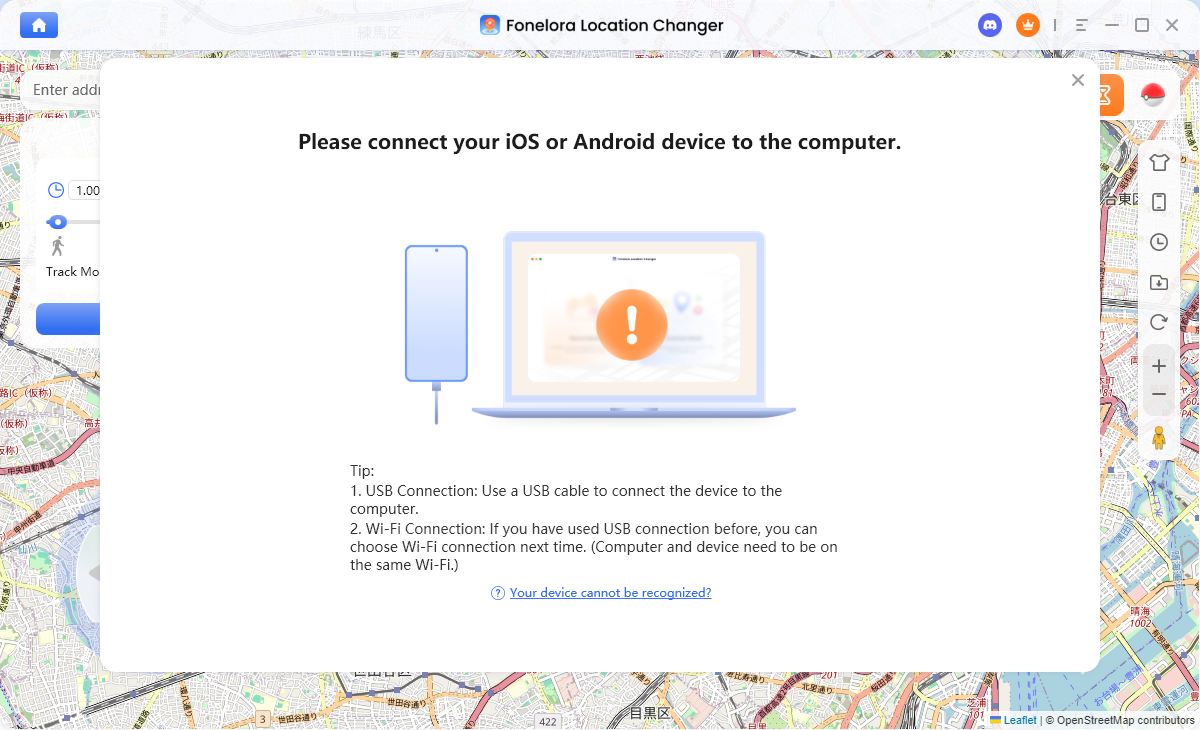
Connect your device: Download and open Fonelora Location Changer on your Windows or Mac computer. Connect your iPhone or Android device via USB or Wi-Fi (following the on-screen setup prompts).
Select Teleport Mode: Once your device map loads, choose Teleport Mode from the top-right menu.
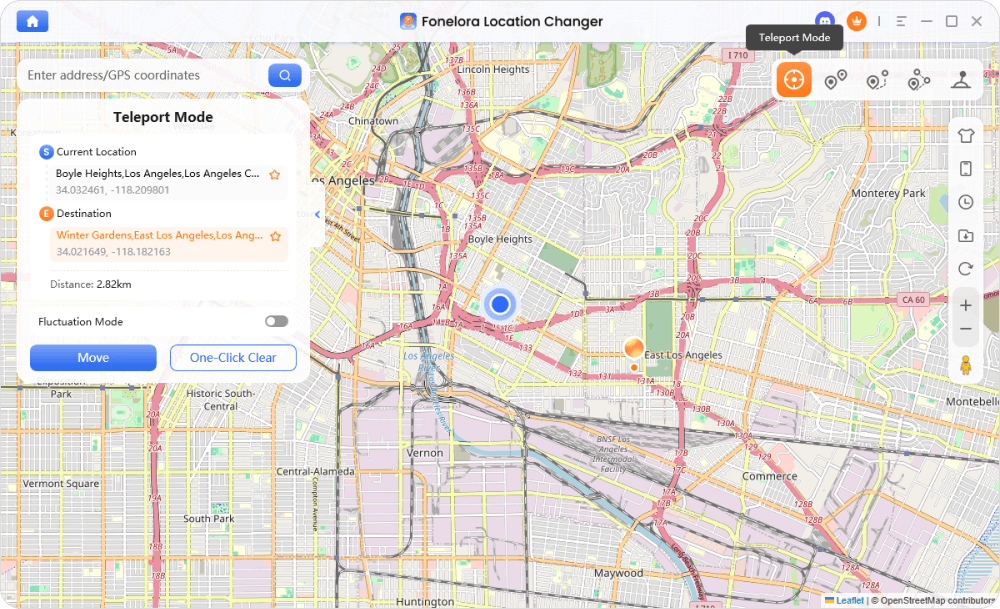
Search for the target region: Enter the city or country required by your region-locked app into the search bar.
Change Location: Click Move to update your device’s GPS coordinates to the new destination.
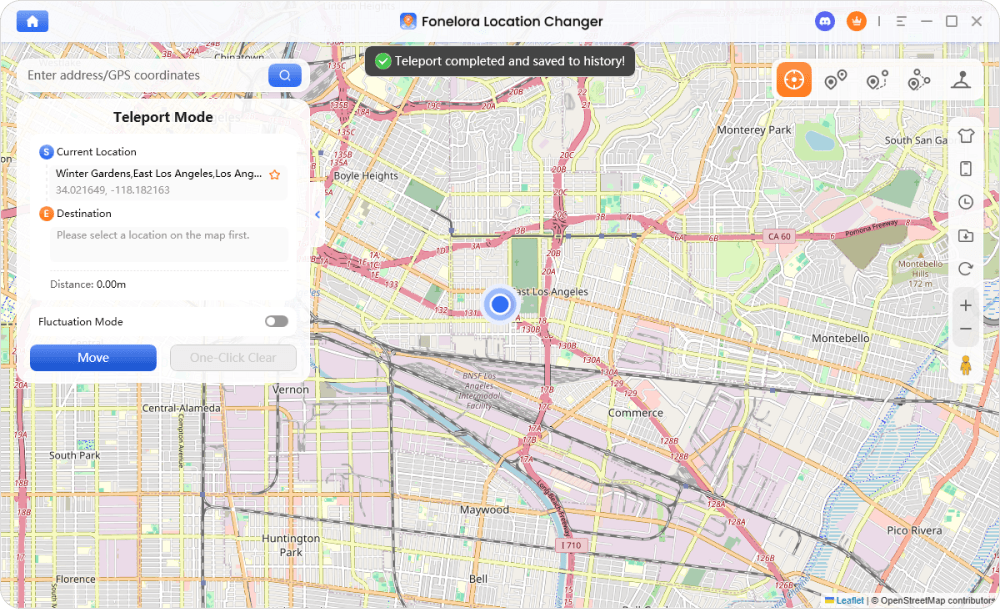
Launch your app: Open the region-locked app on your phone. It will now read the simulated GPS coordinates instead of your physical location.
Results may vary based on specific app policies and device compatibility, so always check your app’s rules regarding virtual locations.
FAQs About Changing App Store Region
- Do I lose my purchases if I change my App Store country?
- No, you do not lose your purchases, but previous purchases remain tied to the original account and region. If you change back to your original region later, your previous purchase history will still be there. However, some apps may not be available to re-download in the new storefront.
- How to change App Store country without a payment method?
- The easiest way to change your App Store country without a local payment method is to log out of your current App Store account and create a brand-new Apple ID assigned to your target country. During setup, you can select “None” when asked for a payment method.
- Does changing App Store region change my GPS location?
- No, absolutely not. Changing your App Store region only affects your Apple ID and digital purchases. It does not alter your device’s physical GPS coordinates. If an app tracks physical location, you will need a dedicated iOS GPS spoofer to simulate your movement.
- Can I create a second Apple ID for another country?
- Yes, creating a second Apple ID is often the recommended workaround. You can switch between App Store accounts to download foreign apps without affecting your primary iCloud data, photos, or messages.
- Why is my region-locked app still blocking me?
- If you downloaded the app successfully but still can’t use it, the app is likely checking your physical GPS location or IP address. You must use a GPS location changer (and sometimes a VPN) to match the required physical region.
Final Thoughts: Successfully Using Region-Restricted Apps
Accessing foreign apps and games is ultimately a two-step process. Phase 1 is getting the app onto your phone. Because official Apple ID region changes require canceling subscriptions and having a local payment method, creating a secondary Apple ID is almost always the easiest route to download the app.
However, Phase 2 is actually using the app. Since changing your App Store account does not change your physical GPS location, you may still be blocked by in-app location checks.
For users who have successfully downloaded their desired app but are blocked by real-time GPS tracking, Fonelora Location Changer provides a reliable desktop workflow to simulate a compatible GPS location on supported iOS and Android devices. By combining a secondary Apple ID with a virtual location tool, you can seamlessly access region-restricted content.
More Related Articles
Fonelora Location Changer
- Bluetooth Hardware Simulation for Safer GPS Spoofing
- Realistic Movement & Route Simulation
- No Root or Jailbreak Required
- All-in-One Solution for Games, Social Apps & Privacy