Few things cause faster panic than a broken tracking application. Consider Sarah, a parent relying on the Apple Find My app. She checks her phone, but her teenage son’s icon remains frozen at school—even though he just texted that he already left. If you are staring at your screen wondering why the app stopped updating, you are experiencing a stressful, yet common, software error.
The map might show “Location Not Available” even though their device is online, or you might quietly worry the other person turned off location sharing without telling you. Whether your tracking is delayed due to a sudden glitch, an iOS update, or a simple network drop, this guide provides the exact steps to fix it. We will explore why the app stalls and deliver the immediate methods required to restore real-time monitoring today.
Table of ContentsHide
🚨 CRITICAL: Do I Fix My Phone or Theirs?
Before you change a single setting, we need to answer the most important question: whose phone is actually broken?
A major source of frustration during troubleshooting is wasting time tweaking your own phone when the error is actually originating from the other person’s device. If your wife’s location isn’t updating, changing your Location Services does absolutely nothing. When the Find My app says “Location Not Available,” you must systematically deduce where the error is coming from.
The Step-by-Step Diagnostic Method
- Rule Out Your Local Network First: Open a web browser on your phone and load a new webpage. If it loads quickly, your internet connection is working properly and the issue is not related to your network.
- Verify Apple System Status: Check the official “Apple System Status” page and look for green indicators next to “Find My” and “iCloud Account & Sign In.” If there is a yellow or red status, it means Apple servers are down and you need to wait.
- The Verdict—Investigate the Sender’s Device: If your network is working and Apple services are online, the issue is likely coming from the other person’s device.
The Golden Rule of Find My Troubleshooting: If you can see the map but their icon isn’t moving, you need to grab their phone to perform the fixes below.
Immediate Fixes When Location Tracking Stalls
Often, a location update fails due to minor network connectivity drops rather than serious hardware failures. If a frozen map is causing concern, apply these immediate troubleshooting techniques.
🛑 IMPORTANT: Perform all of the following steps on the phone of the person whose location is missing. Doing this on your own device will not help.
1. Toggle Airplane Mode to Reset Network Signals
Sometimes, their device loses its secure connection to the cellular network, preventing accurate data transmission. Toggling Airplane mode is a fast procedure to force the device to drop its current signal and re-establish a fresh connection to the nearest cell tower.
- Open Control Center: Grab the phone and swipe down from the top-right corner of the screen to access the Control Center.
- Enable Airplane Mode: Tap the Airplane Mode icon (it will turn orange) and wait for 10–15 seconds.
- Disable Airplane Mode: Tap the icon again to turn it off, then allow a moment for the device to reconnect to the cellular network.
2. Verify iOS Location Services Settings
If the network reset does not resolve the error, verify their system preferences. An accidental settings change can easily disrupt family sharing features.
- Open Settings: Launch the Settings app on the device.
- Go to Location Services: Scroll down and tap Privacy & Security, then select Location Services.
- Enable Location Services: Make sure the main switch at the top is turned on (green).
- Check Find My Permissions: Scroll through the app list, tap Find My, and ensure it is set to While Using the App.
3. Force Refresh the Find My Application
A simple software freeze can cause the interface to display cached data instead of real-time coordinates. On their phone, swipe up from the bottom edge of the screen, pause in the middle to view open apps, and swipe the Find My app upwards to close it completely. Reopen the app to prompt a fresh ping to the network.
Pro Technique: Resolving Mismatched Apple ID Location Sources
Here is a critical expert insight that most other guides overlook, and it perfectly explains the stressful situation Sarah faced. After testing the basic fixes on her son’s phone to no avail, she eventually discovered his Find My app was actually pulling its location data from a secondary device—an iPad securely locked inside his school locker—not the iPhone in his pocket.
I wish I had known this detail earlier when troubleshooting my own family’s devices: the Apple ID menu is deeply layered and confusing, and iOS does not warn you if a Wi-Fi-only tablet sitting on your bedside table is currently broadcasting as “you.”
One of the most frequent causes of tracking errors is mismatched Apple ID location sources. If a user owns multiple Apple devices logged into the same account, the system might mistakenly designate a stationary tablet or an older backup phone as the active location-sharing hardware.
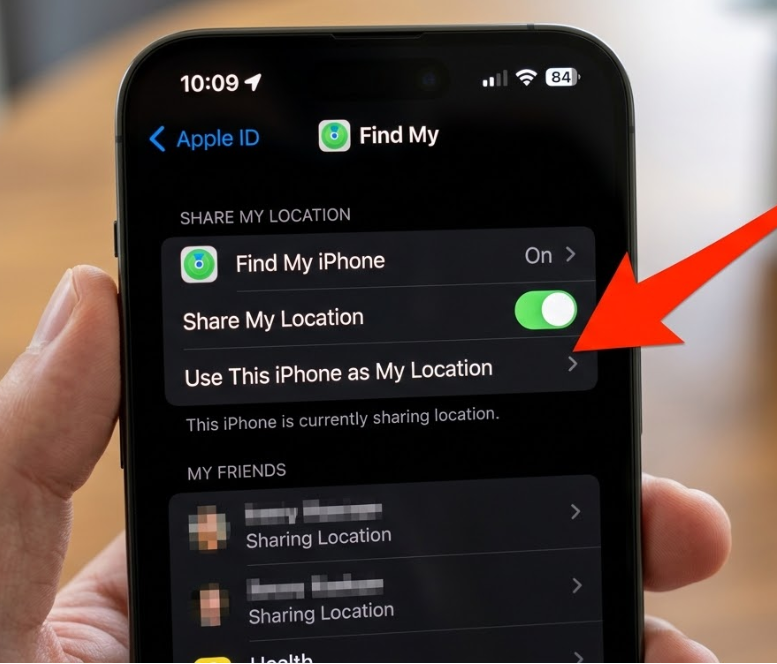
To correct this, grab the iPhone of the person who is sharing their location and perform this specific procedure:
- Open Settings: Launch the Settings app on the iPhone.
- Access Apple ID: Tap the name at the top of the screen (Apple ID banner).
- Go to Find My: Tap Find My in the list.
- Set Current Device as Location: Check the My Location field. If it does not say “This Device,” tap Use This iPhone as My Location.
This targeted method forces the iOS location architecture to prioritize the correct hardware, instantly unfreezing their spot on your map and resolving persistent tracking obstacles.
Learn More:iMoveGo: The Ultimate Guide for iOS 17 & Android 14>
Need a More Direct Way to Test Device GPS Location?
The methods above focus on fixing Apple Find My through native settings: checking the correct device, refreshing network signals, and making sure Location Services are enabled. In most family tracking situations, these steps should always come first. However, there are also cases where you may want to test whether the phone itself is reporting GPS data correctly, verify how a location-based app responds to a different position, or manage your own device location more directly during troubleshooting.
For that type of GPS testing and device-level location management, Fonelora Location Changer can be a useful desktop-based option. It helps iPhone and Android users change the GPS location reported by their device from a computer without jailbreak or root access. Instead of relying on random mobile mock-location apps, FLC lets you select a location on a map and apply it to your connected phone in a more controlled way.
This can be helpful when you need to check whether a location issue is coming from GPS data itself, test app behavior in another area, or manage your own device location for privacy-related scenarios. The basic workflow is simple: install Fonelora Location Changer on your computer, connect your iPhone or Android device, choose a target location on the map, apply the virtual GPS position, and then open the app you want to test. When finished, you can restore your real location by using the reset option or restarting your device.
Use location-changing tools responsibly. If the goal is to restore Apple Find My for family safety, start with the native Apple fixes in this guide. Fonelora Location Changer is more suitable for GPS testing, device-location management, and checking how your own phone reports location to apps.
Native Apple Troubleshooting: Network Resets and Restarts
If you have confirmed their iPhone is the active device but the location remains completely unavailable, you might be dealing with a deeper operating system glitch. Instead of downloading third-party software, stick to native Apple troubleshooting methods to clear out persistent software bugs safely.
| Troubleshooting Method | Success Rate | Time Required | Technical Skill Level | Safety Risk to Data |
|---|---|---|---|---|
| Manual Settings Checks | Moderate | 5 Minutes | Low | None |
| Standard Device Restart | High | 3 Minutes | Low | None |
| Reset Network Settings | High | 10 Minutes | Low | Low (Requires re-entering Wi-Fi passwords) |
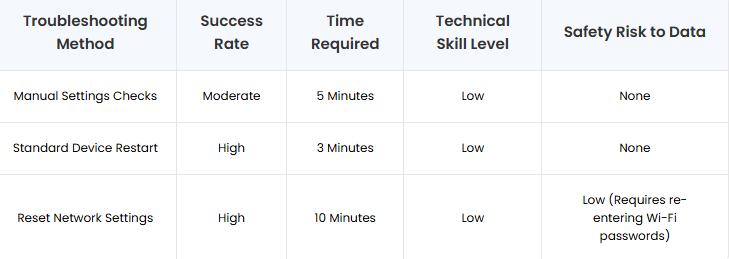
If manual adjustments fail, perform a Standard Restart on their phone first (powering it off completely, waiting 30 seconds, and turning it back on).
If that fails, perform a Network Settings Reset. Go to Settings > General > Transfer or Reset iPhone > Reset > Reset Network Settings on their device. This safely flushes out corrupted cellular and Wi-Fi configurations without deleting any of their personal photos, messages, or apps.
Navigating the Find My Network and Recent iOS Updates
To effectively resolve recurring problems, it helps to understand how the internal architecture operates. Apple’s modern system relies on the Find My network, an encrypted, crowdsourced grid of millions of active Apple devices that securely detect items and broadcast locations via background Bluetooth signals.
The Hidden Impact of Major iOS Updates
If they recently upgraded their operating system, you might encounter sudden sharing issues. Major system modifications in iOS 16, iOS 17, and iOS 18 often reset specific privacy permissions back to their strict default states to protect user security. This means a previously functioning app might suddenly lose access.
Following any system update, their device might disable highly accurate tracking without displaying a warning notification. To verify this configuration on their phone:
- Open Location Settings: Navigate to Settings > Privacy & Security > Location Services.
- Select Find My: Scroll through the list of apps and tap Find My.
- Enable Precise Location: Make sure the Precise Location toggle is turned on (green).
Without Precise Location actively enabled, an individual’s icon might jump around the map erratically or show a massive generalized circle, leading you to mistakenly believe the app is broken entirely. Reviewing these exact permissions after every major software update is a highly recommended maintenance habit.
Frequently Asked Questions About Apple Location Sharing
- Why is my friend’s location not updating?
- This typically occurs due to poor cellular reception on their end, a depleted battery, or a software glitch preventing the app from syncing with Apple’s servers. It can also happen if they have accidentally enabled a feature like Low Data Mode or Low Power Mode, which restricts background data from refreshing.
- Why does the app say ‘Location Not Available’?
- This error indicates a total lack of communication between the sender’s device and the server. Their phone is likely powered off, completely disconnected from cellular and Wi-Fi networks, or physically in a designated “dead zone” like a concrete basement or subway tunnel.
- Why is someone’s location stuck at an old spot?
- As detailed in our pro technique section, this is frequently due to mismatched Apple ID devices. They likely have a secondary device, like an iPad left at home, set as their primary tracking device. Alternatively, their current phone might have lost cellular reception exactly at that specific old location.
- Did the other person stop sharing their location with me?
- If someone manually revokes your access, the application typically removes them from your friend list entirely, or it will explicitly display a “Location Paused” status under their name. “Location Not Available” usually implies a technical network failure, not an intentional restriction.
Take Immediate Action to Restore Your Peace of Mind
Dealing with an app that shows ‘Location Not Available’ even though you know the person is online creates unnecessary stress and worry. You enabled location sharing to protect your family, and a technical glitch shouldn’t compromise that peace of mind.
By remembering the golden rule—diagnosing whether the issue is on your phone or theirs—you can save valuable time. Grab their device, methodically check their network connections, resolve any mismatched Apple ID sources, and verify their system permissions. If an iOS update recently disrupted their settings, these native manual adjustments will swiftly resolve the underlying bugs.
If you also need to test how your own device reports GPS location or manage location behavior more directly, Fonelora Location Changer can provide a flexible desktop-based option after the native Apple checks are complete.
Take action today to regain control over your family’s digital safety. We encourage you to download our free iOS troubleshooting checklist to keep these proven, native Apple fixes handy the next time a tracking delay occurs.


Hot Topics
