If you want to quickly mark a spot on your iPhone, the native Apple Maps app makes it simple. However, there is a big difference between sending a static map link and actually changing your live GPS location. This guide covers how to drop a pin on your iPhone natively, and what to do if you actually want to teleport your device’s “blue dot” to that pinned location.
Quick Answer: How to Drop a Pin on Apple Maps
Here is the fastest way to drop a pin on your iPhone using the native Maps app:
-
Open Apple Maps on your iPhone.
-
Zoom in to your desired location on the map.
-
Long-press, press and hold, on an empty spot on the map until a red pin drops.
-
Avoid tapping existing icons—make sure you aren’t tapping a business, landmark, or other Point of Interest (POI), as this will pull up their information instead of dropping a new pin.
Once the red pin appears, you’ve successfully marked that location. You can now view its details, save it for later, or share it with others.
How to Drop, Save, and Share a Pin in Apple Maps
Once you’ve dropped a pin in Apple Maps, you can easily save it for later or send it to a friend. Here is a step-by-step guide to managing your dropped pin:
-
View Location Details: After the red pin drops, swipe up on the “Dropped Pin” card at the bottom of your screen to see the exact address and coordinates.
-
Save to Favorites: To keep the location for the future, tap the “Favorite” button, or select “Save to…” to add it to a custom Guide.
-
Share the Pin: Tap the “Share” icon. You can send the location directly via Messages, Mail, or third-party apps like WhatsApp.
It is crucial to understand what sharing a native pin actually does. When you share a dropped pin through Apple Maps, you are only sending a static Apple Maps web link to the recipient. This shows them a fixed spot on the map, but it does not change your actual live GPS location. If your goal is to show a different live location on your device, a static pin won’t work.
How to Drop a Pin on Google Maps for iPhone
If you prefer using Google Maps over Apple Maps on your iPhone, the process is just as straightforward. Google Maps is often a better choice if you are sharing a location with Android users, as the links open smoothly across platforms.
Here is how to drop and share a pin using Google Maps for iOS:
-
Open the Google Maps app on your iPhone.
-
Zoom in closely to the area you want to mark to avoid accidentally tapping an existing business listing or landmark.
-
Long-press an empty location on the map until a red pin appears.
-
Manage the Pin: At the bottom of the screen, you will see a card with the location details. Use the buttons below it to “Save” the spot to a list, “Label” it for easy searching later, or “Share” it with contacts.
Just like Apple Maps, sharing a dropped pin from Google Maps only sends a static link to that specific coordinate.
The Limitation: Static Map Links vs. Real GPS Location
A common point of confusion for iPhone users is the difference between sharing a dropped pin and actually changing their device’s GPS location. Why doesn’t your actual “blue dot” move to the pin you just dropped?
Native iOS map apps are designed only to generate and share a static map link. Dropping a pin does not alter your device’s actual system GPS. If you are trying to show a fake live location for Find My, life-tracking apps, or adjust your Life360 location, sending a static link will not help. To actually change the system-wide GPS that all your apps see, you need a dedicated desktop location changer tool.
Here is a quick comparison to help you choose the right method:
| Feature | Static Map Link (Native Maps) | Live GPS Change (Desktop Tool) |
|---|---|---|
| What it does | Marks a fixed spot on a map. | Moves your device’s actual “blue dot” to a new spot. |
| What you share | A web link to a specific coordinate. | Your live location across apps, like Find My and WhatsApp. |
| System GPS altered? | No. Your blue dot stays where you physically are. | Yes. All location-based apps see the new location. |
| Setup required | Just the Apple Maps or Google Maps app. | Requires a desktop connection and software. |
If your goal is to physically “teleport” your iPhone’s blue dot to match the pin you just dropped, you will need to move past native map limitations.
How to Teleport Your Actual iPhone GPS to a Pinned Location
If sending a static map link isn’t enough and you want your iPhone’s actual GPS, the blue dot, to match your pinned location, Fonelora Location Changer provides a practical solution. Designed as a reliable iOS virtual location tool for users who want to manage their location for privacy, gaming, or social apps, Fonelora lets you change your system GPS under supported conditions.
Fonelora Location Changer
Realistic GPS movement simulation, flexible route control, easy no-modification setup, and support for gaming, social, privacy, and location-based testing in one platform.
Fonelora Location Changer requires connecting your iPhone to a desktop computer, Mac or Windows, and enabling Developer Mode on supported iOS versions.
Here is the basic workflow to teleport your actual iPhone GPS to a pinned location:
-
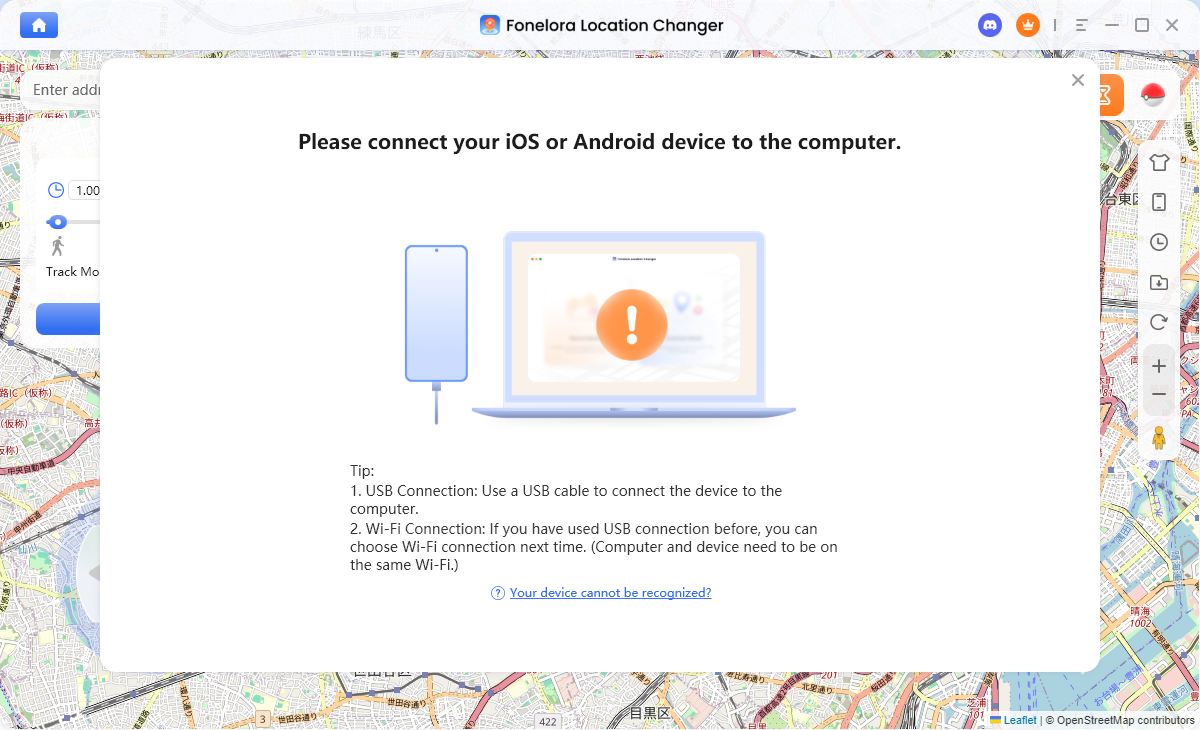
Connect Your Device: Open Fonelora Location Changer on your desktop and connect your iPhone via USB, or Wi-Fi once configured.
-
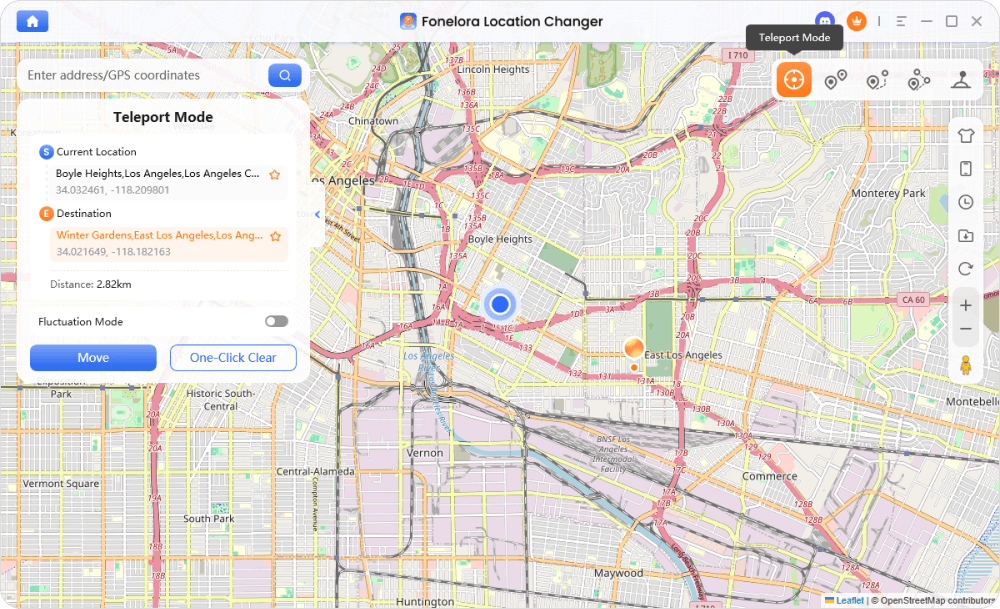
Select Teleport Mode: Choose the “Teleport Mode” option from the main interface.
-
Enter the Pinned Location: Type in the exact address or GPS coordinates of the pin you dropped earlier, or simply click on the desktop map to select the spot.
-
Move Your GPS: Click the button to change your location.
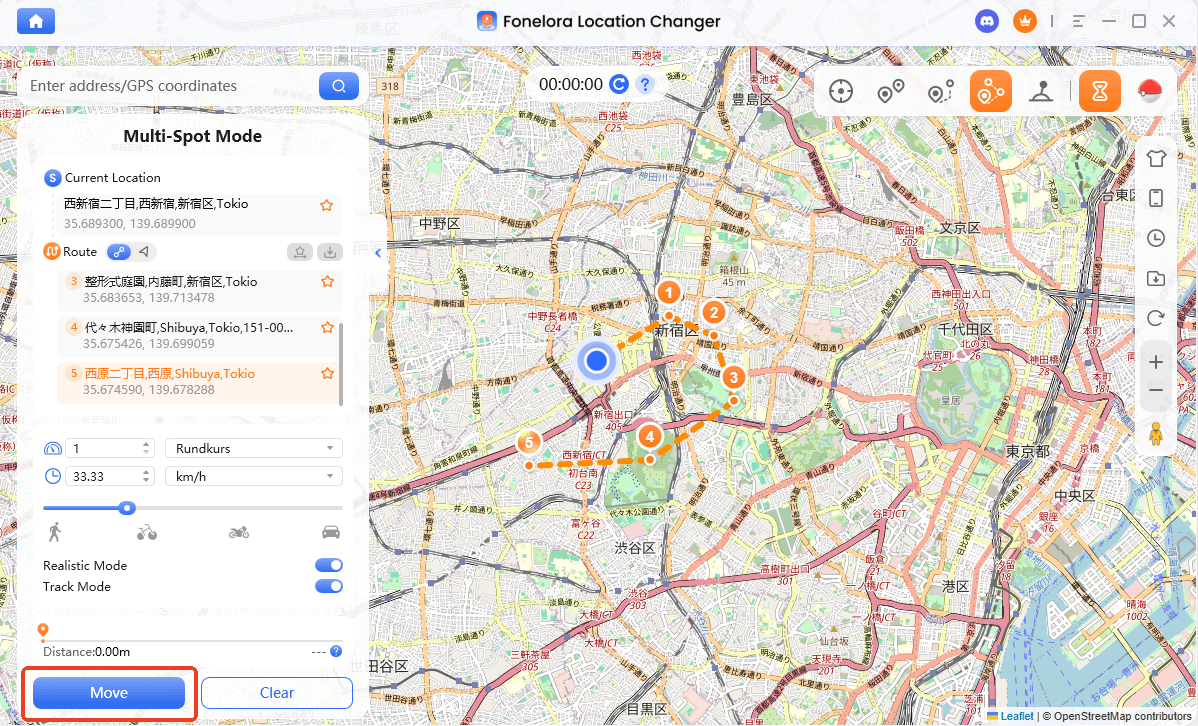
Once completed, your iPhone’s blue dot will be at the new location. Any location-based app you open will now register this new spot as your real-time GPS location.
Next Step: If you need to physically teleport your iPhone’s location rather than just sharing a map link, visit the Fonelora Location Changer official page to check your device compatibility and download the desktop software.
Why Won’t My iPhone Let Me Drop a Pin?
Sometimes, the simplest features can be the most frustrating. If your iPhone isn’t letting you drop a new pin, you aren’t alone. Here is how to troubleshoot the most common map issues:
Symptom: The map pulls up a business instead of dropping a new pin.
-
Likely Cause: You accidentally tapped a recognized Point of Interest (POI), like a restaurant, store, or landmark. Native maps prioritize these existing listings.
-
The Fix: Zoom in much closer to the map. Find an entirely empty space, such as a blank street or open park, and try long-pressing again.
Symptom: The map is unresponsive or the pin won’t load.
-
Likely Cause: A weak internet connection or a frozen app.
-
The Fix: Check your Wi-Fi or cellular connection to ensure the map data can load. If your connection is fine, force-close the Apple Maps or Google Maps app by swiping up from the bottom of your screen, then reopen it and try again.
Frequently Asked Questions
- How do I remove a dropped pin on my iPhone?
- To remove a dropped pin in Apple Maps or Google Maps, simply tap on the active pin to pull up its details card. Look for the “Trash” icon, or an option that says “Remove” or “Clear,” and tap it to clear the map.
- Can I drop a pin for a fake location on my iPhone?
- Natively, you can only drop a pin to share a static link of a fake location. If you want your iPhone’s actual system GPS to reflect that fake location in real-time, you cannot do it through native map apps. System-wide live GPS changes require desktop tools like Fonelora Location Changer.
- Does sharing a dropped pin change my actual GPS location?
- No. Sharing a dropped pin only sends a specific map coordinate to someone else. Your actual GPS location—represented by the blue dot on your map—remains exactly where you physically are.
- How do I share a pinned location smoothly with Android users?
- If you are an iPhone user trying to share a static pin with an Android user, dropping and sharing the pin via Google Maps for iOS is usually the most reliable method. Apple Maps links can sometimes be clunky when opened on non-Apple devices.
Summary: Choosing the Right Way to Use Map Pins
Ultimately, the method you choose depends entirely on what you want to achieve with your location data.
If you simply need to share a static meetup spot with a friend, mark where you parked your car, or save a favorite restaurant for an upcoming trip, the native Apple Maps or Google Maps applications are perfect. They are fast, built-in, and require no extra setup.
However, if your goal is to protect your live location privacy, use location-based features in social apps, or actually move your device’s GPS “blue dot,” a static pin won’t work. For these scenarios, a dedicated desktop tool is required. We recommend Fonelora Location Changer for users who need to reliably teleport their device’s actual GPS to a new location under supported conditions.
Before deciding, always consider your app’s rules and ensure your device meets the necessary compatibility requirements. For more tips on managing your device’s whereabouts, explore our other location change guides.

Fonelora Location Changer
- Bluetooth Hardware Simulation for Safer GPS Spoofing
- Realistic Movement & Route Simulation
- No Root or Jailbreak Required
- All-in-One Solution for Games, Social Apps & Privacy
More Related Articles