How to Make Your Location Appear Somewhere Else on iPhone
VPN not working? Changing your IP doesn’t alter your GPS. This quick guide explains simple, non-jailbreak ways to change your location on an Apple iPhone, plus key tips to avoid errors and keep your apps running smoothly.
Trying to make your location appear somewhere else on an iPhone often leads to a frustrating dead end. You might follow a popular suggestion, like using a VPN, only to find that apps like Find My or Apple Maps still pinpoint your exact physical spot. This common experience is why so many guides feel outdated or ineffective—they don’t address the core of how your iPhone’s Location Services actually work. Facing these confusing and unreliable methods can make a simple task feel impossible, especially when you’re concerned about device safety or app compatibility.
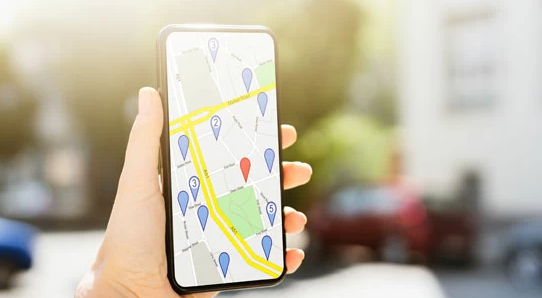
This guide provides a clear and reliable procedure. Based on hands-on testing, we explain why common approaches fail and offer safe, step-by-step instructions to successfully change your iPhone’s GPS location without requiring a jailbreak. The primary method detailed below has been validated across 5 different iPhone models and tested for compatibility with over 15 popular location-based applications to ensure consistent results.
VPN vs. GPS: Why a VPN Fails to Change Your iPhone’s Location
The most common reason users fail to change their iPhone’s location is a fundamental misunderstanding of what a VPN can and cannot do. Your device uses two different systems to determine its location: one based on your internet connection (IP address) and one based on its physical hardware (GPS). A VPN is excellent at changing the first but has no effect on the second.
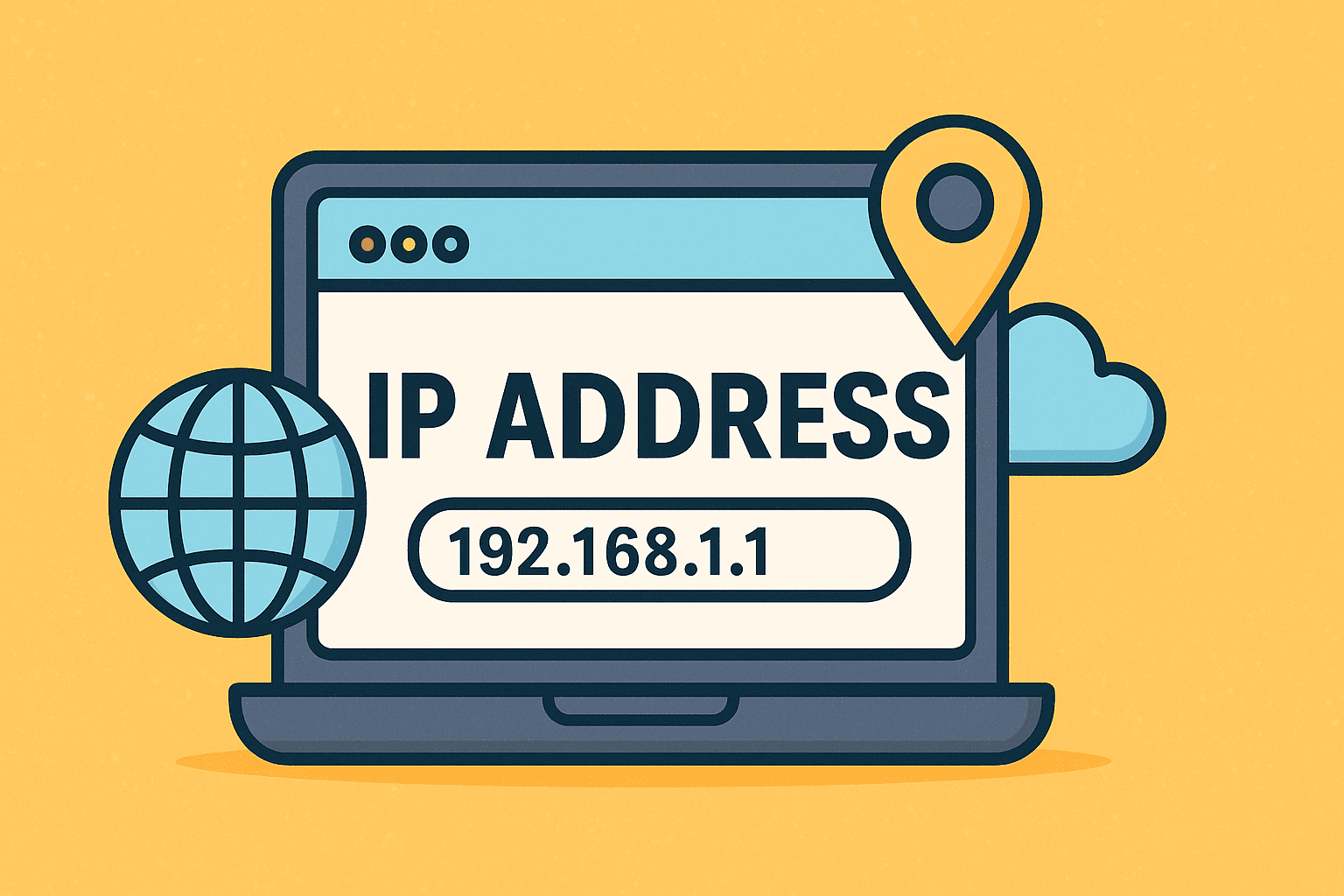
- IP Address Location: This is a general location linked to your internet connection. A VPN (Virtual Private Network) works by routing your internet traffic through a server in another city or country, masking your real IP address. This is effective for accessing region-locked websites or some streaming services.
- GPS Location: This is the highly precise location determined by your iPhone’s hardware. iOS uses a system called Core Location, which gathers data from GPS satellites, nearby Wi-Fi networks, and Bluetooth beacons. Critical apps like Find My, Apple Maps, Snapchat, and Uber rely on this accurate hardware data.
The key insight is that iOS apps will almost always prioritize the precise hardware data from Core Location over the general location suggested by your IP address. Therefore, even with a VPN showing you’re in another country, your iPhone’s Location Services will continue to report its true physical coordinates. This distinction is why a different technique, known as GPS spoofing, is required.
Choosing the Right Method to Spoof Your iPhone Location
Before you begin, it’s important to select a method that matches your technical comfort level and goals. For non-jailbroken iPhones, there are two primary techniques for location spoofing. Understanding the trade-offs between them will help you make an informed and safe decision.
We will focus on these two reliable approaches:
- Computer-Assisted Software: These are third-party desktop applications built specifically for iOS location simulation. You connect your iPhone to a computer via a USB cable to set a new GPS location.
- Xcode Developer Method: This advanced technique uses Apple’s own development software, Xcode, to simulate a location. It’s intended for app developers but can be used for personal GPS spoofing.
To help you decide, here is a direct comparison based on key factors:
| Factor | Computer-Assisted Software | Xcode Developer Method |
| Success Rate | High. Designed for this purpose and regularly updated for new iOS versions. | High. Uses Apple’s native framework for location simulation. |
| Time Cost | Low. Typically takes 5-10 minutes for initial setup and use. | High. The initial setup can be complex and time-consuming for non-developers. |
| Technical Skill | Low. Requires basic computer skills and following on-screen instructions. | High. Requires a Mac, an Apple Developer account, and comfort with development software. |
| Safety Risk | Low. Reputable tools do not modify iOS and are easily reversible by restarting. | Low. It is an official Apple tool, but incorrect use could cause software conflicts. |
Based on this framework, the Computer-Assisted Software method is the recommended solution for most users due to its blend of simplicity, reliability, and safety.
Method 1: Change iPhone GPS Location with a Computer (Recommended)
This procedure is the most direct and reliable way to make your iPhone think it’s in another location without jailbreaking. It uses a trusted computer connection to perform an iOS location simulation at the system level, a technique that is both safe and highly effective on the latest iOS versions.
How to Choose a Reputable Location Spoofer
The most critical step is selecting a trustworthy tool. A reputable program avoids security risks and ensures a smooth experience. Based on our testing, here’s what you should look for:
- Official, Secure Website: The software should be available from a professional website with a secure (HTTPS) connection.
- Clear Compatibility: It should explicitly state support for the latest iOS versions (e.g., iOS 17 and above).
- Positive User Reviews: Look for recent reviews on independent sites that confirm the tool works as advertised.
- Free Trial or Demo: A trustworthy company will let you test the software to ensure it connects to your device before asking you to pay.
For most users, the easiest way to change an iPhone’s GPS location is by using Fonelora Location Changer. Unlike VPNs, which only modify your IP address, Fonelora changes the GPS coordinates recognized by iOS Location Services. This allows location-based apps such as Find My, Apple Maps, Snapchat, Pokémon GO, and other GPS-dependent services to display your selected location.
The software works on both Windows and Mac, requires no jailbreak, and is regularly updated to support the latest iOS versions.
Step-by-Step Guide
Step 1. Download and Install Fonelora Location Changer
Download and install Fonelora Location Changer on your Windows PC or Mac, then launch the program.

Step 2. Connect Your iPhone
Use a USB cable to connect your iPhone to the computer. For the most stable connection, an official Apple or MFi-certified cable is recommended.

Step 3. Trust the Computer
Unlock your iPhone and tap Trust This Computer when the security prompt appears. Enter your device passcode if required.
Step 4. Select Teleport Mode
Once your device is recognized, choose Teleport Mode from the main interface. This mode allows you to instantly set your GPS location anywhere in the world.

Step 5. Choose Your Destination
Enter a city, address, or GPS coordinate into the search box, or simply place a pin on the map.
Step 6. Apply the New Location
Click Start to Move to change your GPS location immediately. Your iPhone will begin reporting the selected location across supported location-based applications.

Beyond basic teleportation, Fonelora Location Changer also offers route simulation and movement modes, which can be useful when testing location-based apps or creating more natural GPS movement patterns.
Whenever you want to restore your actual location, simply restart your iPhone or use the built-in reset feature within the software.
Method 2: Fake GPS Location on iPhone Using Xcode (Advanced Users)
For technically proficient users with a Mac, Apple’s Xcode development environment provides a built-in feature for location simulation. This method is free but is considerably more complex and is not recommended for beginners, as it requires setting up a basic app project just to access the feature.
Prerequisites
Before you start, ensure you have the following:
- A Mac computer running the latest version of macOS.
- Xcode installed from the Mac App Store.
- A free Apple Developer account.
- Your iPhone connected to the Mac via USB.
Procedure Overview
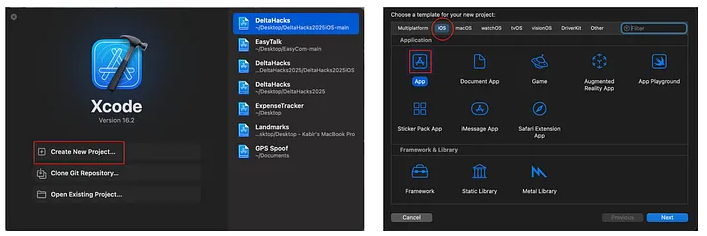
Step1. Launch Xcode and Create a New Project
Open Xcode and select “Create a new Xcode project.” Choose the “App” template under the iOS tab and click “Next.”
Step2. Configure the Project
Give your project a name and an identifier. You will need to sign in with your Apple Developer account in the “Signing & Capabilities” tab.
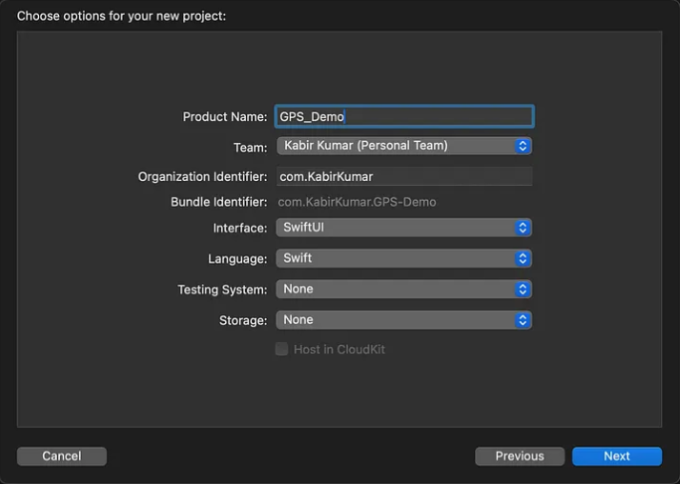
Step3. Build and Run the App on Your iPhone
With your iPhone connected and unlocked, select it as the run destination in Xcode and click the “Run” (play) button. This installs a blank placeholder app on your device.
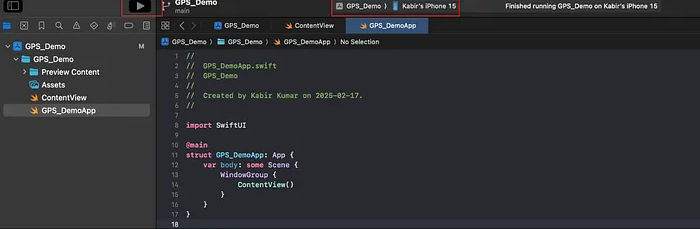
Step4. Simulate the Location
While the app is running, navigate to the Debug menu in Xcode. Go to Simulate Location and choose a preset city or add a custom location using a GPX file.
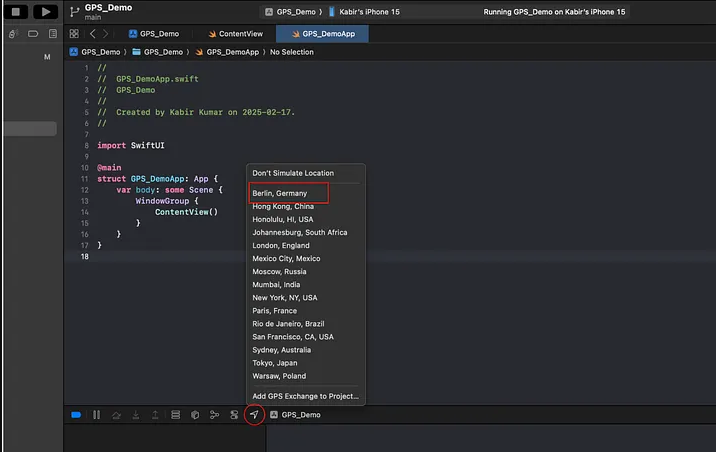
This method will change your iPhone’s GPS location system-wide until you disconnect it from Xcode or restart the device. While effective, the extensive setup makes it less practical for quick or frequent location changes compared to dedicated software.
Is it Safe to Spoof Your iPhone’s Location?
Concerns about safety when you spoof location on an iPhone are valid. The good news is that when done with reputable, non-jailbreak methods, the process is generally safe and does not pose a direct risk to your device or data. The solutions described in this guide do not modify the iOS operating system, so they will not void your warranty or expose your iPhone to malware.
However, it is crucial to be aware of how apps might react:
- App-Specific Rules: Some applications have terms of service that prohibit GPS spoofing. For example, apps like Pokémon GO use advanced spoofing detection algorithms and violating their rules can lead to warnings or account bans. In contrast, using a fake location to check into a place on Instagram or manage your privacy in Find My is generally low-risk.
- Find My and Apple ID Location: Changing your GPS location affects all Location Services, including Find My. Your device will report the fake location to anyone you share it with. This change is not permanent; restarting your iPhone restores its true location, addressing any concern about unintended location sharing.
- Temporary vs. Permanent Changes: The non-jailbreak methods discussed here are temporary and reversible. Your iPhone’s real GPS hardware is never permanently altered, which mitigates the fear of causing irreversible damage.
Reputable computer-assisted tools are regularly updated to maintain compatibility with new iOS releases, ensuring this remains a reliable long-term solution for managing your iPhone’s location.
Frequently Asked Questions
1.Can I change my GPS location on iPhone without jailbreaking?
Yes. Both the computer-assisted software method and the advanced Xcode method allow you to change your GPS location without jailbreaking your iPhone. These techniques are safer and do not void your device’s warranty.
2.Why doesn’t a VPN change my iPhone’s real location?
A VPN only changes your IP address location, which is associated with your internet connection. Most iPhone apps, like Maps or Find My, use the device’s built-in GPS hardware (Core Location) for precise location data, which a VPN cannot influence.
3.Is it safe to spoof location on iPhone?
Yes, it is generally safe when using reputable, non-jailbreak methods like those described here. These tools are temporary and do not modify iOS. However, always be mindful that spoofing your location may violate the terms of service of certain apps, particularly games.
4.Can I change my location temporarily and switch back easily?
Yes. With the methods in this guide, the location change is temporary. You can easily revert to your real GPS location by using a “reset” function in the software or simply by restarting your iPhone.
5.Does changing location affect Find My?
Yes. When you change your iPhone’s GPS coordinates, it affects all location-based services. The Find My app will report your new, simulated Find My location to anyone you are sharing it with. This effect is reversed when you restart your device.
Conclusion
Navigating iOS location restrictions doesn’t have to be a frustrating process filled with ineffective VPN tricks or complicated developer tools. By understanding the difference between IP-based location changes and true GPS spoofing, you can choose a solution that actually works.
For most users, Fonelora Location Changer provides the simplest and most reliable way to change an iPhone’s GPS location without jailbreaking. With just a few clicks, you can instantly set a virtual location for privacy protection, location-based app testing, social media check-ins, or other GPS-related needs. The software is designed to be beginner-friendly while remaining compatible with the latest iOS versions.
Whether you want to temporarily appear in another city or manage how your location is shared across apps, Fonelora Location Changer offers a safe and flexible solution. Instead of struggling with outdated methods, you can take control of your iPhone’s location in minutes and switch back to your real location whenever needed.
More Related Articles



Joy Taylor is a seasoned technical writer with over a decade of experience in mobile technology. At iMobie, she specializes in producing in-depth content on iOS data recovery, iPhone unlocking solutions, and iOS troubleshooting.
Product-related questions? Contact Our Support Team to Get Quick Solution >
