Michael, a 27-year-old US professional, recently relocated to Spain. He was a Premium subscriber, but amid the chaos of moving, his US credit card expired. His account automatically dropped to the Free tier. Exactly 14 days later, his music suddenly stopped. A frustrating screen popped up stating his account was in the wrong country. When he tried to update his profile and resubscribe, the option was completely locked because his backup payment method was still linked to a US address.

Like Michael, you might be thinking that moving to another country and updating your Spotify region should be simple. It is incredibly frustrating when your current payment method doesn’t match your new physical location, and most guides online are confusing or outright contradict themselves.
This guide provides a clear, rigorously tested procedure to solve these exact issues. Whether you are traveling temporarily or relocating permanently, we will show you the exact method to fix this login location error and restore your music library today.
The methods below have been tested across iOS 16–26, Android 11–15, and all major desktop environments.
Table of ContentsHide
Understanding the Problem: Account Country vs. IP Location
To permanently fix a location error, it is vital to understand how the platform actually tracks your presence. A common complaint among frustrated users is a misunderstanding of the difference between account country and IP location. Many assume the application uses your phone’s internal GPS, but this is entirely incorrect.
Instead, Spotify primarily relies on a strict combination of two factors:
- Your IP Address Location: The physical location of the internet connection you are currently using.
- Your Registered Payment Method: The billing address tied to your credit card or PayPal account.
When you create a profile, your initial internet connection establishes your home base. If you travel or move, the system detects that your current IP address no longer matches your registered profile. This strict verification system enforces international music licensing agreements.
The platform enforces a hard rule: your physical internet connection and your financial credentials must align. Understanding this relationship is the key to managing your availability by country without facing ongoing technical lockouts.
Decision Guide: Finding the Right Location Change Method
Because most guides online fail to clarify the rules, finding the right update procedure can feel overwhelming. The correct technique depends entirely on your current subscription type and your travel status.
The Golden Rule of Spotify Travel:Premium users can travel internationally without any time limits, as long as their home-country payment method remains active. Free users, however, are restricted to exactly 14 days of international listening before they are locked out.
Review the comparison table below. This triage step will save you time and help you choose the correct tool for your specific situation.
| User Scenario | Required Solution | Technical Skill | Success Rate | Time Cost |
|---|---|---|---|---|
| Free User (Moved Permanently) | Manual profile update | Low | 100% | 2 minutes |
| Premium User (Moved Permanently) | Payment method update | Low | 100% | 5 minutes |
| Temporary Traveler (Over 14 Days) | Virtual Private Network (VPN) | Moderate | High | 5–10 minutes |
Once you identify your category, proceed to the corresponding step-by-step instructions below.
How to Execute an Account Country Change (Free Accounts)
If you use a Free tier and have permanently relocated (or if you hit the 14-day travel wall), updating your region is a straightforward procedure. Because Free accounts are not tied to a localized billing method, the system allows you to update your region settings as soon as you log in from a new IP address.
You cannot change these settings directly within the mobile app; you must use a web browser.
Desktop Browser Instructions
Step1. Open your web browser on a Mac or Windows computer.
Step2. Navigate to Spotify’s official website and log in.
Step3. Click on your Profile icon in the top right corner and select Account.
Step4. Under the “Profile” tab, click on Edit profile.
Step5. Scroll down to the Country or region section.
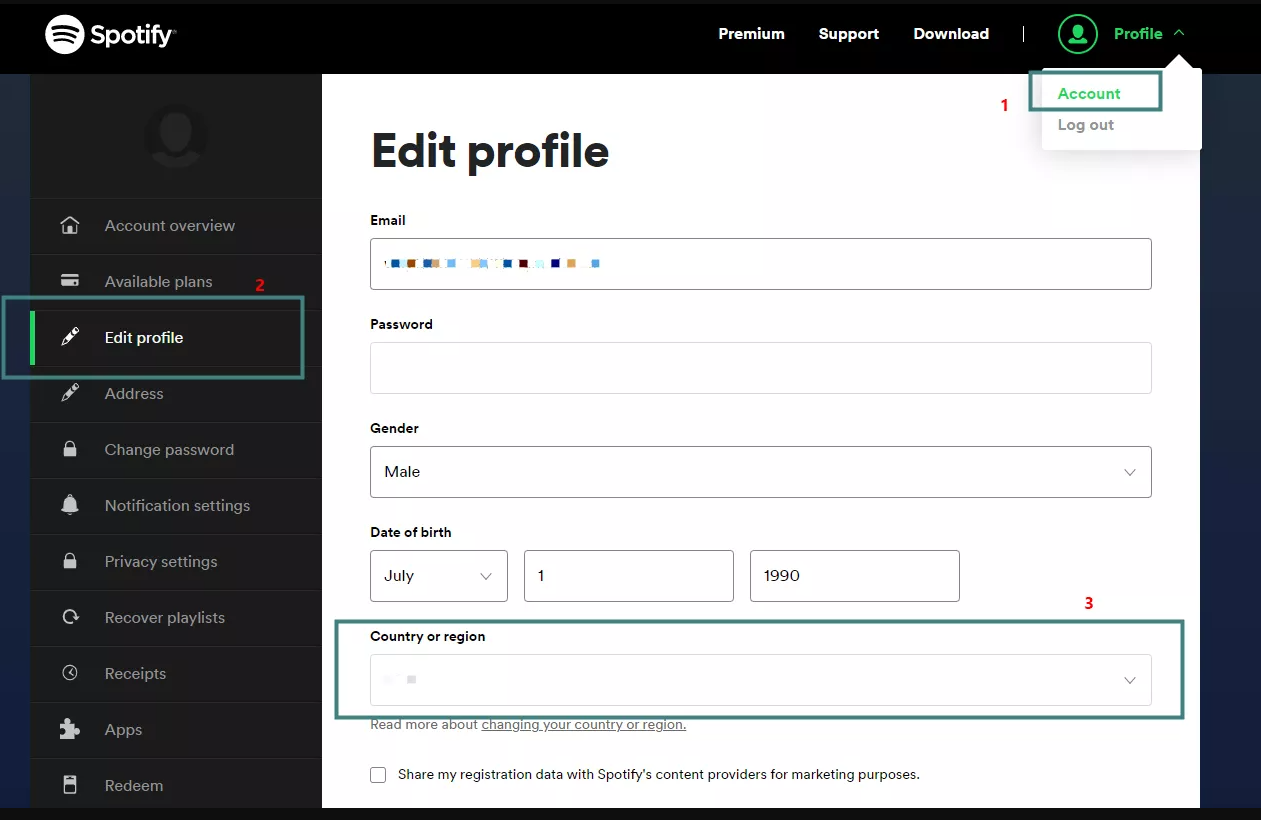
Step6. Click the dropdown menu.
Your new country will only appear in this dropdown if your current internet connection is physically located in that country.
Step7. Select your new country.
Step8. Scroll to the bottom and click Save profile.
Mobile Browser Instructions (iOS & Android)
Navigating the desktop site on a mobile browser can be clunky, so follow these exact taps:
Step1. Open Safari or Chrome on your phone and go to spotify.com. Log in to your account.
Step2. Tap the Gear icon (Settings) in the top right corner of the screen.
Step3. Tap View Account from the menu.
Step4. Tap the Edit profile button located near the top of your account overview.
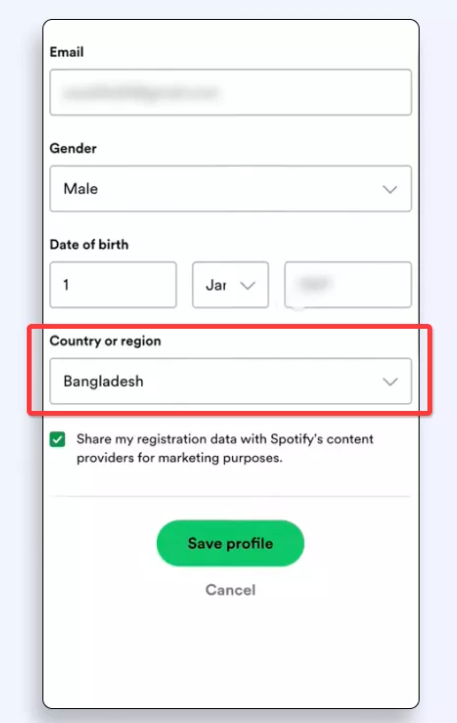
Step5. Scroll down to find the Country or region dropdown menu.
Step6. Select your new country and tap Save profile at the bottom of the screen.
Once saved, your country settings will update immediately, granting you access to the localized music catalog. if the dropdown does not appear right away.
You may also like: Free IP Address Changer: Safe & Working Methods for Windows PC>
Premium Region Rules: Resolving a Payment Mismatch
For paid subscribers, the procedure is entirely different. If you try to use the Free method above, you will find the country dropdown grayed out and completely locked.
Why? Because Premium region rules dictate that your billing address determines your account location. To update your region after a permanent move, you must resolve the payment mismatch by supplying a locally issued payment method.
Step-by-Step Method:
Step1. Open a web browser and log in to your account overview page.
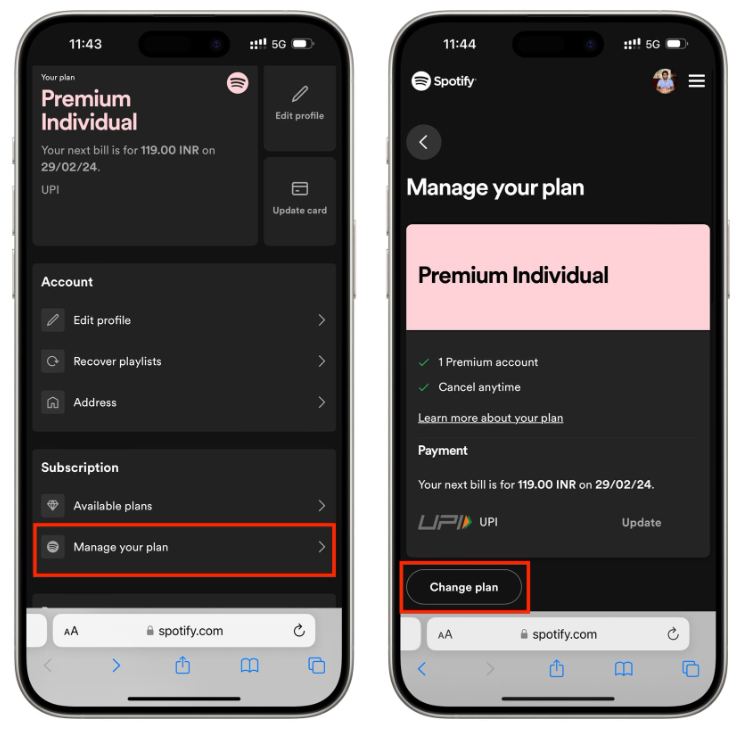
Step2. Scroll down to the Manage your plan section.
Step3. Locate your current payment details and click the Update button.
Step4. Enter a new credit card or debit card that was issued in your new country.
Step5. Ensure the zip or postal code matches exactly with the billing address on file with your new bank.
Step6. Submit the new payment details. As soon as the new payment method is verified, your account region will automatically update.
The PayPal Trap
Many users assume they can just use their existing PayPal account to bypass this rule. You cannot. PayPal enforces its own strict region locks. A US-created PayPal account will be rejected for a Spanish Spotify subscription, even if you change your address within PayPal. You must use a bank card natively issued in your new country.
Interim Solution: What if you don’t have a local bank card yet?
When you move to a new country, it can take weeks to open a local bank account and receive a debit card. If your old home-country card expires and you drop to the Free tier, you will hit the 14-day lock-out while waiting for your new bank.
The Fix: Buy a physical or digital Spotify Gift Card for your new region (available on local versions of Amazon or at local grocery stores). Redeeming a localized gift card instantly verifies your new region without requiring a local credit card.
Using a VPN for Temporary Travel (Free Users)
If you are a Free user traveling for more than two weeks, your music will stop. If you want to change your region back to your home country without actually moving back, a Virtual Private Network (VPN) is your best tool. A VPN masks your current IP address, tricking the service into thinking you are sitting safely back at home.
Remember: Premium users do not need a VPN for travel, as they face no time restrictions.
Procedure for a VPN location update:
Step1. Download a highly-rated, secure VPN application on your smartphone or computer.
Step2. Open the VPN tool and connect to a server located in your home country (the country currently registered on your profile).
Step3. Once the connection is established, open a private/incognito web browser and log in to your account.
Step4. Navigate to Edit profile and verify that your original country is selected.
Step5. Open the Spotify application on your device. The system will detect the home IP address and reset your 14-day travel clock.
Always use a premium, secure VPN to protect your data.
Need to Change Your Phone GPS Location Too?
For Spotify specifically, the most important signal is usually your IP address and, for Premium users, your payment region. That is why the VPN and billing methods above are the correct fixes for Spotify country errors. However, many users who search for a Spotify location fix are also dealing with broader location issues on mobile apps, such as apps reading the wrong GPS position, testing region-based features, or wanting more control over how their phone reports location.
If your goal is to manage your device’s GPS location rather than only your IP address, Fonelora Location Changer can be a useful companion tool. It helps iPhone and Android users change their phone GPS location from a computer without jailbreak or root access. This is especially helpful for location-based apps that rely on your device GPS rather than only your internet IP.
Unlike a VPN, which mainly changes your network location, Fonelora Location Changer focuses on the GPS position reported by your phone. This means you can select a virtual place on the map, simulate movement along a route, or use joystick-style movement when you need more flexible location control.
Important: Fonelora Location Changer is not a replacement for Spotify’s payment-region rules. If Spotify asks you to update your country because of billing or IP mismatch, follow the Spotify account methods above. Use FLC when you need to change or test your phone’s GPS location for GPS-based apps.
How to Use Fonelora Location Changer
If you want to change the GPS location reported by your iPhone or Android device, follow these steps:
Step1. Install and launch Fonelora Location Changer on your Windows or Mac computer.
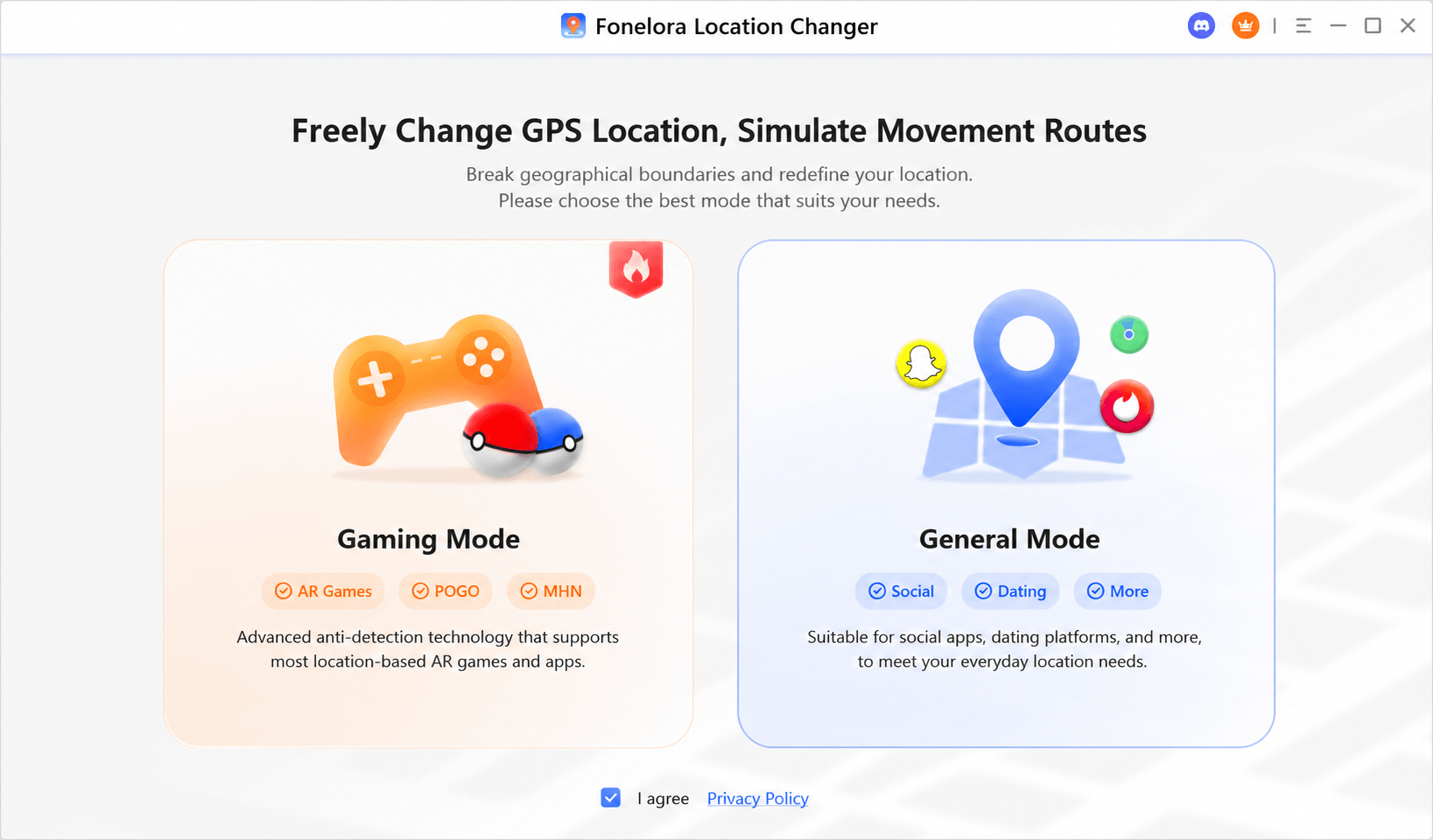
Step2. Connect your iPhone or Android device to the computer with a USB cable or supported connection method. Follow the on-screen instructions to trust the computer and complete device recognition.

Step3. Choose the mode that fits your need. For example, select a fixed location if you only want to change your current GPS point, or choose a route/joystick mode if you need simulated movement.
Step4. Search for a country, city, address, or landmark on the map. You can also drag the pin manually to fine-tune the exact location.
Step5. Click the confirmation button in FLC to apply the virtual GPS location to your connected phone.
Step6. Open the location-based app you want to test and check whether it reads the updated device GPS location.
Step7. When you are finished, use the reset option in Fonelora Location Changer or restart your device to return to your real GPS location.
Troubleshooting: Android and iPhone App Errors
Even after successfully updating your region in a web browser, the mobile app might still show a location error. If you are dealing with a stubborn region lock on your phone, corrupted local app data is usually the culprit.
Crucial Order of Operations: You must successfully change your country in a web browser (using the steps above) before you clear your app cache. Clearing your app cache will not fix the issue if your web profile still shows the wrong country.
Once your browser profile is updated, force your devices to recognize the change:
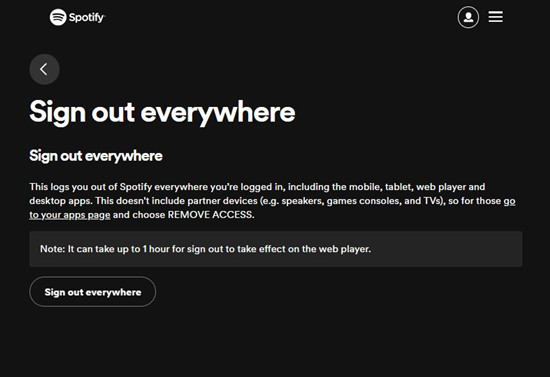
1 Sign Out Everywhere
Before troubleshooting your phone, clear your active sessions. Go to your account page on a web browser, navigate to the Security and privacy tab, and click the Sign out everywhere button. This forces all devices to request a fresh, updated connection.
2 Fix Android Issues
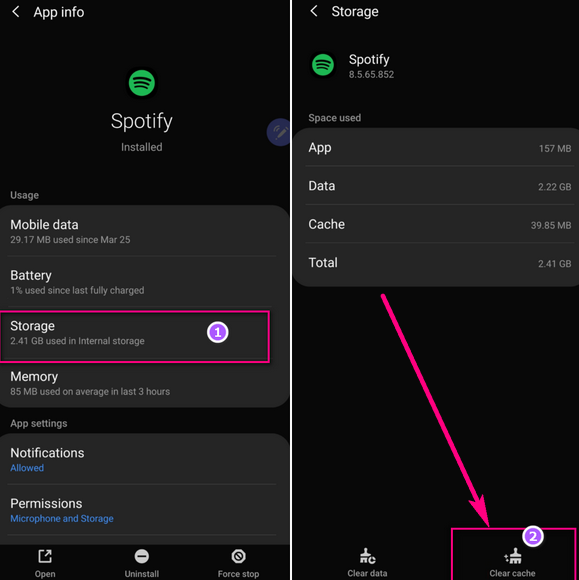
Android devices often hold onto outdated location cache.
- Navigate to your phone’s Settings.
- Select Storage and cache.
- Tap on Apps > Spotify.
- Relaunch the application and log back in.
3 Fix iPhone Issues
iOS handles cache differently, making a clean installation the most reliable solution.
- Long-press the app icon on your home screen and select Remove App.
- Tap Delete App to completely wipe the cached location data.
- Open the App Store, download the application again, and log in.
Frequently Asked Questions
Navigating an account update can bring up several specific questions. Here are clear answers to the most common inquiries regarding availability by country.
How do I change my location on Spotify?
Log into your account via a web browser. Free users can edit their profile and select a new country from the dropdown menu. Premium users must update their billing information to a payment method issued in the new country.
Why does it say my country is wrong?
This error occurs when your current IP address no longer matches the registered country on your profile. This is standard protocol to enforce regional licensing agreements.
How do I update my country after moving abroad?
If you moved permanently, wait until you arrive in the new country. Free users simply update the dropdown in their profile settings. Premium users must acquire a local bank card (or a local Spotify gift card) and update their billing method.
Does my location change automatically when traveling?
No, it does not update automatically. You must manually initiate a settings change, otherwise Free users will be locked out after 14 days abroad.
Why can’t I change my region in settings?
If the country dropdown is grayed out, it is because you have a Premium subscription. The system locks this setting until you provide a valid payment method natively issued in the new region.
Do I need a VPN to change my location?
You only need a VPN if you are a Free user traveling temporarily (past 14 days) and want to trick the system into thinking you are back home. If you have genuinely relocated, you do not need a VPN; your new local internet connection is sufficient. Premium users do not need a VPN for travel.
Will changing my country affect my playlists or account?
No. Your saved playlists, liked songs, and follower lists remain completely intact. However, a small number of specific tracks might become temporarily grayed out depending on the specific catalog available in your new country.
How long can I use the app in another country?
Premium users can travel internationally without any time limits, as long as their payment method remains active. Free users are restricted to exactly 14 days of international listening before they must log in from their home country again.
Conclusion
Dealing with region locks and licensing restrictions can be incredibly disruptive, but you do not have to lose access to your curated playlists. By understanding the strict relationship between your physical internet connection and your billing details, you can quickly execute a location change and regain control of your digital library.
Whether you applied a quick manual profile update for a Free account, utilized a local gift card to bridge the gap while waiting for a foreign bank account, or deployed a reliable VPN to keep your Free account active while traveling, this procedure solves the problem in minutes.
If you also need broader GPS control for apps that rely on your phone’s location services, Fonelora Location Changer can help you change or test your device GPS location more flexibly. Just remember that Spotify region changes still depend mainly on IP address and payment-region rules.
You can now put the frustration behind you and go back to enjoying your music uninterrupted.
If you found this solution helpful and want to prevent future technical headaches, subscribe to our weekly tech tips newsletter for more practical, thoroughly tested guides to keeping your digital life running smoothly.


Hot Topics

Joy Taylor
Joy Taylor is a senior writer at iMobie and an avid Apple fan. She specializes in solving various iOS and Android problems, sharing practical solutions with users, and continually enhancing her expertise in mobile technology.