Why iPhone Updates Can Fail: Secure Boot and System Verification Explained
Encountering the “Verification Failed” error during the iOS 27 upgrade? This system-level interruption typically occurs when the local installation package fails Apple’s cryptographic verification. While Secure Boot safeguards your device, network instability or server-side congestion during the iOS 27 rollout can break the verification chain. This guide breaks down the underlying technical causes and provides advanced workflows to resolve it.
iPhone Updates Can Fail for Device, Computer, Network, or Verification Reasons
An iPhone update can fail because of low storage, unstable WiFi, a bad cable or USB port, outdated Finder or iTunes, computer security software,restore mode problems, hardware communication issues, or system verification failure. Not every update failure is a lock problem.
Start with the practical checks before assuming the worst:
1. Free up storage on the iPhone.
2. Use a stable WiFi network or reliable computer connection.
3. Try a different cable and USB port.
4. Update Finder, iTunes, or the computer operating system.
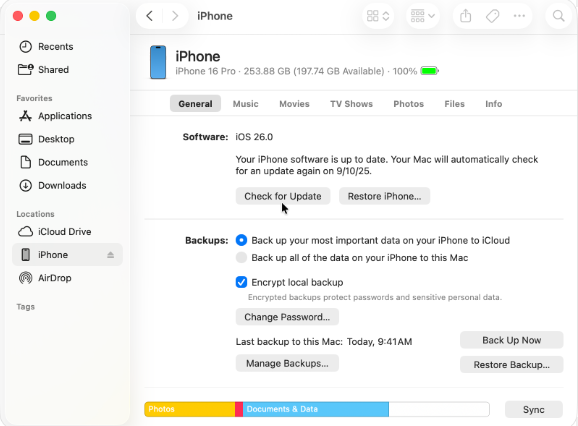
5. Restart both the iPhone and computer.
6. Write down any error code or exact message.
7. If the issue repeats, separate update failure from passcode lock, Activation Lock, or MDM.
What Secure Boot and System Verification Do
Secure boot and system verification help ensure that the iPhone starts and updates using trusted Apple software. During an update or restore, the device and computer may need to verify firmware, communicate with Apple servers, and complete several device state checks.
During peak launch windows for major updates like iOS 27, Apple’s TSS servers experience extreme traffic surges worldwide. This often results in temporary cryptographic handshake timeouts, making the “Verification Failed” prompt significantly more common even on perfectly stable local Wi-Fi networks. If you are upgrading to iOS 27, waiting a few hours or using a computer-based update is highly recommended.
This protection is useful because it helps prevent corrupted or unauthorized system software from being installed. But it also means the process can fail if a required step breaks.
Common failure categories include:
- The update file cannot be downloaded or verified.
- The iPhone disconnects during update or restore.
- Finder or iTunes cannot complete communication.
- The device has a hardware communication problem.
- Apple’s signing or verification step cannot complete in the current environment.
The message or error code matters because different failures have different fixes.
Quick Troubleshooting Path Before You Restore
Use this order before jumping to a full restore:
| Check | Why it matters | What to try |
| Storage | Updates need working space | Delete unused apps, videos, or downloads |
| Network | Verification and downloads may fail | Use stable Wi-Fi and avoid captive hotel networks |
| Cable/port | Restore can fail if connection drops | Use a reliable cable and another USB port |
| Finder/iTunes | Old software can break communication | Update the computer-side tool |
| Security software | Some tools interfere with restore traffic | Temporarily adjust settings if safe to do so |
| Error code | It points to the failure category | Record it before retrying |
If the iPhone cannot complete normal system operations, update troubleshooting alone may not be enough. You may need a passcode recovery path first.
Update Failure vs Passcode Lock vs Activation Lock
Update failure is often mixed up with iPhone lock issues. These problems can overlap, but they are not the same.
- Update failure: The iPhone cannot complete an iOS update or restore.
- Passcode lockout: The iPhone blocks access after wrong passcode attempts.
- Activation Lock: The iPhone asks for the linked Apple Account after erase or restore.
- MDM lock: The device shows Remote Management because it is supervised.
This distinction matters. An iOS repair path may help with update or restore problems, while an unlock path is relevant only when the main blocker is passcode, Activation Lock, MDM, Screen Time, SIM lock, or backup encryption.
Do not use an unlock workflow to solve a pure update failure unless the update failure is connected to a lock state.
Why iOS Update Failures Are System-Level Issues
Unlike passcode or Activation Lock problems, iOS update failures occur during the system installation and verification stage.
This stage involves:
- firmware package download and verification
- system integrity checks (secure boot chain)
- storage allocation for system update
- device-to-server validation with Apple signing services
If any of these steps fail, the update process may stop or roll back, even if the device is otherwise fully functional.
This is why update failures are treated as system repair scenarios rather than device unlock scenarios.
Why Restores Can Lead to Activation Lock
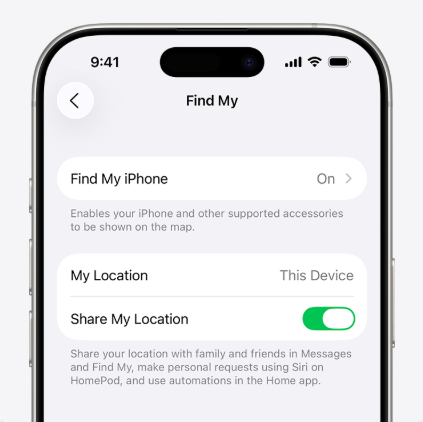
A restore can erase the iPhone and reinstall iOS, but it may also bring you to an activation screen afterward. If Find My was enabled before the restore, the iPhone may ask for the Apple Account linked to the device.
This surprises many users because the restore looks like a clean start. But restoring the system and passing activation are different steps.
Before restoring, make sure you know:
- The Apple Account used on the iPhone.
- Whether Find My was enabled.
- Whether you have a backup.
- Whether the device belongs to you or the previous owner.
- Whether it is supervised by an organization.
A restore can fix some software states, but it does not automatically remove ownership verification.
Where AnyFix Fits in iPhone Update Failure Scenarios
AnyFix is designed for iOS system repair scenarios where the issue is not related to account access or passcode restrictions, but to system integrity, update verification, or restore failures.
In iPhone update failure cases, AnyFix is relevant when users experience:
- iOS update stuck on verifying update
- iPhone failed to install update or restore
- iPhone stuck on Apple logo during update
- recovery mode or DFU restore issues
- system verification or firmware validation errors
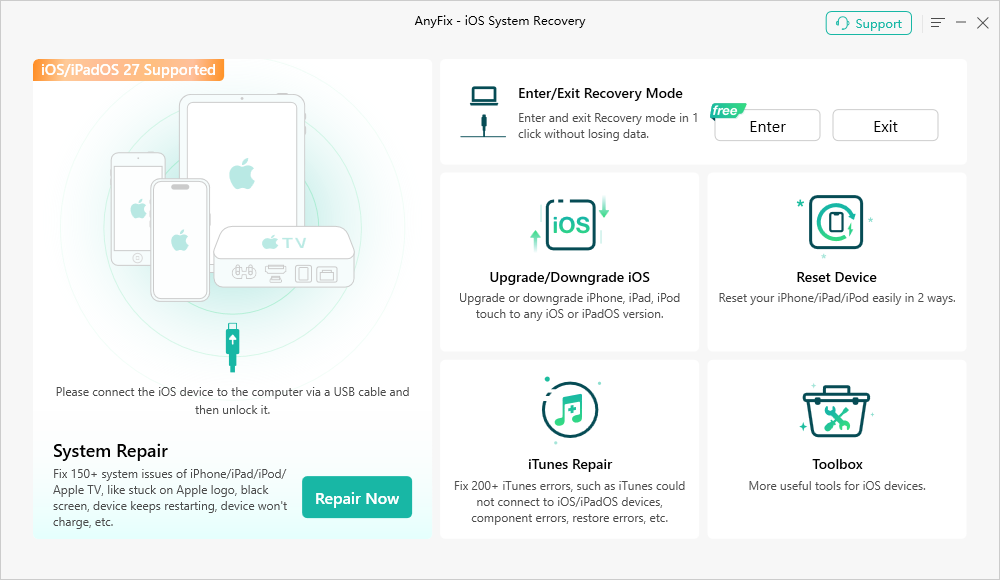
These issues are typically caused by system-level communication, update package validation, or restore environment instability rather than device ownership or passcode restrictions.
AnyFix focuses on repairing the iOS system update and restore pipeline so the device can complete installation or recovery normally.
AnyFix – iOS System Recovery
- Transfer all kinds of formats of photos from computer to your iPhone.
- With original size with no loss of picture quality and no compression.
- Lightning fast speed to transfer 100 photos in 3.4 seconds.
- No erase of previous photos on your iPhone, 100% clean & safe.
Free Download100% Clean & Safe
Free Download100% Clean & Safe
Free Download * 100% Clean & Safe
FAQ
Why does my iPhone update keep failing?
Common reasons include low storage, unstable network, cable or USB problems, outdated Finder/iTunes, computer security software, hardware communication issues, or verification failure.
Is an update failure the same as iPhone Unavailable?
No. iPhone Unavailable is a passcode lockout. Update failure means the iOS update or restore process did not complete.
Can restoring fix an update failure?
Sometimes, but restoring can erase the iPhone. You may also need the linked Apple Account afterward if Activation Lock is active.
Why does my iPhone ask for Apple ID after restore?
If Find My was enabled before the restore, Activation Lock may require the linked Apple Account during setup.
Can AnyFix fix iPhone update verification failures?
Yes. AnyFix is designed for system-level iOS update and restore issues, including verification failures, stuck updates, and restore errors.
It should be used after checking basic issues such as storage, network, and cable connections.
Should I keep retrying the same failed update?
Not without changing something. Record the error message, check storage, network, cable, computer software, and device state before trying again.
Final Takeaway
iPhone updates can fail for many reasons, and not all of them are lock-related. Start with storage, network, cable, Finder/iTunes, and errorcode checks. If the failure leads to a lock screen afterward, then choose the recovery path that matches the exact message you see.

AnyFix – Your iOS System Repair Expert
With AnyFix, you can enjoy a one-stop solution to fix various iOS, iPadOS, tvOS, and iTunes issues within minutes, restoring your Apple device to normal without any data loss.
Free Download for all windows & 100% safe
Free Download for all mac & 100% safe
Free Download 100% Clean & Safe
More Related Articles



Wanda Norris is a junior author in iMobie specializing in iOS tips and solutions. She keeps a close eye on every iOS update to provide practical, easy-to-understand guides that help users solve problems and master their Apple devices.
Product-related questions? Contact Our Support Team to Get Quick Solution >
