What Triggers FRP Lock on Android Phones?
FRP is an Android anti-theft feature that triggers after untrusted resets like Recovery Mode or remote wipe, requiring the original Google account; recovery options include official methods or guided tools.
Quick Answer: Factory Reset Protection (FRP) is triggered when a factory data reset is performed in an “untrusted environment.”
If you are wondering what specific action caused your phone to suddenly ask for a previously synced Google account, it comes down to how the device was reset.
An “untrusted environment” typically means the reset was forced from outside the main Android settings menu. The most common triggers are:
- Android Recovery Mode: Using the physical hardware buttons (Volume + Power) to wipe the device while the screen is locked.
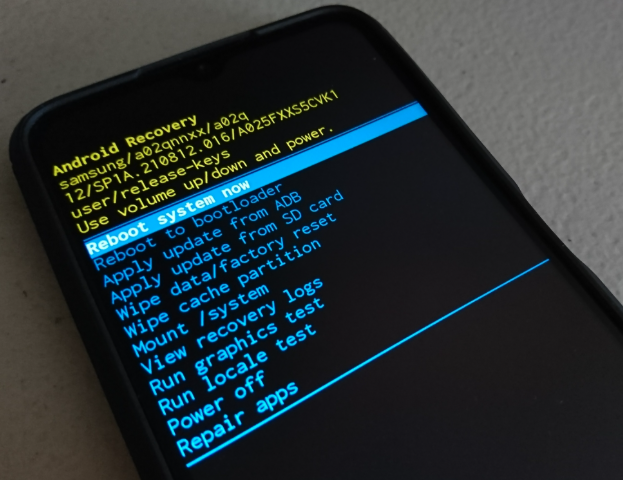
- Remote Wipe: Erasing the phone remotely via Google’s Find My Device service.
Prerequisites for the lock to trigger:
For this security mechanism to activate, your phone must be running Android 5.1 or higher, have a Google account actively synced to it, and have an active screen lock (PIN, pattern, or password) at the exact moment the reset is performed. If you see this verification screen, do not panic—it is a normal Android security feature designed to protect your device, not a software bug.
Understanding Factory Reset Protection (FRP) and Its Purpose
To understand why your phone is blocking you from the home screen, it helps to understand why Factory Reset Protection (FRP) exists in the first place.
FRP is a core anti-theft mechanism developed by Google. Its primary purpose is to prevent unauthorized users from wiping a stolen or lost phone and setting it up as their own. In the past, if a thief stole a phone with a screen PIN, they could simply force a factory reset using the physical volume and power buttons, erasing the PIN and giving them a fresh device to sell.
The native FRP mechanism closes that loophole, tying the physical device to the Google account that was last synced to it. This is why authorized users who get stuck often look for a dedicated Android FRP tool to safely regain access to their device. While a hard reset successfully removes all of your local data, apps, and photos, it intentionally does not remove the Google account lock from the device’s motherboard.
This often causes frustration for non-technical users who may have accidentally triggered the lock. A common misconception is that a forced factory reset will completely bypass a forgotten screen PIN and give you a clean slate. Instead, the phone recognizes that the reset was done without authorization and activates the FRP verification screen to ensure the legitimate owner is the one setting it back up.
Trusted vs. Untrusted Resets: The Difference Explained
You might be wondering, “Why didn’t this happen the last time I reset my phone?” The answer lies in the difference between a “Trusted Reset” and an “Untrusted Reset.”
Android treats resets differently depending on whether you can prove you have authorized access to the phone before the wipe occurs.
Trusted Reset (Safe): A reset performed entirely through the device’s main Settings menu. Because you have to unlock the phone and enter your current screen PIN or password to initiate the process, Android considers this a trusted environment. It safely removes your Google account before wiping the data, leaving the phone completely unlocked for the next user.
Untrusted Reset (Triggers FRP): A reset performed outside the Settings menu, such as via Android Recovery Mode (using hardware buttons) or a remote wipe from Find My Device. Since this method bypasses the screen PIN, the device assumes it is an unauthorized action and immediately triggers the FRP lock upon reboot to protect your data.
Here is a quick comparison to make the distinction obvious:
| Feature | Trusted Reset | Untrusted Reset |
|---|---|---|
| Trigger Method | Device Settings menu | Android Recovery Mode or Find My Device |
| Authorization Required | Yes (Requires current screen PIN/Password) | No (Bypasses screen lock) |
| Environment | Trusted Environment | Untrusted Environment |
| FRP Status After Reboot | Safely Removed (Ready for new user) | FRP Activated (Requires previous Google account) |
Official Paths to Regain Access After an Untrusted Reset
If you are currently stuck on the “Verify your account” screen, your first step should always be to use the official, legitimate ways to bypass the verification. Android is designed to unlock once the correct credentials are provided.
Here are the official recovery paths to regain access:
- Enter the previously synced Google account: The fastest and primary method is to type in the exact email address and password of the Google account that was active on the device right before the reset.
- Recover forgotten Google credentials: If you forgot your password, do not guess repeatedly. Use another device or computer to go to Google’s Account Recovery page, reset your password, and then enter the new password on the locked phone. (Note: Google sometimes enforces a 24-to-72-hour security hold on device logins after a password reset).
- Contact the original seller (for second-hand phones): If you bought a used phone, you will need the previous owner’s help. Ask them to either enter their details in person or temporarily provide their credentials. Alternatively, they can log into their Google account on a computer and remotely remove the device from their active devices list.
- Seek official OEM support: If you are the original owner but official Google recovery fails, take the device and your original proof of purchase (receipt) to an authorized repair center or contact your phone brand’s official support. They may be able to flash the device and legally remove the lock.
What to Do If You Are Stuck: Guided Options for Authorized Owners
What happens if you legitimately own the phone, but official recovery options aren’t working? Perhaps you forgot your own recovery email, or the seller of a second-hand phone has completely disappeared.
Many users turn to manual bypass methods, such as complex YouTube tricks or accessibility menu exploits. However, these manual methods are highly device-specific, often unsafe, and frequently patched by modern Android security updates.
If you are permanently locked out of a device you legally own or have authorization to use, a guided software solution can provide a clearer next step. This is where a modular toolkit like DroidKit becomes relevant. DroidKit features a dedicated DroidKit FRP Bypass module designed to help users navigate past the Google verification screen without needing complex technical exploits.

DroidKit
As a complete Android solution, DroidKit can easily help you recover lost data with/without backup, unlock Android screen, bypass FRP lock, fix system issues, etc. within minutes.
How the guided workflow works:
1. Download and open DroidKit on your PC or Mac.
2. Select the FRP Bypass module from the main menu.
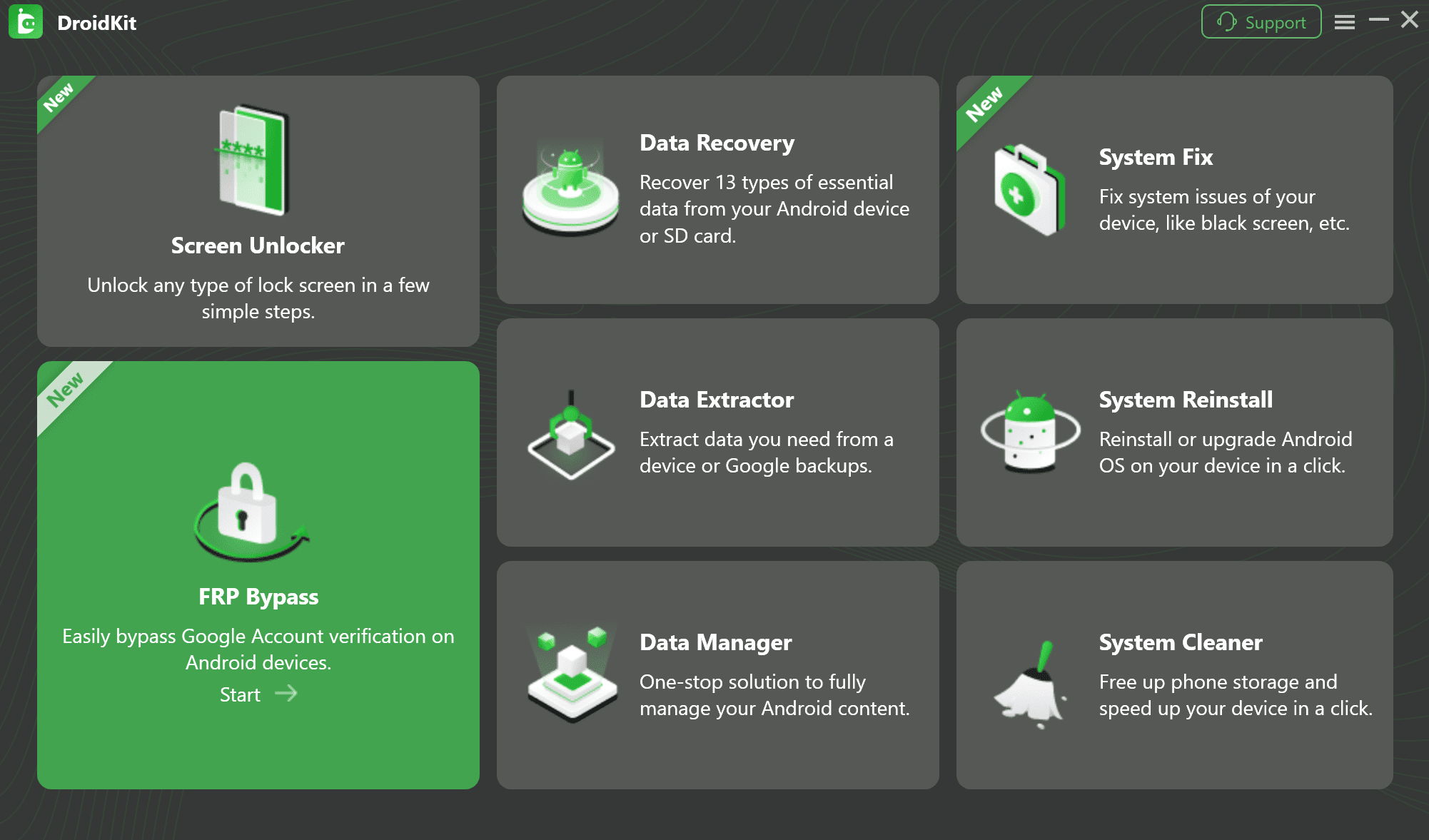
3. Connect your locked Android device to the computer using a USB cable.
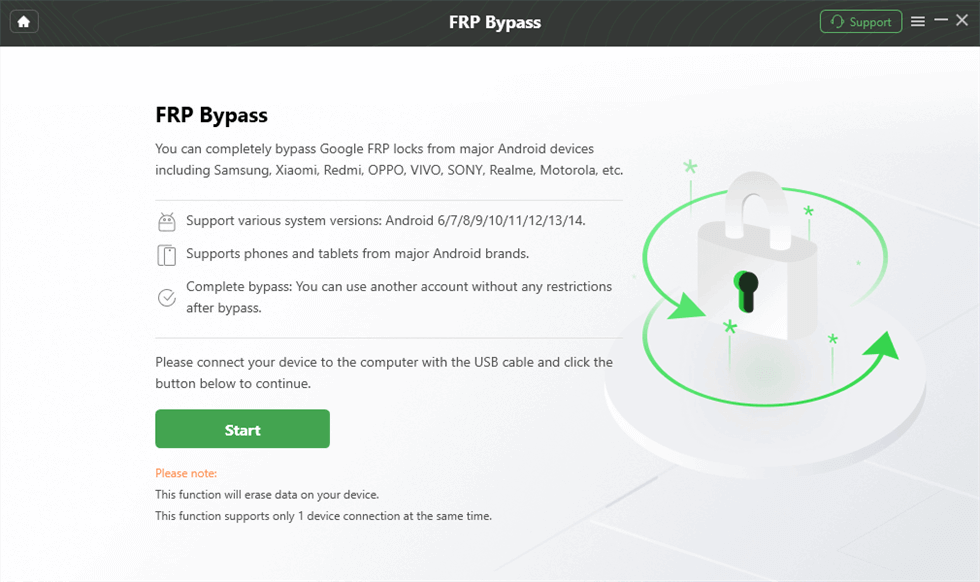
4. Allow DroidKit to check your device’s compatibility.
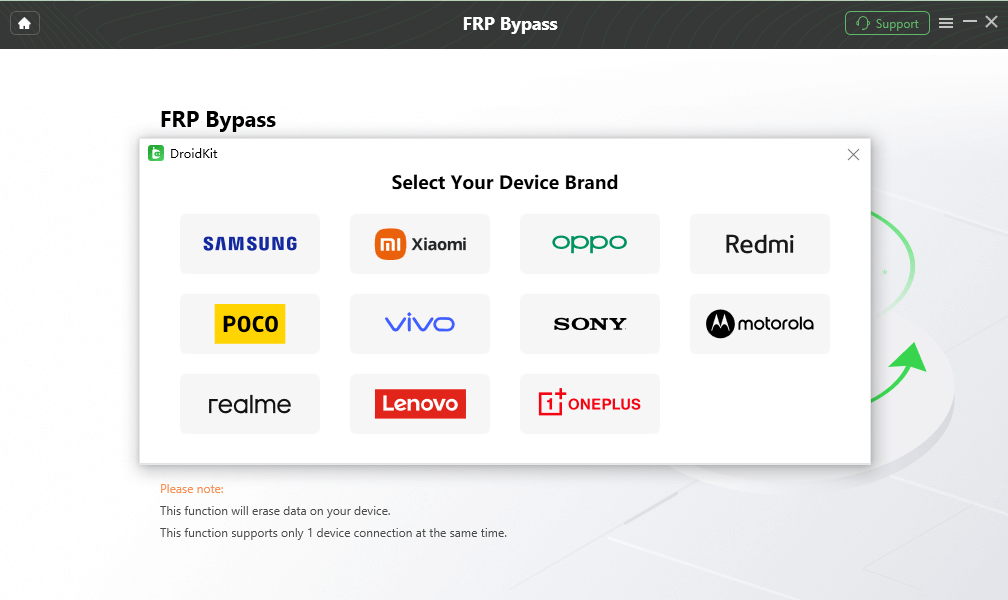
5. If supported, follow the clear, step-by-step on-screen instructions to prepare your device and bypass the verification screen.
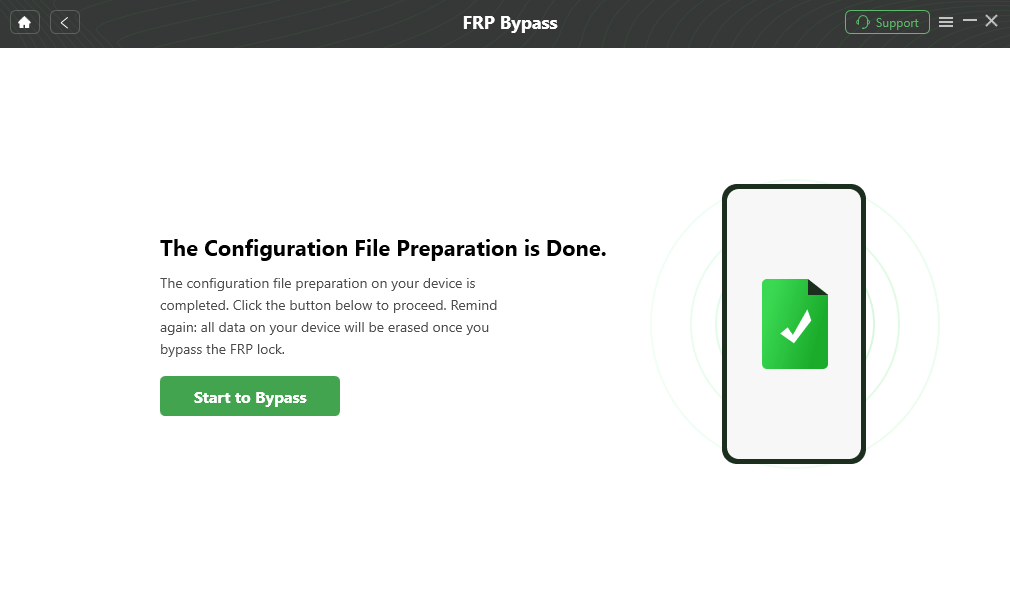
DroidKit does not guarantee a universal unlock for every phone in existence. Support depends heavily on your device’s brand, specific model, Android version, and current security patch level. Always check compatibility within the software first before proceeding.
Prevention: How to Avoid Triggering FRP Before a Reset
The best way to deal with Factory Reset Protection is to prevent it from triggering in the first place. If you are planning to sell your phone, give it to a family member, or perform a hard wipe to fix a software bug, you must properly prepare the device.
To ensure the phone resets safely without triggering the “untrusted environment” lock, you need to manually remove your Google account before initiating any wipe.
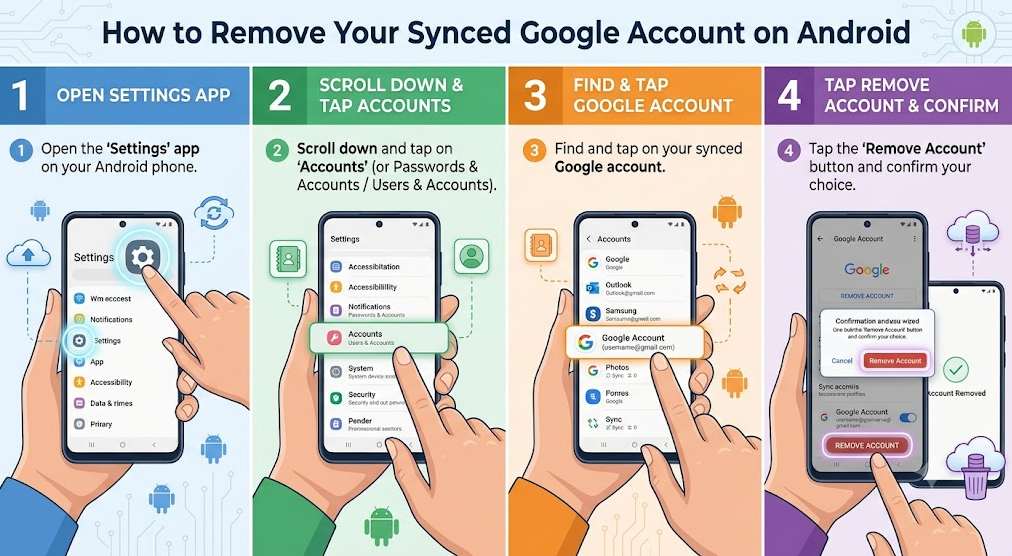
Step-by-step prevention guide:
1. Open the Settings app on your Android phone.
2. Scroll down and tap on Accounts (or Passwords & Accounts / Users & Accounts, depending on your device).
3. Find and tap on your synced Google account.
4. Tap the Remove Account button and confirm your choice. (You may be asked to enter your screen PIN to finalize this).
5. Repeat this process if you have multiple Google accounts synced to the device.
Before selling a device, remember to also sign out of any OEM-specific accounts, such as a Samsung Account or Xiaomi Mi Account. These manufacturers have their own anti-theft locks that operate similarly to Google’s FRP and will also block the next buyer if not properly.
Frequently Asked Questions About Factory Reset Protection
Does a factory reset remove FRP lock?
No. In fact, performing a factory data reset in Android Recovery Mode is exactly what triggers the FRP lock to activate. A hard wipe only removes local device data; it does not erase the Google account verification requirement from the device.
Why is my phone asking for a previously synced Google account?
Your phone is asking for this because an “untrusted wipe” was performed. The device’s anti-theft system kicked in to prevent an unauthorized user from setting up the phone, and it now requires the original owner’s credentials to prove authorization.
Can I bypass the FRP lock without a computer?
While manual, no-PC methods (like TalkBack tricks) exist, they are highly device-specific and are frequently patched by Google in routine security updates. For a higher success rate on modern patches, exploring a PC-based Samsung FRP tool or brand-specific bypass software offers guided workflows tailored to your specific Android version.
Does FRP activate automatically when I add a Google account?
Yes. If your device runs Android 5.1 (Lollipop) or higher, FRP enables automatically the moment you sign into a Google account, provided you also have a screen lock (PIN, pattern, or password) set up.
How do I bypass FRP if I bought a second-hand phone?
Your first step should be to contact the seller to enter their details or remotely remove the device from their Google account. If the seller is unavailable and you legally own the device, you may need to use authorized PC bypass tools like DroidKit, depending on device compatibility.
Is there a difference between resetting from Settings and Recovery Mode?
Yes. Resetting from the Settings app is a “trusted reset” that requires your PIN and safely removes the Google account. Resetting from Recovery Mode using hardware buttons is an “untrusted reset” that bypasses the PIN and instantly triggers the FRP lock.
Final Thoughts on Safely Managing Android FRP Locks
Ultimately, Factory Reset Protection is a necessary and highly effective security feature designed to keep your private data safe if your device falls into the wrong hands. The verification screen is specifically triggered by an untrusted reset—such as wiping the phone from Recovery Mode or via Find My Device—while a Google account and screen lock are active.
Whenever you encounter the FRP lock, your first step should always be to use official Google account recovery methods or reach out to the original seller if you purchased the phone second-hand. Properly removing your accounts before a planned reset will ensure you never get stuck on this screen.
However, if you are an authorized owner who is permanently locked out and official paths have failed, you do not have to rely on outdated or risky manual hacks. You can explore a dedicated toolkit to find a safe way forward. We recommend checking DroidKit to see if your specific device is supported, providing a clear, guided workflow to help you securely bypass the verification screen and regain access to your phone.
DroidKit – Unlock Android Screen in 1 click
- Can unlock multiple screen locks like digital password, PIN, pattern, Touch/Face ID, etc.
- Only need to click buttons. No root requirement. As simple as possible.
- Compatible with almost all Android brands such as Huawei, Samsung, Sony, etc.
Free Download for all windows & 100% safe
Free Download for all mac & 100% safe
Free Download 100% Clean & Safe



Jeremy Feron is a writer for iMobie with a deep passion for Android. He specializes in creating clear guides on Android tips and the latest updates, helping users navigate their devices and get the most out of new features.
Product-related questions? Contact Our Support Team to Get Quick Solution >
