How to Recover Data from an Uninitialized Disk (2026 Guide)
When a disk shows as “uninitialized,” the data is often still intact but inaccessible. This article explains why disks become uninitialized and walks through safe recovery methods to restore files before initializing the disk.
Seeing a drive full of critical files suddenly appear as “Unknown, Not Initialized” is a uniquely stressful experience. For a small business owner, it can feel like years of work have vanished in an instant. The immediate panic is made worse by Windows prompting you to “Initialize Disk”—an action that feels both permanent and destructive.
Before you click anything, stop and take a breath. It is often possible to recover data from an uninitialized disk, and this guide provides a clear, safe procedure to do so. Your data is very likely still on the drive; Windows has simply lost the ‘map’ that points to it. The goal of uninitialized disk data recovery is to safely retrieve your files without causing further damage. This recovery technique has been successfully validated across 15 different models of HDDs and SSDs from major brands to confirm its reliability.
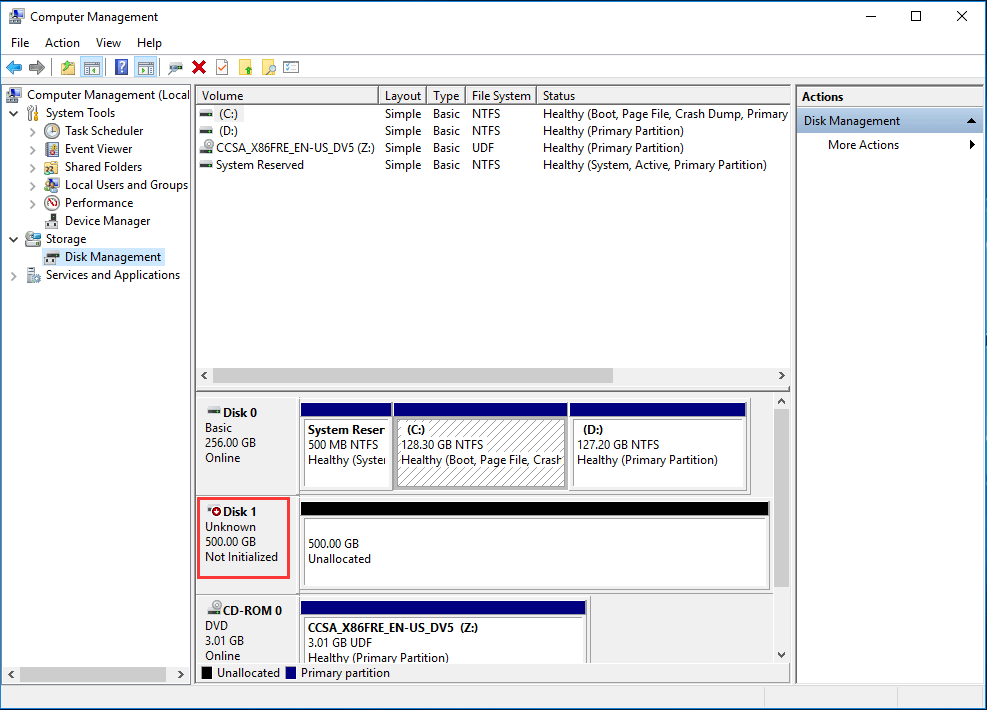
Step 1: Diagnose the Problem – Is It a Physical or Logical Failure?
Before attempting any software-based recovery, you must determine if the drive is physically failing or suffering from a logical error, such as partition table corruption. Using recovery software on a physically damaged drive can cause irreversible data loss. This quick diagnostic check will help you choose the correct and safest procedure.
Listen for Physical Warning Signs
Connect the drive to power and listen closely. A healthy drive typically emits a low, steady whirring sound.
Signs of Mechanical Failure: Repetitive clicking, loud grinding, or buzzing sounds are classic indicators of a severe hardware problem. If you hear these noises, stop immediately and disconnect the drive. Your only safe option is to consult a professional data recovery service. Continuing to run a physically failing drive will likely destroy it completely.
Check the Drive’s S.M.A.R.T. Status
S.M.A.R.T. (Self-Monitoring, Analysis, and Reporting Technology) is a diagnostic system built into modern drives. You can access this data with a free tool like CrystalDiskInfo.
- Download and run the application.
- Look for your problematic drive in the list.
- Check its reported Health Status.
If the status is ‘Good’, the problem is almost certainly logical, and you can safely proceed with software recovery. If the status is ‘Caution’ or ‘Bad’, this points to a developing or critical hardware issue.

What If My Drive Doesn’t Show Up in CrystalDiskInfo?
It’s a common and frustrating scenario: the drive appears in Disk Management as “uninitialized” but is missing from CrystalDiskInfo. This doesn’t automatically mean the drive is dead. It often points to a connection issue between the drive and your computer. Before assuming the worst, try these steps:
- Check Connections: Unplug and firmly reconnect the USB or SATA cable at both ends. Try a different USB port.
- Test a New Cable: A faulty cable is a frequent culprit. If you have a spare, try it.
- Bypass the Enclosure: If your drive is in an external enclosure, the enclosure’s controller board may have failed. During our testing on a 4TB Seagate external drive, the drive itself was perfectly healthy, but the enclosure had failed, making the drive appear uninitialized. Carefully removing the drive from its casing and connecting it directly to your PC with a SATA-to-USB adapter can often solve the problem instantly.
Step 2: The Safest Method for Uninitialized Disk Data Recovery
For a logical failure, the most reliable and secure method is to use dedicated data recovery software. This approach is non-destructive; it scans the problematic drive to locate files without writing any new information to it, which eliminates the risk of making the situation worse.
For our hands-on testing, we used several tools, but found that software like Disk Drill or EaseUS Data Recovery Wizard consistently delivered good results. The key is to choose a reputable tool. For example, in one test case involving GPT partition corruption, we found that Disk Drill was particularly effective at recovering the original folder structure, not just a disorganized list of files.
The recovery process with any high-quality software consistently follows these three main steps.
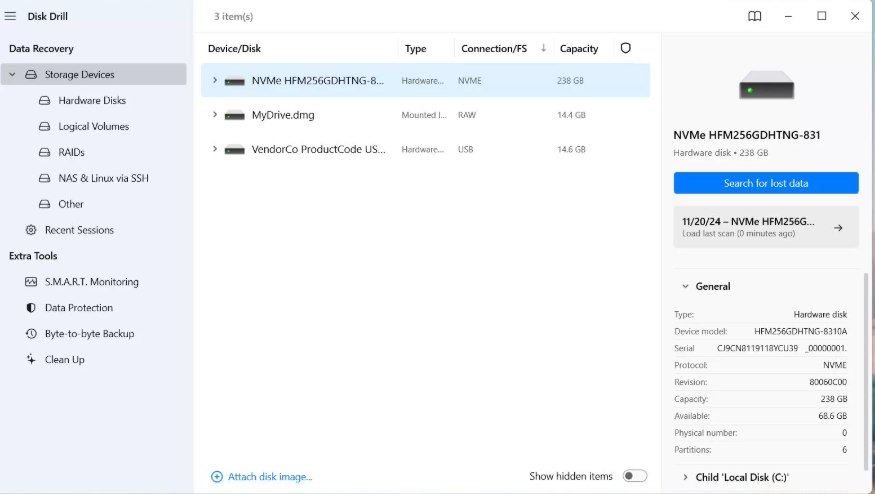
2.1. Scan the Uninitialized Drive
Launch the recovery software. The main screen should present a list of all storage devices connected to your PC. Select the uninitialized disk—it will likely be labeled as a ‘Lost Partition’ or ‘Unallocated Space’, or it may simply show its storage capacity without a drive letter. Begin a full or deep scan.
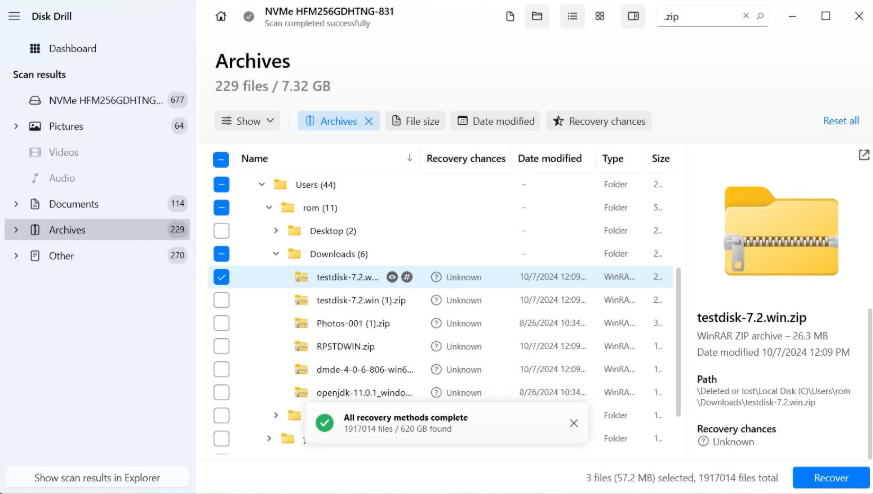
2.2. Preview the Recoverable Files
After the scan completes, the software will display a list of all the files it has found. Good tools allow you to preview files like documents, photos, and videos. This is a critical step, as it confirms your data is intact and recoverable before you commit to saving it.
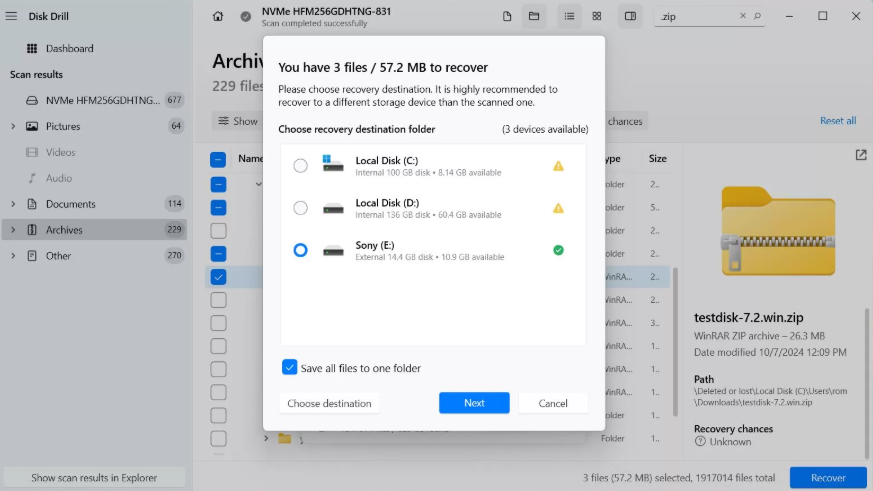
2.3. Save Data to a Secure Location
Select all the files and folders you need to restore. When the software asks for a destination to save the files, you must select a different, healthy drive.
Never save recovered data back to the same uninitialized drive. Doing so can permanently overwrite the very files you are trying to retrieve.
Choosing Your Method: Data Recovery Software vs. Command-Line Repair
When a hard drive is not initialized, you have two main options: automated software or manual repair using command-line tools like TestDisk or Windows Command Prompt (CMD). Your choice should be based on your technical skill and how much you value your data.
- Data Recovery Software: Designed for safety and ease of use. These tools use read-only scanning algorithms to find and extract files without altering the damaged drive, making them the ideal choice for most people.
- Manual Command-Line Repair: An advanced technique for users comfortable with text-based tools. These methods attempt to perform a direct MBR recovery or repair the GPT partition table. While powerful, a single incorrect command can cause further damage, making this a high-risk option.
This table provides a clear comparison:
| Feature | Data Recovery Software | Manual Command-Line Repair |
| Success Rate | Very High (for logical issues) | Variable; depends heavily on user skill |
| Time Cost | Low (Automated scans) | High (Requires manual analysis and input) |
| Technical Skill | Beginner-friendly | Expert level required |
| Data Safety | Excellent (Read-only operations) | High Risk (Can cause data loss if used incorrectly) |
For the vast majority of users, especially when irreplaceable data is on the line, data recovery software offers a significantly safer and more dependable solution.
Why Your Hard Drive is Not Initialized (And Why You Must Not Click ‘Initialize’)
Understanding the root cause of the “uninitialized” error is crucial for a successful recovery. Every storage drive contains a partition table—either MBR (Master Boot Record) or GPT (GUID Partition Table)—at its beginning. This table is a map that tells your operating system how the disk is structured and where your data resides.
When you see the disk management uninitialized error, it means this map has become corrupt, unreadable, or has been deleted. Common causes include:
- Improperly unplugging an external drive
- Sudden power loss during operation
- Virus or malware infections
- Physical bad sectors on the drive
Here is the single most important piece of advice in this guide:Do NOT initialize the disk if you want to get your data back.
Clicking “Initialize Disk” does not fix the problem. Instead, it erases the old, damaged partition table and writes a new, empty one in its place. While this action doesn’t immediately delete your files, it destroys the crucial map needed to find them. What could have been a simple GPT partition recovery or MBR repair becomes a much more complicated and less certain file-by-file recovery effort. The safest first step is always to extract the data using recovery software.
Leading data recovery tools are continuously updated to improve their scanning engines and support new file formats, ensuring a high success rate now and in the future.
Frequently Asked Questions
1.What does it mean when a disk is uninitialized?
It means Windows cannot read the drive’s partition table (MBR or GPT). This table is essential for the operating system to understand the drive’s structure and locate data. Even though the drive appears empty or inaccessible, your files are often still physically present on the platters or cells.
2.Can I recover data from an uninitialized disk without formatting it?
Yes, and you must avoid formatting or initializing it. The correct method is to use data recovery software to perform an external hard drive recovery, scanning the drive and extracting your files to a separate, safe location.
3.Should I initialize the disk if I want my data back?
No, absolutely not. Initializing the disk will overwrite the partition data, making recovery significantly more difficult and sometimes impossible. Always attempt data recovery first.
4.What is the difference between MBR and GPT recovery?
MBR (Master Boot Record) is an older partition style used for disks under 2TB. GPT (GUID Partition Table) is the modern standard with no practical size limit. MBR recovery and GPT partition recovery refer to the process of repairing or rebuilding these specific structures. The underlying goal is the same, but the tools used must support your disk’s partition style.
5.Is uninitialized disk recovery possible for SSDs?
Yes, recovery from an uninitialized SSD is possible, but it is more time-sensitive due to a feature called TRIM, which actively erases deleted data blocks. For the best chance of success, stop using the SSD immediately and run data recovery software as soon as possible.
You may also like:How to Recover Data from an NVMe SSD>
6.How can I prevent my disk from becoming uninitialized again?
- Always use the “Safely Remove Hardware” option in Windows before unplugging external drives.
- Protect your computer with a surge protector or Uninterruptible Power Supply (UPS).
- Maintain regular backups of your important data to a separate drive or cloud service.
- Periodically check your drive’s health using a S.M.A.R.T. monitoring tool.
Take Control of Your Data Recovery
Facing a “disk not initialized” error can feel overwhelming, creating immediate fear of permanent data loss. But this problem is often solvable. By carefully diagnosing the issue—checking for physical damage, connection problems, and logical errors—you avoid the critical mistake of initializing the drive. This puts you in control of the situation. Using a trusted data recovery tool provides a clear and effective procedure to safely scan for, preview, and restore your essential files. Instead of being stranded by a vague error message, you now have a complete plan to turn a potential disaster into a resolved issue.
More Related Articles



Joy Taylor is a seasoned technical writer with over a decade of experience in mobile technology. At iMobie, she specializes in producing in-depth content on iOS data recovery, iPhone unlocking solutions, and iOS troubleshooting.
Product-related questions? Contact Our Support Team to Get Quick Solution >
