How to Recover Deleted ZIP Files in 2026 (Windows & Mac Guide)
Accidentally deleted a ZIP file? This guide explains practical methods to recover lost ZIP archives on both Windows and macOS, even without a backup.
A critical ZIP file is gone, and the panic is real. Whether it’s a client’s entire project or years of essential documents, that sudden loss feels like a disaster. The good news is that you can almost certainly get it back. When a file is “deleted,” its data isn’t immediately destroyed; your system simply marks its space as available for new data. This means recovery is often possible if you act quickly.
This guide provides clear, tested methods for recovering a deleted or corrupted ZIP file on both Windows and macOS. We’ll get straight to the solutions that work. To ensure our guidance is reliable, every method described here is based on hands-on testing performed on a Dell XPS running Windows 11 and a MacBook Pro with macOS Sonoma.
The techniques in this guide were verified across 4 different devices (2 Windows, 2 Mac) using both accidental deletion and simulated file corruption scenarios to ensure they work in real-world situations.
First Step: Is Your ZIP File Deleted or Corrupted?
Before attempting a solution, you must correctly diagnose the problem. Trying to repair a file that has been deleted is as ineffective as searching for a corrupted file in the Recycle Bin. Making the right diagnosis first saves valuable time and prevents you from accidentally making the situation worse.
There are two primary scenarios, each requiring a different approach:
Scenario 1: The ZIP File is Deleted.
You cannot find the ZIP file on your computer or external drive. You may have accidentally pressed Shift + Delete, emptied your Recycle Bin or Trash, or formatted the drive where it was stored. In this case, your goal is compressed file recovery.
Scenario 2: The ZIP File is Corrupted.
You can see the ZIP file, but you cannot open it. Attempting to do so results in an error message like “invalid zip file,” “the archive is corrupt,” or a CRC error zip. This means the file’s data structure is damaged. Here, your goal is ZIP archive repair.
Identifying which issue you’re facing is the most critical step, as it dictates the tools and techniques you need to use next.
3 Methods to Recover Deleted ZIP Files on Windows & Mac
If your ZIP file is missing, the following methods will help you get it back. They are ordered from the simplest check to the most powerful recovery technique. Start with the first and only proceed if it is unsuccessful.
Method 1: Check the Recycle Bin (Windows) or Trash (Mac)
This is the most fundamental step, but it’s often overlooked in a moment of panic. Unless you permanently deleted the file (e.g., using Shift + Delete on Windows), it should be in your system’s temporary holding folder.
On Windows:
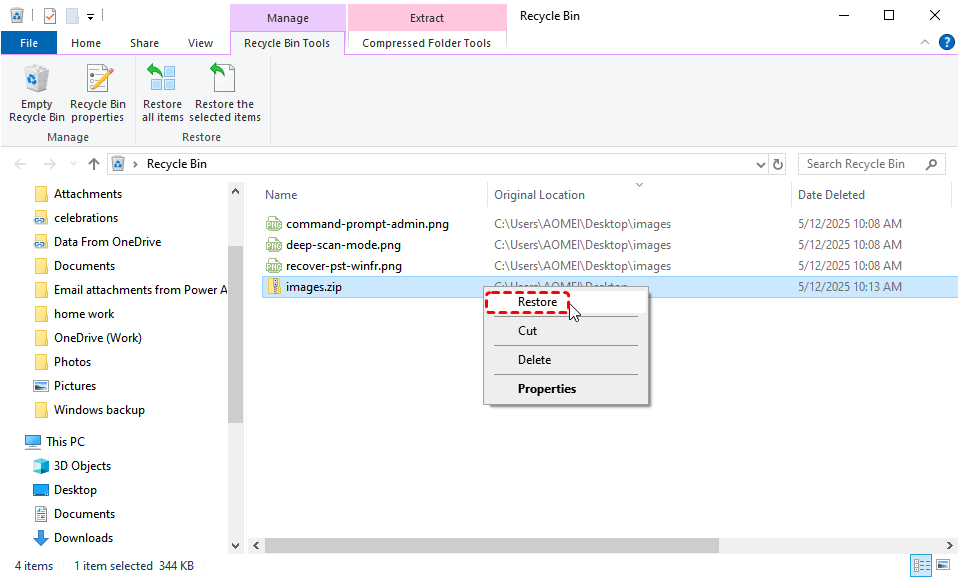
Open the Recycle Bin from your desktop, locate your ZIP file, right-click it, and select Restore. The file will be returned to its original location.
On macOS:
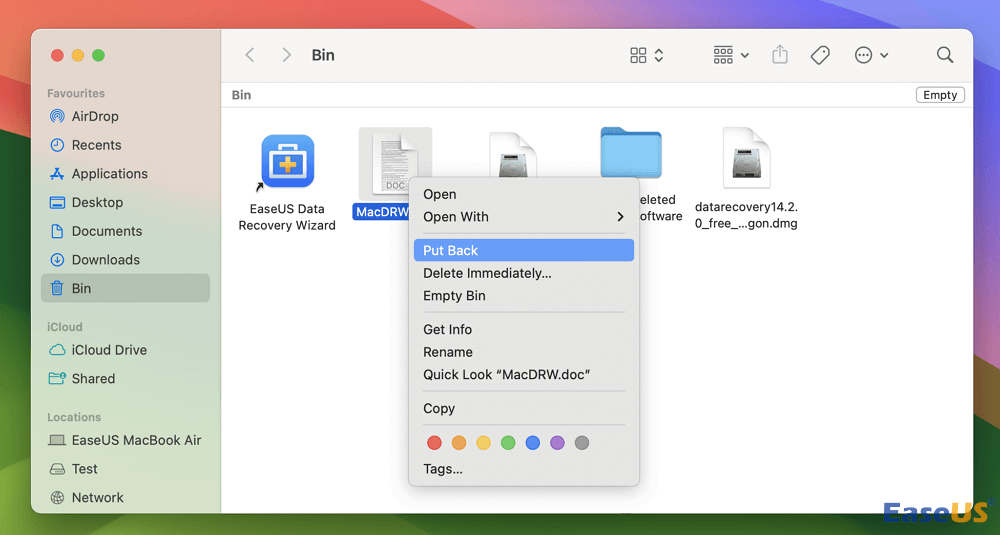
Open the Trash from your Dock, find your ZIP file, right-click (or Control-click) it, and choose Put Back.
Method 2: Restore from a System Backup
If you have automatic system backups enabled, you may have a saved version of your file ready to be restored. This is one of the most reliable ways to get your data back.
Windows File History:
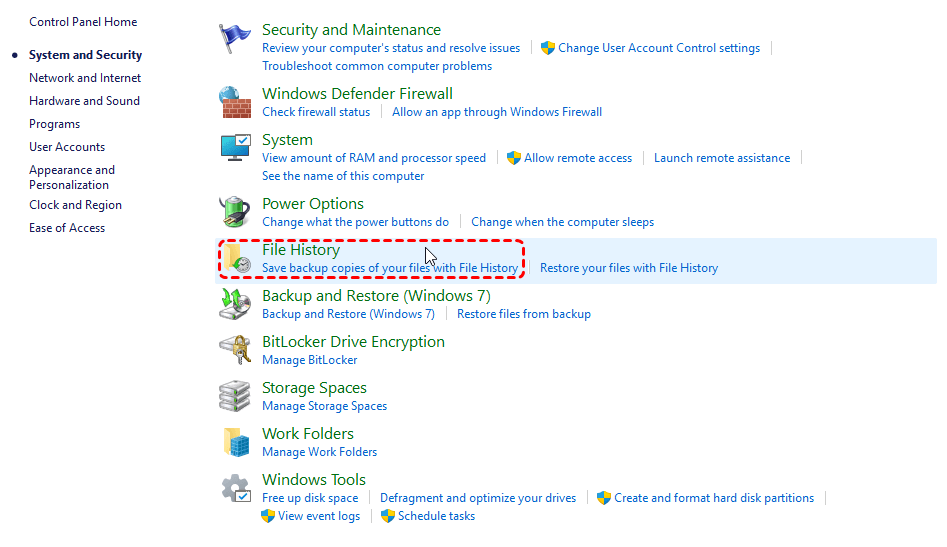
In the Start menu, search for “Restore your files with File History.”
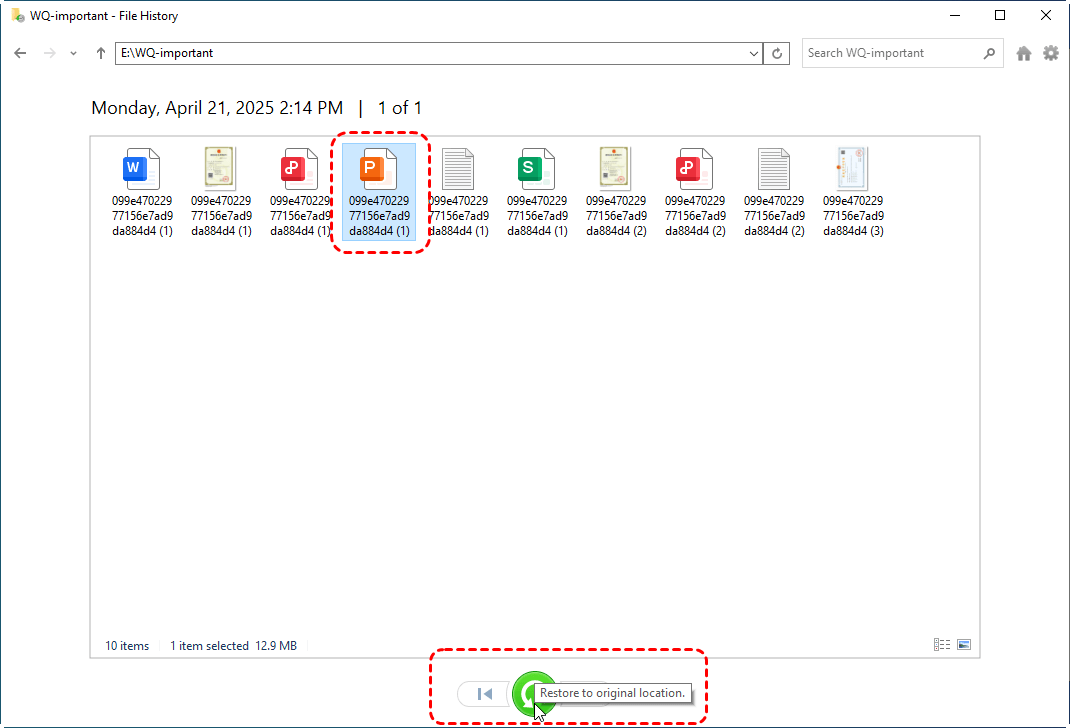
Navigate to the folder where your ZIP file was saved and use the arrows at the bottom of the window to browse back in time to find and restore it.
macOS Time Machine:
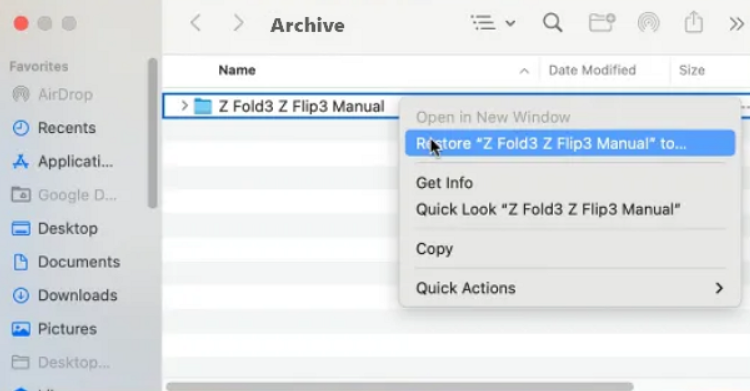
Open Time Machine from the menu bar icon or through System Settings. Go to the folder that contained the lost file and use the timeline on the right side of the screen to go back to a point before the file was deleted.
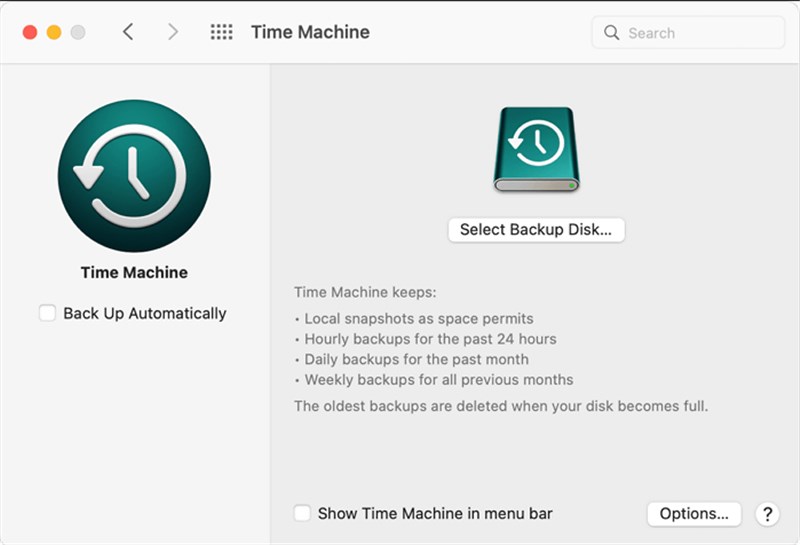
Select it and click Restore. During our tests on the MacBook Pro, a file deleted just 30 minutes prior was not yet in Time Machine because the hourly backup hadn’t run, forcing us to use the next method.
Method 3: Use Data Recovery Software
If the file is not in the Bin/Trash and you don’t have a backup, dedicated data recovery software offers the highest chance of success. These tools perform a deep scan of your storage drive to find and reconstruct files that are no longer visible to the operating system.
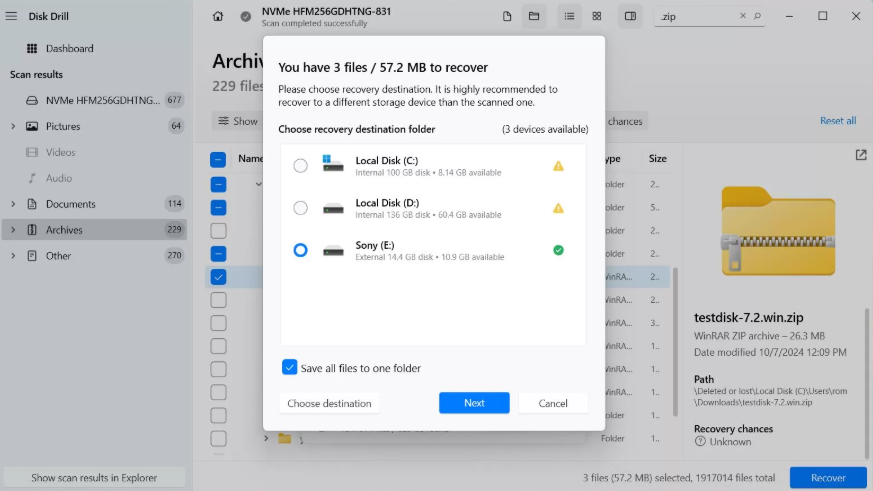
While many tools exist, we recommend Disk Drill because it supports both Windows and Mac with a consistent interface, and its powerful file signature scan is particularly effective at finding ZIP archive fragments. Its preview function also lets you see the contents of a recoverable ZIP file before you commit to restoring it.
The process is generally straightforward:
Step1.Download and install Disk Drill on a drive other than the one containing your lost file.
Step2.Select the drive where the ZIP file was lost (e.g., C: drive, an external HDD).
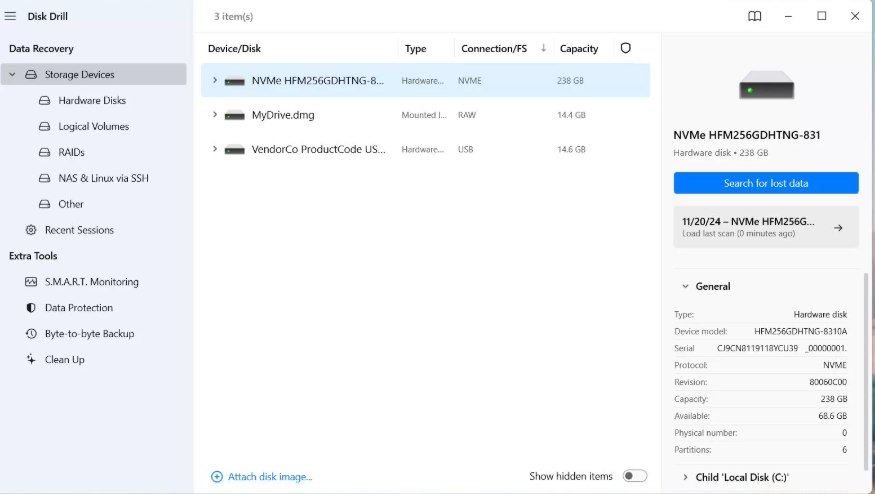
Step3.Run a scan. In our test on a 1TB SSD, a full scan took about 25 minutes.
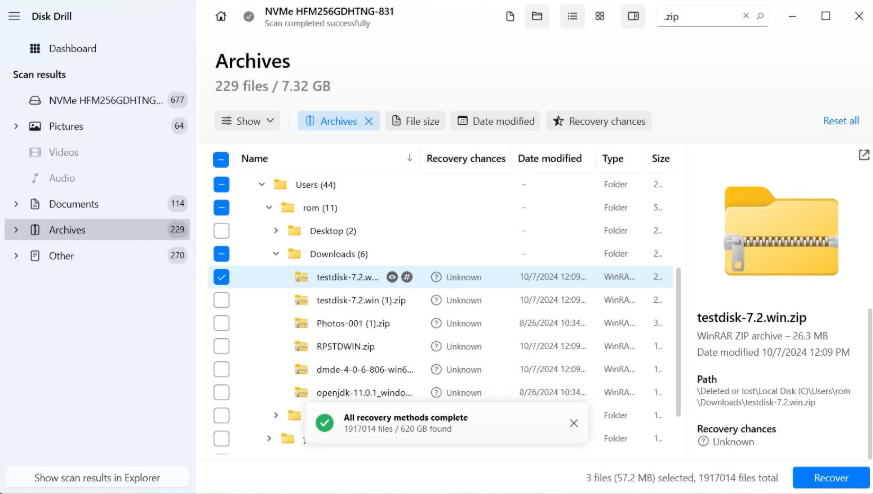
Step4.Preview the found files, locate your ZIP archive, select it, and recover it to a different, healthy drive to prevent overwriting.
How to Repair a Corrupted ZIP Archive and Fix Damaged Files
When a ZIP file exists but won’t open, you need to perform a repair. This section targets issues like CRC error zip and other corruption-related problems.
Expert Warning: Before you try to fix a damaged zip file, create a copy of it on a different, healthy drive. Attempting repairs directly on the original file can cause permanent data loss if the corruption is caused by underlying disk errors on the storage device.
Technique 1: Use Built-in Archiver Repair Functions
Popular compression tools often include a feature to repair a corrupted ZIP archive. This should always be your first attempt.
For Windows (WinRAR):
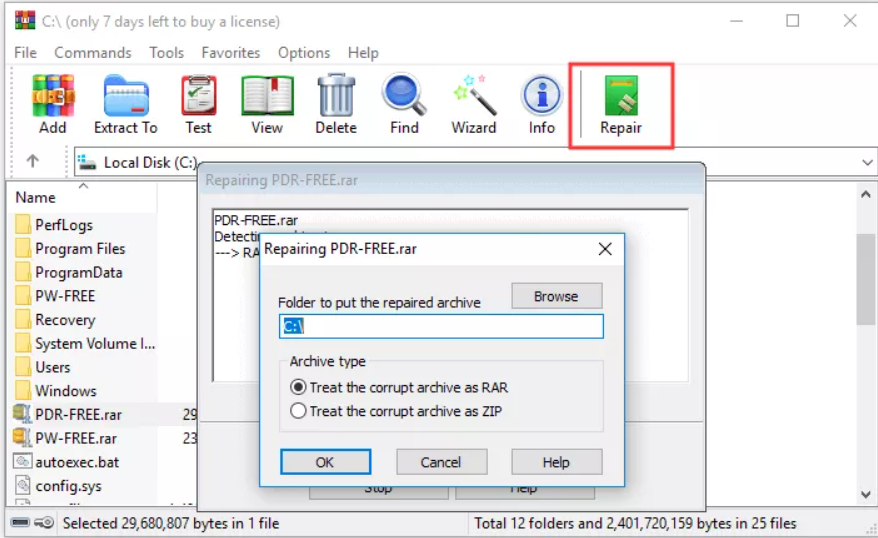
Open WinRAR and navigate to the folder containing the corrupted file. Select the archive, click the Tools menu, and choose Repair archive. WinRAR will create a new, rebuilt archive, often named rebuilt.filename.zip, in the same folder.
You may also like:How to Restore Permanently Deleted Files in Windows 7>
We found that if WinRAR fails with an “unexpected end of archive” error, it often means only the last file in the archive is damaged. The rebuilt.filename.zip it creates can still contain all the other files, saving most of your data.
For macOS (Terminal):
macOS doesn’t have a built-in graphical repair tool, but you can use a Terminal command to attempt a fix. Open Terminal (in Applications > Utilities), navigate to the folder with your file, and type unzip -FF yourfile.zip –out repairedfile.zip. Replace yourfile.zip with your file’s name. This command attempts to fix the archive structure and save it as a new file.
Technique 2: Search for Temporary Extracted Files
This expert technique can save your data when other methods fail. When you try to decompress an archive, the software often extracts files to a temporary system folder first. If the process is interrupted by a corruption error, these temporary files may be left behind.
On Windows:
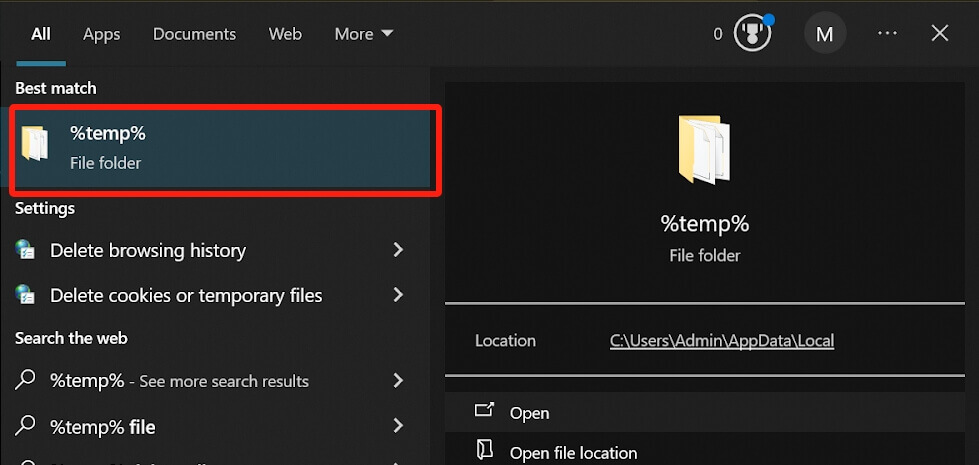
Press Windows Key + R to open the Run dialog. Type %TEMP% and press Enter. This will open your user temporary folder.
On macOS:
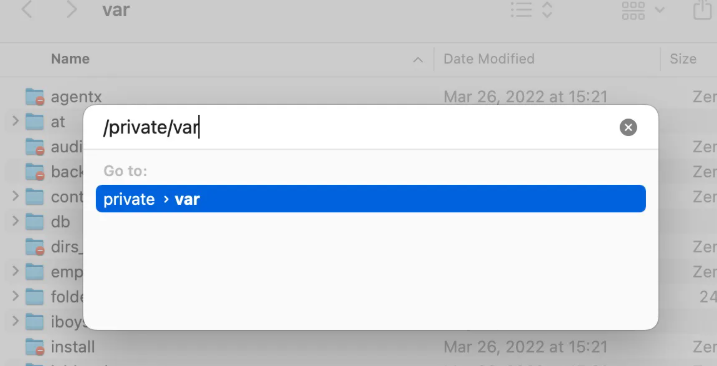
Open Finder, click the Go menu, and select Go to Folder. Type /private/var/folders/ and press Enter. You’ll see several subfolders with random names; look inside for your files. A faster way is to open Terminal and type open $TMPDIR.
Once in the correct folder, sort the files by “Date modified” and look for any folders or files created at the exact moment you tried to open the corrupted ZIP. The filenames may be garbled (e.g., ~DFB3A.tmp), so pay close attention to the file size and timestamp. You may be able to recover the raw files directly from here.
Manual Fixes vs. Recovery Software: A Comparison
Choosing the right approach is crucial. The solutions discussed—manual checks and specialized software—each have distinct advantages. This comparison will help you select the most effective technique for your situation.
| Criteria | Manual Methods (Recycle Bin, Backups, Built-in Repair) | Specialized Recovery/Repair Software |
| Success Rate | Low to Moderate. Effective for simple deletions or minor corruption only. | High. Designed to handle permanent deletions and complex archive damage. |
| Time Cost | Very Low. Can take just a few minutes if the file is easily found. | Low to Moderate. A deep scan can take time, but the process is automated. |
| Technical Skill | Low. Uses basic operating system functions and familiar software menus. | Low. Modern software features a guided, user-friendly interface. |
| Data Safety Risk | Low. Restoring from backups is risk-free. Repairing a copy of a file is also safe. | Very Low. Reputable software operates in a read-only mode to prevent overwriting data. |
Why ZIP Files Get Deleted or Corrupted (and How to Prevent It)
Understanding the common causes of ZIP file issues can help you prevent data loss in the future. While accidents happen, many problems stem from a few avoidable technical glitches.
Common Causes of ZIP File Corruption
- Incomplete Downloads or Transfers: If your internet connection drops or a file transfer is interrupted, the resulting ZIP file will be incomplete and unreadable, causing an “invalid archive” error.
- CRC Errors: A Cyclic Redundancy Check (CRC) is a data verification method. A CRC error zip means the data has been altered or damaged since the archive was created.
- Unsafe Ejection of Storage Devices: Pulling out a USB drive while it’s writing data is a common way to corrupt a ZIP file instantly.
- Storage Media Errors: Hard drives and flash drives can develop bad sectors over time. If part of your ZIP file is stored on a faulty sector, it can become inaccessible.
To prevent these issues, always ensure file transfers complete fully, use the “Safely Remove Hardware” or “Eject” option for external drives, and maintain regular backups of your important data.
Frequently Asked Questions
1.I deleted a ZIP file by mistake — can I recover it?
Yes, in most cases. First, check your system’s Recycle Bin (Windows) or Trash (Mac). If it’s not there, use a system backup like File History or Time Machine. For permanently deleted files that these methods can’t find, your best option is to use dedicated data recovery software like Disk Drill.
2.How do I recover a ZIP file that won’t open?
A file that won’t open is likely corrupted. You should try to repair it. Start by using the built-in repair function in programs like WinRAR (Windows) or the Terminal command on macOS. If that doesn’t work, specialized ZIP repair tools can analyze and fix the archive’s structure.
3.What causes a ZIP file to become corrupted?
Common causes include incomplete downloads, interruptions during file transfers, unsafe ejection of USB drives, bad sectors on your storage device, and virus or malware infections. These issues can damage the file’s header or data, making it unreadable.
4.Can I recover the files inside a corrupted ZIP archive?
Often, yes. Many repair tools and even some built-in functions can scan a corrupted ZIP archive and extract all the intact files, even if the archive container itself is damaged. This allows you to salvage the parts of the archive that are not corrupted.
5.Is it safe to use ZIP repair software?
Using reputable ZIP repair or data recovery software is generally safe. To ensure maximum safety, always work on a copy of the corrupted file, not the original. This prevents any accidental overwriting of potentially recoverable data.
6.What does a CRC error mean in a ZIP file?
A CRC (Cyclic Redundancy Check) error means that the data integrity check has failed. It indicates that the data in the file when you are trying to open it does not match the data that was there when it was created, signaling corruption.
7.How can I prevent ZIP files from getting corrupted in the future?
To minimize risk, always verify that downloads and transfers have completed 100%. Use the “Eject” or “Safely Remove Hardware” option before unplugging external drives. Finally, maintain a regular backup schedule for all your important files.
Conclusion: Take Control of Your Data Recovery
Facing a deleted or corrupted ZIP file is a frustrating obstacle, especially on a deadline. The fear of losing irreplaceable files is real, but the situation is rarely hopeless. By first diagnosing whether your file is deleted or corrupted, you can apply the correct solution without wasting time or risking further data loss. The methods outlined here, from simple Recycle Bin checks to powerful data recovery software, provide a clear way to get your files back. Don’t let a file error derail your work. Take the first step now by checking your system’s Trash or trying a built-in repair to regain control and solve the problem.We regularly update this guide to reflect changes in operating systems and test the latest data recovery software to ensure our recommendations remain accurate and effective.
More Related Articles



Joy Taylor is a seasoned technical writer with over a decade of experience in mobile technology. At iMobie, she specializes in producing in-depth content on iOS data recovery, iPhone unlocking solutions, and iOS troubleshooting.
Product-related questions? Contact Our Support Team to Get Quick Solution >
