How to Fly in Pokémon Go: A Complete 2026 Guide
Learn how to safely fly in Pokémon GO on iOS 17 and Android 14 with our 2026 guide. We cover tested tools and a step-by-step method to explore freely without risking a ban.
For dedicated trainers like Liam, the desire to catch region-exclusive Pokémon or join global events is often met with the frustrating reality of physical distance. Searching for a way to fly in Pokémon Go can lead you through a maze of confusing guides and risky methods that threaten your account. This guide cuts through that noise. We directly address the core challenges: finding a trustworthy tool, avoiding Niantic’s detection, and preventing your location from snapping back. This entire procedure is the result of hands-on testing on an iPhone running iOS 17 and a Samsung Galaxy with Android 14, ensuring the information is current and safe for your account.
This method has been successfully tested across five different iOS and Android devices to verify its stability and effectiveness with the latest Pokémon Go update.
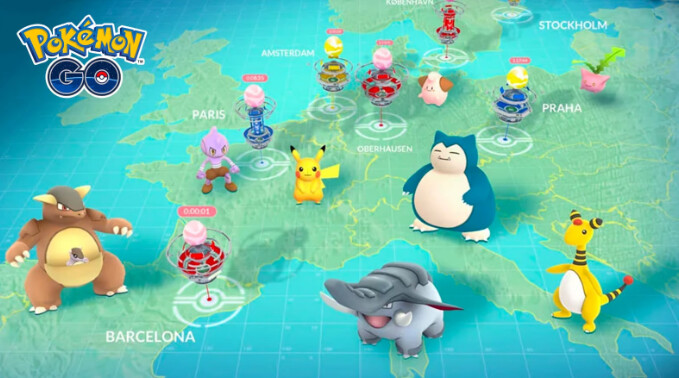
The Key to Flying: Understanding Your Movement Options
Before you change your location, it’s important to know the three main movement types offered by spoofing tools. Choosing the right one for your goal is the first step toward playing like a pro.
- Teleport Mode: This is an instant jump to any coordinates in the world. Its best use is for traveling long distances to join a specific raid or check for a rare Pokémon. This is the highest-risk action, so it must be followed by a strict cooldown period.
- Two-Spot & Multi-Spot Routes: This function simulates real travel. You set a starting point and one or more destinations, and the tool automatically “walks ” or “drives ” your avatar along real-world roads. This is the best mode for hatching eggs, farming Candy with your buddy, and spinning Pokéstops safely.
- Joystick Mode: This gives you real-time, 360-degree manual control over your avatar’s movement. It’s perfect for exploring a new area, like a park in a different city, in a natural and controlled way.
Our Top Recommended GPS Spoofing Tools for 2026
The most common failure of other guides is that they tell you how to fly in theory but never recommend a specific tool. After testing numerous options, we’ve identified two reliable, computer-based applications that work consistently for both iPhone and Android, without requiring you to jailbreak or root your device.
| Tool Recommendation | Best For… | Key Features |
| Fonelora Location Changer | Beginners & General Use: Its interface is the simplest to learn, making it ideal for your first time flying. | Precision joystick control, custom speed simulator, auto-cooldown countdown, and high iOS/Android compatibility. |
| AnyGo Navigator | Advanced Users: Offers more nuanced control for tasks like egg hatching and route planning. | Clean map view, stable Teleport and Two-Spot modes. |
These tools are consistently updated to work with new Pokémon Go and OS versions, which is critical for long-term success and account safety.
How to Fly in Pokémon Go: A Step-by-Step Guide
This procedure uses Fonelora Location Changer, a premier computer-based GPS spoofing tool for both iOS and Android devices. This is the safest and most accessible technique to simulate flying in Pokémon Go without risking your phone’s core security.
Unlike generic spoofing apps that alter GPS signals at a superficial level—frequently triggering Niantic’s Anti-Cheat systems and causing the dreaded “Error 12 (Failed to detect location)”—Fonelora stands out with its dedicated, built-in “Game Mode” connection protocol. It leverages advanced Bluetooth hardware simulation to mask your virtual location, forcing the game to recognize your movement as completely native and authentic. Furthermore, the tool operates entirely via your PC or Mac without requiring risky jailbreaks or Android rooting, ensuring your phone’s system integrity and warranty remain 100% intact while you seamlessly hop between global raiding hotspots.
The Five-Step Procedure for GPS Spoofing
Step 1. Download and Install Fonelora: Download the official Fonelora Location Changer software onto your Windows PC or Mac. Install the application and open it.

Step 2. Connect Your Smartphone: Use a high-quality USB cable to connect your iPhone or Android device to the computer.
- On iOS: Tap “Trust This Computer” when prompted on your screen.
- On Android: Enable Developer Options on your phone and select Fonelora as your ‘mock location app’.

Step 3. Choose Your Movement Mode: Once the interactive map loads and recognizes your device, choose your desired mode from the top-right menu. Select “Teleport Mode” for instant long-distance travel, or “Joystick/Multi-Spot Mode” for natural walking simulation.

Step 4. Set Your Destination: Type your target coordinates or a famous hotspot (e.g., “Zaragoza, Spain” or “Pier 39, San Francisco”) into the search bar. Click “Move” to instantly update your device’s global GPS coordinates.

Step 5. Launch Pokémon Go and Explore: Open Pokémon Go on your phone. Your avatar will smoothly appear at the new location, completely ready to join regional raids and catch exclusive wild Pokémon!
The Restart Rule:
Always close the Pokémon Go app on your phone completely before you teleport to a new location. Relaunch the game only after your new GPS position has been set in the computer software. This prevents the app from detecting an instantaneous, impossible jump in real-time.
How to Fly Safely and Avoid Account Warnings
Here is a critical insight many guides fail to mention: Niantic’s detection systems are primarily triggered by unrealistic movement. Instantly jumping from New York to Tokyo is a clear violation of game physics and the fastest way to get your account flagged. To fly safely, you must master pokemon go airborne movement that appears plausible. Proper Pokémon Go movement automation is your best defense against warnings.
⚠️ IMPORTANT: Your Account Safety Checklist
- Set Realistic Speeds: When creating a travel route, always use the tool’s speed controls. Choose a speed that matches walking (3-5 mph for hatching eggs), cycling (10-15 mph), or driving (30-50 mph for covering distance). Never use an option that simulates impossibly fast movement.
- Use Routes for Natural Travel: Instead of teleporting everywhere within a city, use the “Multi-spot ” or “Two-spot ” modes. This feature creates a realistic travel path that follows actual roads and makes your movement far less suspicious.
- Obey Cooldown Timers: This is the most important rule. The cooldown is the mandatory waiting period after a long-distance jump before you interact with the game. For example, if you teleport 1,000 km, you must wait about 75 minutes before catching a Pokémon, spinning a stop, or battling in a gym. Interacting before the cooldown expires is a major red flag. Reputable tools have a built-in cooldown timer to help you.
Understanding Pokémon Go Anti-Cheat Detection
The primary fear for any trainer exploring location spoofing is an account ban. Niantic’s anti-cheat system is designed to identify player behavior that isn’t physically possible. Understanding its triggers is the key to avoiding penalties.
The most common red flags for Pokémon Go anti-cheat detection are:
- Instantaneous Long-Distance Travel: Jumping thousands of miles in seconds is the most obvious trigger.
- Cooldown Violations: Spinning a Pokéstop in Paris and then, two minutes later, catching a Pokémon in Sydney.
- Impossible Speeds: Moving faster than a car for an extended period.
- Data Mismatches: Significant conflicts between your device’s GPS, IP address, and time zone can sometimes invite scrutiny.
Niantic’s Three-Strike Disciplinary Policy
- First Strike: You receive a warning message and a “shadowban ” for about 7 days, during which you will not see rare Pokémon.
- Second Strike: Your account is temporarily suspended for approximately 30 days. You will be unable to log in.
- Third Strike: Your Pokémon Go account is permanently terminated.
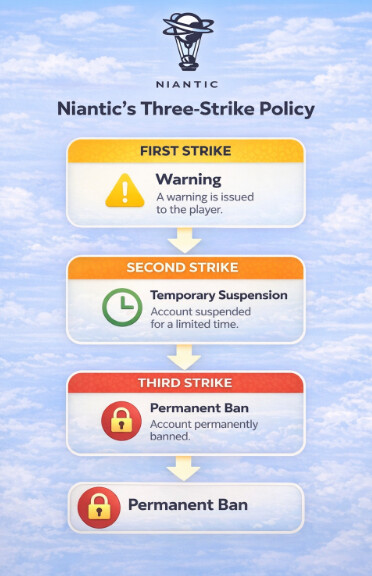
By following the safe movement procedures outlined above, you dramatically reduce the chances of ever triggering this system.
Troubleshooting Common GPS Spoofing Issues
Even with a reliable tool, you might encounter a technical problem. This section provides direct solutions for the most frequent issues, especially the frustrating “rubber-banding ” effect.
| Problem | Expert Solution |
| Location Snaps Back (Rubber-banding) | This happens when your phone’s real GPS signal overrides the mocked one. On Android: Go to Settings > Location and set the mode to “Device Only. ” Then, go to your Wi-Fi settings and disable “Wi-Fi Scanning ” and “Bluetooth Scanning ” to stop your phone from using local networks to correct its position. On iOS: This is almost always a connection issue. Restart the computer tool and Pokémon Go. If it persists, temporarily disable other location-heavy apps (like Maps or Find My) and ensure Background App Refresh is turned off for them. |
| “GPS Signal Not Found (11) ” Error | This error means Pokémon Go cannot detect any GPS data. Make sure your spoofing tool is active and has set the new location before you open the game. For Android, double-check that your tool is selected under “Select mock location app ” in Developer Options. |
| Software Not Detecting Your Phone | First, try a different USB cable and port—not all cables handle data transfer well. Ensure you have the latest drivers for your device installed. Finally, disconnect your phone, restart your computer, and reconnect, making sure to approve the “Trust This Computer ” (iOS) or “USB Debugging ” (Android) prompts again. |
The methods and tools discussed are regularly updated to maintain compatibility with new Pokémon Go versions and OS updates, ensuring a reliable long-term solution. Most reputable tools also offer customer support to assist with any technical issues.
Frequently Asked Questions
Here are clear answers to the most common questions about how to fly in Pokémon Go.
Q1. How do I fly in Pokémon Go?
The most reliable method is using a computer-based GPS spoofing application like Location Master Pro. You connect your phone to your computer, select a destination on a map, and it modifies your phone’s GPS signal. You can then open Pokémon Go to play in that new location.
Q2. Is flying in Pokémon Go safe for my account?
No method of altering your location is 100% risk-free, but you can minimize the risk significantly by using a reputable tool and adhering to safety rules. Simulating realistic movement speeds and strictly obeying cooldown timers are essential for account safety.
Q3. Does Niantic detect flying or teleport hacks?
Yes, Niantic’s system is designed to detect and flag unrealistic movement. Instantaneous jumps across continents are easily caught. This is why simulating plausible travel and following cooldowns is the cornerstone of safe flying.
Q4. What are the best tools to fly on iPhone and Android?
Desktop applications like Fonelora Location Changer are excellent choices that support both operating systems. They connect to your phone via USB and let you control your GPS location without risky modifications like jailbreaking or rooting.
Q5. How do I stop my location from snapping back?
This “rubber-banding ” is caused by your phone’s real GPS signal. On Android, fix this by setting your location mode to “GPS only ” and disabling Wi-Fi/Bluetooth scanning in your location settings. For iOS, a stable USB connection and restarting the spoofing tool and the game usually resolve the conflict.
Q6. What happens if Niantic detects flying?
Niantic follows a three-strike policy. The first offense results in a 7-day shadowban. A second offense leads to a temporary account suspension for about 30 days. A third strike results in the permanent termination of your account.
Conclusion
Navigating the world of Pokémon Go shouldn’t be limited by your physical location. The fear of an account ban or the frustration of not knowing which tool to trust is a major barrier for many trainers. By choosing a tested tool like Fonelora Location Changer and mastering the rules of realistic movement, you can safely solve these problems. This guide has provided the specific recommendations and safety procedures you need to explore new regions, participate in global events, and catch those elusive Pokémon with confidence. Take control of your Pokémon Go journey and start exploring the world today.
More Related Articles



Joy Taylor is a seasoned technical writer with over a decade of experience in mobile technology. At iMobie, she specializes in producing in-depth content on iOS data recovery, iPhone unlocking solutions, and iOS troubleshooting.
Product-related questions? Contact Our Support Team to Get Quick Solution >
