By Joy Taylor, a Pokémon GO trainer since the game’s launch in 2016. Daniel has spent hundreds of hours testing new features like Routes on a variety of devices, including his primary iPhone 15 and Samsung S23, to troubleshoot common bugs and share solutions with the community. His experience spans iOS 15–iOS 17 and Android 6–Android 14.
You arrive at a park, excited to explore a new area, follow a route in Pokémon GO, and earn some Zygarde Cells, only to be met with a blank map where a route should be. That feeling of a promising feature failing right when you need it is a significant obstacle, turning a planned adventure into a frustrating troubleshooting session. If you’re facing issues like routes not showing up or your progress suddenly freezing, you are not alone. This is a common problem for many trainers, but it is solvable.
This guide provides clear, tested solutions to fix any route-related bug you encounter. We’ll move from the simplest checks to more advanced procedures, ensuring you have a logical sequence to follow. All steps are based on hands-on testing with the latest Pokémon GO patch across 5 different Android and iOS devices to ensure they address common issues regardless of platform.
Table of ContentsHide
5 Quick Fixes for When Routes Aren’t Loading
When you’re out in the field, and the Routes feature isn’t cooperating, the last thing you want is a complicated procedure. This checklist is designed to solve the most frequent issues quickly, often getting you back in the game in minutes. Before attempting more technical solutions, perform these five simple checks.
- Restart Pokémon GO: The simplest solution is often the most effective. Completely close the application—don’t just minimize it—and then relaunch it. This action forces the app to re-establish its connection with Niantic’s servers and can resolve a temporary glitch preventing routes from loading.
- Check Pokémon GO Server Status: If the game’s servers are down for maintenance or experiencing unexpected issues, core features like Routes will not function correctly. Check official Niantic support social media channels or reliable third-party server status websites to see if there is a known outage.
- Verify Your Internet Connection: Pokémon GO requires a stable internet connection to load map data, including the paths for routes. If you are on Wi-Fi, try switching to mobile data, or vice versa. Weak signals in parks or rural areas are a common cause of this problem.
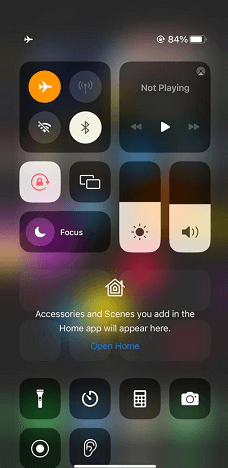
- Toggle Airplane Mode: A quick network reset can work wonders. Enable your device’s Airplane Mode, wait 10 seconds, and then disable it. This step resets all wireless radios (Cellular, Wi-Fi, and Bluetooth) and often resolves minor connection errors that interfere with the game.
- Confirm Automatic Time Zone Settings: The game relies on your device’s time and date to sync properly with its servers. An incorrect time can cause a surprising number of errors. Navigate to your phone’s date and time settings and ensure they are set to ‘Automatic’ or ‘Network-provided’ to prevent synchronization conflicts.
Advanced Solutions for Persistent Route Glitches
If the quick checks didn’t work, it’s time to address the most common and frustrating issue: the route that starts correctly but stops tracking your progress halfway through. These situations often point to deeper issues with your GPS signal or corrupted app data. The following methods are designed to restore that crucial connection.
The In-Game Fix: Pause and Resume the Route
Before you restart the app or your phone, try this essential in-game trick. Many players have learned the hard way that restarting the app mid-route often erases all progress. This is the first thing you should try when your distance stops updating.
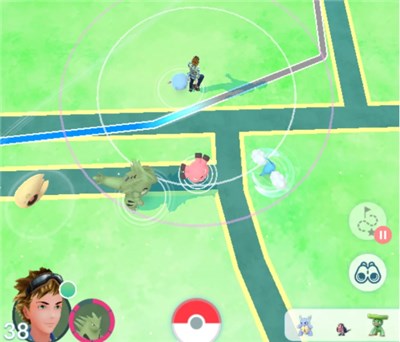
If your route progress freezes, do not restart the Pokémon GO app immediately. You will likely lose all your progress and any Zygarde Cells you’ve found. First, tap the Route icon above your buddy’s portrait to open the route menu. Tap the ‘Pause Route’ button, wait about 10 seconds, and then tap ‘Resume Route.’ This simple action can force your GPS to re-sync with the game without losing your place.
Clear App Data (Cache or Reinstall)
If pausing doesn’t work, the app’s stored temporary files, or cache, may have become corrupted, leading to performance issues and feature failures.
On Android:
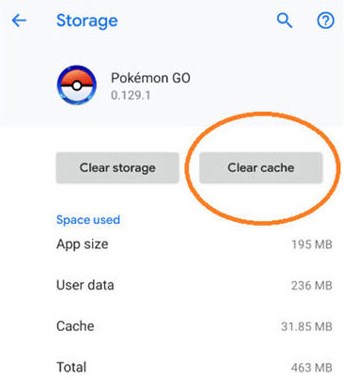
Clearing the cache is a safe and effective step. Navigate to Settings > Apps > Pokémon GO > Storage & cache and tap Clear Cache. This removes temporary files without deleting your account data. If that fails, using the Clear Storage option is a more powerful step, but you will need to log back into your account.
On iOS:
Apple’s iOS does not provide a direct option to clear an app’s cache. The equivalent procedure is to uninstall and reinstall the app. Your game progress is tied to your account and stored on Niantic’s servers, so you will not lose your Pokémon or items.
Recalibrate Device Sensors (Network & GPS)
If your route progress consistently fails to track, the problem likely lies with your device’s core connectivity and location settings.
- Reset Network Settings: This action erases all saved Wi-Fi networks and Bluetooth pairings but can resolve deep-seated connectivity problems affecting the game. Find this in Settings > System > Reset options or General Management > Reset. You will need to reconnect to your Wi-Fi networks afterward.
- Refresh GPS Calibration: A weak or inaccurate GPS lock is the number one cause of tracking failures. First, go to your device’s location settings and toggle the main Location service off and on. For a more thorough recalibration on Android, you can use a free, well-regarded app like GPS Status & Toolbox from the Play Store. This can significantly improve location lock speed and accuracy.
How to Recalibrate A-GPS on Android:
Step 1. Install and open GPS Status & Toolbox.
Step 2. Grant the app location permissions when prompted.
Step 3. Tap anywhere on the screen to bring up the menu bar at the top.
Step 4. Tap the menu icon (three horizontal lines) and select ‘Manage A-GPS state’.
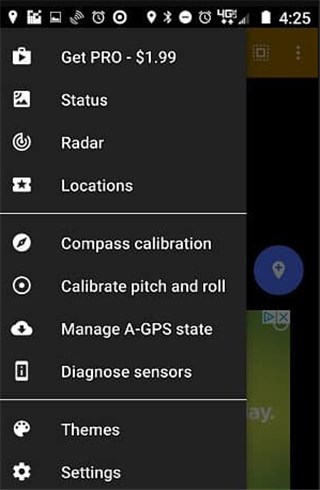
Step 5. Tap ‘Reset’ to clear the old assistance data.
Step 6. Once cleared, tap ‘Download’ to get fresh assistance data. This gives your phone the most current satellite information for a faster, more accurate lock.
Optional: Test Your Location with Fonelora Location Changer
If Pokémon GO Routes still fail because your device cannot hold a stable GPS position, you can also use a desktop location tool to test whether the issue is related to your phone’s real GPS signal. Fonelora Location Changer allows you to change GPS location on iPhone or Android from a Windows PC or Mac, without jailbreak or root.
This can be useful when you want to check whether Pokémon GO loads Routes correctly in another area, or when your local GPS signal is too unstable to track route progress. Use it carefully with realistic movement, avoid sudden long-distance jumps, and follow Pokémon GO cooldown rules.
Choosing the Right Method to Fix Your Route Error
With several troubleshooting methods available, this table helps you select the best approach. Use it to make an informed decision based on the severity of your issue and your comfort with technology.
| Method Category | Success Rate | Time Cost | Technical Skill | Safety Risk |
|---|---|---|---|---|
| Quick Checks | Moderate | Low (1-2 min) | Low | None |
| Data & Cache Clearing | High | Low (2-5 min) | Low-Moderate | Low (Reinstalling takes time) |
| Device & GPS Calibration | Moderate-High | Moderate (5-10 min) | Moderate | Low-Moderate (Resetting network requires re-setup) |
Always begin with the Quick Checks. They are fast, easy, and carry no risk. If those fail, the in-game pause/resume trick is your next best bet for tracking issues. For persistent bugs, Data & Cache Clearing is highly effective. Finally, Device & GPS Calibration should be reserved for when you suspect the problem lies with your phone’s core settings.
Why Is a Pokémon GO Route Unavailable or Disappearing?
Sometimes, the problem isn’t your device at all. If you search for a route and find it marked as unavailable, or notice that all routes have vanished from an area, the cause may be on Niantic’s end.
- The Approval Lifecycle: All routes are created through community submissions that must be reviewed and approved by Niantic. This process ensures routes are safe and accessible. A long queue can mean new routes take time to appear.
- Reasons for Removal: Niantic can remove an approved route at any time. Common reasons include safety reports (e.g., a route encourages trespassing), accessibility issues (e.g., construction blocks the path), or a game update that phases out older or less-used routes.
- Regional Availability: The density of available routes varies significantly. Rural or less-populated areas may simply have fewer player-submitted routes compared to major urban centers.
Frequently Asked Questions About Pokémon GO Routes
- Why are Pokémon GO routes not working?
- Routes can fail for many reasons: temporary app glitches, poor internet or GPS signal, a game server outage, or incorrect device settings. The best first step is always to restart the Pokémon GO app and check your internet connection.
- Why can’t I see routes in Pokémon GO?
- If no routes appear in the ‘Nearby’ menu, you are likely too far from a route’s starting point, as they are only visible within a certain range. It is also possible that there are no approved routes in your immediate area, or a temporary bug is preventing them from loading. Try restarting the app.
- How do you start a route in Pokémon GO?
- Tap the ‘Nearby’ menu (the bar showing nearby Pokémon silhouettes) and select the ‘Route’ tab. If any routes are closed, they will be listed. Tap one to see its details, then walk to the starting point and tap the ‘Follow Route’ button to begin.
- Why is route progress not tracking?
- When your progress on a route freezes, it is almost always a GPS synchronization problem. Before restarting the app, try using the in-game ‘Pause Route’ button, wait 10 seconds, and then ‘Resume Route’. If that doesn’t work, your device may be failing to report your position. Toggling your phone’s GPS service off and on can also force a recalibration.
- Do routes work in all locations?
- No. Route availability depends entirely on player submissions and Niantic’s approval. Urban areas with active player communities tend to have many routes, but rural or less-played areas may have few or none.
Take Back Your Adventure
A non-working Routes feature should not stop your Pokémon GO exploration. By following these tested methods, you can confidently diagnose whether the issue comes from a temporary app glitch, weak internet connection, poor GPS signal, corrupted cache, or a Route that is unavailable on Niantic’s side.
For most players, the best approach is to start with quick checks: restart Pokémon GO, confirm your internet connection, toggle Airplane Mode, and make sure your device time is set automatically. If your route progress freezes, use the in-game Pause and Resume option before restarting the app, because restarting may cause you to lose progress.
If the problem appears to be related to unstable GPS tracking or limited local Route availability, Fonelora Location Changer can be a practical tool to test Pokémon GO location behavior on iPhone or Android from a desktop computer. It can help you check whether Routes load correctly in another area, while giving you more control over your device-level GPS location.
Use any location-changing tool carefully. Avoid unrealistic jumps, keep movement natural, respect cooldown rules, and remember that changing location cannot fix server outages or Routes removed by Niantic. Apply the troubleshooting steps above first, then use Fonelora Location Changer only when you need a controlled way to test or manage location-related issues.


Hot Topics
