Staring at the spinning Pokéball icon in the top left corner forever is a terrible feeling. It becomes even more frustrating when the app suddenly crashes or displays an authentication error right as a limited-time raid egg hatches. You are standing outside a gym with a portable charger in your hand, entirely locked out of your account.
Players often panic in these moments, wondering if their account was banned or if the servers just crashed. In most cases, the issue comes down to a communication breakdown between your phone and the game servers. The game fails to properly verify your account credentials due to minor connectivity drops or outdated session tokens, much like other login and location-related issues, such as Pokémon Go error 12, that can interrupt normal gameplay.
We are going to skip the generic advice and dive straight into the actual fixes that work in the field. If you are dealing with a rejected login, do not worry. This guide outlines the exact procedures to refresh your connection, synchronize your device, and successfully log back in. We will provide tested solutions to resolve this error so you can get back to catching Pokémon.
Solution-First Fixes for Authentication Errors
When the game gets stuck on the login screen, you need an immediate solution. The absolute best first step is to verify if the issue is a server connectivity problem on Niantic’s end. You can check the official server status through Niantic’s dedicated support page or their official social media channels.
If the servers are active and other players around you are logging in fine, the problem is likely a local network drop. Unstable cellular connections interrupt the secure handshake between your phone and the servers. Restarting your network forces the client to request a brand new authentication session.
To apply this technique on your device, follow these exact steps:
Step 1. Close the Application: Force close the game application completely so it is no longer running in the background.
Step 2. Toggle Airplane Mode: Turn on Airplane Mode for a full 30 seconds. Waiting ensures your device’s radio fully powers down and drops the old connection.
Step 3. Reconnect: Turn Airplane Mode off and reconnect to a stable Wi-Fi or cellular network.
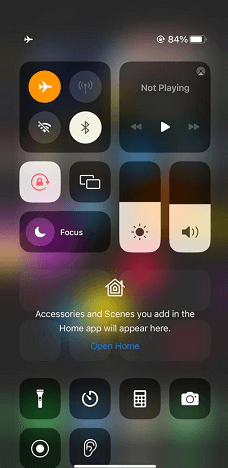
Step 4. Attempt Login: Open the game and attempt a fresh login.
Clearing out a stale network connection resolves the majority of immediate connectivity drops. If you are still locked out, the issue might be tied to your device settings.
The Critical Time Zone Fix for Authentication
If toggling your network connection did not work, you must check your device’s internal clock immediately. A desynchronized internal clock is one of the most common reasons for secure token rejection. Security protocols require your smartphone’s time to match the server’s time exactly.
If an iPhone or Android phone’s clock is even slightly out of sync with Niantic’s servers, the game will immediately throw an authentication error. The server simply assumes your session token is invalid or forged. Fixing this requires a quick trip to your phone’s system settings.
Synchronizing an iPhone Clock
Apple devices usually manage time well, but traveling across time zones can cause minor desyncs.
Step 1. Open the iPhone Settings app.
Step 2. Tap on General, then select Date & Time.
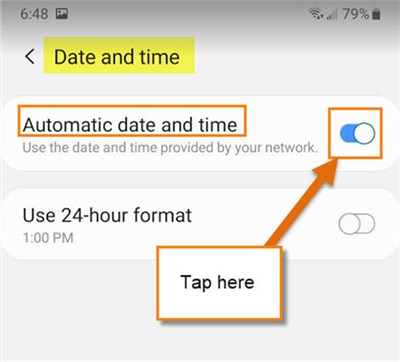
Step 3. Ensure the toggle next to Set Automatically is turned on.
Synchronizing an Android Clock
Android devices can occasionally drift out of sync if they have been offline for extended periods.
Step 1. Open your Android Settings menu.
Step 2. Scroll down and select System, then tap Date & time.
Step 3. Turn on the toggle for Set time automatically.
Once your clock is synchronized, open the game and try logging in again.
Resolving Android and iPhone Local App Data Issues
If network refreshing and time synchronization fail, corrupted local files might be blocking your access. Operating systems handle app data differently, meaning you need specific instructions for your exact smartphone. Clearing this data forces the app to pull fresh files from the server.
Fixing Android Local Data Errors
Android devices store temporary files that can become corrupted over time, preventing the game from verifying your credentials. Clearing the app cache is highly effective here.
Step 1. Open your Android Settings menu.
Step 2. Navigate to the Apps section and select Pokémon GO.
Step 3. Tap Storage & cache.
Step 4. Select Clear Cache to remove temporary files without deleting your login data.
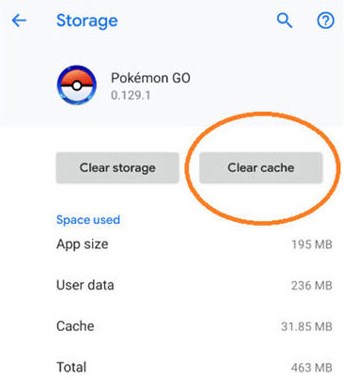
If the problem persists, the next step in that menu is selecting Clear Storage. Doing this will completely reset your in-game settings. You will lose your Native Refresh Rate toggle, Adventure Sync permissions, and crucially, any pre-set Battle Parties that have not been fully synced to the server. Rebuilding raid teams is tedious, so only use this step as a last resort.
Fixing iPhone Local Data Errors
iOS does not provide a direct cache-clearing button natively. You must offload or perform a full application reinstall to solve local data corruption on an iPhone.
Step 1. Open the iPhone Settings app.
Step 2. Go to General, then tap iPhone Storage.
Step 3. Scroll down the list and tap Pokémon GO.
Step 4. Tap Offload App to remove the core application data, but keep your local documents. Reinstall it directly from this same menu.
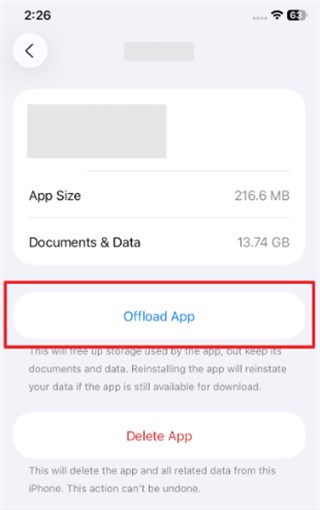
Step 5. If offloading fails, select Delete App and download a fresh copy from the App Store. A clean reinstall ensures you have uncorrupted files.
Fixing Google or Trainer Club Login Failures
Often, a login failure is due to a communication breakdown between the game client and your third-party login provider. The game cannot let you in if Google, Apple, or the Pokémon Trainer Club refuses to verify your identity. If you experience this specific failure, forcing the provider to re-authorize the game is highly effective.
Resetting a Google Login Connection
If your Google account tokens expire or corrupt, the game cannot verify your identity securely. You must revoke the game’s access to generate a new token.
Step 1. Open your smartphone’s browser and go to your Google Account security settings.
Step 2. Navigate to Connections to third-party apps & services.
Step 3. Find Pokémon GO and select Delete all connections.
Step 4. Open the game application. You will be prompted to log in and grant permissions again, generating a fresh, valid token for your account.
Troubleshooting a Trainer Club Login
The Pokémon Trainer Club (PTC) uses separate servers that occasionally experience heavy traffic during major events. If your error is tied to the PTC, try logging into the official Pokémon website on a standard mobile web browser. Accepting any newly updated Terms of Service on the website often clears the block on your account.
If the PTC servers are entirely down, bypassing them is possible. You can log in using an alternative method, such as an Apple ID or Facebook account.
You can only use this alternate login method if you had already linked those accounts to your profile before getting locked out. You cannot access the settings menu to link a new account from the error screen.
Understanding the Root Cause of Authentication Failures
Many players try random troubleshooting steps without understanding the underlying mechanics. Recognizing the root cause helps you apply the correct fix instead of wasting time altering unrelated settings. The authentication process requires a seamless handshake between your smartphone and Niantic’s servers.
Unstable network connections easily interrupt this secure handshake. When your device drops the connection for even a microsecond during the login phase, the server rejects the request immediately. Security protocols demand a perfect connection to protect player data.
Additionally, the game relies on secure session tokens provided by external services like Google, Apple, or Facebook. When these tokens become outdated, or if your phone’s clock desyncs, a security error is triggered. By understanding that this is a client-server verification failure, you can see exactly why refreshing your network or checking your time settings remains the most reliable solution.
Authentication errors are not fixed by changing GPS location. But Pokémon GO players may also run into separate location issues after logging in, such as GPS drift, unstable movement, or location mismatch. In those cases, Fonelora Location Changer can be used to simulate GPS location on iPhone and Android for location testing and privacy control. Use it responsibly and avoid violating app rules or game policies.
Frequently Asked Questions About Login Errors
- Why am I getting an authentication error?
- This error message appears when the game client cannot establish a secure connection with the login servers. This happens due to network connection issues, server downtime, desynchronized device clocks, or corrupted session tokens stored on your phone.
- How do I fix the error quickly?
- The most reliable method is to check your device settings and ensure your Date & Time is set to “Automatic.” Follow that by toggling Airplane Mode to refresh your connection, and then clearing the app cache.
- Is the server down?
- Server outages happen frequently during major in-game events like Community Days. Always check Niantic’s official server status page or verified support channels on X before altering your device settings.
Conclusion
Resolving a Pokémon GO authentication error does not have to ruin your Raid Hour. In most cases, the problem comes from a broken login handshake, unstable network connection, desynchronized device clock, corrupted cache, or expired Google, Apple, or Trainer Club token.
The safest fix order is simple: check server status first, refresh your network connection, turn on automatic date and time, clear cache on Android, offload or reinstall the app on iPhone, and re-authorize your login provider if needed. These steps directly target the real cause of the “Unable to authenticate” error.
If your issue is not login-related but location-related after you enter the game, such as GPS drift, unstable location behavior, or location-based app testing, you can consider Fonelora Location Changer. It helps simulate GPS location on iPhone and Android without jailbreak or root, making it useful for location testing and privacy control.
Remember: Fonelora Location Changer does not fix Pokémon GO authentication errors, restore banned accounts, or repair server outages. Use it only when your problem is related to GPS location behavior, and always follow the rules of the apps or games you use.


Hot Topics
