DeFit for Pokémon GO: The Complete Guide to Setup & Use
Pokémon GO not tracking your steps? This 40-word guide explains how to fix DeFit sync issues with Google Fit and Health Connect on Android. Learn the updated setup process, avoid common mistakes, and understand key considerations about compatibility and account safety.
It’s a frustratingly common problem for Pokémon GO players: you can see the steps piling up in Google Fit, but your eggs and buddy distance in the game refuse to budge. This sync issue often makes it feel like you’re doing everything right, but a hidden setting is working against you. Many users report that DeFit doesn’t register distance correctly, worry about violating Niantic’s terms of service, or, if they’re on an iPhone, find that the app isn’t an option at all.

This guide addresses that frustration directly. We provide a clear, tested procedure for getting DeFit to work with Pokémon GO, focusing on the modern Android setup that now involves an extra step: Health Connect. The information here is based on hands-on testing to ensure it is accurate and solves the problems players face today.
How to Set Up DeFit with Pokémon GO: A Step-by-Step Guide
To get started, you must correctly configure a chain of apps to communicate with each other. On modern Android devices, this is no longer a direct connection. DeFit must first talk to Health Connect, which then passes data to Google Fit, which finally reports it to Pokémon GO. Following this sequence is the most critical part of the process.
1. Install the Required Apps: Go to the Google Play Store on your Android device. You will need to install three separate applications: DeFit, Google Fit, and Health Connect by Android. All three are mandatory for this method to function on current Android versions.
2. Configure Google Fit First: Before opening DeFit, launch the Google Fit app. Sign in using the exact same Google Account that you use for Pokémon GO. This is non-negotiable; using a different account will break the connection and prevent the sync from working.
3. Set Up Health Connect: Next, open the Health Connect app. Go to `App permissions` and find Google Fit. Ensure you grant it permission to `Allow all`. This allows Google Fit to read the data that DeFit will be writing into Health Connect.
4. Authorize the DeFit App: Now, open the DeFit app. It will prompt you to sign in with a Google Account. Once again, you must select the same account used for Pokémon GO and Google Fit. The app will then ask for permission to sync with Health Connect. You must grant this permission.
5. Activate the Sync: After logging in, you will be presented with a simple interface. Ensure the main toggle switch at the top of the screen is turned on. DeFit will now begin adding simulated activity data to your Health Connect account. You can adjust the speed and behavior in the app’s settings to better match realistic movement.
After a few minutes, open Google Fit to confirm that new walking data is appearing. Remember that Pokémon GO only checks for this data periodically, so updates to your egg and buddy distance will not be immediate.
Related Reading: How to Increase Shiny Odds in Pokémon GO>
DeFit Not Working in Pokémon GO? A Troubleshooting Checklist
The most common point of failure occurs when you see steps counting correctly in Google Fit, but Pokémon GO shows no progress. This happens because the data sync is broken somewhere in the four-step chain. If you find DeFit is not working with Pokémon GO, work through this checklist of the most effective solutions.
Key Verification Steps
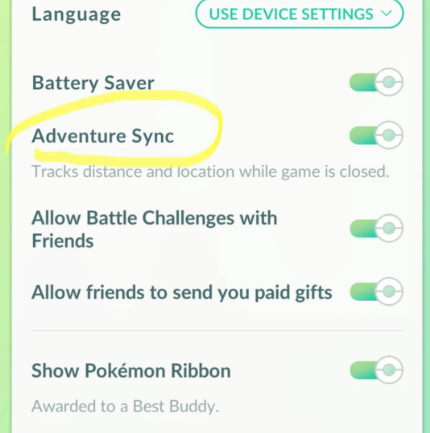
Confirm Adventure Sync is Enabled: This is the most common oversight. In Pokémon GO, go to `Settings > General` and ensure the checkbox for “Adventure Sync” is turned on. Without this, the game will never request data from Google Fit.
Disable Battery Optimization (For ALL Apps): Modern Android systems aggressively stop apps from running in the background to save power, which is the primary cause of sync failures. You must manually disable battery optimization for all four apps: Pokémon GO, Google Fit, Health Connect, and DeFit. This setting is typically found in `Settings > Apps > [Select App] > Battery`. Set it to “Unrestricted” or “Not optimized.”
Check All App Permissions: Go into your phone’s settings and verify that DeFit, Google Fit, and Health Connect have all the permissions they’ve requested. The most important ones are “Physical activity” and “Location.” If these are denied, the apps cannot function correctly.
Force a Manual Sync: Close all four applications completely. Open DeFit first and let it run for a minute. Next, open Google Fit and pull down on the screen to refresh until you see the new data has appeared. Only after you have confirmed the data is in Google Fit should you open Pokémon GO. This sequence can often force the game to pull the latest data.
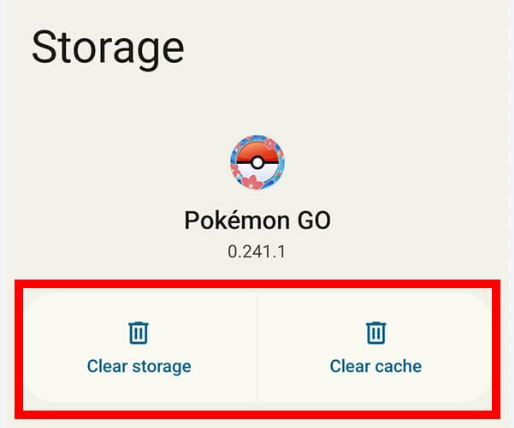
Clear the App Cache: If the sync is completely stuck, old data can sometimes interfere. Go to your phone’s `Settings > Apps > Pokémon GO > Storage` and tap “Clear cache.” Do the same for Google Fit. This action doesn’t delete your game data but forces the apps to fetch fresh information on their next launch.
The sync process relies on an indirect fitness tracker integration. Any hiccup in communication between DeFit, Health Connect, Google’s servers, and Niantic’s servers can cause a delay or failure. Patience is key, as distance can sometimes take up to an hour to appear.
Is Using DeFit Cheating? Understanding the Risks
A crucial question for any player is whether using a third-party app for Pokémon GO like DeFit could result in an account ban. According to Niantic’s Terms of Service, using any software to alter or manipulate game data or gain an unfair advantage is prohibited.
DeFit’s method places it in a technical gray area. It does not directly interact with or modify the Pokémon GO game client, which is what tools like GPS spoofers do. Instead, it manipulates an external data source—Google Fit, via Health Connect. The game simply reads this data, trusting it to be authentic.
This indirect approach is generally considered lower risk than direct game modification. Widespread bans specifically for using DeFit are not common. However, the risk is never zero. By falsifying fitness data, you are violating the spirit of the game’s rules. Niantic constantly refines its detection methods, and any activity that seems unnatural could be flagged.
To minimize your risk, keep the simulated activity realistic.
- Avoid running it 24/7.
- Keep speeds to a believable human pace (e.g., 4-10 km/h).
- Don’t log impossible distances, like 200 km in a single day.
Ultimately, you must weigh the convenience against the potential consequences for your account.
You may also like: The Best Pokémon GO Locations for Raids & Spawns in 2026>
How Pokémon GO Adventure Sync and DeFit Work Together
To use DeFit effectively, it helps to understand the technical data flow. DeFit is a tool that functions by creating a chain of information between four separate applications. It never directly communicates with Pokémon GO.
Here is the modern data flow for Android 12 and newer:
1. DeFit: Its sole purpose is to generate simulated fitness data (steps, distance, duration) and write this information into the Health Connect database on your device.
2. Health Connect: This app acts as a secure, centralized hub for health data. It receives the simulated data from DeFit.
3. Google Fit: With the correct permissions, Google Fit reads the data from Health Connect and adds it to your official fitness journal for that Google account.
4. Pokémon GO: With adventure sync enabled, the game periodically contacts Google’s servers and requests the latest fitness data from your Google Fit account. When it receives new activity, it converts that data into in-game progress.
This multi-step, indirect connection is why sync problems are so common. A failure at any point in this chain—a permissions issue in Health Connect, a battery-saving setting on Google Fit, or a server delay—will prevent the distance from being credited to your game account.
DeFit for iOS? Pokémon GO Alternatives for iPhone Users
Many players ask if they can use DeFit on their iPhone, but DeFit is an Android-only application. It is not available on the Apple App Store.
The reason is technical: DeFit is built exclusively to interact with Google’s fitness platforms on Android (now Health Connect and Google Fit). iOS devices use a completely different, locked-down system called Apple Health to store and manage fitness data. Since DeFit cannot write data to Apple Health, it is fundamentally incompatible with iPhones.
For iOS users, the concept of using a third-party app still applies, but requires a different tool. Adventure Sync on an iPhone connects directly to Apple Health. Therefore, an iOS alternative would need to perform the same function as DeFit: add simulated walking data to Apple Health, which Pokémon GO would then read.
When searching for such tools, remember that they carry the same risks regarding Niantic’s Terms of Service. Any application that falsifies game-related data should be used with caution and an understanding of the potential consequences.
A More Stable Alternative to DeFit for Pokémon GO
While DeFit can still help simulate walking distance for hatching eggs, it comes with several limitations—such as sync delays, compatibility issues, and a somewhat complicated setup process. As mentioned earlier, tools like DeFit require careful configuration to work properly and may not always be reliable.
If you’re looking for a more direct and stable way to change your location in Pokémon GO, a better option is to use a professional GPS location changer like Fonelora Location Changer.
Unlike DeFit, which relies on syncing fake steps, Fonelora directly modifies your device’s GPS location, making it a more efficient and consistent solution for spoofing in Pokémon GO.
Why Choose Fonelora Location Changer?
Fonelora offers a more user-friendly and reliable experience compared to step-based tools:
- Instantly change GPS location with one click
- Supports both iOS and Android devices
- Built-in joystick for real-time movement
- Custom route simulation (more realistic gameplay)
- Adjustable movement speed to avoid detection
- No jailbreak or root required
This makes it ideal for players who want to:
- Catch region-exclusive Pokémon
- Join remote raids and events
- Explore different locations without physical travel
How to Change Pokémon GO Location with Fonelora
Using Fonelora is simple and beginner-friendly:
Step 1: Connect Your Device
Use a USB cable to connect your iPhone or Android device and allow the connection.

Step 2: Choose a Location
Open the map interface and:
- Enter a city or coordinates (e.g., Tokyo, New York)
- Or click directly on the map

Step 3: Start Location Change
Click “Move” and your GPS location will update instantly.

Frequently Asked Questions About DeFit and Pokémon GO
Here are quick answers to the most common questions about using DeFit.
Does DeFit still work with Pokémon GO?
Yes, as of our latest testing, DeFit still works, but it requires careful setup with Health Connect on modern Android versions. Its success relies heavily on your device’s settings (especially battery optimization), correct app permissions across the entire chain, and the current sync logic used by Pokémon GO, which can change over time.
Is using DeFit cheating or banned?
Using DeFit violates Niantic’s Terms of Service by falsifying data to gain an advantage. Because it manipulates external fitness data rather than the game client itself, it’s often considered lower risk than GPS spoofing. However, using any unauthorized third-party app carries a potential, non-zero risk of an account penalty.
Can iOS users use DeFit?
No, DeFit is exclusive to Android and is not available for iOS. The app is designed to work with Health Connect and Google Fit. iPhone users would need to find a different tool specifically designed to add activity data to Apple Health, the iOS equivalent.
Bottom Line
This guide provides a transparent look at the tools and procedures for using DeFit in today’s environment. By understanding the new role of Health Connect and how to troubleshoot the entire sync chain, you can avoid the common frustrations of sync failures and make an informed decision about its use. The key is to manage your expectations, keep your simulated activity realistic, and ensure your device is configured correctly. Armed with this knowledge, you can now approach DeFit not as a simple hack, but as a tool that requires careful setup and responsible management to supplement your Pokémon GO journey.
More Related Articles



Joy Taylor is a seasoned technical writer with over a decade of experience in mobile technology. At iMobie, she specializes in producing in-depth content on iOS data recovery, iPhone unlocking solutions, and iOS troubleshooting.
Product-related questions? Contact Our Support Team to Get Quick Solution >
