Motorola Migrate App Data Transfer & Best Alternative
The official Motorola Migrate app is not available. But you can still move data from an old Motorola phone using modern tools. Read this guide to learn what the Moto Migrate app is and find three reliable alternatives: DroidKit, AirDroid, and Send Anywhere. Also, find detailed steps to transfer your data using these tools.
Looking to transfer data from your old Motorola phone to a new smartphone? The Motorola Migrate app once made this process effortless, helping move contacts, messages, pictures, and other data. However, the app is no longer accessible. Now, what? How do you migrate your data to a new smartphone? This article explains what the Moto Migrate app is and offers three alternative solutions to transfer data from Motorola to Motorola, complete with step-by-step instructions!
What is Moto Migrate?
Moto Migrate was the official app of the Motorola company for moving content from an old phone to a new device. It could transfer images, videos, text messages, contacts, call logs, and more. In 2015, Motorola ceased its support for the app on iPhone. It also restricted Android support to versions 2.2 Froyo up to 5.1 Lollipop. Consequently, this tool is ineffective for the newest Android devices operating on OS versions 6.0 or above. But don’t panic. If you need to transfer content to a new phone, there are alternative methods that you can use instead.
3 Alternative Tools for Motorola Migrate Apps
After extensive research, we’ve identified reliable alternatives to the Motorola Migrate app. These include a desktop tool and third-party mobile apps. Here’s a closer look at these.
1. DroidKit
DroidKit is a specialized tool for transferring and managing data on Windows and Mac systems. It might be a desktop application. But it enables you to transfer data straight from your old device to a new smartphone. The most advantageous aspect is that you can move all files simultaneously or select particular types if required. Additionally, it can work for all leading Android phone manufacturers and models. This indicates you need not be concerned about any compatibility problems!
Key Features of DroidKit:
- Transfer over 13 types of data like contacts, photos, music, messages, etc.
- Migrate all data from iPhone/Android to your new Android device in one click.
- Over 2000 phone brands are supported, such as Motorola, Samsung, Xiaomi, and Huawei.
- Compatible with all Android versions and brands.
- Also helps remove screen locks, fix system issues, recover lost files, etc.
Steps to Move Data with DroidKit:
Step 1. Download and install DroidKit on your computer.
Free Download * 100% Clean & Safe
Step 2. Launch it and select the “Data Manager” option. Then, choose “Android Mover.” Select “Android to Android” to move data from an old Android to a new Android phone. Then, click “Migrate Now.”
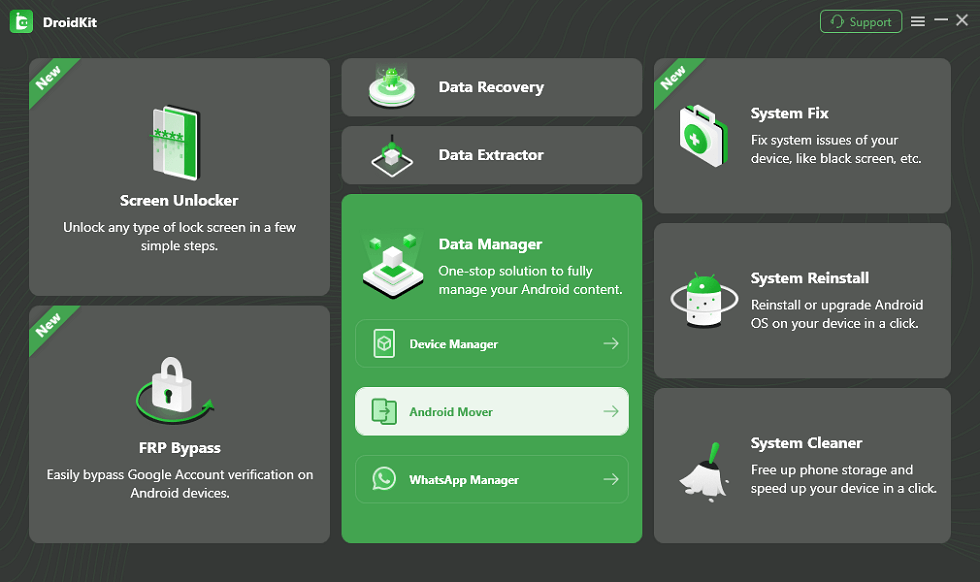
Choose Android Mover
Step 3. Connect both devices to the computer using a USB connection. Wait for your device to be detected. Then, click “Migrate Now.”
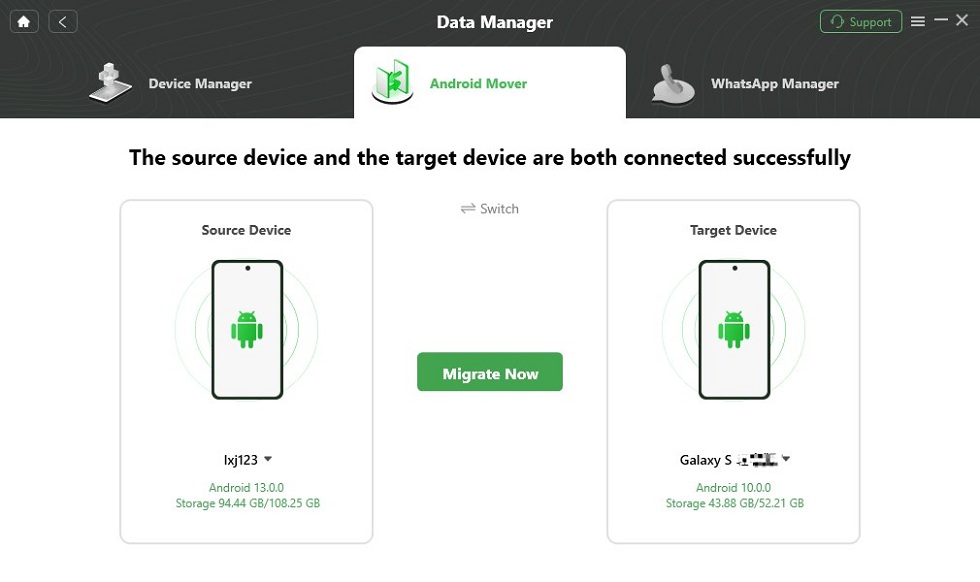
Click on Migrate Now
Step 4. DroidKit will show all file types stored on your phone. Select the ones you want to transfer. Then, click “Next.” The transfer process will start. Wait for it to complete. Once done, you will see Transfer Successfully on your screen!
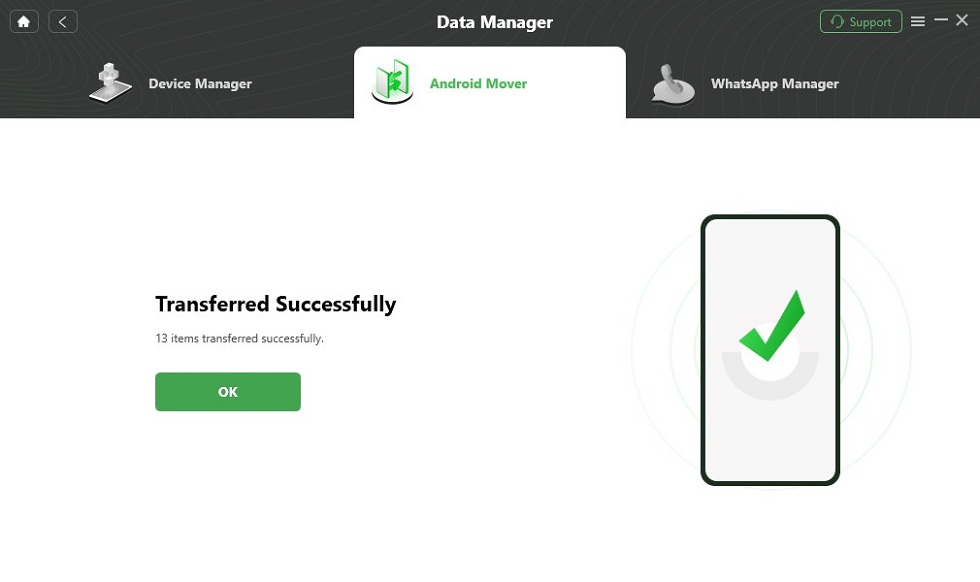
Data Transferred Successfully
That’s how to transfer Motorola data with DroidKit. Try it now and get seamless data transfer on any Android phone or tablet.
2. AirDroid
AirDroid is a cross-platform alternative to the Motorola Migrate app. It lets you send photos, videos, documents, and apps between devices. You don’t need a cable for the transfer. You can use a local network or the cloud to send files. It also lets you back up data, mirror screen, and control your device remotely. However, the free version restricts these features. Moreover, it allows up to 30 MB per file per transfer for free on a remote network.
Steps to Transfer Data with AirDroid:
Step 1. Install AirDroid on both your old and new smartphones. Then, sign in to the same account on both devices.
Step 2. On your old phone, select the “Transfer” tab from the bottom. Then, tap “My Devices” from the top.
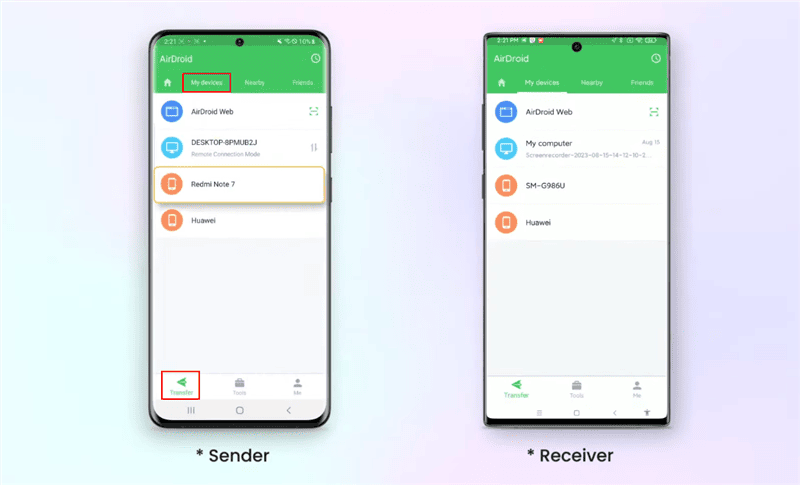
AirDroid Data Transfer
Step 3. Refresh the page until your new phone’s name appears in the list of devices. Tap the device name.
Step 4. Click the “Attachment” icon at the bottom. Select the desired file type to transfer.
Step 5. Select the files you want to migrate. Then click the “Send” button.
Step 6. On your new device, go to “Transfer” > “My Devices.” Select your old phone’s name to view the received files.
Then you have transferred data from Motorola successfully with AirDroid.
3. Send Anywhere
Send Anywhere is a file-sharing app that lets you send and receive files using a six-digit security key. You can also move data through the nearby share option or create a link. Using this tool, you can transfer images, videos, audio, and apps. It works on iOS, Android, desktop, and web platforms. However, the free version shows ads. These include pop-up ads and banner ads while you use the app.
Steps to Transfer Data with Send Anywhere:
Step 1. Install the Send Anywhere app on both devices. Then, allow all the permissions the app requires.
Step 2. On your old phone, go to the “Send” tab at the bottom. Select the files you want to share. Then, press “Send.”
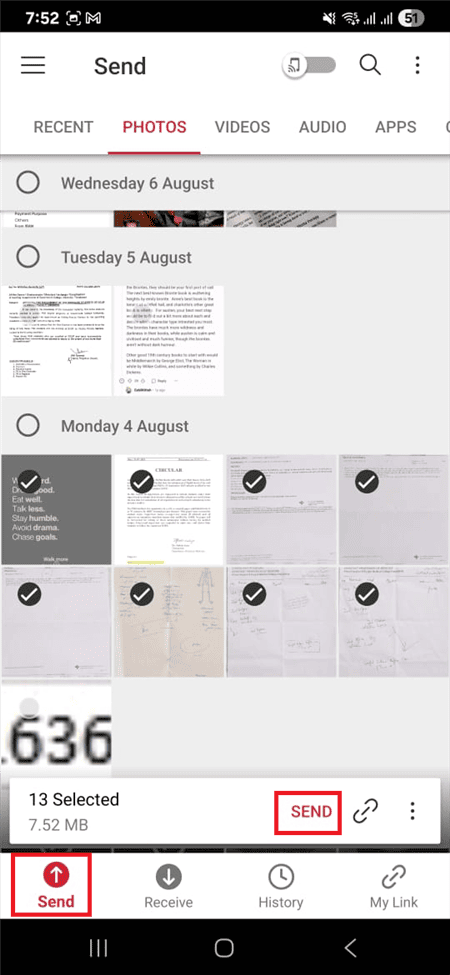
Send Anywhere Data Transfer
Step 3. The app will generate a security key and a QR code to share the files.
Step 4. On your new phone, open the Send Anywhere app. Then, select the “Receive” tab from the bottom.
Step 5. Tap the QR code scanner option. Scan the code from the old phone.
Step 6. Alternatively, enter the security key in the text box and press the “Receive” button.
Step 7. Your phone will receive the files automatically. Switch to the “History” tab to find them.
That’s how you can transfer Motorola data without a computer through the Send Anywhere app.
FAQs About Motorola Migrate App
1. Is Moto Migrate app still available?
No! The application is no longer accessible. Motorola discontinued iOS support for the app in 2015. They also restricted Android compatibility to version 5.1 Lollipop and earlier. Consequently, the application is not accessible for devices operating on Android 6.0 Marshmallow or newer.
2. How to move apps from Motorola to Motorola?
For Moto devices operating on Android 5.1 Lollipop and prior versions, you can utilize the Motorola Migrate application to move apps. In newer Android versions, you will require third-party applications such as AirDroid and Send Anywhere or a trustworthy desktop application like DroidKit.
3. What’s the best alternative to Moto Migrate app?
Google’s data backup and restore function serves as a native substitute for the Moto Migrate application on Android devices. However, for larger transfers, the best option is to use a dedicated data transfer tool like DroidKit. It allows you to migrate large volumes of data and any file type without any technical procedure.
Conclusion
The Motorola Migrate app was a handy tool to move data from an old phone to a new one. The app is no longer available. But you can use reliable third-party tools to transfer your data. For fast and secure data migration, we recommend using DroidKit. It can transfer data from Android to Android or computers. Plus, it’s easy to use and supports many Android devices. Download it now to make your switch to a new phone hassle-free!
DroidKit Android Data Manager
- Move data from iOS/Android to Android quickly.
- Transfer up to 13+ types of Android content.
- Organize all Android data with ease.
- No technical knowledge is required. Friendly to beginners.
Free Download100% Clean & Safe
Free Download100% Clean & Safe
Free Download * 100% Clean & Safe



Jeremy Feron is a writer for iMobie with a deep passion for Android. He specializes in creating clear guides on Android tips and the latest updates, helping users navigate their devices and get the most out of new features.
Product-related questions? Contact Our Support Team to Get Quick Solution >
