Full Review of MyJad Android Data Recovery Free Download
Discocer this in-depth review of MyJad Android Data Recovery, including its features, advantages, weaknesses, and a comparison directly against DroidKit. Learn how to recover lost files in a way that suits their needs, and some easy and safe suggestions for the recovery process.
Losing important files from your Android device is annoying; however, Android data recovery software like MyJad Android Data Recovery might be the very solution you need. They claim to make the process of recovering deleted files fast and without any trouble. In this comprehensive review, we shall provide a detailed analysis of the main features of this software, compatibility, usability, its performance, advantages, disadvantages, and free download options, to help you make an informed decision for your Android data recovery needs.
MyJad Android Data Recovery Overview in 2026
MyJad Android Data Recovery is still a trusted option in 2026 among Android users for retrieving deleted or lost files such as photos, videos, contacts, messages, or documents. It is compatible with a wide range of devices, such as Samsung, Motorola, LG, HTC, and others, but it has to root an Android device before the recovery process can commence.
The application can conduct high-speed and precise scanning, which is sufficient to locate the recoverable information within an hour. It comes with a preview feature that allows you to inspect the items before the recovery process and select only the files you need. MyJad is compatible with a plethora of file formats and can save your text messages as .txt files for ease of storage or sharing.
Key Features:
- Wide device compatibility – Works seamlessly with major Android brands like Samsung, Motorola, LG, HTC, and more.
- Fast scanning speed – Locates recoverable files in under an hour, even from large storage volumes.
- Comprehensive file support – Recovers photos, videos, audio, documents, and other file types without quality loss.
- Preview before recovery – Lets you view files first and choose exactly what to restore, saving time and space.
- Dual storage recovery – Supports data restoration from both internal memory and SD cards.
- SMS export feature – Allows saving text messages as .txt files for easy backup or sharing.
- Safe read-only process – Ensures no further damage or modification to existing data during recovery.
Pros:
- Beginner-friendly interface.
- Compatible with a wide variety of Android devices.
- Safe, read-only recovery process.
- Efficient for both small and large-scale data restoration.
Cons:
- Requires rooting the Android device before use.
- Outdated and not intuitive interface and user experience.
- Compatibility issues may arise with Android 12 and above.
- The success rate of recovering overwritten data is low.
Pricing:
MyJad Android Data Recovery offers a free trial version to scan and preview recoverable files, while restoring the whole file will require upgrading to the full version. A single-user personal license of this tool is $49.95. This license is for one device only.
How to Use MyJad Android Data Recovery to Recover Data
MyJad Android Data Recovery is an easy-to-use tool, even if it’s your very first time dealing with recovery software. Through several guided steps, you can quickly scan, preview, and recover your deleted files. Here is a description of the work process:
Step 1. Download and install the software
Install MyJad Android Data Recovery on your Windows PC, then launch the program. Connect your Android device to the computer using a USB cable.
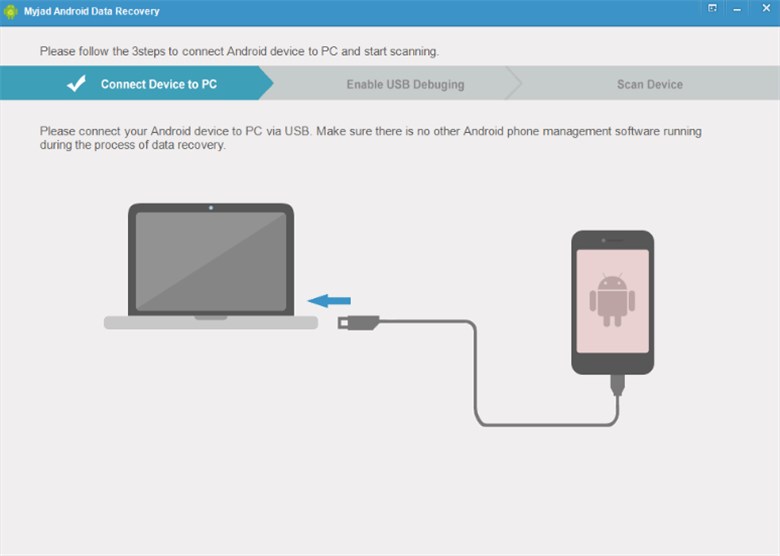
Connect Device to PC
Step 2. Enable USB debugging on your phone:
USB debugging allows the software the right to access your phone’s storage. In case it is not enabled, MyJad will assist you in setting up the steps on-screen.
Step 3. Turn on File Transfer mode:
Make sure that USB storage is allowed so that the software can detect both internal memory and SD card data. Pictorial instructions in the software will help you turn it on.
Step 4. Select the data types to scan:
Set the types of files you want to recover, such as photos, videos, messages, or others, and click Start to scan.
Step 5. Preview the uncovered files:
Now that the scanning is over, you can go through the list of files that are recoverable. MyJad’s preview option enables you to check the content before deciding to recover it.
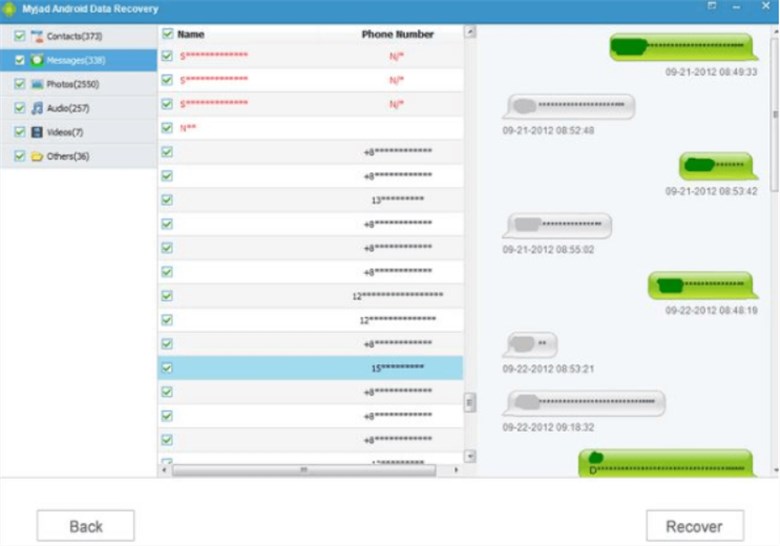
Preview Uncovered Files
Step 6. Restore the selected files:
Mark the spaces next to the files that you require, click Recover, and select a secure folder on your PC to keep them.
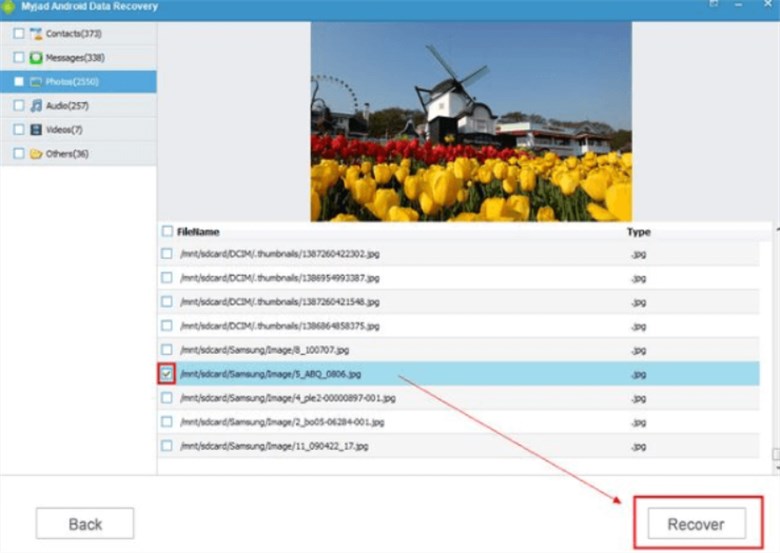
Restore Data with MyJad Android Data Recovery
Best Alternative to MyJad Android Data Recovery [Easy & Safe]
As a comprehensive Android data recovery tool, DroidKit is capable of data restoration, file management, and cleanup features. The tool can safely restore deleted files without root. Its Deep Recovery mode can offer you the highest retrieval success for more complex loss scenarios. DroidKit is compatible with more than 20,000 Android models and is available for both Windows and macOS. It’s a versatile choice for users who value ease of use and high recovery rates.
Key Features of DroidKit:
- Recovers 13 data types, including photos, videos, WhatsApp chats, messages, contacts, documents, etc.
- Supports retrieving data from dead or crashed devices.
- Extract data from Google backups and SIM cards with ease.
- Remove junk files to free up space and improve performance.
Free Download * 100% Clean & Safe
How to recover Android data without root via DroidKit:
Step 1. Get DroidKit and install it on your computer. Open the program and pick the “Quick Recovery from Device” option.
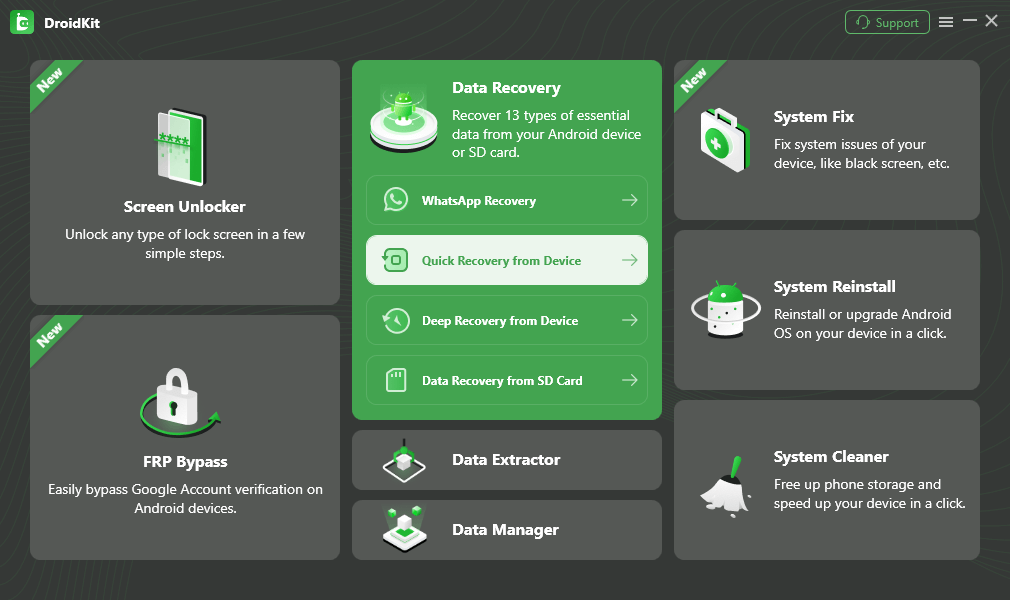
Choose Quick Recovery from Device from Data Recovery
Step 2. Connect your phone to a computer. Choose the data type that you want to recover. Click Start after DroidKit recognizes your device to launch the scanning.
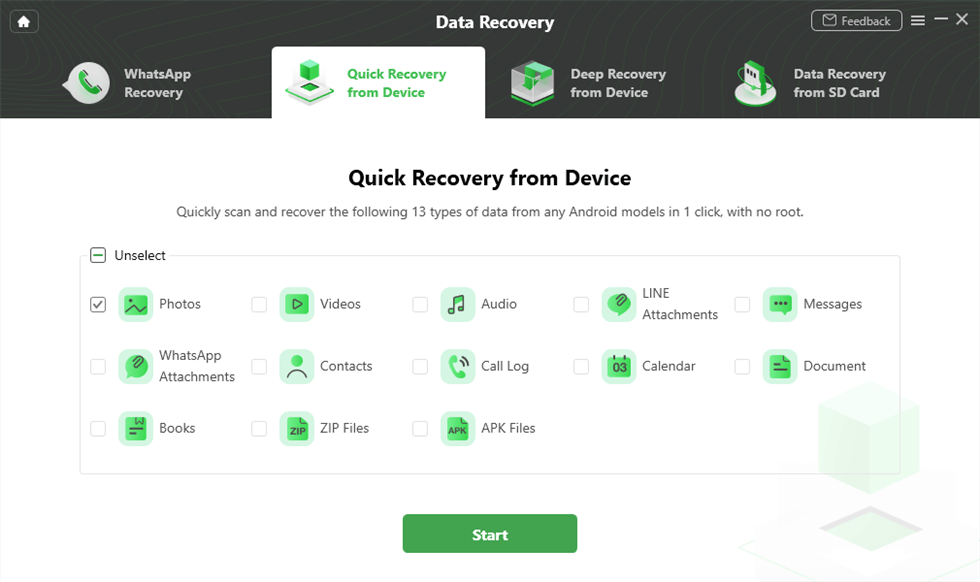
Select the Data Type that You Want to Recover
Step 3. Once scanning has been done, go through the files that can be restored and check the ones you want to regain access to.
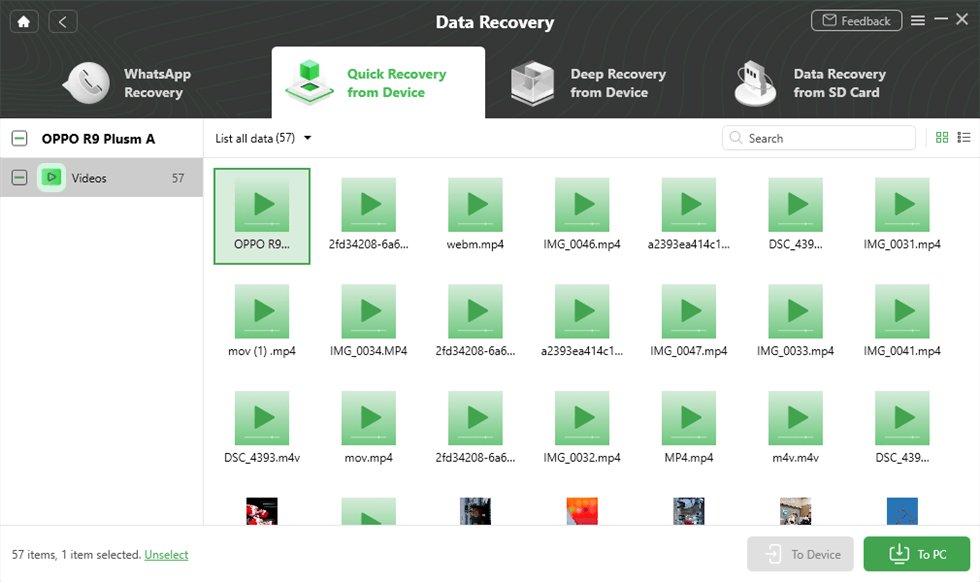
Preview and Select Videos
Step 4. Do not interrupt the process until it is completed. After that, a window will appear confirming the success of the operation.
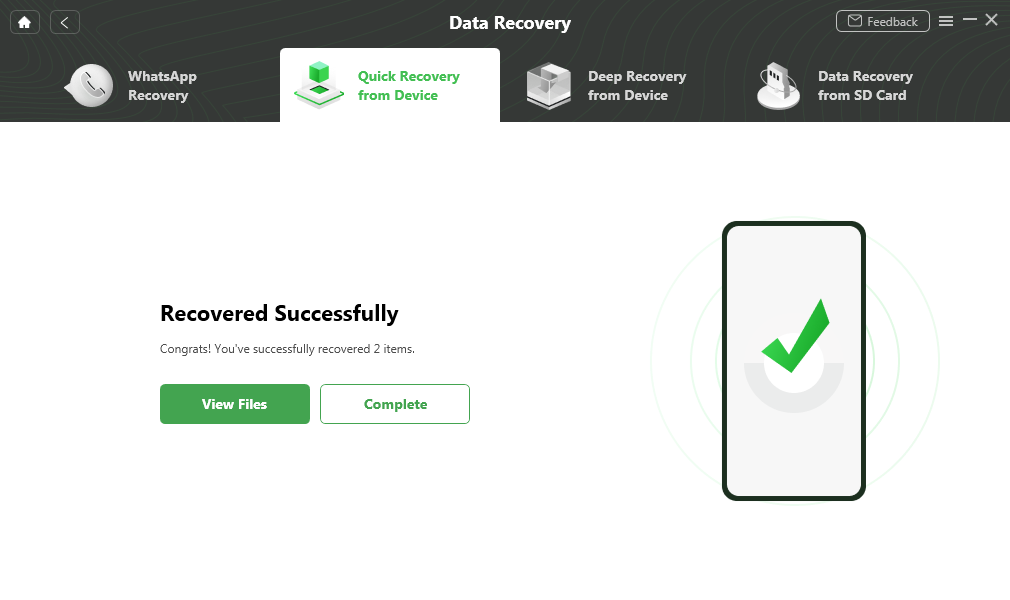
Quick Recovery from Device Successfully
MyJad Android Data Recovery vs DroidKit
The table below compares MyJad Android Data Recovery and DroidKit side by side to help you see the advantages and disadvantages of each at a glance.
| Feature | MyJad Android Data Recovery | DroidKit |
| Rooting Required | Yes | No (for Quick Recovery mode) |
| Supported Operating Systems | Windows only | Windows and macOS |
| Recovery Modes | Single standard recovery mode | Quick Recovery & Deep Recovery |
| Supported Android Devices | Wide range, including Samsung, LG, HTC | Over 20,000 models from top brands |
| Data Types Supported | Images, videos, messages, contacts, documents | 13 types, including WhatsApp, SIM card, and Google backups |
| Dead or Crashed Device Recovery | No | Yes |
| Free File Preview Before Recovery | Yes | Yes |
| Selective File Recovery | Yes | Yes |
| User Interface | Simple but outdated | User-friendly & Modern |
Compared with MyJad Android Data Recovery, DroidKit can recover data without root for safer use. It supports both Windows and macOS, and offers dual recovery modes for complex data loss. DroidKit is overall more versatile and easier to use.
FAQs about MyJad Android Data Recovery
Q1: Is MyJad Android Data Recovery Free to Use?
MyJad Android Data Recovery only provides a free trial version to scan and preview the recoverable files without any charge. To completely retrieve the lost data, you must get a license.
Q2: Is MyJad Android Data Recovery Safe?
MyJad Android Data Recovery is generally safe, but it does carry certain risks because it requires rooting your Android device for recovery. It may lead to warranty loss or security issues. So, be careful and follow the instructions accurately if you decide to go that way.
Conclusion
To sum up, MyJad Android Data Recovery is effective in regaining lost data on Android smartphones with older Android versions. However, features like the necessity to root and the limitation to Windows only could become restrictions for some users. For a more reliable solution to recover Android data, DroidKit is worth trying, since it has the capability of multi-mode recovery, wider device compatibility, and more. It can also extract data from a broken Android phone. Try DroidKit to retrieve your lost data without hassle.
Free Download * 100% Clean & Safe


Roger Smith is a senior technical writer with years of experience in providing Android solutions. He loves to help users solve various problems such as Android unlock, Android data recovery, and Android system repair.
Product-related questions? Contact Our Support Team to Get Quick Solution >
