Recover Deleted Signal Messages on Android/iPhone 2026
On Android, you can restore deleted Signal chats in two ways: By loading a local backup or pulling one from Google Drive. The tricky part is, you’ll only succeed if backups were turned on earlier and you still have the 30-digit passphrase needed to open them.
Signal keeps your chats private, but sometimes messages just disappear. You could switch phones, reset it, or hit the wrong option by mistake. Don’t panic, your chats might not be gone forever. If you had a backup saved, there is a good chance you can get it back. This guide walks you through simple steps to recover deleted Signal messages on Android and hold on to the conversations that matter.
You may also like: How to recover deleted Line messages
Can Deleted Signal Messages Be Recovered?
You can get back deleted Signal messages on Android, but only if a backup was created before they were lost. Signal stores those backups on your phone itself, not on Google Drive or any cloud. Without a backup, it’s always hard to restore your chats from the Signal app.
Limitations:
- Android: Recovery works only if a local backup exists. No backup means it’s very hard to restore.
- iPhone: No iCloud backup option. Deleted messages cannot be recovered.
- Desktop: Chats are not stored permanently. Once deleted, they are gone.
How to See Deleted Signal Messages?
Sometimes, the simplest way to get back deleted Signal messages on Android is by checking another device linked to your account. Signal allows you to use more than one device, so if the chats are still sitting there, you can copy or move them without losing anything.
Steps to see deleted Signal messages on Android:
- Look for another Android device that’s already linked to your Signal account.
- Open the Signal app and check if your old chats are still showing there.
- Go into Signal settings, tap on chats, then choose chat backups.
- Create a fresh backup file from that device.
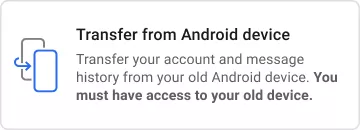
Transfer Signal Messages from Another Android
- Move the backup over to your main Android phone.
- Restore it, and your missing messages should appear again.
That’s how you can see deleted Signal messages on Android. After that, you can check how to recover lost Signal messages easily.
Also read: How to see deleted WhatsApp messages on Android
How to Recover Deleted Signal Messages
Method 1. Recover from a Local Backup
The easiest way to recover deleted Signal messages on Android is by using a local backup. The truth is, this only works if you turned backups on before and saved that 30-digit passcode. Without a backup, the messages cannot be restored.
- Backup must be enabled on your Signal app.
- You need the 30-digit passphrase created when the backup was set up.
Here are the steps to recover deleted Signal messages on Android with a backup:
Step 1. Uninstall the Signal app from your Android phone.
Step 2. Reinstall it from the Google Play Store.
Step 3. Open Signal, then choose transfer or restore account.
Step 4. Give the app the permissions it asks for.
Step 5. Hit restore from backup and pick the backup file saved on your phone.
Step 6. Type in the 30-digit passphrase you wrote down earlier. This step is important, without which the restore won’t work.
Step 7. Once it checks out, Signal reloads your chats, and you’ll see the messages come back, just like before.
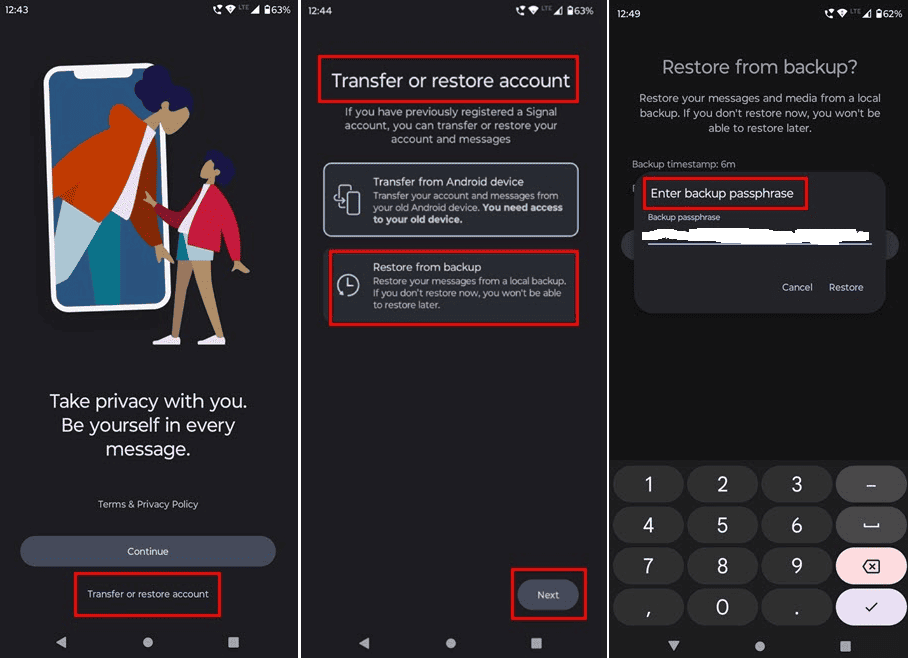
Restore Signal Messages from Backup
Method 2. Recover from Google Drive
Signal doesn’t really work with Google Drive on its own, but here’s the thing: you can still use your phone’s system backup or manually upload the Signal backup files to Google Drive. Later, you can bring them back to the same phone or even a new one.
Steps to recover Signal messages with Google Drive:
Step 1. Open the Signal app and tap your profile.
Step 2. Go to chats, then choose chat backups.
Step 3. Turn backups on, pick a folder to save them, and note down the 30-digit passphrase (don’t skip this, you’ll need it later).
Step 4. Tap enable backups, then hit create backup.
Step 5. Open Google Drive on your phone and press the + New button.
Step 6. Select upload and choose the Signal backup folder from your internal storage.
Step 7. On another Android phone, download those files and place them in a folder named Signal backup inside internal storage.
Step 8. Install Signal again, enter your 30-digit passphrase, and your old chats will show up in the app.
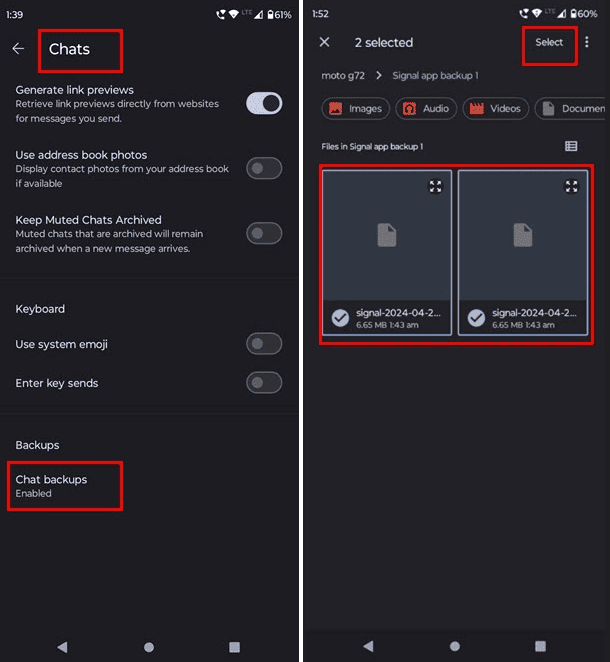
Restore Signal Messages from Google Drive
Tips to Avoid Losing Signal Messages
Losing chats is never fun. But you can save yourself a lot of stress if you just keep a backup routine. Here are a few simple ways:
- Update your local backup every now and then. Don’t leave it for months.
- If you can, drop a copy on Google Drive. Cloud saves are a lifesaver when phones crash.
- Write down that long backup code somewhere safe. Without it, your backup is just a dead file.
- After big chats or important days, hit backup again. Better safe than sorry.
Bonus Part. How to Recover Deleted WhatsApp Messages on Android
Unlike Signal, WhatsApp offers limited options for message recovery, especially if you don’t have a backup. That’s why DroidKit comes in handy. It’s one of the most recommended Android recovery tools that helps you restore deleted WhatsApp messages even without a backup. Whether the chats were deleted a few days ago or a year back, DroidKit gives you a strong chance of retrieving them.
Key Features of DroidKit:
- Restore WhatsApp chats without any backup.
- Preview deleted chats before recovery.
- Recover selectively or all at once.
- No rooting required and no data overwriting.
- Works with 20,000+ Android devices, including Samsung, Xiaomi, and Huawei.
- Recover data from a damaged Android or unresponsive device.
Free Download * 100% Clean & Safe
Steps to Recover Deleted WhatsApp Messages with DroidKit:
Step 1. Download and install DroidKit on your PC or Mac. Open it, then pick WhatsApp Recovery.
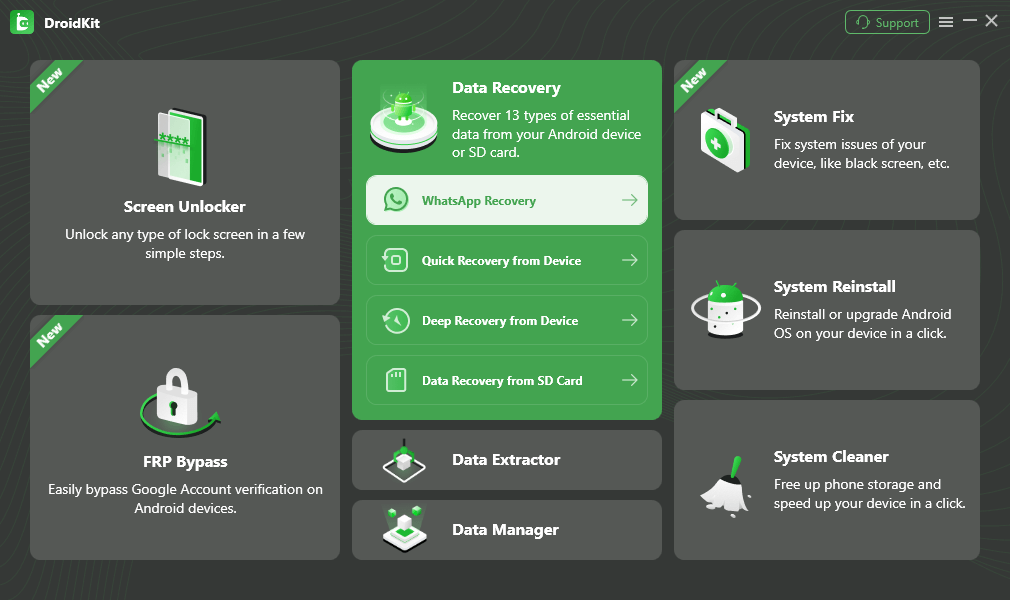
Select WhatsApp Recovery Mode
Step 2. Plug your Android phone in with a USB cable. Click start to go on.
Step 3. Follow the instructions on-screen. DroidKit will get your phone ready for scanning and finding lost chats.

Preview the Data of WhatsApp
Step 4. When the scan is done, you’ll see all the messages it can bring back. Pick the ones you want.
Step 5. Hit To Device or To Mac/PC to finish, and in a few minutes, your deleted WhatsApp chats should show up again.
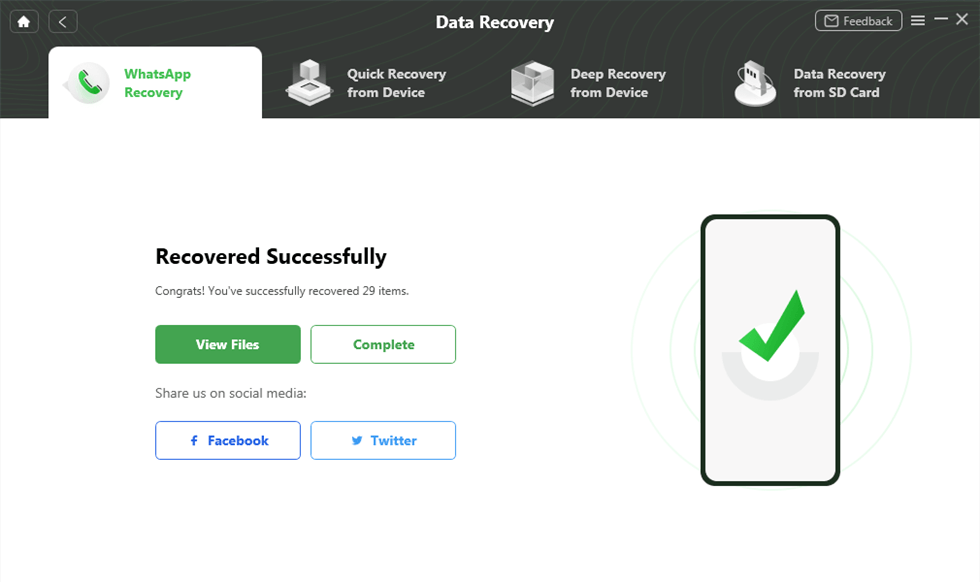
WhatsApp Recovered Successfully
Conclusion
On Android, the easiest way to recover deleted Signal messages is by using a local backup or syncing with Google Drive. Keeping regular backups really helps, so you don’t lose important chats. Signal doesn’t give you a lot of recovery options, so sometimes you need another tool. For WhatsApp users, DroidKit can bring back lost messages even if you never made a backup, which makes the whole process way easier.
Free Download * 100% Clean & Safe


Roger Smith is a senior technical writer with years of experience in providing Android solutions. He loves to help users solve various problems such as Android unlock, Android data recovery, and Android system repair.
Product-related questions? Contact Our Support Team to Get Quick Solution >
