4 Ways to Factory Reset Vivo with/without Password
Vivo factory reset is easy. But without the password, it can be a complicated task. No worries, there are some effective ways available for Vivo factory reset without password. Check them out and regain access to your Vivo phone easily.
If you are looking for a Vivo factory reset code, there is no single official reset code documented by vivo that works across every Vivo phone. Vivo’s current support materials instead use two standard factory-reset paths: Erase all data (factory reset) in Settings when you can access the phone, or Recovery Mode > Wipe data when you need a hardware-button method. Menu names and confirmation steps can vary by Vivo model and Funtouch OS version.
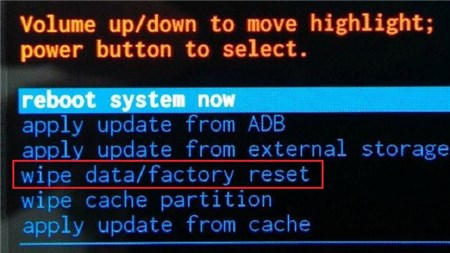
Before you reset: A factory reset erases data stored in the phone’s internal storage. If you can still access the device, back up important photos, files, contacts, and app data first. Also make sure you know the Google Account credentials previously used on the phone, because Android device protection may ask for account verification after a reset.
Use the method that matches your situation:
| Your situation | Best reset method | What you need |
|---|---|---|
| You can unlock and use the Vivo phone normally | Factory reset from Settings | Current screen lock/password if requested |
| You cannot enter the system normally | Recovery Mode / Wipe data | Hardware buttons; exact prompts vary by model |
| The phone is lost but still linked to your Google Account | Google Find Hub remote factory reset | Same Google Account, phone online, Find Hub enabled |
| You forgot the screen lock and the standard reset paths are not practical | Use the official recovery route first; consider a screen-unlock tool only for your own device | Computer and compatible tool if needed |
Below is the complete guide to factory reset Vivo with or without access to the phone. If your goal is only to fix a temporary lag, app freeze, or minor software problem, try restarting the phone before using a factory reset because a reset is destructive.
You may also like: How to recover data after Android factory reset
Part 1. Factory Reset Vivo With Password
If you can unlock your Vivo phone and open Settings, this is the safest and most straightforward way to return it to factory settings. Vivo’s current manuals distinguish Reset all settings from Erase all data (factory reset): resetting settings does not necessarily erase personal files, while Erase all data clears data from the phone’s internal storage.
Because Vivo menu names vary across Funtouch OS versions, use the path below as a current reference and look for the equivalent Reset options or Backup & reset menu on older models.
Step 1. Open Settings on your Vivo phone.
Step 2. Open System management or System, depending on the model and Funtouch OS version.
Step 3. Tap Reset options. On some older Vivo phones, the reset controls may appear under More settings > Backup & reset.
Step 4. Choose Erase all data (factory reset). Do not choose only Reset all settings if your goal is to erase the phone completely.
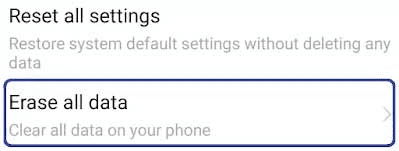
Factory Reset Vivo in Settings
Step 5. Read the on-screen warning, confirm that you want to erase the device, and enter the current screen lock or password if Vivo asks for it. The phone will restart after the reset is complete.
Do not confuse “Reset all settings” with “Erase all data.” If you only want to restore system settings, Reset all settings may be enough. If you choose Erase all data, locally stored data in internal storage will be removed. Back up first whenever possible.
Part 2. Vivo Factory Reset Without Password
If you cannot access the normal Settings menu, there are other reset paths. Start with Vivo Recovery Mode because it is the manufacturer’s built-in method. If the phone is lost, Google Find Hub can remotely erase a compatible device. A third-party screen-unlock tool should be treated as an alternative for a device you own rather than the first reset method.
1. Factory Reset Vivo in Recovery Mode
Recovery Mode is the main button-based method for a Vivo hard reset when you cannot use the normal Settings menu. Vivo’s official support instructions show that the exact Recovery interface can vary by model and Funtouch OS generation, so follow the labels shown on your own device.
Important: Recovery Mode does not guarantee that no verification will be required. Some Vivo models may ask for a lock-screen credential during the wipe process, and Android device protection can require the Google Account previously used on the phone after the reset.
Follow these steps to factory reset Vivo in Recovery Mode:
Step 1. Power off the Vivo phone. Press and hold the Power and Volume Up buttons together until the Vivo logo or the Fastboot/Recovery interface appears.
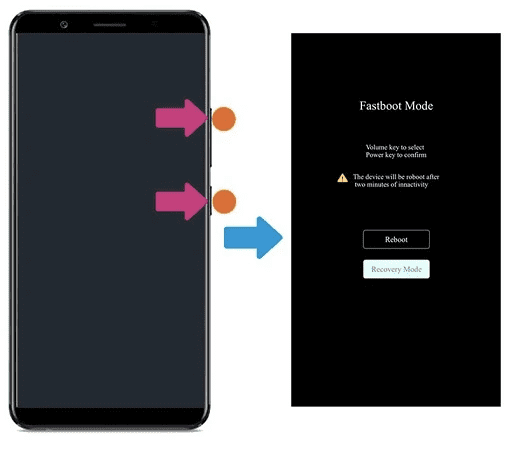
Recovery Mode in Vivo
Step 2. If the phone opens Fastboot first, use the Volume buttons to highlight Recovery Mode and use the Power button to confirm. Some models may enter Recovery directly.
Step 3. In Recovery, select Wipe data. Follow the on-screen confirmation prompts shown by your Vivo model.
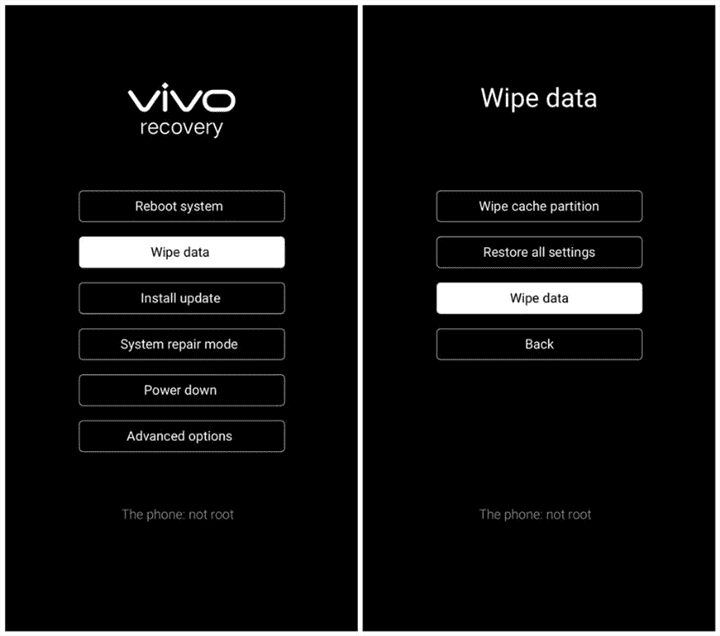
Wipe Data in Vivo Recovery Mode
Step 4. Confirm the wipe/factory reset. When it is complete, choose Reboot system or the equivalent option to restart the phone.
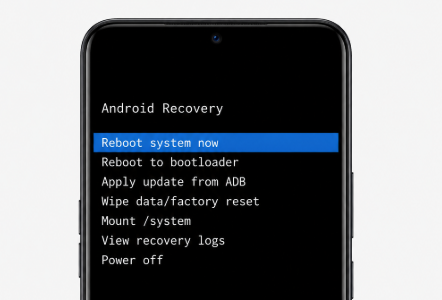
Model difference: Older Funtouch OS versions may use wording such as wipe data/factory reset, while newer Vivo Recovery interfaces may show Wipe data. Do not select unrelated update or repair options unless you know what they do.
Also read: Android phone stuck in recovery mode
2. Use Google Find Hub to Erase Vivo
Google’s service formerly known as Android Device Manager and Find My Device is now called Find Hub. If the Vivo phone is linked to your Google Account, Find Hub can remotely factory reset the device. This is most useful when the phone is lost or you cannot physically operate it.
For a remote erase to work, the Vivo phone generally needs to have power, be connected to Wi-Fi or mobile data, be signed in to your Google Account, have Find Hub enabled, and be visible on Google Play.
After a remote erase: The phone’s data is permanently deleted, its location will no longer be available in Find Hub, and you will need the Google Account password to use the device again after the reset.
Follow these steps:
Step 1. On another phone or computer, open Google Find Hub and sign in with the same Google Account used on the Vivo phone.
Step 2. Select the Vivo device from the list.
Step 3. Open the device settings in Find Hub and choose Factory reset [device name].
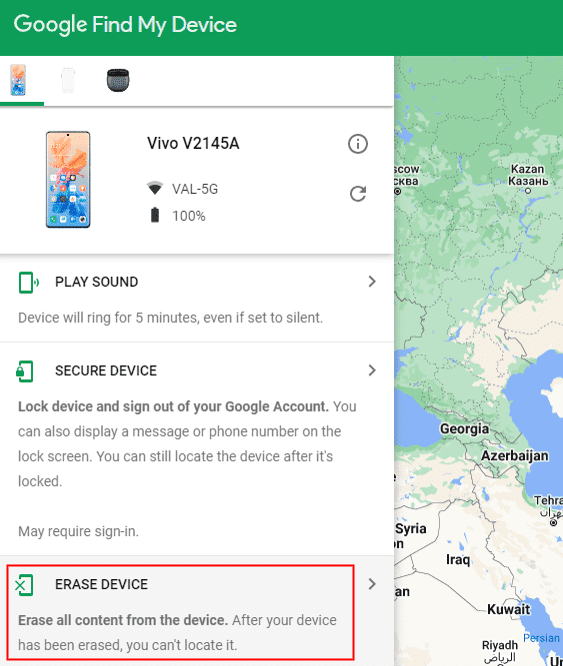
Factory Reset Vivo Remotely with Google Find Hub
Step 4. Confirm the remote factory reset. If the phone is offline, the command may wait until the device reconnects to the internet.
3. Use iMobie DroidKit to Factory Reset Vivo Quickly
If you own the Vivo phone but cannot use the normal Settings route because you forgot the screen lock, and the built-in Recovery method does not fit your situation, you can consider a screen-unlock tool as another option. iMobie DroidKit includes a Screen Unlocker workflow for supported Android devices. Removing a screen lock through this type of process can erase device data, so use it only when you accept the factory-reset result.
Before using this method: This does not remove the need to prove ownership after a reset. Android device protection may still require the Google Account previously associated with the phone. Device and feature support can vary, so check current compatibility before starting.
Key Features of iMobie DroidKit:
- Provides a guided screen-lock removal workflow for supported Android devices.
- Can be useful when you cannot access the normal Vivo Settings menu.
- Runs from a Windows PC or Mac and guides you through device-specific steps.
- No advanced Android command-line skills are required for the guided workflow.
Steps to Use iMobie DroidKit to Factory Reset Vivo Quickly
Install iMobie DroidKit on your computer and follow the on-screen instructions for your supported Vivo device:
Step 1: Launch iMobie DroidKit and choose Screen Unlocker. Click Start to continue. Be aware that removing the lock may erase the Vivo phone.
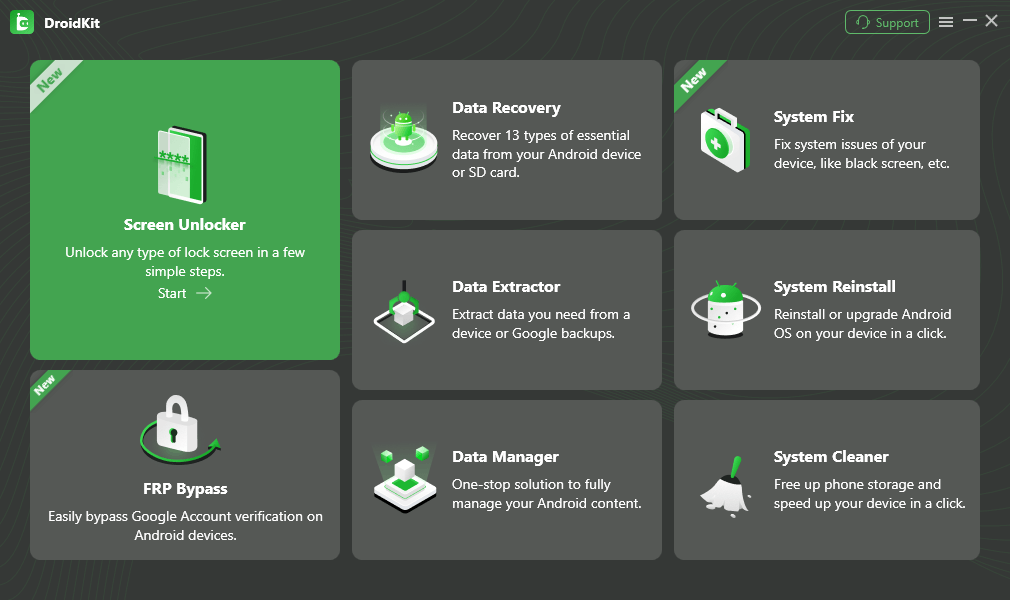
Choose Screen Unlocker
Step 2: Connect the Vivo phone to the computer with a working USB cable. When DroidKit recognizes the device, follow the prompts while it prepares the required device configuration. Click Remove Now when prompted.
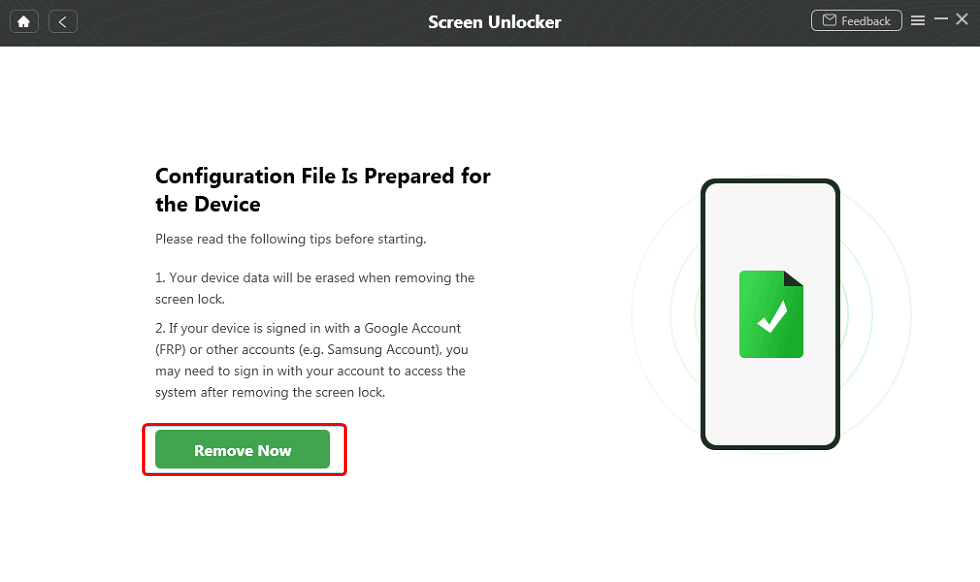
Select the “Remove Now” Button
Step 3: Follow DroidKit’s device-specific instructions to put the Vivo phone into the required mode and complete the screen-lock removal process. Keep the phone connected until the program reports that the operation is complete.
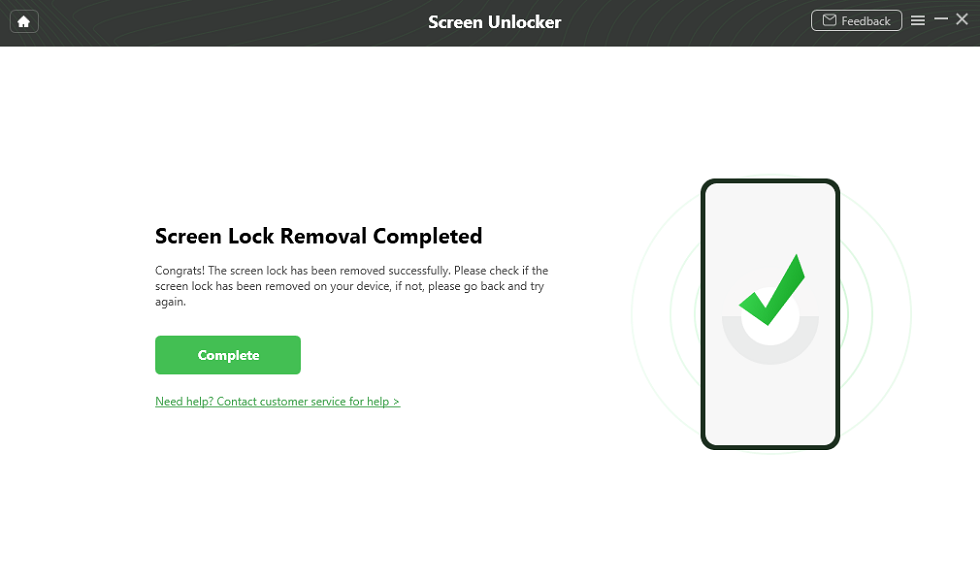
Lock Screen Removal Completed
FAQs About Factory Reset Vivo
1. What is the Vivo factory reset code?
Vivo’s current official support materials do not document one universal dial code for factory resetting every Vivo phone. The standard supported methods are Erase all data (factory reset) in Settings or Wipe data in Recovery Mode. Avoid trying unverified dial codes because behavior can differ by device and software version.
2. Why do I need to factory reset Vivo?
A factory reset is useful when you intentionally need to erase the phone, prepare it for a new owner, or troubleshoot a serious software problem after less destructive fixes have failed. For simple lag, app crashes, or temporary freezes, restart and basic troubleshooting should come first because factory reset deletes local data.
3. How to hard reset Vivo?
A Vivo hard reset usually means using Recovery Mode to wipe the phone. Power the device off, use the model-appropriate button combination—commonly Power + Volume Up on current Vivo support instructions—enter Recovery Mode, choose Wipe data, confirm the wipe, and reboot. Exact menu wording varies by model and Funtouch OS version.
4. Can I factory reset my Vivo phone if it’s locked?
You may be able to use Vivo Recovery Mode when you cannot access Settings, but some models can still request credentials during the wipe process. If the phone is yours and the standard route does not work, a compatible screen-unlock tool is another option. A reset does not guarantee that post-reset Google Account verification will disappear.
5. Does factory reset delete everything on Vivo?
Choosing Erase all data (factory reset) deletes data stored in the phone’s internal storage and returns settings to their factory state. Back up important information first whenever you still have access to the phone. SD-card behavior can differ, so do not assume external storage is erased unless the phone explicitly says so.
6. What is the difference between Reset all settings and Erase all data on Vivo?
Reset all settings restores system settings without necessarily deleting personal media, while Erase all data clears internal-storage data and returns the phone to factory settings. If you are following a factory-reset guide, verify which option is selected before confirming.
Final Words
If you searched for a Vivo factory reset code, the most reliable approach is not an unverified dial code but the reset method built into the phone. Use Erase all data (factory reset) from Settings when you can access the device, use Recovery Mode > Wipe data for a button-based hard reset, or use Google Find Hub when you need to remotely erase a linked phone. Always back up data first when possible and make sure you know the Google Account credentials associated with the device.
If you own the Vivo phone and cannot complete the native reset path because of a forgotten screen lock, DroidKit’s Screen Unlocker is an additional option for supported devices. Treat it as a fallback after the native Vivo methods, and expect screen-lock removal/factory reset workflows to erase device data.
DroidKit
- Transfer all kinds of formats of photos from computer to your iPhone.
- With original size with no loss of picture quality and no compression.
- Lightning fast speed to transfer 100 photos in 3.4 seconds.
- No erase of previous photos on your iPhone, 100% clean & safe.
Free Download100% Clean & Safe
Free Download100% Clean & Safe
Free Download * 100% Clean & Safe



Joy Taylor is a seasoned technical writer with over a decade of experience in mobile technology. At iMobie, she specializes in producing in-depth content on iOS data recovery, iPhone unlocking solutions, and iOS troubleshooting.
Product-related questions? Contact Our Support Team to Get Quick Solution >
