How to Fix Unfortunately Android.Process.Media Has Stopped Issue
The “Unfortunately, the process android.process.media has stopped” error on Android phones usually shows that the Media Storage app or the Download Manager has a problem. To fix this issue, you can restart the device, clear cache and data, update applications, etc. Let’s check the details in this guide.

DroidKit – Fix Android System Issue Within Minutes
Free download DroidKit to fix the “Unfortunately, Android.Process.Media Has Stopped” Issue in easy steps. Supports Android 6 – 15. No technical skills are required.
Android is one of the most popular operating systems, but it is not exempt from faults. A frequent problem is the “Unfortunately, android.process.media has stopped” error that users encounter. This can be frustrating, as it disrupts phone functions. This guide will cover possible causes as well as the 7 most effective solutions to such issues. Keep reading to fix Android system corruption, restoring your Android device’s smooth performance without hassle!
Why Android.Process.Media Has Stopped?
The “android.process.media has stopped” error is a common issue on Android devices. It can disrupt you to use apps related to media storage, downloads, or file management. Before diving into solutions, it’s important to learn the possible causes behind this error to help you fix it more effectively. Here are some common causes:
- Damaged cache or data in Media Storage or Download Manager.
- Firmware issues caused by a failed or incomplete system update.
- Disrupted system processes by Malware or virus attacks.
- Incorrect ROM installation or other custom ROM Issues.
- A faulty or improperly mounted SD card.
- Problems with Google account synchronization.
- Insufficient space affects media processes.
How to Fix Unfortunately Android.Process.Media Has Stopped?
After learn the potential reasons, let’s check some effective solutions to fix the “Unfortunately, android.process.media has stopped” issue.
Way 1. Check App & System Updates
The “Unfortunately, android.process.media has stopped” error may be caused by compatibility problems with outdated programs or system software. Keeping your Android OS and apps updated can help you fix this trouble.
Here are the steps to check app and system updates:
Step 1. Open Settings on your Android device.
Step 2. Look for system updates under Software Update.
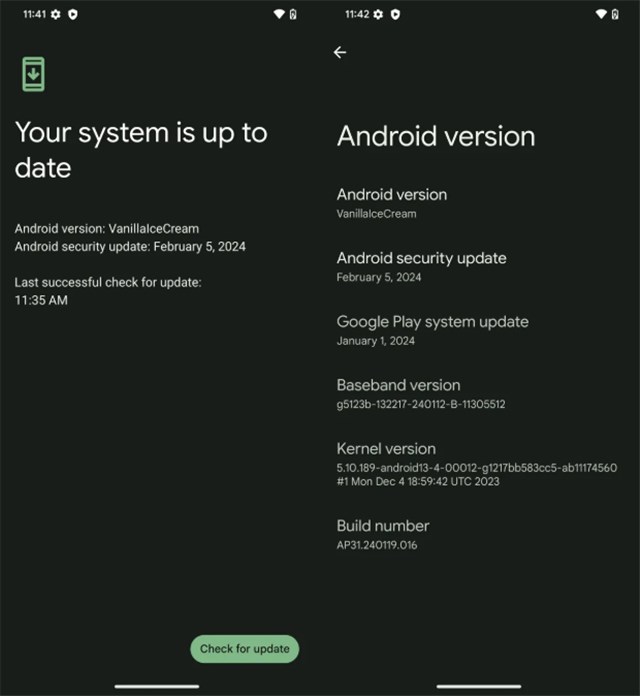
Check for Update
Step 3. Open the Google Play Store, and tap on Manage apps & devices to update the apps.
Way 2. Clear the Cache on Your Device
Corrupt cache files can interfere with system processes, causing the error. Clearing the cache removes temporary files that may be causing conflicts. This method helps resolve various app-related errors efficiently.
Here is how to clear the cache on your devices:
Step 1. Open Settings and go to Apps & Notifications.
Step 2. Tap See all apps and select Media Storage and Google Services Framework.
Step 3. Tap Storage & cache and select Clear cache.
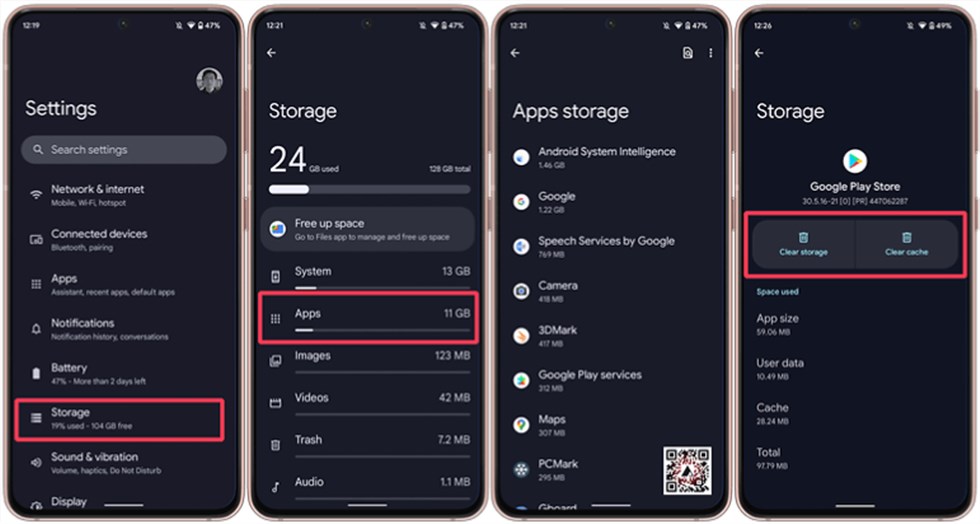
Clear Storage Cache
Way 3. Reset App Preferences
System programs, including those in charge of media processing, return to their original settings when app preferences are reset. This is the way to fix any misconfiguration that is likely causing the problem.
Follow the steps below:
Step 1. Go to Settings, then Apps & Notifications.
Step 2. Tap See all applications and then select the menu with three dots.
Step 3. Select and confirm Reset app preferences. To implement the modifications, restart your device.
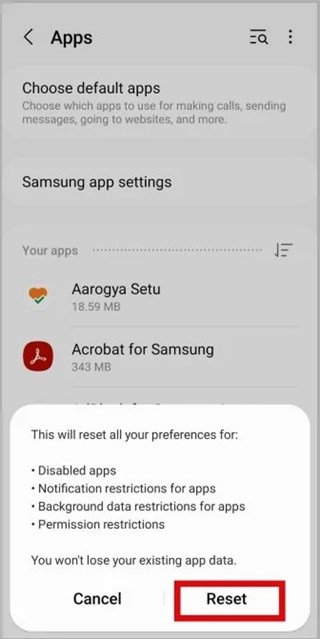
Reset App Preferences
Way 4. Check Google Sync & Media Storage Settings
The “Unfortunately, android.process.media has stopped” problem may be caused by a deactivated Media Storage service or incorrect sync settings. It may be fixed by making sure both are configured appropriately.
Here are the steps:
Step 1. Open Settings and select Accounts > Google.
Step 2. Tap Sync Account and ensure that Google Drive, Contacts, and Photos are enabled.
Step 3. Verify that Media Storage is enabled by going to Settings > Apps > Media Storage.
Way 5. Boot Your Device into Safe Mode
Safe Mode can help resolve the android.process.media keeps stopping error by temporarily disabling third-party apps. This allows only core system apps to run, making it easier to identify and fix the issue caused by external apps.
Here is how to:
Step 1. Start by pressing and holding the Power button to access the power menu.
Step 2. Pressing and holding Power Off activates the Safe Mode dialog box.
Step 3. Now just tap OK to reboot into Safe Mode.
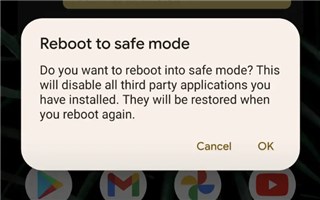
Boot Your Device into Safe Mode
Step 4. Uninstall recently installed programs if the issue goes away.
Way 6. Fix Android.Process.Media Error with DroidKit [Easy & Safe]
If you are looking for a more reliable and easier method to fix the constant “Unfortunately, android.process.media has stopped” error, DroidKit is a better choice. With wide compatibility, this software supports multiple Android mobile devices, including Samsung, Xiaomi, Redmi, etc. With its powerful system repair function and easy steps, DroidKit is available to fix Android system issues without rooting the device or any technical know-how. This tool provides a safe way to resolve any problems associated with your smartphone, like a black screen, random crashes, or an unstable system.
Key Features of DroidKit:
- Fixes various Android system issues quickly and efficiently.
- Provides tailored repair solutions based on device type.
- Requires no rooting, ensuring data security. No viruses and malware.
- Works on both Windows and Mac computers.
Free Download * 100% Clean & Safe
To fix the “android.process.media has stopped” error, use the following steps:
Step 1. Free download and install DroidKit on your computer. Connect your phone via USB and open the Fix System Issues panel.
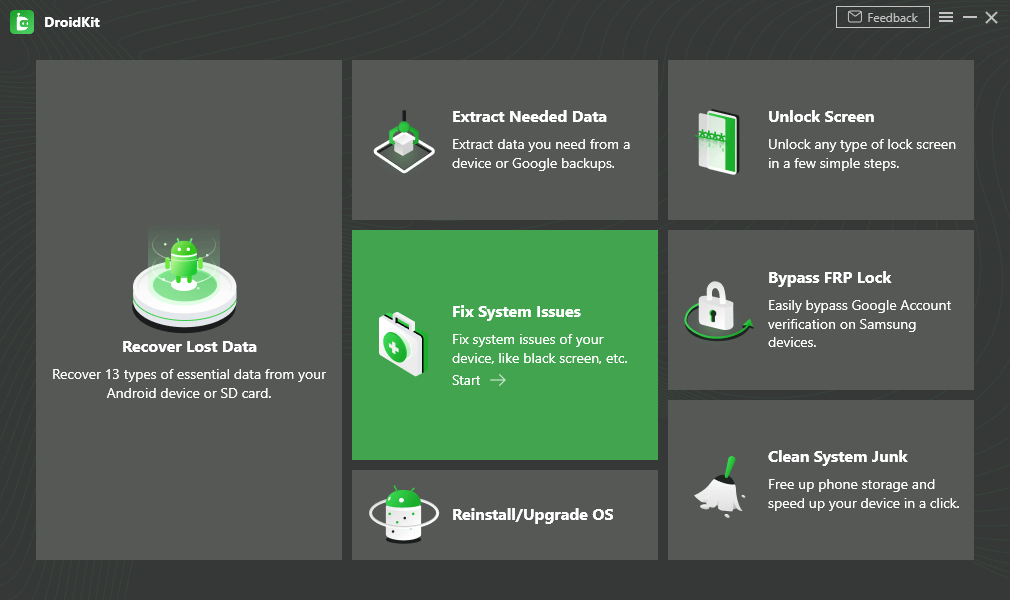
Choose Fix System Issues
Step 2. Click Start to begin the process.
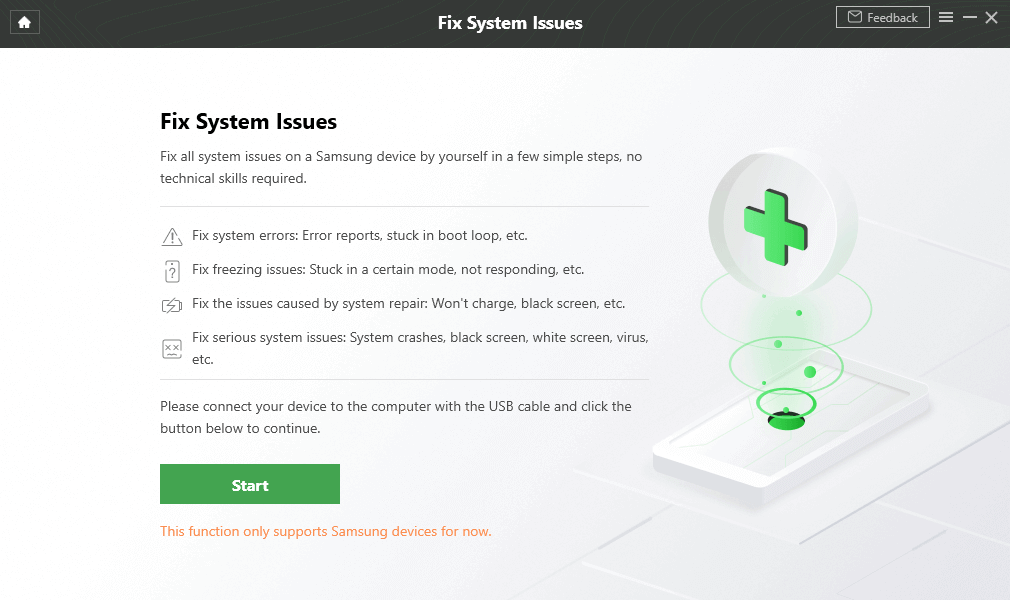
Click Start
Step 3. Get the matching code for your device and tap Download Now to install the required firmware. Once the firmware downloads, click Fix Now.
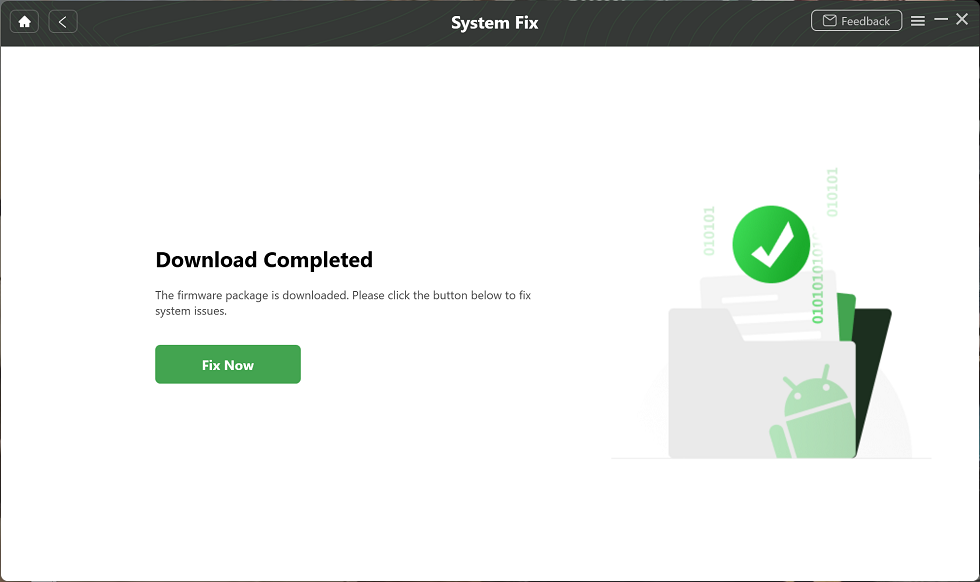
Complete the Firmware Download
Step 4. Follow the on-screen instructions to enter Download Mode, then tap Next.
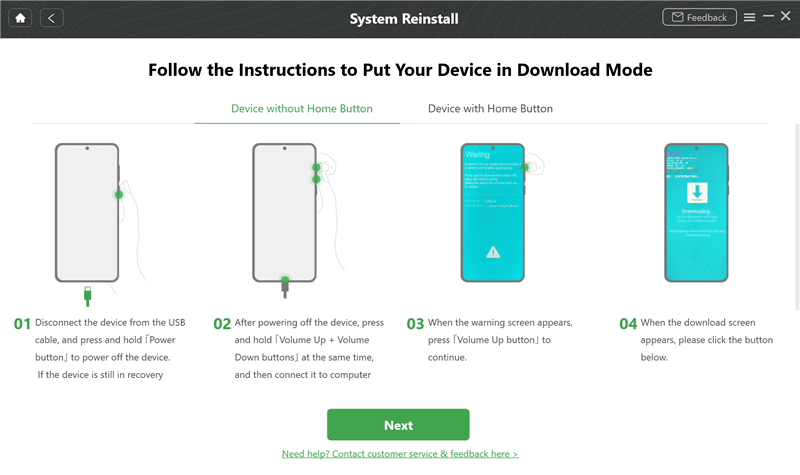
Put the Device in Download Mode
Step 5. DroidKit will now repair your device. Wait a few minutes, and you’ll see a confirmation screen when the process is complete.
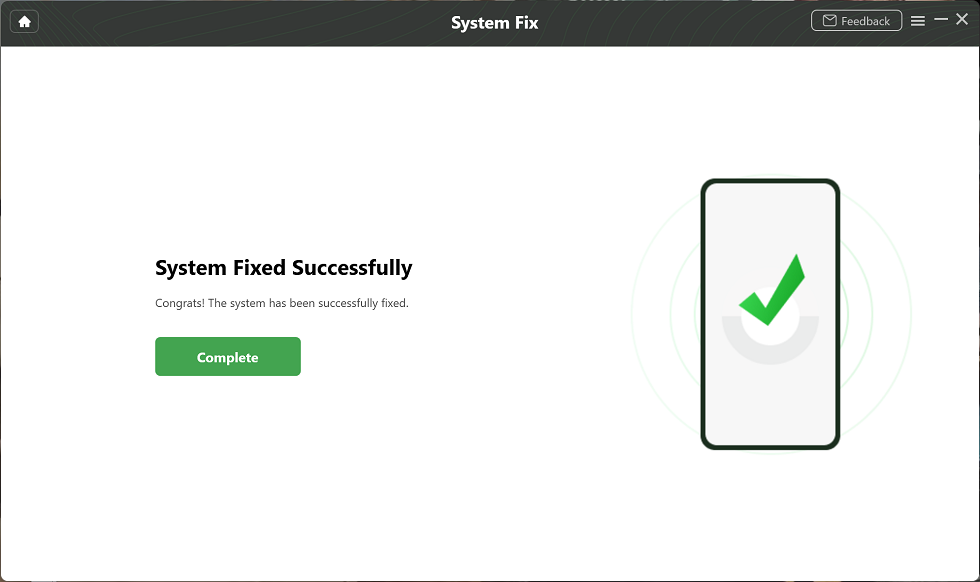
System Fixed Successfully
Way 7. Factory Reset Your Device – Less Recommended
Once all the other solutions go down, a factory reset might fix the “Unfortunately, android.process.media has stopped” error by restoring your device to its default. This, however, will wipe the slate clean of all of your data, such as apps, settings, and personal files. Be sure to create backups of anything important before you proceed.
Steps to factory reset your device:
Step 1. Open Settings and go to System > Reset options.
Step 2. Tap on Erase all data (factory reset), and look through the warning.
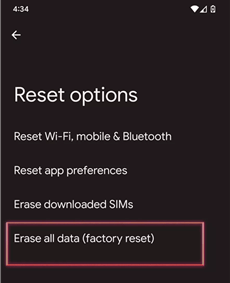
Click on Erase All Data
Step 3. Confirm your choice and enter your PIN or password, if prompted.
Step 4. Your device will restart and will initiate the reset process. Wait for it to finish.
Step 5. Once done, follow the on-screen steps to set up your device.
Step 6. Restore any of your backed-up data, if necessary.
FAQs about Unfortunately Android.Process.Media Has Stopped
Q1: Why Is My Media Not Working on My Phone?
If your media is not working on your phone, try to clear the cache or check the Google Play Store for updates. For a quick fix, you can use DroidKit to resolve system-related media errors.
Q2: How Do I Find Hidden Media on Android?
To find hidden media on Android, just launch the File Manager > Choose Settings from the Menu > Switch on “Show Hidden Files” in the Advanced menu.
Conclusion
This guide covers 7 easy solutions for the “Unfortunately, android.process.media has stopped” issue. Among them, the safest and most effective fix is DroidKit – Android System Repair. It quickly resolves system issues without data loss, requires no technical skills, and works on all Android devices. Free download DroidKit to restore your phone’s performance in minutes!
Free Download * 100% Clean & Safe
More Related Articles



Senior writer of the iMobie team as well as an Apple fan, love to help more users solve various types of iOS & Android-related issues.
Product-related questions? Contact Our Support Team to Get Quick Solution >
