What Is Huawei Recovery Mode & How to Enter
Huawei Recovery Mode is a function that allows you to reset, repair, or update your Huawei phone. Read this article to learn how you can enter this mode safely without any mistakes. Plus, we will guide you on how to perform recovery mode on different devices, including phones, Windows, and Mac.
Experiencing startup issues or strange behavior on your Huawei phone? You can use Huawei Recovery Mode to fix problems quickly. This mode allows you to reset and clear out unwanted cache. On top of that, you can use recovery mode to install Android updates safely on your Huawei device. The following guide explains how to access Huawei Recovery Mode across all devices and what to do if you run into any problems.
What Is Huawei Recovery Mode?
Huawei Recovery Mode is a built-in function provided by the company. Basically, it is a separate partition that you can use to do things like resetting the phone, repairing it, or cleaning any stubborn caches.
Key functions include:
- If the device is facing any kind of performance issues, it can clear all of the temporary files in the cache.
- It can automatically install firmware updates and also allow manual updates using official files.
- It can erase all user data and restore the device to its original factory state.
- It also supports a Wifi connection, which comes in clutch for downloading the latest firmware.
Knowing what Huawei recovery mode is, let’s check when we need to use this mode and the possible risks.
When Do We Need to Use Huawei Recovery Mode?
Huawei Recovery Mode is helpful in situations where the device isn’t working properly or system access is limited. Common use cases include:
- Perform a factory reset on Android when locked (data will be erased) in case of a forgotten password.
- If the device is slow or its performance is not stable, it can be used to clear the cache to get rid of all the temporary files.
- Reinstall firmware if an update broke mid-installation.
- Wipe all data securely with a factory reset before selling or giving away the device.
Huawei recovery mode is most likely to perform a factory reset or reboot your system. It can also download the latest system version and recover. So, using recovery mode on Huawei carefully in order not to cause data loss or a system crash.
How to Enter Recovery Mode on Huawei
Although there are multiple ways to boot your Huawei into recovery mode, if you don’t have a computer available, using the phone itself is the best option.
1. On a Huawei Device
Step 1. Access the boot menu by pressing and holding the power button, and shut down your device.
Step 2. Hold the Power and Volume Up buttons until you feel a vibration.
Step 3. If a menu or logo appears, leave the buttons; the device is booted into Recovery Mode.
Step 4: Use the Volume buttons to navigate the recovery menu. Select the Recovery Mode option using the power button.
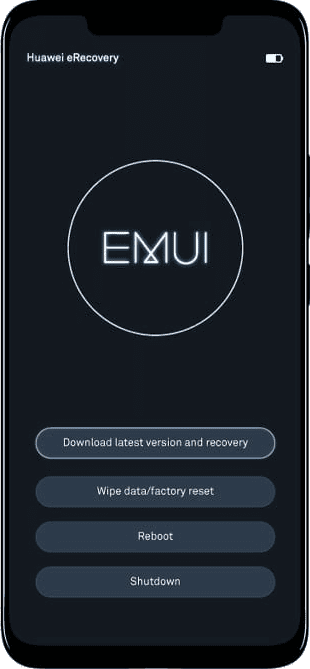
Huawei Recovery Mode
2. On a Windows Computer
Step 1. Download and install Android Debug Bridge on your Windows device.
Step 2. Use a USB cable to connect your Huawei mobile device to your computer.
Step 3. Make sure that USB debugging is enabled on your mobile device.
Step 4. Locate the folder where ADB is installed, and make sure that it contains the required Android SDK platform directory.
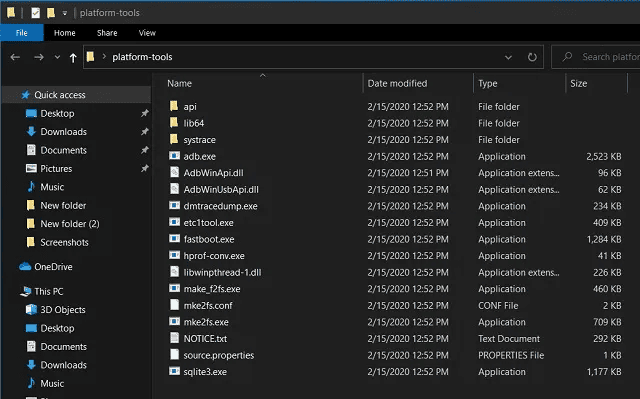
ADB Folder
Step 5. Hold the shift key and right-click inside ADB’s folder to open the Command window or PowerShell. This will open the command line in the ADB’s directory on your computer.
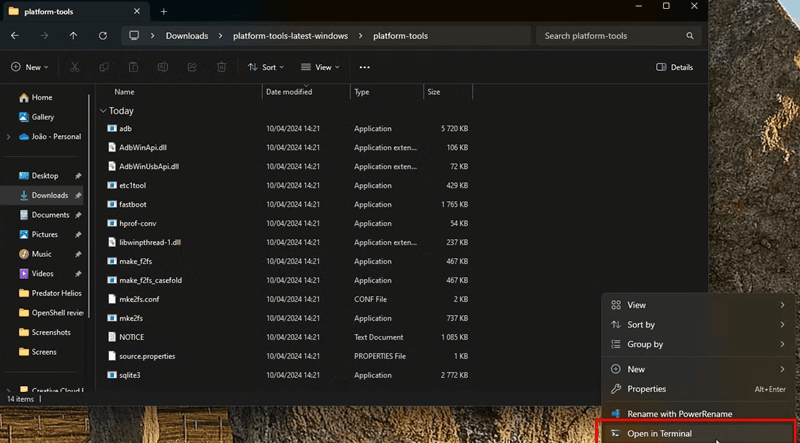
Open Terminal or PowerShell
Step 6. First, make sure your device is properly connected. To confirm, use the command: “adb devices”. A successful connection outputs a string of numbers (as characters) will be displayed to indicate that the device is connected.
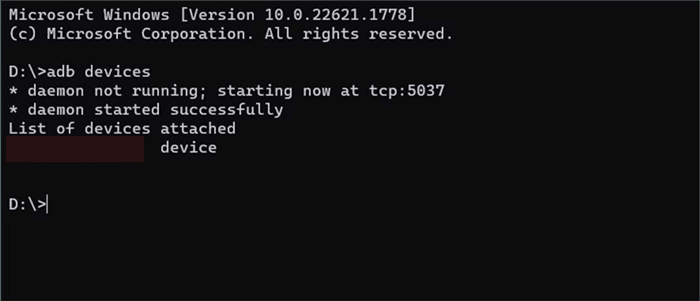
Connect Android to Computer
Step 7. Type the command: “adb reboot recovery”
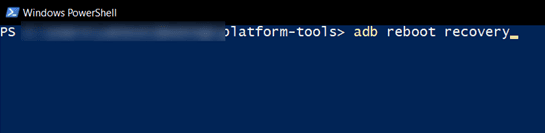
ADB Recovery Mode
Step 8: Pressing enter will initiate the command, resulting in your phone booting into recovery mode.
3. On a Mac Computer
Entering Huawei recovery mode on a Mac computer requires a package manager for macOS. Homebrew is such a tool you can try:
Step 1. Download Homebrew on your system by running the following command in the screenshot:
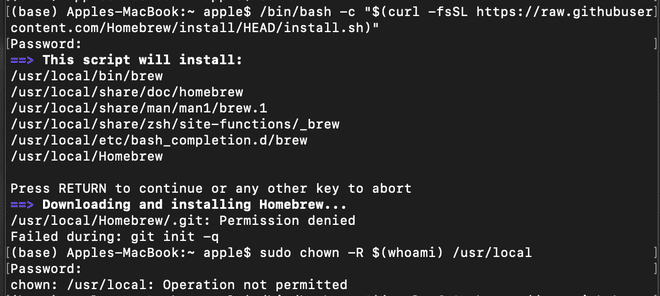
Homebrew Installation
Step 2. Now run the command: “brew install android-platform-tools”.
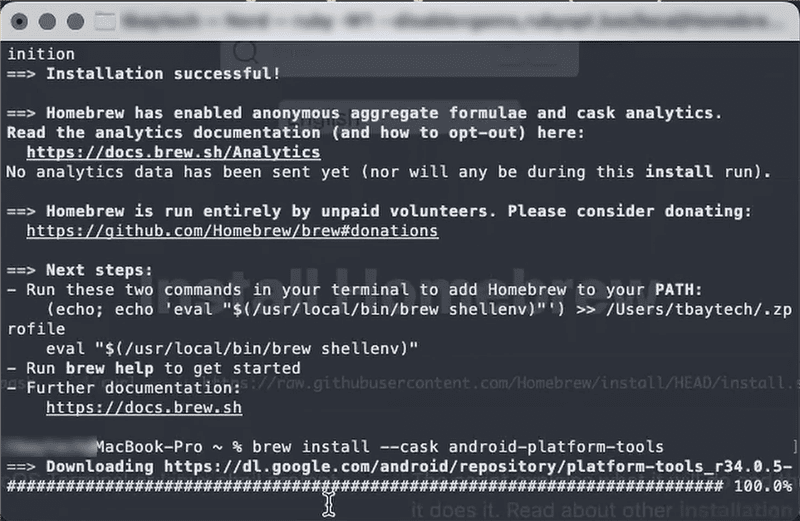
Run Command in Homebrew
Step 3. To verify the installation, type in the command: “adb version”.

Verify Installation in Homebrew
Step 4. Open the settings app on your Huawei device, and under the developer options, enable usb debugging option.
Step 5. To verify that your device is successfully connected, run the command: “adb devices”.
Step 6. Post verification, run the command: “./adb reboot recovery”; the device will boot into Huawei recovery mode.
How to Exit Huawei Recovery Mode
To exit the recovery mode, follow these steps:
Step 1. Make sure you’ve either completed any planned process before you urgently boot into the main system.
Step 2. Use the volume keys to navigate to the “Reboot System now” and select it using the power button. This will restart your phone into Android.
After restarting, your Huawei device is supposed to exit the recovery mode and you can use it normally. You can also check the guide on how to fix Android stuck in recovery mode issues if necessary.
What To Do If Huawei Recovery Mode Is Not Working?
If the buttons are faulty or if the system is facing serious problems, it will be hard time booting into the recovery mode.
If you’re unable to access Recovery Mode, try the following:
- Being the only source of input, faulty buttons can be frustrating. Test them with basic functions before retrying.
- If the buttons aren’t working, connect the device to a computer and use adb boot into enter Recovery Mode. This avoids the hardware route entirely.
- Update USB and ADB drivers: Outdated drivers can block communication between your device and computer. Install the latest USB and ADB drivers before attempting recovery via PC.
- A faulty USB port or cable can prevent Recovery Mode from working through ADB due to a bad communication medium.
That’s how you can troubleshoot when Huawei recovery mode is not working. Try the solutions according to your device’s performance directly.
Bonus Tip. How to Fix Common Android Issues on Computer
Entering recovery mode on Android can be difficult for some users, especially when they encounter a system problem on their devices. In this case, fixing Android problems on a computer can be easier. DroidKit provides a powerful solution for Android phones to fix most system-related problems in a few clicks. Without entering recovery mode manually, it will check and repair the problem directly. Here’s how you can finish Android system repair with DroidKit:
Step 1. DroidKit Download & Install
Download DroidKit and install it on your Windows or Mac computer. It supports most of the systems.
Free Download * 100% Clean & Safe
Step 2. Connect Android to DroidKit
Launch DroidKit after installation. Then choose the Fix System Issues option from the home screen. Use a USB cable to connect your Android device.
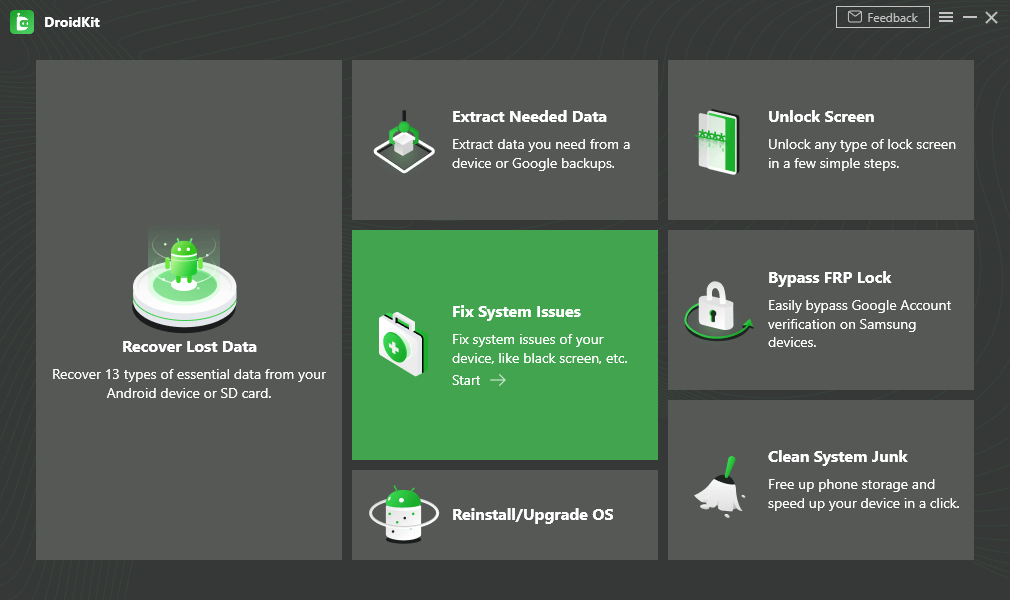
Choose Fix System Issues
Step 3. Finish System Repair Process
Follow the on-screen instructions to confirm device information, download firmware, and complete the repair process.
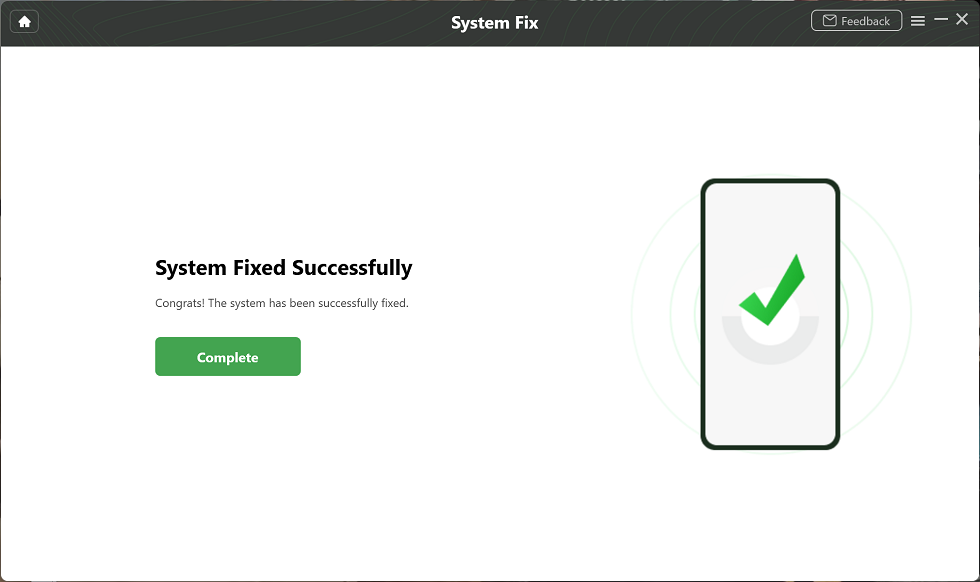
System Fixed Successfully
That’s how you can repair Android system issues with DroidKit. It’s recommended for users who lack Android technology experience and hope to find a quick solution for getting the device back to normal.
Conclusion
To summarize, Huawei Recovery Mode lets you remove lagging issues, reset your phone, and repair it during problems like a brick/dead phone. You can perform recovery on your Huawei phone using the built-in Recovery Mode. Plus, you can also take help from third-party tools to perform the method on your Windows or Mac system. To exit, simply boot the phone to the Huawei Recovery Mode screen, use the side buttons to find the reboot now option.



Jeremy Feron is a writer for iMobie with a deep passion for Android. He specializes in creating clear guides on Android tips and the latest updates, helping users navigate their devices and get the most out of new features.
Product-related questions? Contact Our Support Team to Get Quick Solution >
