Android Multi Tool Download: Version, Safety & Features
Android Multi Tool is a desktop phone-servicing utility for supported flashing, unlocking, factory-reset, FRP, and account-related operations. This guide explains the current version, official download context, requirements, limitations, and safer alternatives.
Quick Answer: The current Android Multi Tool website lists version v1.3.5.7 . It presents the software as a desktop phone-repair utility for supported Flash, Unlock, Factory Reset, Reset FRP, and Mi Account Remove operations. The site also provides a separate MTK and Qualcomm driver download and a login page.
Do not assume that every operation works on every phone. Results depend on the exact brand, model, chipset, firmware, security patch, USB mode, driver, account authorization or license status, and the availability of the required authorization server. Use the software only on a device you own or are authorized to service.
What Is Android Multi Tool?
Android Multi Tool, also called AMT on some pages, is a desktop servicing platform for supported Android phones. The current product website describes functions for flashing, unlocking, factory resetting, resetting FRP, removing Mi Account restrictions, and other brand- or chipset-specific operations.
The website currently names vivo, Xiaomi, Tecno, Infinix, itel, Realme, Karbonn, Samsung, and OPPO among the supported brands. This is a brand-level list, not a guarantee that every model, firmware, or operation is supported.
Current Android Multi Tool vs. Older Numbered-Menu Tools
Older downloads using the similar name “Android Multi Tools” may show a command-line or numbered-menu interface. The current Android Multi Tool website distributes a newer multi-brand servicing platform with a login page, driver download, supported-model pages, and authorization-server status.
Do not assume that an old numbered-menu tutorial, a file labeled V1.2.8, and the current v1.3.5.7 download are interchangeable. Check the interface and version before following any instructions.
Is Android Multi Tool an APK?
No. The current Android Multi Tool is presented as desktop software, not as a standalone Android APK. Avoid unrelated Android packages that use the same name. A genuine phone-servicing workflow normally involves the computer program, the correct drivers, and a USB connection to the supported device.
What Is the Latest Android Multi Tool Version?
The current product homepage lists Android Multi Tool v1.3.5.7 . The page does not display a verified public release date, so the version should be checked again whenever this article is updated.
| Item | Current Information |
|---|---|
| Version listed on the product site | v1.3.5.7 |
| Download type | Desktop software package |
| Driver download | Separate MTK and Qualcomm driver package |
| Account access | The website provides a sign-in page |
| Server information | The homepage displays authorization-server status, which can change |
A higher version number does not guarantee support for every phone. Use the supported-model information and the current server status to judge the exact operation.
Where to Download Android Multi Tool
The Android Multi Tool product website currently provides a link for v1.3.5.7 and a separate MTK and Qualcomm driver download . It also links to supported models, distributors or resellers, and account login.
Before downloading:
- Confirm that the page still lists the same current version.
- Avoid search ads, shortened links, and archives reuploaded by unrelated websites.
- Scan the software package and driver archive before opening them.
- Review the installer publisher, included files, and requested permissions.
- Do not enter account or payment details on a domain that merely copies the product name.
The existence of a product website does not independently prove that every downloaded file is safe or compatible. Verify the source and the exact operation before connecting a phone.
Is Android Multi Tool Free?
The public product page provides a software download, but it does not clearly publish a complete list of free operations, activation prices, or license duration. The site also includes login and distributor or reseller pages, which indicates that some operations or account services may require authorization or paid access.
Mark the exact price, activation requirement, and license terms as needs human review before publishing any claim that Android Multi Tool is completely free.
Android Multi Tool Features and Limits
| Function Listed by the Product Site | What It Means | Important Limit |
|---|---|---|
| Flash | Install or repair supported device firmware | The correct model, region, chipset, and firmware package are essential |
| Unlock | Run supported lock-related servicing operations | Support varies by device and operation; data may be erased |
| Factory Reset | Return a supported phone to factory settings | This normally erases user data |
| Reset FRP | Run supported Factory Reset Protection servicing | Requires lawful ownership or service authorization and device-specific support |
| Mi Account Remove | Run supported Xiaomi account-related servicing | Availability can depend on model, authorization, licensing, and server status |
The homepage also displays authorization-server status for different brands and operations. A feature can appear in the software but remain unavailable when the required server is offline.
Requirements and Compatibility
| Requirement | What to Check |
|---|---|
| Computer | A compatible Windows service environment. The exact supported Windows versions need human review. |
| Drivers | Install the correct MTK, Qualcomm, or brand-specific driver for the connected device. |
| USB connection | Use a stable data cable and a working USB port, not a charge-only cable. |
| Brand, model, and chipset | Check the exact phone and chipset instead of relying only on the brand name. |
| Firmware and security patch | New firmware or security updates can close an older servicing path. |
| Device mode | The selected function may require ADB, Fastboot, Recovery, EDL, BROM, Download Mode, or another service mode. |
| Account and authorization | Some operations may require login, an active license, or an online authorization server. |
| Data backup | Factory-reset and many lock-removal operations can erase data. Back up accessible files before proceeding. |
For chipset-specific background, see the guides to MTK auth bypass tools and Qualcomm FRP tools . Samsung users can also compare dedicated Samsung FRP tools .
How to Use Android Multi Tool
The exact workflow varies by device and function. Do not use an old numbered-menu tutorial as a universal guide for the current version.
Step 1. Open the current Android Multi Tool product site and confirm the version shown on the download page.
Step 2. Download the software and the required MTK, Qualcomm, or device-specific drivers. Scan both packages before installation.
Step 3. Sign in when required and check the supported-model information, account or authorization status, and the relevant server status.
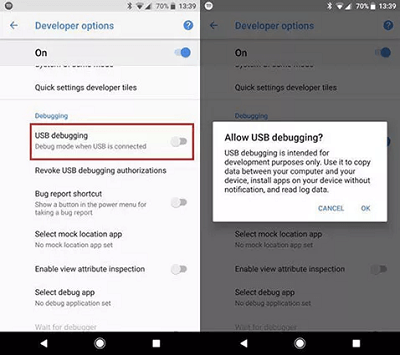
USB debugging may be required for some operations, but it cannot always be enabled on a locked phone.
Step 4. Connect the phone with a data-capable USB cable and place it in the exact mode required by the selected operation.
Step 5. Select the correct brand, model, chipset, firmware, and function. Read the data-loss warning before confirming a factory reset, lock removal, or FRP operation.
Step 6. Follow the current on-screen instructions and keep the phone connected until the software reports a clear result.
If the interface does not match the current version, stop and verify the installer instead of guessing which older menu option to use.

Example of an older numbered-menu interface. Do not assume it matches the current v1.3.5.7 software.
Why Android Multi Tool Does Not Work
| Problem | Likely Cause | What to Check |
|---|---|---|
| The phone is not detected | Driver, cable, USB port, or device-mode problem | Install the correct driver, use a data cable, and confirm the required mode |
| Login fails | Account, password, activation, or service issue | Use the official login page and check account or reseller support |
| The selected function is unavailable | Unsupported device, missing authorization, inactive license, or offline server | Check supported models, account status, and current server status |
| The operation stops after connecting | Wrong chipset, firmware, security patch, or communication mode | Confirm the exact model and chipset before retrying |
| A tutorial shows a different interface | The guide uses an older Android Multi Tools package or outdated AMT version | Match the tutorial to the installed version before following it |
| The phone restarts but remains locked | The operation did not support the device or did not complete correctly | Do not repeat unrelated functions; review ownership recovery and supported alternatives |
What If Android Multi Tool Does Not Support Your Phone?
For a forgotten screen lock, first check the device maker's official recovery options and any available backup. For Factory Reset Protection, use a Google Account previously synced to the phone, account recovery, previous-owner assistance, or manufacturer support with proof of purchase.
For a broader comparison, review current Android phone unlocking software instead of downloading another unverified archive.
Android Multi Tool vs. DroidKit
| Item | Android Multi Tool | DroidKit |
|---|---|---|
| Main use | Multi-brand servicing operations that vary by model, chipset, authorization, and server | Guided Android screen-unlock and FRP workflows for supported devices |
| Setup | May require drivers, login, licensing, device modes, and server authorization | Windows and Mac application with guided steps |
| Data impact | Depends on the operation; factory reset and many lock-removal actions erase data | Screen-lock removal erases data in most cases, except some older Samsung models |
| Best fit | Users or technicians who can verify chipset, mode, server, and operation requirements | Users who prefer a guided workflow and whose exact device is supported |
If Android Multi Tool does not support the required operation, check whether DroidKit supports your exact phone model and Android version . Review the compatibility and data-erasure information before proceeding.
FAQs about Android Multi Tool
What is the latest version of Android Multi Tool?
The Android Multi Tool product homepage currently lists v1.3.5.7. Because the download can change, confirm the version on the product site before installing it.
Where can I download Android Multi Tool?
The current product website provides the software download, a separate MTK and Qualcomm driver download, supported-model information, login, and reseller links. Avoid unrelated mirrors and repackaged archives.
Is Android Multi Tool free?
The website provides a downloadable installer, but complete pricing, activation requirements, license duration, and the list of free operations are not clearly published on the public homepage. Those details need human review before describing the tool as completely free.
Is Android Multi Tool the same as older Android Multi Tools software?
Not necessarily. Older packages with a similar name may use a numbered command-line menu, while the current product website shows a newer multi-brand servicing platform with login, drivers, supported models, and authorization-server status.
Is Android Multi Tool an APK?
No. The current product is presented as desktop servicing software. Avoid random Android packages that use the same name without a verified connection to the product site.
Does Android Multi Tool work on every Android phone?
No. Support depends on the brand, exact model, chipset, firmware, security patch, required device mode, selected operation, account authorization or licensing, and server status.
Will Android Multi Tool erase phone data?
It depends on the operation. Factory Reset erases user data, and many screen-lock or account-related servicing operations can also cause data loss. Review the selected function and back up accessible data first.
Why does Android Multi Tool fail to detect my phone?
The common causes are an incorrect driver, charge-only cable, unstable USB port, wrong device mode, unsupported chipset, or incompatible firmware. Confirm the exact connection requirements for the selected operation.
Sources Checked
- Android Multi Tool product website — current version, product functions, supported brands, driver link, and server-status information.
- Android Multi Tool login page — account sign-in requirement.
- Google Android Help — device protection and ownership verification after a factory reset.
- DroidKit screen-unlock page — supported workflow and data-erasure notice.
Conclusion
Android Multi Tool is an actively distributed multi-brand servicing platform, but it should not be treated as a universal, fully free, or risk-free unlock program. The current product site lists v1.3.5.7, separate MTK and Qualcomm drivers, login, supported models, and authorization-server status.
Before running an operation, verify the exact phone, chipset, firmware, security patch, device mode, account or license status, server availability, and data-loss risk. Avoid mixing current AMT instructions with older numbered-menu tutorials or unverified downloads.
More Related Articles



Senior writer of the iMobie team as well as an Apple fan, love to help more users solve various types of iOS & Android-related issues.
Product-related questions? Contact Our Support Team to Get Quick Solution >
